Workspaces on mobile
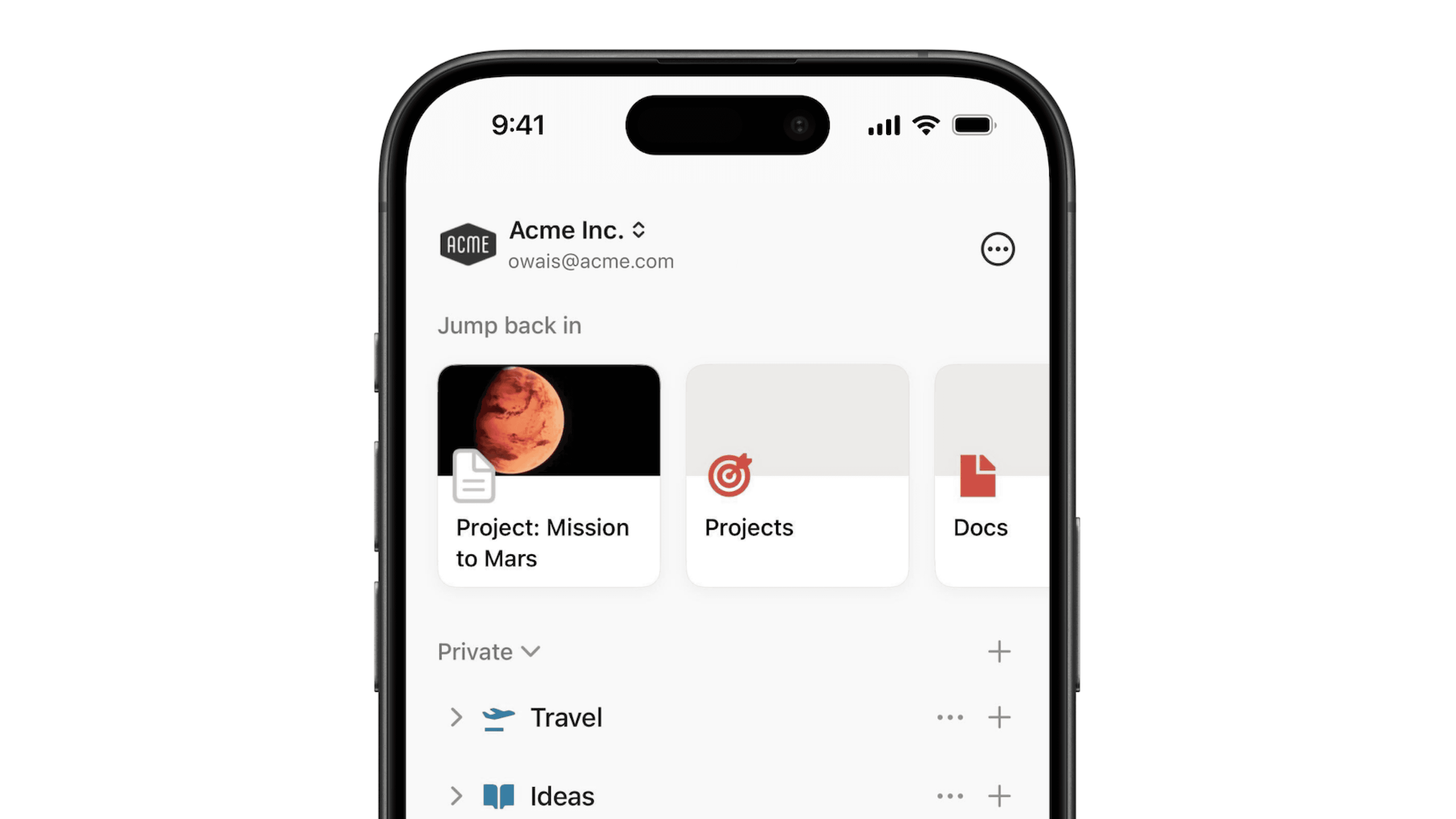
Here's a quick tour of how Notion workspaces look and operate on your phone or tablet 📱
Gå till vanliga frågorAt the bottom of Notion for mobile, you'll see a navigation bar that is always present.
Tap
🏠on the bottom of any page to see familiar sections likeShared,Private,Favoritesthat match the desktop experience.Tap
🔍to search your workspace.Tap
📥to check yourInbox.Tap
📝to create a new page.
If you are part of a multi-member workspace, you'll see a section in the 🏠 tab of your mobile app called Teamspaces.
Teamspaces are a dedicated area for every team within your organization or company, and can be customized on an individual basis. Learn more about teamspaces →
Tap on the toggle next to any page in the 🏠 tab of your mobile app to reveal pages nested in other pages.
For database pages, you can toggle to see the different views of that database.
Tap on your current workspace's name at the top of your 🏠 tab to switch to another workspace you belong to, create a new one, join another one, or log out.
Editor tools
While in a page, a toolbar appears above your keyboard. It contains all the options you need to add content to your page.
Tap the
+to see a full menu of other content block types you can add to your page. This replaces the/command functionality on desktop.From this toolbar, you can also @-mention a person or page, add a comment, insert an image, delete content, indent, select text color and highlight, and delete and duplicate a content block. Scroll horizontally to see all these options.
••• menu
The ••• menu contains additional options, including but not limited to:
Choose from three different typography choices to format your page.
Customize page: Toggle the visibility of backlink and page comment sections.Lock page: Turn this on to prevent edits from being made.Lock views:Turn this on to prevent others from changing properties and views.
Page history: View past versions of the page going back seven days (extended for paid plans).Export: Download the page as a file. Databases get saved as CSV files, while non-database pages get saved in Markdown. You can also export either as PDF or HTML.Move to: This opens up a menu where you can choose any other workspace or page to move the current page into.
Share menu
Tap the share icon (square with upward arrow) to open this menu. From there, you can share the current page with others in a number of ways:
Share page link: Tap this button at the top to open your mobile device's share sheet. You can copy the page link or directly share the URL.Share to web: Turn this on to publish your page to the web so anyone with the link can see it. Tap the dropdown menu that saysShow link optionsfor more control over permissions, duplication, and search engine indexing.Add people, groups, or emails: Tap this to invite other Notion users to the page.Everyone: Turn this on to give every member in your workspace the ability to see the page. Tap the dropdown menu to the right and choose fromFull access,Can edit,Can comment,Can vieworNo accessto assign a level of access for people in your workspace.Groups: You may also see groups that have been created in your workspace that you can assign different access levels to.Guests: You can also add users outside of your workspace directly via email. They'll join as a guest.
Notifications
Many more Notion settings are available on desktop. We've slimmed these down for mobile to include only:
Notifications options for email and mobile push.
The option to set, change, and remove a permanent password.
The option to change your app appearance.
The option to start calendar weeks on Monday instead of Sunday.
Rage Shake
Rage Shake is a feature on Notion mobile (for Android) that allows users to report app issues by shaking their phone, triggering a notification to report a problem. To enable:
Click on
•••→Help & SupportandSend a message.Toggle on
Shake phone to report.
Trash
Tap to see deleted pages split into two categories: all deleted pages, and sub-pages deleted off the current page you're looking at.
Tap the trash icon to delete a page forever.
Tap the arced arrow icon to restore a page to your workspace.
Vanliga frågor
Can I switch between workspaces that are associated with different email addresses?
Can I switch between workspaces that are associated with different email addresses?
To add your workspaces from another email account, use the Add another account button in the workspace switcher at the top left of your Notion window, and follow the steps to login to your other account. More on this here →
Det finns inga avsnitt i mitt sidofält. Hur aktiverar jag dem?
Det finns inga avsnitt i mitt sidofält. Hur aktiverar jag dem?
Avsnitten i sidofältet återspeglar kontots delningsinställningar. Om det finns fler än en person i din arbetsyta visas avsnittet Arbetsyta i sidofältet så att du kan samarbeta med den personen och avsnittet Privat visas så att du kan se dina personliga sidor. Du kan även aktivera de här avsnitten manuellt genom att klicka på Dela längst upp till höger på alla sidor och sedan aktivera växlingsknappen Åtkomst till arbetsytan.
Omfattas alla mina arbetsytor när jag prenumererar på ett Plus-abonnemang?
Omfattas alla mina arbetsytor när jag prenumererar på ett Plus-abonnemang?
Betalda abonnemang gäller endast för en arbetsyta och omfattar inte hela kontot. Arbetsytorna är helt separata, så det går inte att koppla innehåll mellan dem.
Vi rekommenderar att du använder så få arbetsytor som möjligt och organiserar sidor genom att lägga till sidor på den översta nivån i sidofältet.
Hur migrerar jag allt mitt Notion-innehåll till en annan arbetsyta?
Hur migrerar jag allt mitt Notion-innehåll till en annan arbetsyta?
Obs: Allt migrerat innehåll kommer att kopieras till den nya arbetsytan och dessa sidor har problem ibland. Klicka här för mer information.
Om du vill flytta ditt innehåll från en arbetsyta till en annan arbetsyta som är kopplad till samma konto klickar du på ••• bredvid sidorna på den högsta nivån i sidofältet (du kan även högerklicka) och väljer Flytta till. Du ser då alternativet att flytta dem till en annan arbetsyta.
När du flyttar sidor på den högsta nivån följer alla undersidor med. De visas i avsnittet Privat, men de kan flyttas till vilken plats som helst.
Vad händer om jag råkar radera något permanent av misstag? Finns det något sätt att återställa sådant som raderats permanent?
Vad händer om jag råkar radera något permanent av misstag? Finns det något sätt att återställa sådant som raderats permanent?
Vi kan hjälpa dig om du råkar radera en sida, en arbetsyta eller till och med ett helt konto! Olyckor händer! 😅 Du kan skicka ett meddelande till oss i appen genom att klicka på ? längst ner till vänster om du använder skrivbordsappen (eller i sidofältet i mobilappen). Du kan även skicka e-post till oss på [email protected].
Vi sparar säkerhetskopior av vår databas, så vi kan återställa en ögonblicksbild av ditt innehåll från de senaste 30 dagarna om du behöver det.
Hur loggar jag ut från mitt Notion-konto?
Hur loggar jag ut från mitt Notion-konto?
Klicka på den aktuella arbetsytans namn längst upp till vänster i sidofältet. Bläddra så långt ner du kan så ser du alternativet för att Logga ut bredvid din e-postadress.
I mobilappen trycker du på ikonen ☰ längst upp till vänster och sedan på arbetsyteväxlaren längst upp i menyn. Tryck på Logga ut längst ner.