Länkar och bakåtlänkar
Hoppsan! Det verkar som om din annonsblockerare hindrar videon från att spelas upp.
Titta på den på YouTube

Notion gör det enkelt att länka till alla typer av innehåll i och utanför din arbetsyta.
Gå till vanliga frågorInbyggd i ett stycke
Det finns några sätt att länka till en annan Notion-sida inuti ett stycke:
@-omnämnande: Skriv
@och börja sedan skriva namnet på sidan du vill länka till. Hitta och välj den i menyn som visas.[[ kommando: Skriv
[[och börja sedan skriva namnet på sidan du vill länka till. Hitta och välj den i menyn som visas.+ kommando: Skriv
+och börja sedan skriva namnet på sidan du vill länka till. Hitta och välj den i menyn som visas.
Som ett block
Du kan infoga en länk på en Notion-sida som ett block så att du enkelt kan placera den var du vill på sidan. Gör så här:
På en sida, skriv snedstreckskommando
/link. Alternativt kan du klicka på+som visas när du hovrar till vänster om ett block, och väljaLänk till sidafrån rullistan.Börja skriva namnet på sidan du vill länka till. Hitta och välj den i menyn som visas.
För att flytta blocket, klicka på
⋮⋮till vänster om det och dra det till önskad plats på sidan.

Obs: När du lägger till ett Länk till sida-block kommer den länkade sidan att visas i sidofältet under sidan där du infogade länken, precis som vilken annan undersida som helst.
Alla block i Notion har en egen ankarlänk som kan kopieras och delas. Det här är perfekt för att rikta någons uppmärksamhet mot ett specifikt avsnitt på en lång Notion-sida! För att länka till ett specifikt block:
Hovra över blocket och klicka på
⋮⋮som visas till vänster.Välj
Kopiera länk till block. Detta kopierar blockets webbadress till urklipp.Klistra in webbadressen var som helst — på en Notion-sida, i ett Slack-meddelande, i ett e-postmeddelande med mera.
När du klistrar in en webbadress i Notion kan det skapa en kompakt och lättläst länknämning som gör att din sida ser snygg och prydlig ut. Du kan till och med hovra över länken för att se en snabb förhandsgranskning. För att använda en länknämning på din sida:
Klistra in webbadressen.
I menyn som visas väljer du
Klistra in som omnämnande.Webbsidan kommer att visas med en ikon, källan och sidtiteln.
Obs!
Länknämningar fungerar bäst med offentliga webbsidor. Alla länkar som kräver vissa behörigheter eller autentisering för att visas kommer inte att klistras in i Notion med någon rik information.
Om din webbläsare har blockerat cookies kanske länknämningar inte renderas korrekt.

När du länkar till något inuti en app som integreras med Notion kan Notion generera en förhandsgranskning för den! Lär dig vilka plattformar som stöds här →
Bakåtlänkar visar alla sidor som länkar till sidan du befinner dig på just nu. Du kan använda dessa för att navigera i din arbetsyta.
Bakåtlänkar skapas automatiskt varje gång du @-omnämnar en sida. För att se en sidas bakåtlänkar väljer du {#} bakåtlänkar under dess titel, eller dess egenskaper om det är en databassida.
Du kommer bara att kunna se bakåtlänkar för sidor som du har åtkomst till. Andra personer kommer inte att se bakåtlänkar till dina privata sidor. Bakåtlänkar till sidor som endast är synliga för dig kommer att märkas som Privat.
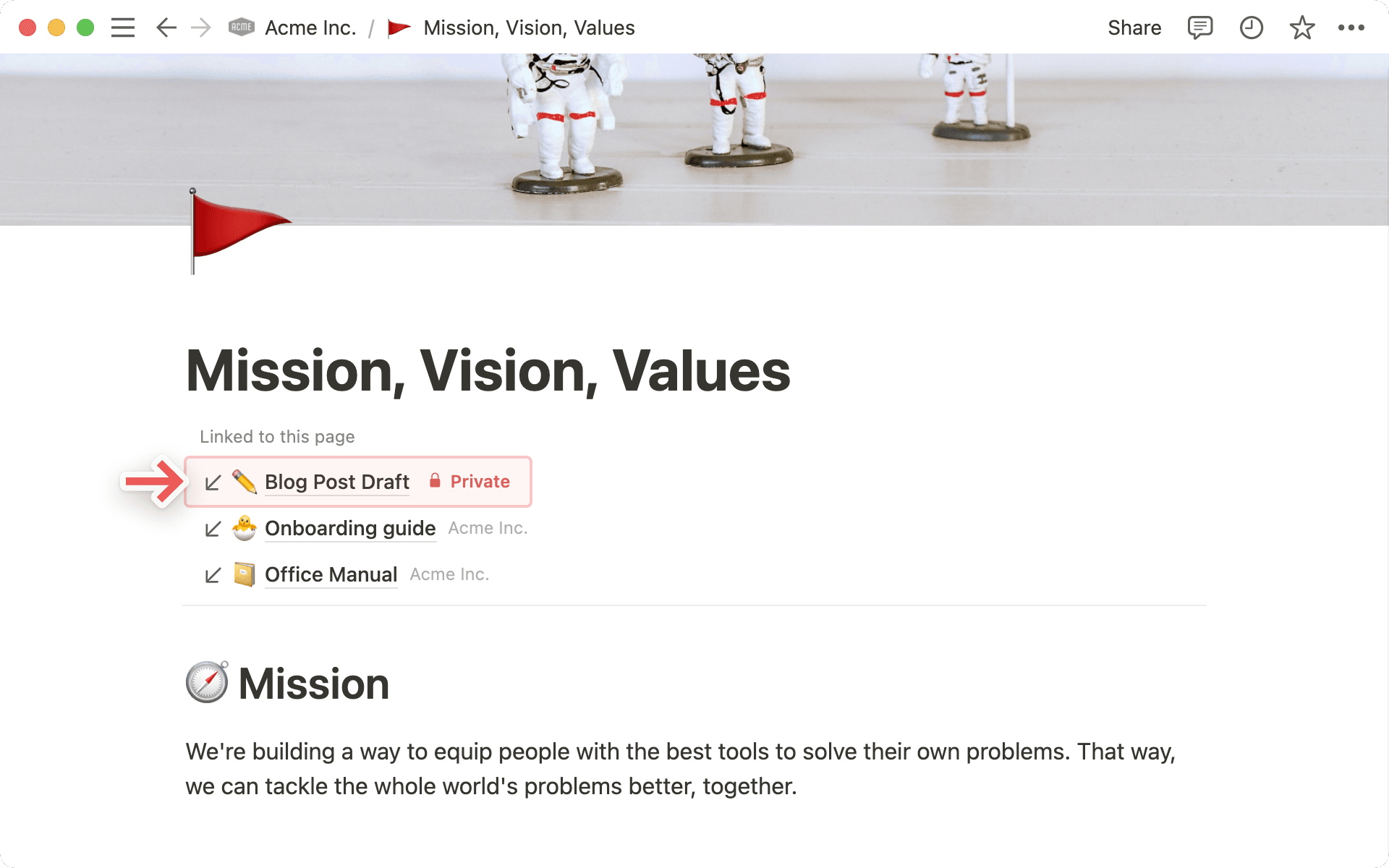
Bakåtlänkar visas automatiskt ovanför sidtiteln och syns vid hovring när en sida har dem. Om en sida saknar bakåtlänkar, eller om behörigheten för bakåtlänkar är inställd på privat, visas ingenting. Du kan inte använda bakåtlänkar för att öppna sidor som du inte har åtkomst till.
Vanliga frågor
Hur öppnar jag automatiskt länkar till Notion-sidor i skrivbordsappen?
Hur öppnar jag automatiskt länkar till Notion-sidor i skrivbordsappen?
Om du vill att alla länkar till en Notion-sida ska öppnas i din skrivbordsappen:
Öppna Notion i din webbläsare.
Gå till
Inställningar→Preferenser.Växla på
Öppna länkar i skrivbordsappen.
Du måste redan ha skrivbordsappen installerad. Du behöver även gå till Notion i din skrivbordsapp och se till att Öppna Notion-länkar i webbläsaren är avstängt i dina inställningar.
Vad är skillnaden mellan att @-omnämna en sida och att lägga till ett 'Länk till sida'-block?
Vad är skillnaden mellan att @-omnämna en sida och att lägga till ett 'Länk till sida'-block?
Länk till sida fungerar ungefär som att skapa en undersida. När du refererar till en Notion-sida på detta sätt visas den i sidofältet som en undersida till sidan där den länkades.
Att @-omnämna en sida skapar något som liknar en hyperlänk. Sidor som du @-omnämner visas inte som undersidor till de sidor de har omnämnts i.