Databaseautomatisering
Hov! Det ser ud til, at din reklameblokker forhindrer videoen i at blive afspillet.
Se den på YouTube i stedet

Opnå bedre effektivitet ved at automatisere de mest kedelige dele af dit arbejde 🔁
Gå til Ofte stillede spørgsmålDatabase automations are sequences of actions that happen any time a specific change to a database occurs. Automations consist of both triggers (the events that initiate the automation) and actions (the effect of the automation). Database automations are meant to help save you time and simplify your work, and can be very basic or more complex depending on your needs.
Databaseautomatiseringer kan bruges til mange ting, herunder:
Tildeling af en opgave til en specifik person, når dens status ændres.
Sending a Slack notification to a channel when a page is added to a database.

Bemærk:
Databaseautomatiseringer er fuldt tilgængelige for kunder med betalte abonnementer. Brugere af gratis abonnementer vil kunne oprette automatiseringer af Slack-meddelelser og bruge, men ikke redigere, automatiseringer, der allerede er inkluderet i skabeloner.
Databaseautomatiseringer kan oprettes, redigeres eller slettes af alle med fuld adgang. Slack-automatiseringer er den eneste undtagelse. Disse kan kun redigeres af automatiseringsskaberen.
Hvis din automatisering er rettet mod en anden database, skal du mindst have
Kan redigere-tilladelser til denne database. Med andre ord kan de automatiseringer, du konfigurerer, kun redigere indhold, som du allerede har tilladelse til at redigere manuelt.
Database automations are available on paid plans on all platforms.
Database automations can be created, edited, or deleted by paid plan users who have full access to the database.
However, Slack automations can only be edited by the automation creator.
Free Plan users can create Slack notification automations, but no other kinds of automations.
Free Plan users can use existing automations in templates, but they won't be able to edit them.
To create a database automation:
Click
⚡at the top of a database →New automation.Give your database automation a name if you’d like.
Select
New triggerto create a trigger. Then selectAdd triggerto create more triggers. Learn more about the types of triggers below →Select
New actionto create an action. Then selectAdd actionto create more actions. Learn more about the types of actions below →Select
Create.

Vidste du, at du også kan tilføje en knapegenskab til din database? Ved blot at klikke på en knap kan der foretages handlinger på din database på dine vegne. Lær mere her →
Automations can have one trigger or multiple triggers. When you set up an automation, you can decide whether the automation will take place When any of these occur or When all of these occur.
Note: If you have multiple is edited triggers that must all occur for your automation to take place, those triggers need to happen within a small window of about three seconds. If they don’t, your automation may not be triggered properly. To avoid this, you can:
Create separate automations for each trigger.
Use a more specific trigger than
is edited, likeis set toorcontains.
You can choose from three types of triggers:
Page addedmeans your automation will be triggered when a new page is added to your database.Property editedmeans your automation will be triggered when a specific property from your database is edited. For name, person, number, text, select, and relation properties, you can choose what kinds of edits made to that property will trigger an automation. For example, you might have a list of contacts in a Notion database and set up an automation where the trigger is a phone number starting with the numbers 732, and the action is that person’s state being set to New Jersey.Every {frequency}means your automation will be recurring. The trigger will happen repeatedly based on the frequency you set. You can set your automation to repeat every day, week, month, and so on. You can also set a time that the automation will be triggered, the date that the automation trigger will begin and end, and the timezone.Note: The
Every {frequency}trigger works with all automation actions except forEdit property.
You can have more than one condition for your trigger so that two or more things must be true for the automation to occur. Note that a recurring trigger (like one that you set to repeat every week, month, etc.) can’t be paired with another type of trigger.
Note: If you’d like your automation to add or edit pages and databases, make sure that you have permission to edit those pages and databases. Additionally, make sure edited pages are available are not Private or Shared. Otherwise, your automation won’t work.
Automations can take one action or multiple actions. You can choose from a variety of actions:
Edit propertywill edit the properties of pages in the database you are currently in. For multi-select, people, and relation properties, you can add or remove individual values instead of adding or removing all values at once. For example, you might have a task database where if the task name contains the word “blog”, your name is added to the people property, even if there are other people already assigned to that task.Tilføj side tiltilføjer en side til en database efter eget valg og redigerer egenskaberne for den pågældende side.Rediger sider ivil redigere sider og egenskaber i en database efter eget valg.Send notifikation tilsender en notifikation til specifikke personer i dit Notion-arbejdsområde. Din modtager kan være op til 20 personer i dit arbejdsområde eller personer, der er knyttet til en bestemt Person-egenskab i din database. Tilføj en meddelelse, som skal følge med notifikationen.Send mail towill send an email from your Gmail account to one or more recipients. Learn more about this below.Send webhookwill send an HTTP POST requests to the specified URL. Learn more in this article →Send Slack notification towill send a notification to the Slack channel you want. Learn more about Notion's Slack integration here →Define variableswill allow you to create a custom variable using mentions and formulas. You can then use this variable in other database automation actions. Learn more about this below.

Get more inspiration for using database workflows in this guide →
Send mail to
Note:
You need a Gmail account to use this automation.
Once someone has linked their Gmail account to an automation, only they will be able to edit the automation. Others will only be able to use the automation.
Emails sent using this automation may take up to two minutes to arrive in your recipient’s inbox.
Be mindful of Gmail’s limits for how many recipients a message can have, or how many emails you can send in a day.
The Send mail to action for a database automation will send an email from your Gmail account to one or more email addresses when a trigger occurs. This is helpful if you want to send an email to someone to remind them to complete their past-due task, or to update your team on the status of all of your open projects.
To set up an automation to send an email:
Click
⚡at the top of a database, then selectNew automationor an existing automation.Select
New actionorAdd action→Send mail to….If your Notion account is already tied to a Gmail account, you’ll see your email address next to
Send mail from. If you want to use another Gmail account for this automation, click on your email address →Add Gmail Account.You can set up various parts of your email:
To: This could be a person property (likeWhoever triggeredorPage creator), a person in your workspace, or a specific email address. This email address can be external — it doesn’t have to belong to someone in your workspace or your organization.Select
CC/BCCnext to theTofield to optionally CC or BCC other people.
Subject: Enter a subject for your email. Select@in theSubjectfield if you want your subject to contain a property from your trigger page, a time or date, a person or group in your workspace, or a link to a page in your workspace. Select∑in theSubjectfield if you want to create a formula for your subject.Message: Enter a message for your email. Select@in theMessagefield if you want your message to contain a property from your trigger page, a time or date, a person or group in your workspace, or a link to a page in your workspace. Select∑in theMessagefield if you want to create a formula for your message.Send with display name: This optional display name will appear next to your email when your recipient receives it. Select@in the display name field if you want your display name to contain a property from your trigger page, a time or date, a person or group in your workspace, or a link to a page in your workspace. Select∑in the display name field if you want to create a formula for your display name.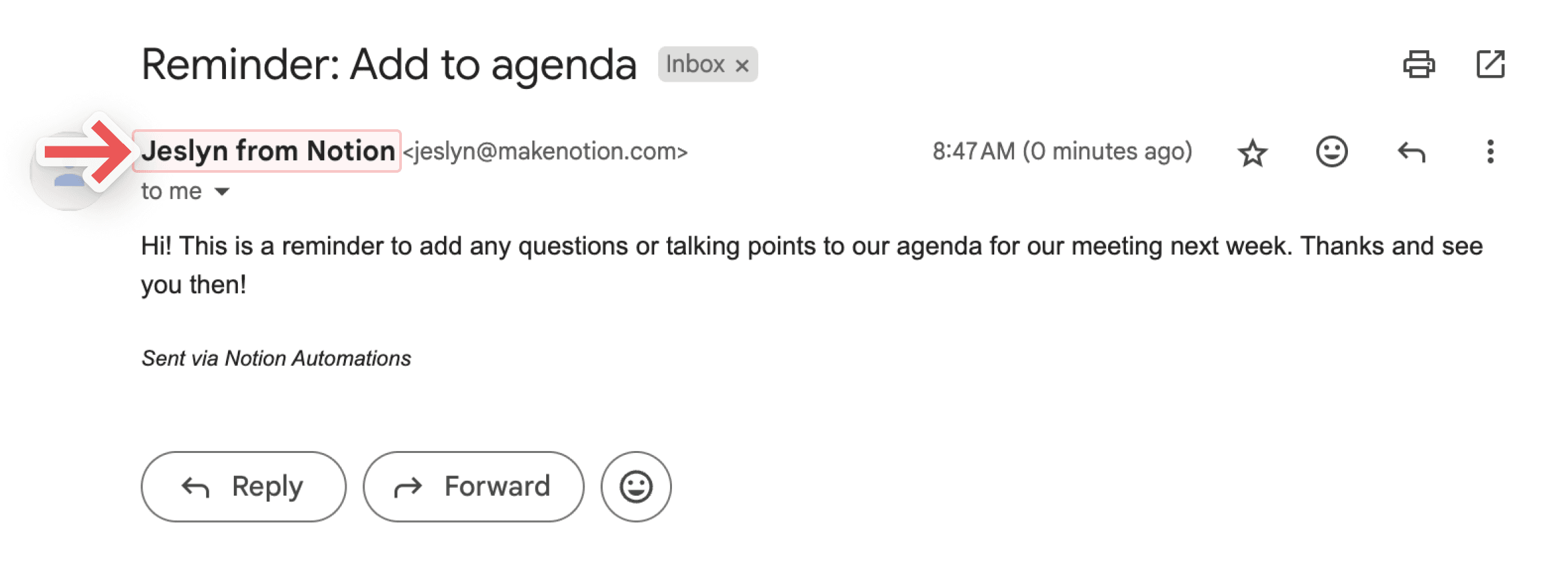
Send replies to: If you want replies to your email to be sent to someone other than the email address you used to send it, you can use this optional setting to send the reply to a person property, or a person in your workspace.
Define variables
You can define a custom variable with mentions and formulas. You can then use this variable in other database automation actions. To define a variable:
Click
⚡at the top of a database, then selectNew automationor an existing automation.Select
New actionorAdd action→Define variables.Click on
Variable 1to give the variable a name, edit the formula, or duplicate it. You can also selectAdd variable.Select
@or∑in the variable field to define your variables.You can use these variables in additional automation actions.
Let’s look at an example of when and how you’d create a custom variable. Let’s say you want to set an automation where when a parent task is marked as complete, all of its sub-tasks are automatically marked as complete.
Click
⚡at the top of a database, then selectNew automationor an existing automation.Select the trigger as
Status set to Complete.Select
New actionorAdd action→Define variables.Select
∑in the field belowVariable 1.In the window that opens, select
Trigger pagein the list of properties to the left.Put a period right after
Trigger pagein your formula, so that your formula readsTrigger page.. Once you do this, you’ll see the trigger page’s properties in the list of properties to the left.Select
Sub-item. Your formula should now readTrigger page.Sub-item.Saveyour formula. Now, your custom variable is defined as the sub-items of the page that triggers your automation, or in other words, the page that is marked as complete.Now, in your database automation settings, select
Add action.Select
Edit pages in....Open the
Select databasedropdown and selectVariable 1. This means that the automation will edit pages associated with variable 1, or in other words, sub-items associated with the page that is marked as complete.Open the
Edit a propertydropdown and selectStatus.Open the
Selectdropdown and selectComplete.Vælg
Gem.
The next time you mark a parent item that has sub-items as complete, you should see all of the sub-items’ statuses change to complete too!
Note:
At this time, mentions and formulas can only be used in database automation actions, not triggers.
Formulas can’t be used when sending Slack notifications.
You can use mentions and formulas in your database automation actions to make your automations work better for you. For example:
You might want to mention the date in the name of a new page created in your database.
You might want to set up a database automation to send a notification to someone that mentions a specific page.
You might want to automatically send a message to someone when a ticket has been resolved, and use a formula in that message that calculates the time it took to complete the ticket.
To include a mention or formula in a database automation action:
Click
⚡at the top of a database, then selectNew automationor an existing automation.Select
New actionorAdd action. Find the action you want and select it.As you set up the automation action, select
@in the field if you want to mention a date, person, page, or a property from the trigger page in your database. Select∑in the field if you want to create a formula.Select
Savewhen you’re done.
To make sure your automation is working properly, we’ll help you understand where your automation is invalid.
If your automation runs into any errors while you’re setting it up:
You’ll see information about where and what those errors are as you’re building or editing the automation.
You won’t be able to save the automation until you make the required corrections.
If your automation has worked before but runs into an error, the automation will be paused and you’ll get a notification. This situation might occur when:
A database that your automation is adding to or editing is missing.
A database property that your automation is editing is missing.
A third-party connection, like to Gmail or Slack, is no longer valid or needs to be authenticated.
You can click on the notification to go directly to the broken automation and fix it so it can be used again.
Once your automation is fixed, you’ll need to turn it on, or un-pause it, manually. To do this:
Open the database that your automation is tied to and select
•••→Automations.Hover over the automation that you’ve just fixed and select
•••.Toggle on
Active.
To see and manage all of the existing automations for a database:
Klik på
⚡øverst i din database.Hold musen over automatiseringen, og klik på
•••.Vælg
Rediger,Sæt på pauseellerSlet.
Ofte stillede spørgsmål
Hvor ofte bliver databasen scannet for "ændringer" i egenskaber?
Hvor ofte bliver databasen scannet for "ændringer" i egenskaber?
Databaseautomatiseringer arbejder over et tidsvindue på tre sekunder. Inden for dette tre sekunders tidsvindue kan en bruger f.eks. fjerne en udløser og slette eventuelle ændringer, som ikke resulterer i nogen egenskabsmæssig ændring af automatiseringen.
Fungerer automatiseringer på sider i hele databasen, eller sider i en enkelt databasevisning?
Fungerer automatiseringer på sider i hele databasen, eller sider i en enkelt databasevisning?
Begge dele. Under oprettelsesprocessen kan du angive, om automatiseringen skal køre på sider i hele databasen eller i en bestemt visning. Hvis nogle af filtrene i denne visning ændres, vil automatiseringen gælde for den justerede liste over sider.
Kan gæster med fuld adgang til en database skabe automatiseringer?
Kan gæster med fuld adgang til en database skabe automatiseringer?
Nej.
Why isn’t my database automation triggering?
Why isn’t my database automation triggering?
If your database automation isn’t triggering, it could be because:
The automation is set to be triggered by another automation. Automations can’t currently trigger other automations. Try using a different, non-automated trigger instead.
The page no longer matches a view’s filters after it’s edited. Automations only run if the page still matches the view when the trigger occurs.
The database is locked.