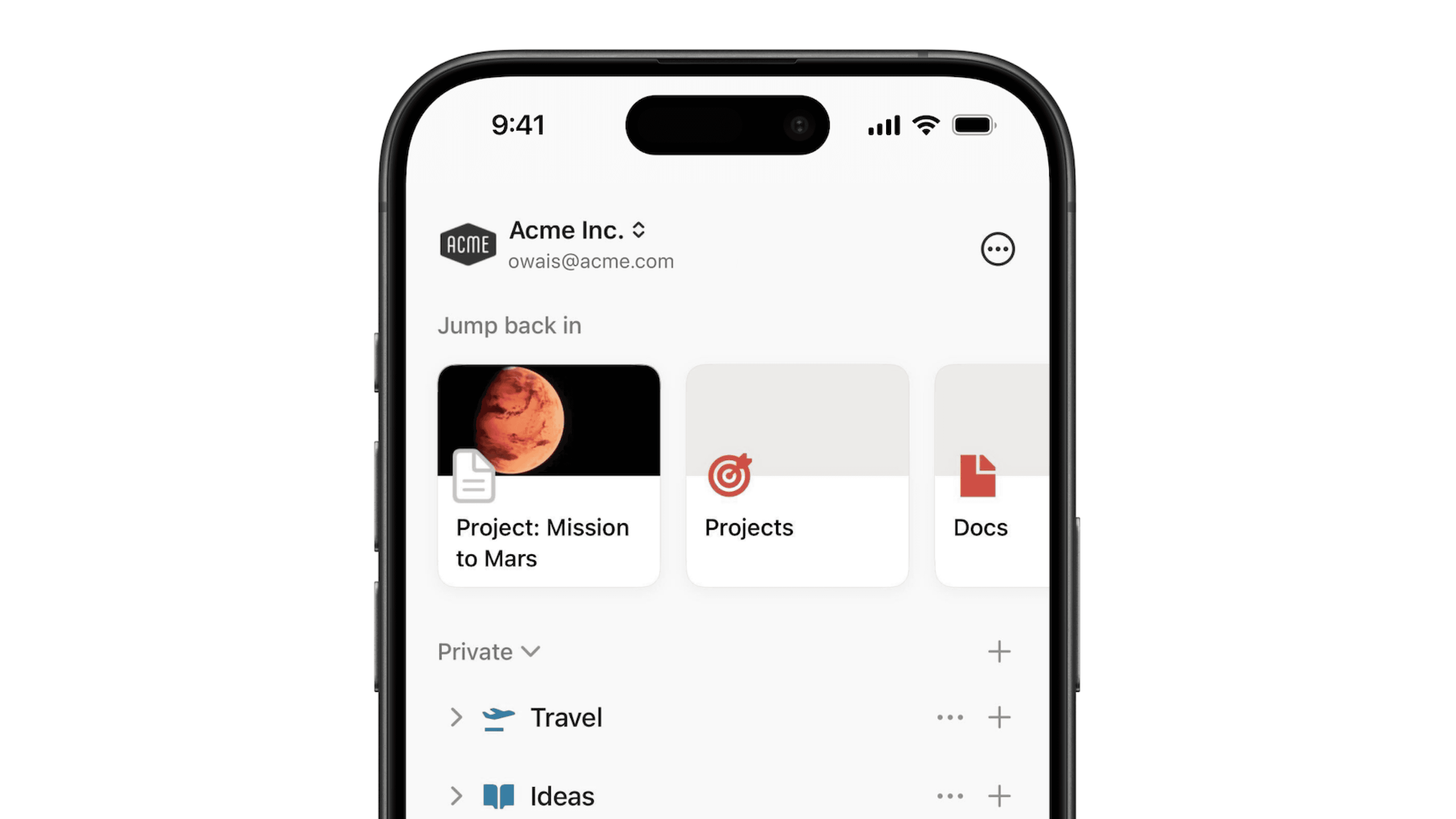
Home & My tasks

Home gives you a view of all of the docs, tasks, and events that need your attention 🏡
Siirry usein kysyttyihin kysymyksiin
Huomio:
Koti-osio on käytettävissä tällä hetkellä vain Notionin työpöytä- ja verkkosovelluksissa.
Työtilasi vierailla ei ole pääsyä Koti-osioon.
Työtilan Koti-osiossa näet yhdessä paikassa työtilan tärkeimmän sisällön. Pääset Koti-osioon Notionin vasemmanpuoleisen sivuvalikon kohdasta Koti.
Tässä näkyy 20 sivua, joilla olet käynyt viimeksi. Näet lisää sivuja vierittämällä vasemmalle.
If you use Notion Calendar, you can see your schedule, join meetings, and access meeting docs and links using the Upcoming events widget in Home. If you haven’t already used Notion Calendar with Notion, you’re logged out of Notion Calendar, or you’re using the widget in a new or different Notion workspace, you can select Connect to Google Calendar in the widget to set up your calendar.
Note: If you’re using Notion for desktop, you may be prompted to sign into your Notion account on the web to set up the Upcoming events widget.
Customize your Upcoming events widget
To change what’s displayed in the Upcoming events widget, select ••• in your Upcoming events widget. From here, you can select:
Calendars: Choose which calendars you want reflected in the widget. You can also have the widget reflect your Notion Calendar app.Include events: Choose how many days’ worth of events you want displayed. This can span fromToday(1 day) to1 week.All-day events: Toggle this on or off depending on whether you want all-day events to show in the widget.Events without participants: Toggle this on or off depending on whether you want events without participants, like a focus event or an out of office event, to show in the widget.Events without conferencing/location: Toggle this on or off depending on whether you want events that don’t have a conferencing link or a location to show in the widget.
Note:
You can connect multiple Notion Calendar accounts to the Upcoming events widget in Home.
If you’re in multiple Notion workspaces, don’t worry — you can adjust your Upcoming events widget differently for each!
Omat tehtävät -osiossa näet kaikki tehtävät, jotka on määrätty sinulle Notion-työtilasi kaikista tehtävätietokannoista.
Määritä tehtävätietokantoja
To see your assigned tasks in My tasks, you need to make sure that the databases containing those tasks are Notion Task databases. A task database in Notion is a type of database that requires a status, assignee, and due date property to help you track the work that you need to get done. Learn how to create a task database or turn an existing database into a task database here →
Mukauta Omat tehtävät -osiota
Voit säätää, mitkä tehtävät näet Omat tehtävät -widgetissä liikuttamalla hiiren osoitinta widgetin päällä ja valitsemalla kohdan •••. Voit valita haluamasi asettelun, suodattaa ja lajitella tehtäviä sekä säätää, mitä tehtäväominaisuuksia haluat widgetissä näkyvän.
Luo tehtävä Omat tehtävät -osiossa
Voit lisätä uuden tehtävän tehtävätietokantoihisi suoraan Omat tehtävät -widgetistä Koti-osiossa. Valitse tätä varten widgetin oikeasta yläkulmasta +. Vaihda kohdetehtävätietokanta avaamalla uuden tehtävän vasemmassa yläkulmassa oleva pudotusvalikko, jossa lukee Lisää kohteeseen {tietokannan nimi}. Etsi ja valitse haluamasi tietokanta ja täytä sitten tehtävää koskevat tiedot.
Piilota omat tehtävät Koti-osiosta
Jos et halua nähdä Omat tehtävät -widgetiä Koti-osiossa, liikuta hiiren osoitinta Koti-osiossa Omat tehtävät -widgetin päällä ja valitse ••• → Piilota Koti-osiosta.
Avaa Omat tehtävät -osio kokonaisena sivuna
Liikuta hiiren osoitinta Koti-osiossa Omat tehtävät -widgetin päällä ja valitse Avaa kokonaisena sivuna tarkastellaksesi tehtäviäsi tarkemmin. Täällä voit muun muassa lisätä sivun suosikiksi, muuttaa tehtävien asettelua ja luoda uuden tehtävän.
Kumoa tehtävätietokanta
Huomio: Jos kumoat tehtävätietokannan, henkilöt, joille on määrätty tehtäviä tästä tietokannasta, eivät näe näitä tehtäviä Omat tehtävät -osiossa.
Kumoa tehtävätietokanta seuraavasti:
Valitse tietokannan oikeasta yläkulmasta
•••.Valitse kohdan
Tämä on tehtävätietokantavierestä•••ja sittenKumoa tehtävätietokanta→Poista.

You can pin a database of your choice to Home for easy access. To do this:
In
Home, find the database view widget and selectSelect database.Search for and select your desired database.
Customize your database views widget
By default, the database will populate in Home with a list view. To change this, select ••• on your custom database widget → Layout and pick the layout you want.
You can filter and sort your database items directly from inside the widget. You also have the ability to create a new view of that database by opening the dropdown next to the current view and selecting Add view. From there, you can select the same database or select a new one.
Change your database
If you want to change the database displayed in Home:
Select
•••in your database views widget →Source.Search for and select your new database.
Tässä osiossa ehdotetaan sivuja viimeaikaisten sivukäyntiesi perusteella. Se päivittyy reaaliajassa – jos haluat nähdä uusimmat ehdotukset, päivitä Notion.
Näet työtilasi sivut, joilla on käyty useimmin viimeisimmän viikon aikana. Jos haluat nähdä sen sijaan tietyn tiimitilan nousussa olevat sivut, valitse ensin Nousussa-widgetissä työtilan nimen vieressä oleva pudotusvalikko ja sitten haluamasi tiimitila.
Esitellyt mallit -osiossa näytetään malleja, joista voit saada inspiraatiota omaan työtilaasi. Tämä widget ei näy Koti-osiossa oletusarvoisesti, vaan voit valita Koti-osion asetuksista näytetäänkö widget. Katso alta ohjeet tämän tekemiseen.
Vaihda nimimerkkisi
Jos haluat vaihtaa Koti-osion yläosan tervehdyksessä näkyvän nimimerkin, napsauta nimeäsi ja lisää uusi nimimerkki. Paina Enter-näppäintä tai napsauta tekstikentän ulkopuolella ottaaksesi käyttöön uuden nimimerkin.
Vaihda oletusarvoinen aloitussivu
Voit halutessasi vaihtaa Notionin käynnistämisen yhteydessä avautuvan sivun. Valitse Koti-osion oikeasta yläkulmasta ••• → Vaihda oletusarvoinen aloitussivu. Valitse sitten Koti, Sivu, jolla on viimeksi käyty tai Sivuvalikon yläsivu.
Näytä tai piilota widgetit
Select ••• at the top right of Home → Show/hide widgets. Then, select or unselect a widget. At this time, the Recently visited widget can't be hidden.
If you want new tabs in your desktop app to open Home:
Go to
Settings→My settings.Open the dropdown next to
Open on startand make sureHomeis selected.Toggle off
New Tab Search. Once this setting is turned off, the desktop app will open new tabs with the default page specified in yourOpen on startsetting.
Usein kysytyt kysymykset
Why do I see duplicate tasks in My tasks?
Why do I see duplicate tasks in My tasks?
If you’re seeing tasks that look the same in My tasks, it’s possible that you have multiple tasks with the same name across different Task databases. Check the URLs or databases that your tasks belong to, then consolidate any duplicates. To avoid any confusion in the future, you can consider having a different naming convention for different Task databases!