Navigoi sivuvalikon avulla

Notionin sivuvalikko helpottaa työtilan sisällön jäsentämistä. Tässä on kaikki, mitä sinun tarvitsee tietää sivujen järjestämisestä, uudelleenjärjestämisestä ja löytämisestä sivuvalikosta 🧭
Siirry usein kysyttyihin kysymyksiinNotionin sivuvalikon avulla voit
Järjestä työsi rajattomilla tasoilla – voit asettaa sivuja sisäkkäin muiden sivujen sisään ilman rajoituksia.
Näe missä kaikki on ja miten se on järjestetty avattavien ja suljettavien valintakytkinten avulla.
Järjestä sivuja uudelleen vedä ja pudota-toiminnolla.

Vinkki: Voit avata ja sulkea sivuvalikon napsauttamalla >>- ja <<-painikkeita. Tai voit käyttää näppäinyhdistelmää cmd/ctrl + \.
Sivuvalikossa näkyy useita ominaisuuksia ja valikkovaihtoehtoja. Tässä on yleiskatsaus kustakin niistä.
Työtilan valitsin: Napsauta nykyisen työtilasi nimeä, kun haluat vaihtaa työtilojen välillä, luoda uuden työtilan, lisätä toisen käyttäjätilin tai kirjautua ulos. Voit myös avata asetukset työtilan valitsimen kautta.
Haku: Tätä kohtaa napsauttamalla aukeaa Notionin hakuikkuna, jossa voit joko kirjoittaa etsimäsi kohteen tai siirtyä sivulle, jolla kävit äskettäin. Ikkuna avautuu myös näppäinyhdistelmällä
cmd/ctrl+K.Koti: Napsauttamalla näet sivut ja tehtävät, jotka kaipaavat huomiotasi. Lue lisää Koti-osiosta tästä →
Keskustelut Notion AI:n kanssa: Napsauta hakeaksesi ja tutkiaksesi Notion AI:n avulla. Lue lisää Notion AI:sta täältä →
Kokoukset:Napsauta nähdäksesi tulevat kokoukset ja muistiinpanot, jotta voit valmistautua kokoukseen nopeasti tai tarkastella tapahtumia jälkikäteen.
Postilaatikko: Napsauta tätä, kun haluat nähdä kaikki ilmoituksesi yhdessä paikassa. Tässä valikossa näytetään luomillesi sivuille tehdyt muutokset, työtilassasi saamasi uudet maininnat ja uudet työtehtävät. Näkyvissä on punainen ilmoitusmerkki, kun sinulla on lukemattomia ilmoituksia.
Kirjasto: Napsauta selataksesi ja hallitaksesi kaikkea työtilasi sisältöä. Lue lisää kirjastosta täältä →
Ylätason välilehdet
Sivuvalikko on jaettu ylätason välilehtiin. Jokaisella välilehdellä on oma kuvake, sisältö ja tarkoitus.
Koti
Koti-välilehti on jaettu osioihin, joihin kuuluvat esimerkiksi Tulevat tapahtumat, Viimeisimmät, Suosikit, Palvelijat, Tiimitilat, Jaetut sivut, Yksityiset sivut ja Notion-sovellukset.
Omat tehtävät, Kirjasto, Marketplace, Ohje ja Roskakori ovat aina käytettävissä Koti-välilehden alaosassa.
Mukauta Koti-osiota
Voit mukauttaa Koti-välilehteä napsauttamalla ••• minkä tahansa osion sivussa tai Koti-välilehden kuvaketta.
Näytä-toiminnolla voit määrittää, kuinka monta kohdetta kukin osio näyttää.
Siirrä ylös tai Siirrä alas-toiminnoilla voit säätää osion sijaintia Koti-välilehdellä.
Piilota osio-toiminnolla voit piilottaa osion Koti-välilehdeltä.
Mukauta sivuvalikkoa-toiminnolla voit piilottaa useita rivikohteita ja osioita kerralla.
Avaa kirjastossa
Napsauta kunkin osion vieressä olevaa kirjakuvaketta avataksesi sen kirjastossa. Kirjastosta voit selata ja navigoida kyseisen osion työtilan sisällön koko luetteloa. Lue lisää kirjastosta tässä artikkelissa.
Keskustelut Notion AI:n kanssa
Käytä mukautettuja palvelijoita ja Notion AI -keskustelujasi selataksesi viimeisimpiä ketjuja tai jatkaaksesi siitä, mihin jäit.
Palvelijat
Napsauta ••• minkä tahansa mukautetun palvelijan vieressä ja valitse Poista suosikeista tai Lisää suosikkeihin säätääksesi, miten se näkyy sivuvalikossasi. Voit myös siirtyä palvelijan asetuksiin, Kopioi linkki lohkoon tai Poista palvelijan.
Keskusteluhistoria
Käytä aiempia Notion AI -keskusteluja lajiteltuna viimeisimmän käytön mukaan. Sininen piste keskustelun vieressä tarkoittaa, että keskustelussa on lukematon vastaus.
Napsauta ••• minkä tahansa keskustelun vieressä mukauttaaksesi, miten ne näkyvät sivuvalikossa: Nimeä uudelleen, Vaihda kuvake, Poista tai Avaa keskustelut.
Kokoukset
Tulevat tapahtumat
Tarkastele ja liity tuleviin tapahtumiin. Napsauta ••• minkä tahansa tapahtuman vieressä tarkastellaksesi puhelutunnusta, työtilan osallistujia tai avataksesi tapahtuman kalenterissa.
Kokoushistoria
Tarkastele aiempien kokousten kokousmuistiinpanoja, lajiteltuina viimeisimmän käytön mukaan. Napsauta ••• minkä tahansa kokousmuistiinpanon vieressä ja valitse Kopioi linkki lohkoon, Monista tai Siirrä kohteeseen lisätäksesi kokousmuistiinpanon sivulle.
Postilaatikko
Tarkastele kaikkia ilmoituksiasi yhdessä paikassa, mukaan lukien maininnat, kommentit, sivupäivitykset ja muistutukset. Napsauta ilmoitusta siirtyäksesi suoraan lähdesivulle.
Postilaatikon yläreunan kuvakkeilla voit suorittaa joukkotoimintoja, kuten merkitä kaikki luetuiksi, arkistoida kaikki, arkistoida luetut tai soveltaa suodattimia ilmoituslistaan.
Napsauta ••• minkä tahansa ilmoituksen vieressä muuttaaksesi sivun ilmoitusasetuksia, merkitäksesi ilmoituksen luetuksi tai arkistoidaksesi ilmoituksen.
Haku
Avaa hakuikkuna etsiäksesi sisältöä työtilastasi.
Pikalinkit
Jokaisen välilehden alareunassa voit luoda uuden tekoälykeskustelun, sivun, kokousmuistiinpanon tai tietokannan painikkeiden avulla.
Vinkki:
Napsauta sivuvalikon osion nimeä –
Tiimitila,JaettutaiYksityinen– sulkeaksesi sen ja pitääksesi sivuvalikon siistinä.Napsauta ja vedä sivuvalikon osioita järjestääksesi ne uudelleen.
Yksityiset sivut
Jokaisen käyttäjän työtilassa on Yksityinen-osio. Kaikki, mitä lisäät tänne, näkyy vain sinulle, eivätkä työtilasi muut ihmiset näe sitä. Tähän osioon voit tallentaa omia tehtäviäsi tai muistiinpanojasi tai sivuja, joiden parissa haluat työskennellä yksin ennen kuin jaat ne muiden kanssa.
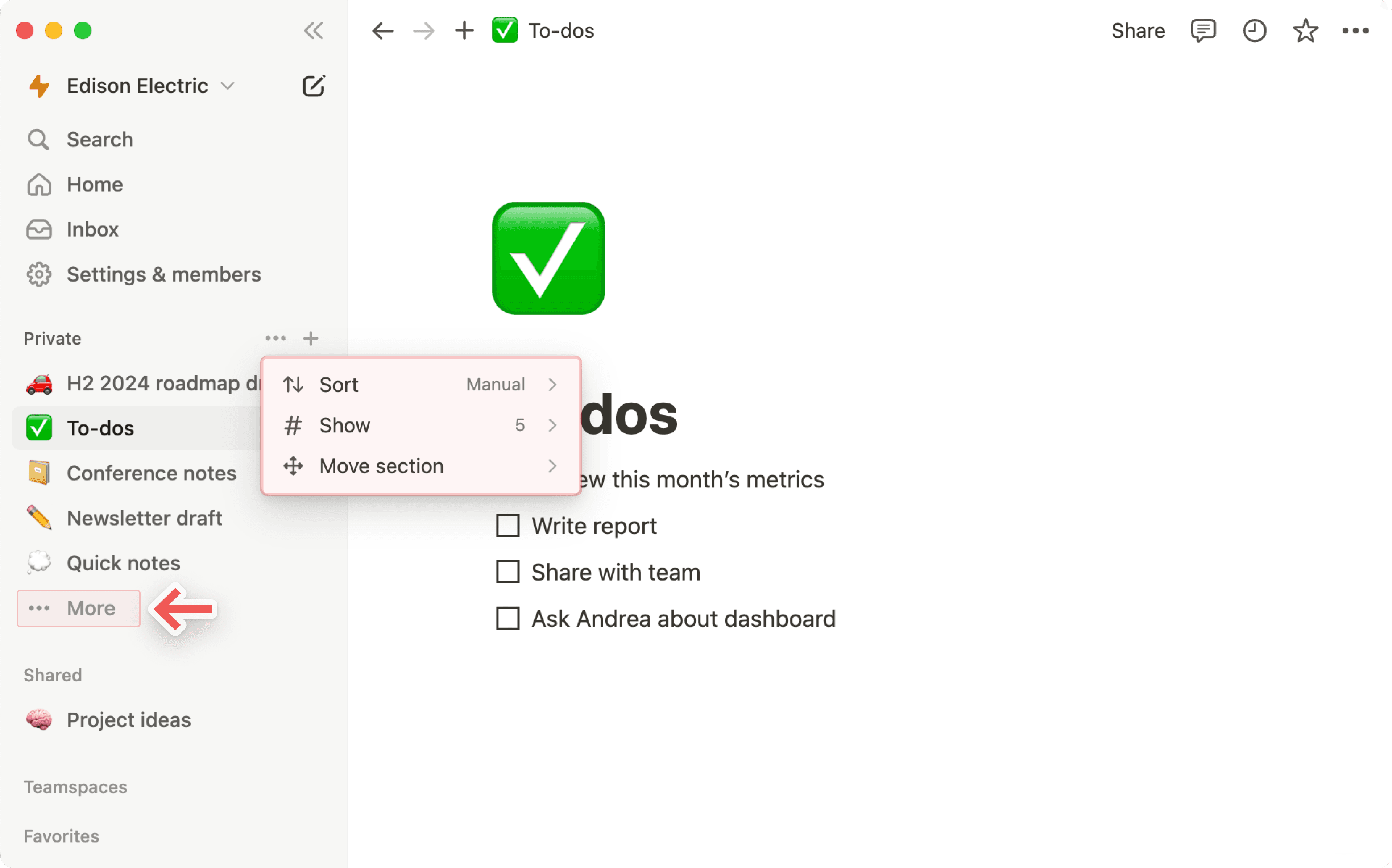
Voit mukauttaa tätä sivuvalikon osiota näyttämään sivusi tietyillä tavoilla. Sivuvalikon yksityisen osion mukauttaminen:
Vie hiiri sivuvalikkosi
Yksityinen-kohdan päälle ja valitse•••.Valitse
Lajitteleja sittenManuaalinentaiViimeksi muokattu.Manuaalinenlajittelu mahdollistaa yksityisten sivujen vetämisen manuaalisesti niiden järjestämiseksi, kun taasViimeksi muokattulajittelu järjestää yksityiset sivusi sen mukaan, milloin olet viimeksi muokannut niitä.Valitse
Näytävalitaksesi, kuinka monta sivua haluat näytettävän sivuvalikossa, välillä 5 sivua ja kaikki sivusi. Jos esimerkiksi valitset näytettäväksi10 kohdetta– jos sinulla on yhteensä enemmän kuin 10 yksityistä sivua, voit napsauttaaLisääyksityisen osiosi alareunassa nähdäksesi kaikki yksityiset sivusi.Valitse
Siirrä osioja sittenSiirrä ylöstaiSiirrä alas, jos haluat yksityisten sivujesi näkyvän ylempänä tai alempana sivuvalikossasi.
Yksityinen paneeli
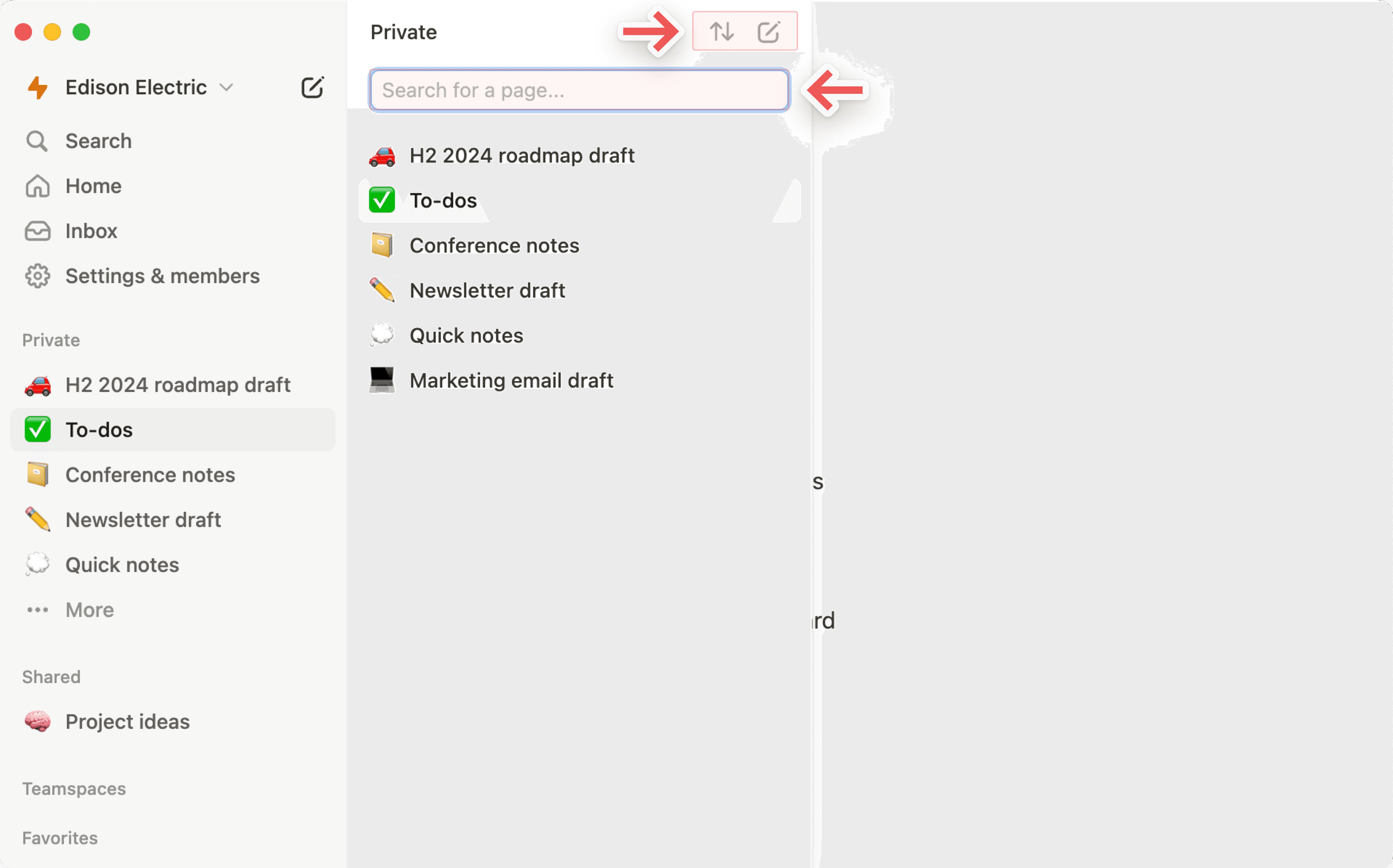
Jos olet päättänyt olla näyttämättä kaikkia yksityisiä sivujasi sivuvalikossa, voit valita viimeisen näkyvissä olevan yksityisen sivun alareunasta Lisää. Tämä avaa paneelin, jossa näkyvät kaikki yksityiset sivusi. Täällä voit:
Hae sivua.
Valitse ylhäältä
⇅muuttaaksesi sivujen lajittelutapaa. Tämä muuttaa myös sivujen näkymistä sivuvalikossa.Valitse ylhäältä
>>(tulee näkyviin, kun viet hiiren osoittimen sen päälle) pitääksesi yksityisen paneelin auki.Luo uusi yksityinen sivu valitsemalla ylhäältä uuden sivun kuvake.

Huomio: Jos vedät sivun sivuvalikossa Työtila-osiostaYksityinen-osioon, kaikki muut menettävät sen käyttöoikeuden.
Jaetut sivut
Kaikki sivut, jotka olet jakanut tiettyjen työtilasi henkilöiden kanssa, näkyvät sivuvalikkosi Jaettu-osiossa. Näet tämän kategorian sivuvalikossasi heti, kun kutsut jonkun jaetulle sivulle.
Muut työtilasi jäsenet, joita ei ole kutsuttu, eivät pääse näkemään näitä sivuja. Tässä osiossa saattaa olla esimerkiksi kahdenkeskisiä kokousmuistiinpanoja tai sivuja, joissa ideoit muutaman muun kanssa.
Voit mukauttaa tätä sivuvalikkosi osiota näyttämään sivusi tietyllä tavalla. Voit mukauttaa sivuvalikkosi jaettua osiota seuraavasti:
Vie hiiren osoitin sivuvalikon kohdan
Jaettupäälle ja valitse•••.Valitse
Lajitteleja sittenManuaalinentaiViimeksi muokattu.Manuaalinenlajittelu mahdollistaa jaettujen sivujen järjestämisen vetämällä, kun taasViimeksi muokattulajittelu järjestää jaetut sivut sen mukaan, milloin olet viimeksi muokannut niitä.Valitse
Näytäja valitse, kuinka monta sivua haluat näkyvän sivuvalikossa (5 sivusta kaikkiin sivuihisi). Jos valitset esimerkiksi10 kohdettaja sinulla on yhteensä yli 10 jaettua sivua, voit napsauttaa jaetun osion alareunastaLisäänähdäksesi kaikki jaetut sivusi.Valitse
Siirrä osioja sittenSiirrä ylöstaiSiirrä alas, jos haluat jaettujen sivujen näkyvän ylempänä tai alempana sivuvalikossa.
Jaettu paneeli
Jos olet päättänyt olla näyttämättä kaikkia jaettuja sivujasi sivuvalikossa, voit valita viimeisen näkyvissä olevan jaetun sivun alareunasta Lisää. Tämä avaa paneelin, jossa näkyvät kaikki jaetut sivusi. Täällä voit:
Hae sivua.
Valitse ylhäältä
⇅muuttaaksesi sivujen lajittelutapaa. Tämä muuttaa myös sivujen näkymistä sivuvalikossa.Valitse ylhäältä
>>, jos haluat pitää jaetun paneelin auki.
Tiimitilojen sivut
Jos käytössäsi on Plus-, Business- tai Enterprise-sopimus, näet sivuvalikossa osion nimeltä Tiimitilat. Tiimitiloja voivat käyttää ja mukauttaa kaikki organisaatiosi tai yrityksesi tiimit. Lue lisää tiimitiloista →
Jokaisessa työtilassa on vähintään yksi oletustiimitila, jonka kaikki jäsenet näkevät sivuvalikossaan. Muut työtilan jäsenet voivat nähdä ja jakaa kaikkia sivuvalikkosi oletustiimitiloissa olevia sivuja.
Tiimitilat-osiossa näet myös muut tiimitilat, joiden jäsen olet. Napsauta tiimitilan nimeä näyttääksesi tai piilottaaksesi sen sisäkkäiset sivut.
Pidä sivuvalikko järjestyksessä poistumalla tiimitiloista, joita et tarvitse. Vie hiiren osoitin tiimitilan nimen päälle ja napsauta ••• → Poistu tiimitilasta.
Suosikit
Suosikit on paikka, josta pääset helposti käsiksi kaikille sinulle tärkeimmille sivuille. Tämä osio ilmestyy sivuvalikkoosi, kun olet merkinnyt ensimmäisen sivusi suosikiksi.
Voit lisätä sivun suosikkeihin siirtymällä kyseiselle sivulle ja napsauttamalla sen yläreunassa olevaa ⭐-kuvaketta. Sivu ilmestyy sivuvalikkosi Suosikit-osioon.
Voit poistaa sivun suosikeista avaamalla sivun ja napsauttamalla sen yläreunassa olevaa ⭐-kuvaketta uudelleen. Voit myös viedä hiiren sivun kohdalle sivuvalikossa ja napsauttaa •••. Näet vaihtoehdon Poista suosikeista.
Voit avata jokaisen sivuvalikon valintakytkimen paljastaaksesi sisäkkäin olevat sivut. Kaikilla sivuilla on sama toiminnallisuus, vaikka ne olisivatkin alasivuina.
Tietokantasivujen kohdalla voit avata valintakytkimen, jolloin näet kaikki tästä tietokannasta tekemäsi näkymät. Niiden vieressä näkyy •.
Sivuvalikon alaosasta löytyy joitakin tärkeitä työtilan toimintoja.
Asetukset: Mukauta Notionia mieltymystesi mukaan. Lue lisää asetuksista täältä →
Mallipohjat: Tästä voit avata mallin valitsimen, jossa voit luoda uuden sivun aloitussisältöä käyttämällä. Näin voit suorittaa minkä tahansa niistä yli 50 tehtävästä.
roskakori:
roskakorisisältää kaikki poistamasi sivut. Voit vetää ja pudota niitä tänne. Voit myös napsauttaa roskakoria, kun haluat etsiä, tarkastella ja palauttaa näitä sivuja. Huomio, että et voi muokata roskakorissa olevaa sivua, ellet palauta sitä.
Huomio: Oletuksena sivut pysyvät roskakorissa 30 päivää, ennen kuin ne poistetaan sieltä automaattisesti. Enterprise-sopimuksen työtilan omistajat voivat mukauttaa näitä asetuksia. Lue lisää täältä →
Notionin sivuvalikkoa käyttämällä voi luoda uusia sivuja seuraavilla tavoilla:
Hiiren osoitinta siirtämällä kunkin tiimitilan viereen tulee näkyviin
+-merkki.Napsauta lisätäksesi sivun tähän tiimitilaan.
Jos et näe tätä merkkiä, tiimitilan omistaja on poistanut käytöstä tiimitilan sivuvalikon muokkaamisen. Sinun on otettava yhteyttä tiimitilan omistajaan asetuksen muuttamiseksi.
Myös
Yksityinen-osion vieressä näkyy+-merkki. Napsauttamalla sitä voit lisätä uuden sivun, jonka vain sinä näet.Sivuvalikkosi yläreunassa on myös
📝-painike.Painikkeella voi luoda uuden sivun esikatselutilassa. Voit aloittaa uuden sivun luomisen ja valita sen jälkeen, mihin haluat sijoittaa sen työtilassasi (tai muissa työtiloissa) käyttämällä pudotusvalikkoa. Jos et valitse sijaintia, sivu sijoitetaan oletusarvoisesti
Yksityinen-osioon.
Jos viet hiiren osoittimen sivuvalikossa minkä tahansa olemassa olevan sivun päälle, näkyviin tulee
+-merkki. Kun napsautat sitä, sivu sijoitetaan tämän sivun alle.
Sivujen siirtäminen sivuvalikossa käy helposti vetämällä ja pudottamalla sivut haluamaasi paikkaan.
Lisää alasivuja vetämällä sivu toisen päälle. Valittu sivu korostetaan sinisellä.
Voit myös vetää sivuja pois toisten sivujen alta.
Jos vedät sivun jaetusta osiosta (
TiimitilattaiJaettu)Yksityinen-osioon, muut menettävät pääsyn sivulle.
Sivuvalikkosi on joustava. Voit muokata sitä juuri niin kuin se on sinulle hyödyllisintä.
Napsauta ja vedä oikeaa reunaa muuttaaksesi sivuvalikon kokoa.
Napsauta <<-kuvaketta, kun haluat pienentää tai laajentaa sivuvalikkoa.
Voit myös pienentää tai piilottaa sivuvalikon
Suosikit-,Työtila-,Jaettu- taiYksityinen-osiot. Piilota tai näytä osiot napsauttamalla niiden otsikoita.
Voit poistaa sivuja sivuvalikosta muutamalla tavalla:
Napsauta
•••-kuvaketta, joka tulee näkyviin, kun siirrät hiiren osoittimen sivun kohdalle, ja valitsePoista.Vedä sivu työtilasta
roskakoriin. Tämä poistaa myös kaikki sivun sisälle asetetut alasivut, mukaan lukien tietokantakohteet.Siirry kohtaan
Kirjastoja valitse osion nimi. Napsauta sittenPoista sivuvalikosta.
Usein kysytyt kysymykset
Kuinka kirjaudun ulos Notion-käyttäjätililtäni?
Kuinka kirjaudun ulos Notion-käyttäjätililtäni?
Napsauta nykyisen työtilasi nimeä vasemmassa yläkulmassa. Vieritä alas, niin löydät sähköpostiosoitteesi vierestä vaihtoehdon Kirjaudu ulos.
Sivuvalikossani ei näy osioita. Miten voin ottaa ne käyttöön?
Sivuvalikossani ei näy osioita. Miten voin ottaa ne käyttöön?
Sivuvalikon osiot heijastavat käyttäjätilisi jakamisasetuksia. Jos työtilassasi on useampi kuin yksi henkilö, sivuvalikkoon ilmestyy tiimitila-osio, jossa voit tehdä yhteistyötä kyseisen henkilön kanssa, ja Yksityinen-osio on tarkoitettu henkilökohtaisille sivuillesi, jotka näkyvät vain sinulle.
Miksi en enää näe täysikokoista Koti-sivua? Muutitko sivuvalikkoa?
Miksi en enää näe täysikokoista Koti-sivua? Muutitko sivuvalikkoa?
Koti muuttui täysikokoisesta kokemuksesta osaksi sivuvalikkoasi. Se on jaettu osioihin, kuten Viimeisimmät, Suosikit, Tiimitilat, Palvelijat ja muihin, joita voit räätälöidä työnkulkusi mukaan. Näin työtilasi navigaatio, tekoälykeskustelut ja ilmoitukset ovat yhdessä yhtenäisessä ja mukautettavassa paikassa.
Mitä näet, jos käytössäsi on ilmainen- tai Plus-sopimus, tai jos tekoäly on poistettu käytöstä työtilassasi?
Mitä näet, jos käytössäsi on ilmainen- tai Plus-sopimus, tai jos tekoäly on poistettu käytöstä työtilassasi?
Ilmainen- ja Plus-sopimus: Näet koko sivuvalikon asettelun, mukaan lukien tekoälykeskusteluvälilehti. Voit käyttää Notion AI:ta käytettävissä olevilla ilmaisilla tekoälypisteilläsi.
Tekoäly poistettu käytöstä (Enterprise/Business): Tekoälykeskusteluvälilehti ei näy. Sen sijaan ilmestyy Uusi-painike, jolla voit luoda sivuja ja muuta sisältöä.