Workspaces on mobile
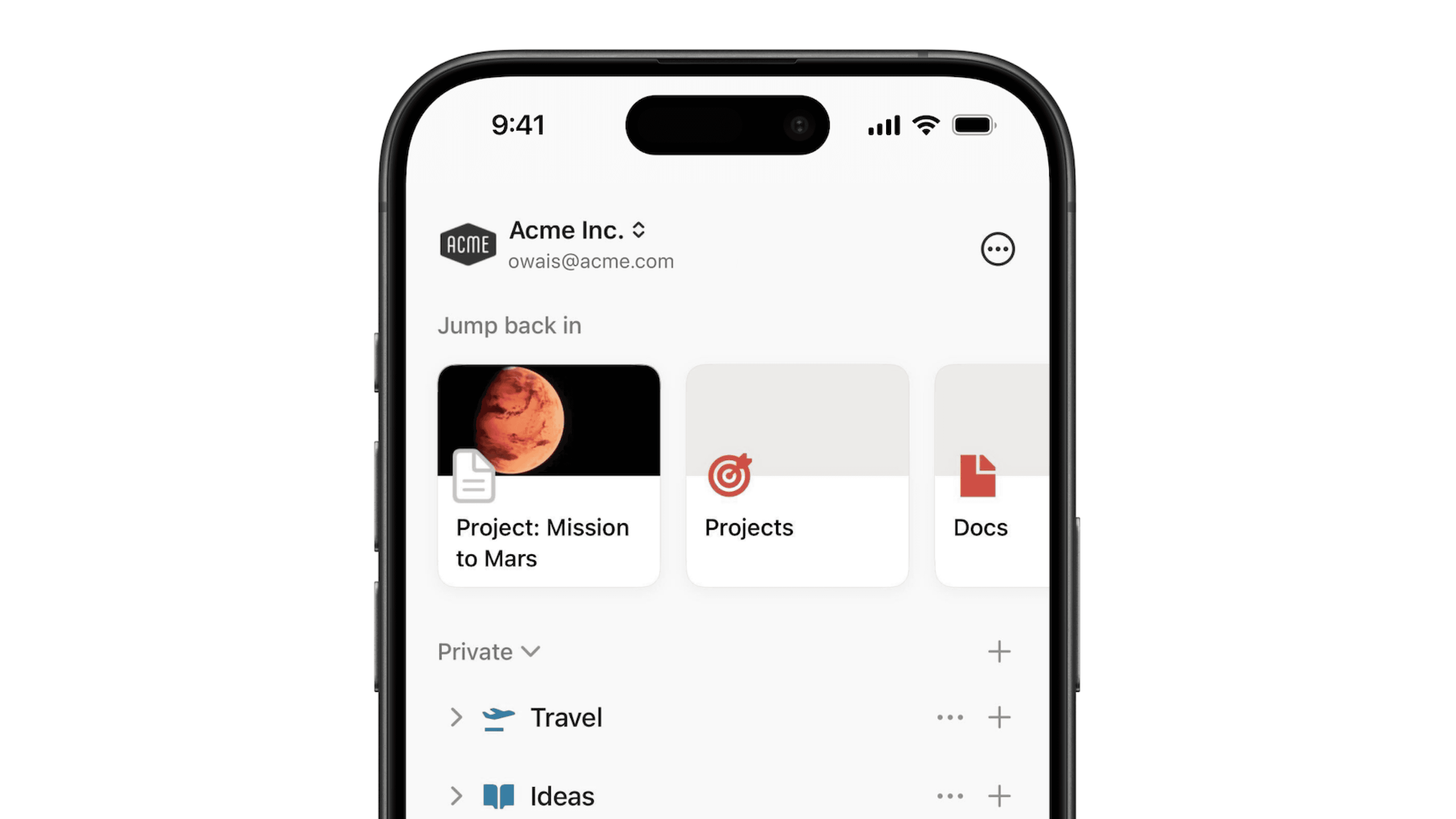
Here's a quick tour of how Notion workspaces look and operate on your phone or tablet 📱
Ga naar Veelgestelde vragenAt the bottom of Notion for mobile, you'll see a navigation bar that is always present.
Tap
🏠on the bottom of any page to see familiar sections likeShared,Private,Favoritesthat match the desktop experience.Tap
🔍to search your workspace.Tap
📥to check yourInbox.Tap
📝to create a new page.
If you are part of a multi-member workspace, you'll see a section in the 🏠 tab of your mobile app called Teamspaces.
Teamspaces are a dedicated area for every team within your organization or company, and can be customized on an individual basis. Learn more about teamspaces →
Tap on the toggle next to any page in the 🏠 tab of your mobile app to reveal pages nested in other pages.
For database pages, you can toggle to see the different views of that database.
Tap on your current workspace's name at the top of your 🏠 tab to switch to another workspace you belong to, create a new one, join another one, or log out.
Editor tools
While in a page, a toolbar appears above your keyboard. It contains all the options you need to add content to your page.
Tap the
+to see a full menu of other content block types you can add to your page. This replaces the/command functionality on desktop.From this toolbar, you can also @-mention a person or page, add a comment, insert an image, delete content, indent, select text color and highlight, and delete and duplicate a content block. Scroll horizontally to see all these options.
••• menu
The ••• menu contains additional options, including but not limited to:
Choose from three different typography choices to format your page.
Customize page: Toggle the visibility of backlink and page comment sections.Lock page: Turn this on to prevent edits from being made.Lock views:Turn this on to prevent others from changing properties and views.
Page history: View past versions of the page going back seven days (extended for paid plans).Export: Download the page as a file. Databases get saved as CSV files, while non-database pages get saved in Markdown. You can also export either as PDF or HTML.Move to: This opens up a menu where you can choose any other workspace or page to move the current page into.
Share menu
Tap the share icon (square with upward arrow) to open this menu. From there, you can share the current page with others in a number of ways:
Share page link: Tap this button at the top to open your mobile device's share sheet. You can copy the page link or directly share the URL.Share to web: Turn this on to publish your page to the web so anyone with the link can see it. Tap the dropdown menu that saysShow link optionsfor more control over permissions, duplication, and search engine indexing.Add people, groups, or emails: Tap this to invite other Notion users to the page.Everyone: Turn this on to give every member in your workspace the ability to see the page. Tap the dropdown menu to the right and choose fromFull access,Can edit,Can comment,Can vieworNo accessto assign a level of access for people in your workspace.Groups: You may also see groups that have been created in your workspace that you can assign different access levels to.Guests: You can also add users outside of your workspace directly via email. They'll join as a guest.
Notifications
Many more Notion settings are available on desktop. We've slimmed these down for mobile to include only:
Notifications options for email and mobile push.
The option to set, change, and remove a permanent password.
The option to change your app appearance.
The option to start calendar weeks on Monday instead of Sunday.
Rage Shake
Rage Shake is a feature on Notion mobile (for Android) that allows users to report app issues by shaking their phone, triggering a notification to report a problem. To enable:
Click on
•••→Help & SupportandSend a message.Toggle on
Shake phone to report.
Trash
Tap to see deleted pages split into two categories: all deleted pages, and sub-pages deleted off the current page you're looking at.
Tap the trash icon to delete a page forever.
Tap the arced arrow icon to restore a page to your workspace.
Veelgestelde vragen
Can I switch between workspaces that are associated with different email addresses?
Can I switch between workspaces that are associated with different email addresses?
To add your workspaces from another email account, use the Add another account button in the workspace switcher at the top left of your Notion window, and follow the steps to login to your other account. More on this here →
Mijn zijbalk heeft geen secties. Hoe schakel ik deze in?
Mijn zijbalk heeft geen secties. Hoe schakel ik deze in?
De secties van de zijbalk worden bepaald door je accountinstellingen voor delen. Als er meer dan één persoon in je workspace is, wordt een sectie Workspace getoond in de zijbalk voor het werk waaraan je met deze persoon samenwerkt. De sectie Privé is voor persoonlijke pagina's die alleen jij kunt zien. Je kunt deze secties ook handmatig inschakelen door boven in de pagina op Delen te klikken en Workspace-toegang in te schakelen.
Is een Plus-abonnement van toepassing op al mijn workspaces?
Is een Plus-abonnement van toepassing op al mijn workspaces?
Betaalde abonnementen zijn alleen van toepassing op één workspace, en niet op je hele account. Workspaces zijn volledig gescheiden, dus je kunt geen content koppelen aan meerdere workspaces.
We raden je aan zo min mogelijk workspaces te gebruiken en je informatie te organiseren met hoofdpagina's in de zijbalk.
Hoe kan ik al mijn content in Notion naar een andere workspace migreren?
Hoe kan ik al mijn content in Notion naar een andere workspace migreren?
Opmerking: Alle gemigreerde content wordt gedupliceerd naar de nieuwe workspace. Deze pagina's kunnen problemen ondervinden. Klik hier voor meer informatie.
Als je jouw content wilt verplaatsen tussen twee workspaces die aan hetzelfde account gekoppeld zijn, klik je op ••• naast de hoofdpagina's in de zijbalk (of klik met de rechtermuisknop) en selecteer Verplaatsen naar. Je krijgt een optie te zien om ze naar een andere workspace te verplaatsen.
Wanneer je hoofdpagina's verplaatst, gaan alle subpagina's automatisch mee. Deze worden in de sectie Privé geplaatst, maar je kunt ze overal naartoe verplaatsen.
Wat als ik per ongeluk iets permanent heb verwijderd? Kan ik het terugkrijgen?
Wat als ik per ongeluk iets permanent heb verwijderd? Kan ik het terugkrijgen?
Heb je per ongeluk een pagina, workspace of zelfs je hele account verwijderd? Wij kunnen je helpen! Een ongeluk zit in een klein hoekje. 😅 Stuur ons een bericht via de app door te klikken op ? linksonder in het venster (desktop) of in de zijbalk (mobiel). Ook kun je een e-mail sturen naar [email protected].
We houden back-ups van onze database bij, waarmee we een momentopname van je content van de afgelopen 30 dagen kunnen herstellen.
Hoe log ik uit bij mijn Notion-account?
Hoe log ik uit bij mijn Notion-account?
Klik op de naam van je huidige workspace helemaal linksboven in de zijbalk. Scrol omlaag om de optie Uitloggen te zien naast je e-mailadres.
Voor mobiele apparaten: tik op het pictogram ☰ linksboven en tik vervolgens op de workspace-schakelaar boven in het menu. Tik onderaan op Uitloggen.