Database-automatiseringen
Oeps! Het lijkt erop dat je advertentieblokkering het afspelen van de video verhindert.
Bekijk het op YouTube

Verhoog je efficiëntie door de meest vervelende onderdelen van je werk met Automatisering aan te pakken.
Ga naar Veelgestelde vragenDatabase-automatiseringen zijn reeksen Acties die elke keer plaatsvinden wanneer een specifieke wijziging in een database optreedt. Ze bestaan uit zowel triggers (de gebeurtenissen die de automatisering starten) als Acties (het effect van de automatisering). Database-automatiseringen zijn bedoeld om je tijd te besparen en je werk te vereenvoudigen, en kunnen heel eenvoudig of complex zijn, afhankelijk van je behoeften.
Database-automatiseringen kunnen bijvoorbeeld worden gebruikt voor:
Toewijzen van taken aan bepaalde personen wanneer de status verandert.
Een Slack-melding naar een kanaal sturen wanneer een pagina aan een database wordt toegevoegd.

Opmerking:
Automatiseringen voeren geen acties uit op pagina's waarvan de toegang is beperkt. Je kunt de paginatoegang controleren en wijzigen in het delenmenu.
Databaseautomatiseringen kunnen niet worden geactiveerd door andere automatiseringen. Knopacties kunnen echter wel databaseautomatiseringen activeren. Bijvoorbeeld:
Een automatisering met een terugkerend sjabloon activeert geen databaseautomatisering.
Een databaseautomatisering die een pagina in een andere database aanmaakt, activeert geen databaseautomatisering.
Wanneer een gebruiker op een knop klikt die een pagina aanmaakt, wordt een databaseautomatisering geactiveerd.
Database-automatiseringen zijn beschikbaar op betaalde abonnementen op alle platforms.
Database-automatiseringen kunnen worden gemaakt, bewerkt of verwijderd door gebruikers met een betaald abonnement die Volledige toegang tot de database hebben.
Slack-automatiseringen kunnen echter alleen worden bewerkt door de Maker van de automatisering.
Gebruikers met een gratis abonnement kunnen Slack-notificatie-automatiseringen maken, maar geen andere soorten automatiseringen.
Gebruikers met een gratis abonnement kunnen bestaande automatiseringen in sjablonen gebruiken, maar ze kunnen deze niet bewerken.
Een database-automatisering maken:
Klik op
⚡boven aan een database →Nieuwe automatisering.Geef je database-automatisering een naam als je wilt.
Selecteer
Nieuwe triggerom een trigger te maken. Selecteer vervolgensTrigger toevoegenom meer triggers te maken. Lees hieronder meer over de typen triggers →Selecteer
Nieuwe Actieom een Actie te maken. Selecteer vervolgensActie toevoegenom meer Acties te maken. Lees hieronder meer over de typen Acties →Selecteer
Maken.

Wist je dat je ook een eigenschap van het type Knop aan je database kunt toevoegen? Met één klik op de knop kun je acties laten uitvoeren in je database. Hier vind je meer informatie →
Automatiseringen kunnen één of meerdere triggers hebben. Wanneer je een automatisering instelt, kun je bepalen of deze plaatsvindt wanneer een van deze optreedt of wanneer al deze plaatsvinden.
Let op: Als je meerdere is bewerkt-triggers hebt die allemaal moeten plaatsvinden om je automatisering te laten werken, moeten die triggers binnen een kort tijdsbestek van ongeveer drie seconden plaatsvinden. Als dat niet gebeurt, wordt je automatisering mogelijk niet correct geactiveerd. Om dit te voorkomen, kun je:
Maak aparte automatiseringen voor elke trigger.
Gebruik een specifiekere trigger dan
is bewerkt, zoalsis ingesteld opofbevat.
Je kunt kiezen uit drie typen triggers:
Pagina toegevoegdbetekent dat je automatisering wordt geactiveerd wanneer er een nieuwe pagina aan je database wordt toegevoegd.Eigenschap bewerktbetekent dat je automatisering wordt geactiveerd wanneer een specifieke eigenschap uit je database wordt bewerkt. Voor eigenschappen van het type naam, persoon, getal, tekst, selectie en relatie kun je kiezen welke bewerkingen aan die eigenschap een automatisering activeren. Je kunt bijvoorbeeld een lijst met contactpersonen in een Notion-database hebben en een automatisering instellen waarbij de trigger een telefoonnummer is dat begint met de cijfers 732, en de Actie is dat de status van die persoon wordt ingesteld op New Jersey.Elke {frequency}betekent dat uw automatisering terugkerend is. De trigger vindt herhaaldelijk plaats op basis van de frequentie die u instelt. U kunt uw automatisering zo instellen dat deze elke dag, week, maand, enzovoort wordt herhaald. U kunt ook een tijdstip instellen waarop de automatisering wordt geactiveerd, de datum waarop de automatiseringstrigger begint en eindigt, en de tijdzone.De
Elke {frequency}-trigger werkt met alle automatiserings Acties, behalveBewerk eigenschap.
Je kunt meer dan één voorwaarde voor je trigger hebben, zodat twee of meer dingen waar moeten zijn om de automatisering te laten plaatsvinden. Let op: een terugkerende trigger (zoals een trigger die je instelt om elke week, maand, enzovoort te herhalen) kan niet worden gecombineerd met een ander type trigger.
Als je wilt dat je automatisering pagina's en databases toevoegt of bewerkt, zorg er dan voor dat je de machtiging hebt om die pagina's en databases te bewerken. Zorg er daarnaast voor dat de bewerkte pagina's beschikbaar zijn en niet Privé of Gedeeld zijn. Anders werkt je automatisering niet.
Automatiseringen kunnen één actie of meerdere acties uitvoeren. Je kunt kiezen uit verschillende acties:
Eigenschap bewerkenbewerkt de eigenschappen van pagina's in de database waarin je je bevindt. Voor eigenschappen met de types meerdere selecteren, personen en relatie kun je individuele waarden toevoegen of verwijderen in plaats van alle waarden tegelijk toe te voegen of te verwijderen.Pagina toevoegen aanvoegt een pagina toe aan een bepaalde database en bewerkt de eigenschappen van die pagina.Pagina's bewerken inbewerkt pagina's en eigenschappen in een database.Melding versturen naarverstuurt een melding naar bepaalde mensen in je Notion-workspace. De melding kan worden verstuurd naar maximaal 20 personen in je workspace, of personen die zijn gekoppeld aan een bepaalde eigenschap Persoon in je database. Voeg eventueel een bericht toe aan de melding.Stuur Mail naar…verstuurt een Mail vanuit je Gmail-account naar een of meer ontvangers. Lees hieronder meer hierover.Webhook verzendenverstuurt een HTTP POST-verzoek naar de opgegeven URL. Lees meer in dit artikel →Slack-notificatie sturen naarverstuurt een aangepaste notificatie naar het Slack-kanaal dat je wilt. Deze functie is alleen beschikbaar in de Plus-, Business- en Enterprise-abonnementen. Lees meer hier →Variabelen definiërenstelt je in staat om een aangepaste variabele te maken met vermeldingen en formules. Je kunt deze variabele vervolgens gebruiken in andere database-automatiseringsacties. Lees hieronder meer hierover.

Krijg meer inspiratie voor het gebruik van databaseworkflows in deze handleiding →
Stuur Mail naar…
Opmerking:
Je hebt een Gmail-account nodig om deze automatisering te gebruiken.
Zodra iemand zijn Gmail-account aan een automatisering heeft gekoppeld, kan alleen diegene de automatisering bewerken. Anderen kunnen de automatisering alleen gebruiken.
E-mails die met deze automatisering worden verzonden, kunnen er tot twee minuten over doen om in de Inbox van je ontvanger aan te komen.
Houd rekening met de limieten van Gmail voor het aantal ontvangers dat een bericht kan hebben, of het aantal e-mails dat je per dag kunt versturen.
De actie Stuur Mail naar… voor een database-automatisering verstuurt een Mail vanuit je Gmail-account naar een of meer e-mailadressen wanneer een trigger optreedt. Dit is handig als je iemand een Mail wilt sturen om diegene eraan te herinneren een achterstallige taak te voltooien, of om je team op de hoogte te houden van de status van al je openstaande projecten.
Een automatisering instellen om een e-mail te verzenden:
Klik op
⚡bovenaan een database en selecteer vervolgensNieuwe automatiseringof een bestaande automatisering.Selecteer
Nieuwe ActieofActie toevoegen→Stuur Mail naar….Als je Notion-account al is gekoppeld aan een Gmail-account, zie je je e-mailadres naast
E-mail verzenden vanaf. Als je een ander Gmail-account wilt gebruiken voor deze automatisering, klik je op je e-mailadres →Gmail-account toevoegen.Je kunt verschillende onderdelen van je e-mail instellen:
Aan: Dit kan een persoons-eigenschap zijn (zoalsDegene die de actie heeft geactiveerdofPagina-Maker), een persoon in je werkruimte of een specifiek e-mailadres. Dit e-mailadres kan extern zijn — het hoeft niet van iemand in je werkruimte of organisatie te zijn.Selecteer
CC/BCCnaast het veldAanom optioneel andere mensen in de CC of BCC te zetten.
Onderwerp: Voer een onderwerp in voor je e-mail. Selecteer@in het veldOnderwerpals je wilt dat je onderwerp een eigenschap van je trigger-pagina, een tijd of datum, een persoon of groep in je werkruimte, of een link naar een pagina in je werkruimte bevat. Selecteer∑in het veldOnderwerpals je een formule wilt maken voor je onderwerp.Bericht: Voer een bericht in voor je e-mail. Selecteer@in het veldBerichtals je wilt dat je bericht een eigenschap van je trigger-pagina, een tijd of datum, een persoon of groep in je werkruimte, of een link naar een pagina in je werkruimte bevat. Selecteer∑in het veldBerichtals je een formule wilt maken voor je bericht.Verzenden met weergavenaam: Deze optionele weergavenaam verschijnt naast je e-mail wanneer de ontvanger deze ontvangt. Selecteer@in het veld voor de weergavenaam als je wilt dat je weergavenaam een eigenschap van je trigger-pagina, een tijd of datum, een persoon of groep in je werkruimte, of een link naar een pagina in je werkruimte bevat. Selecteer∑in het veld voor de weergavenaam als je een formule wilt maken voor je weergavenaam.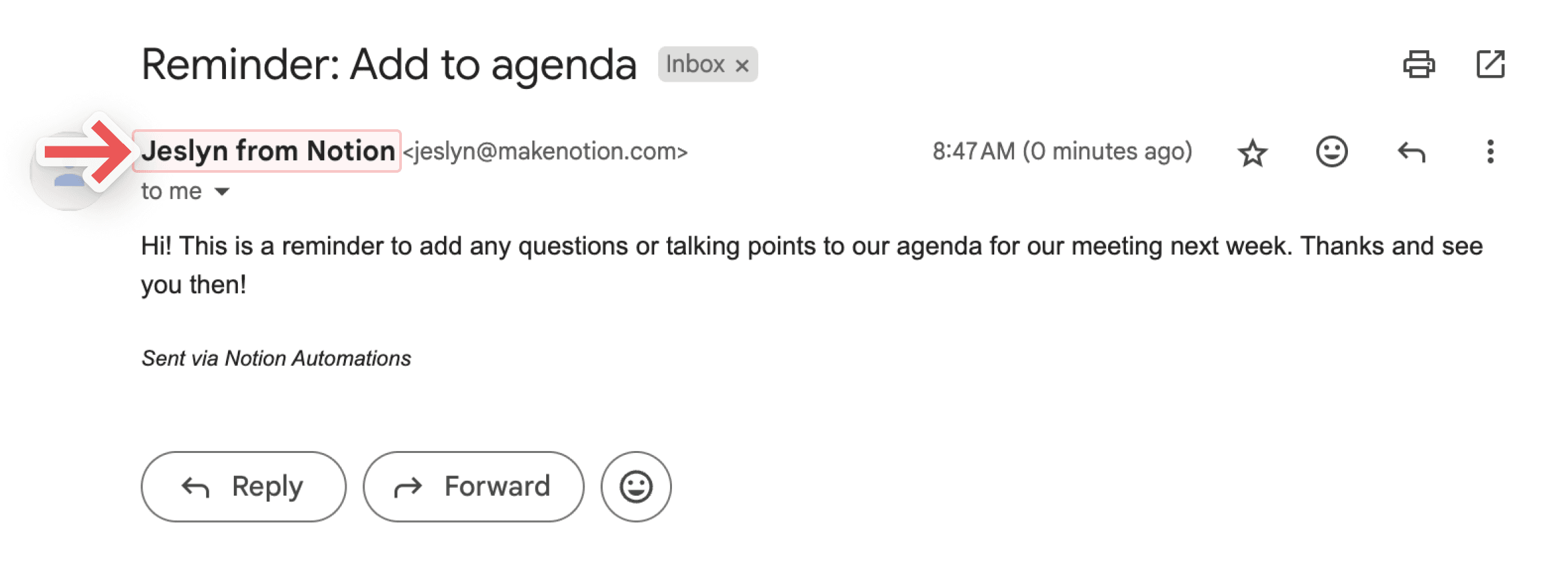
Antwoorden sturen naar: Als je wilt dat antwoorden op je e-mail naar iemand anders worden gestuurd dan het e-mailadres dat je hebt gebruikt om deze te verzenden, kun je deze optionele instelling gebruiken om het antwoord naar een persoons-eigenschap of een persoon in je werkruimte te sturen.
Variabelen definiëren
Je kunt een aangepaste variabele definiëren met vermeldingen en formules. Je kunt deze variabele vervolgens gebruiken in andere databaseautomatiseringsacties. Om een variabele te definiëren:
Klik op
⚡bovenaan een database en selecteer vervolgensNieuwe Automatiseringof een bestaande Automatisering.Selecteer
Nieuwe ActieofActie toevoegen→Variabelen definiëren.Klik op
Variable 1om de variabele een naam te geven, de formule te bewerken of deze te dupliceren. Je kunt ookVariabele toevoegenselecteren.Selecteer
@of∑in het variabele veld om je variabelen te definiëren.Je kunt deze variabelen gebruiken in aanvullende databaseautomatiseringsacties.
Laten we kijken naar een voorbeeld van wanneer en hoe je een aangepaste variabele zou maken. Stel dat je een Automatisering wilt instellen waarbij, wanneer een bovenliggende taak als voltooid wordt gemarkeerd, al zijn subtaken automatisch als voltooid worden gemarkeerd.
Klik op
⚡bovenaan een database en selecteer vervolgensNieuwe Automatiseringof een bestaande Automatisering.Selecteer de trigger als
Status ingesteld op voltooid.Selecteer
Nieuwe ActieofActie toevoegen→Variabelen definiëren.Selecteer
∑in het veld onderVariable 1.Selecteer in het venster dat wordt geopend
Trigger pagein de lijst met eigenschappen aan de linkerkant.Plaats een punt direct na
Trigger pagein je formule, zodat je formuleTrigger page.luidt. Zodra je dit doet, zie je de eigenschappen van de triggerpagina in de lijst met eigenschappen aan de linkerkant.Selecteer
Sub-item. Je formule zou nuTrigger page.Sub-itemmoeten luiden.Saveje formule. Nu is je aangepaste variabele gedefinieerd als de sub-items van de pagina die je automatisering activeert, of met andere woorden, de pagina die als voltooid is gemarkeerd.Selecteer nu
Actie toevoegenin je instellingen voor databaseautomatisering.Selecteer
Bewerk pagina's in....Open het
Select database-keuzemenu en selecteerVariable 1. Dit betekent dat de automatisering pagina's bewerkt die zijn gekoppeld aan variabele 1, of met andere woorden, sub-items die zijn gekoppeld aan de pagina die als voltooid is gemarkeerd.Open het
Bewerk een eigenschap-keuzemenu en selecteerStatus.Open het
Select-keuzemenu en selecteervoltooid.Selecteer
Opslaan.
De volgende keer dat je een bovenliggend item met sub-items als voltooid markeert, zou je moeten zien dat de status van alle sub-items ook verandert naar voltooid!
Opmerking:
Op dit moment kunnen vermeldingen en formules alleen worden gebruikt in database-automatisering Acties, niet in triggers.
Formules kunnen niet worden gebruikt bij het versturen van Slack-meldingen.
Je kunt vermeldingen en formules gebruiken in je databaseautomatiseringsacties om je automatiseringen beter voor je te laten werken. Bijvoorbeeld:
Misschien wil je de datum vermelden in de naam van een nieuwe pagina die in je database is aangemaakt.
Misschien wil je een database-automatisering instellen om een melding naar iemand te sturen waarin een specifieke pagina wordt vermeld.
Misschien wil je automatisch een bericht naar iemand sturen wanneer een ticket is opgelost, en in dat bericht een formule gebruiken die de tijd berekent die nodig was om het ticket te voltooien.
Om een vermelding of formule op te nemen in een databaseautomatiseringsactie:
Selecteer het schuifregelaar-pictogram bovenaan een database →
Automatiseringen.Selecteer
Nieuwe actieofActie toevoegen. Zoek de actie die je wilt en selecteer deze.Terwijl je de automatiseringsactie instelt, selecteer je
@in het veld als je een datum, persoon, pagina of een eigenschap van de triggerpagina in je database wilt vermelden. Selecteer∑in het veld als je een formule wilt maken.Selecteer
Opslaanwanneer je klaar bent.
Notion AI kan helpen bij het maken en bewerken van formules en kan vragen over formules beantwoorden. Lees hier → voor meer informatie.
Om ervoor te zorgen dat je automatisering goed werkt, helpen we je te begrijpen waar je automatisering ongeldig is.
Als je automatisering op fouten stuit terwijl je deze instelt:
Je ziet informatie over waar en wat die fouten zijn terwijl je de automatisering bouwt of bewerkt.
Je kunt de automatisering niet opslaan totdat je de vereiste correcties hebt aangebracht.
Als je automatisering eerder heeft gewerkt maar op een fout stuit, wordt de automatisering gepauzeerd.
We stellen je in bepaalde gevallen op de hoogte van fouten, waaronder wanneer een database of database-eigenschap die je automatisering bijwerkt ontbreekt, of wanneer een externe verbinding zoals Gmail of Slack niet langer geldig is of moet worden geauthenticeerd.
In andere gevallen, waaronder wanneer formules niet correct worden uitgevoerd of er problemen zijn met webhooks, word je mogelijk niet op de hoogte gesteld.
Je kunt op de melding klikken om direct naar de defecte automatisering te gaan en deze te herstellen zodat deze weer kan worden gebruikt. Zodra je automatisering is hersteld, moet je deze handmatig inschakelen of de pauze opheffen. Om dit te doen:
Open de database waaraan je automatisering is gekoppeld en selecteer
•••→Automatiseringen.Beweeg de muis over de automatisering die je zojuist hebt hersteld en selecteer
•••.Schakel
Actiefin.
Automatiseringen kunnen mislukken als ze proberen datumberekeningen (zoals
dateAdd) uit te voeren op een veld dat leeg of ongedefinieerd is wanneer de automatisering wordt uitgevoerd.Maak als oplossing een gefilterde weergave die alleen items bevat waarvoor het veld niet leeg is, en configureer de automatisering zo dat deze alleen op die weergave wordt uitgevoerd.
Automatiseringen kunnen mislukken als ze worden toegepast op een databaseweergave die relevante items wegfiltert. Zorg ervoor dat de automatisering wordt uitgevoerd op een weergave die alle items bevat waarop actie moet worden ondernomen.
Ga als volgt te werk als je alle bestaande automatiseringen van een database wilt weergeven en beheren:
Klik op
⚡boven aan een database.Plaats de muisaanwijzer op de automatisering en klik vervolgens op
•••.Selecteer
Bewerken,PauzerenofVerwijderen.
Veelgestelde vragen
Hoe vaak wordt de database gecontroleerd op wijzigingen in eigenschappen?
Hoe vaak wordt de database gecontroleerd op wijzigingen in eigenschappen?
Het activeren van database-automatiseringen neemt drie seconden in beslag. Binnen deze drie seconden kan een gebruiker een trigger verwijderen en wijzigingen wissen zonder dat een eigenschap van de automatisering wordt gewijzigd.
Werken automatiseringen op pagina's in de hele database of op pagina's in een databaseweergave?
Werken automatiseringen op pagina's in de hele database of op pagina's in een databaseweergave?
Beide opties zijn mogelijk. Tijdens het maken van de automatisering kun je aangeven of deze van toepassing moet zijn op de hele database of op een bepaalde weergave. Als de filters in deze weergave worden aangepast, wordt de automatisering toegepast op de bijgewerkte lijst met pagina's.
Kunnen gasten met volledige toegang tot een database automatiseringen maken?
Kunnen gasten met volledige toegang tot een database automatiseringen maken?
Helaas kunnen gasten geen database-automatiseringen maken.
Waarom wordt mijn database-automatisering niet getriggerd?
Waarom wordt mijn database-automatisering niet getriggerd?
Als je database-automatisering niet wordt getriggerd, kan dat komen doordat:
De automatisering is ingesteld om te worden getriggerd door een andere automatisering. Automatiseringen kunnen momenteel geen andere automatiseringen triggeren. Probeer in plaats daarvan een andere, niet-geautomatiseerde trigger te gebruiken.
De pagina voldoet niet meer aan de filters van een weergave nadat hij is bewerkt. Automatiseringen worden alleen uitgevoerd als de pagina op het moment van de trigger nog aan de weergave voldoet.
De database is vergrendeld.