Custom Agents sharing and permissions

Learn how Custom Agent permissions work in Notion, and why they differ from Notion AI 🤖
跳至常見問題Custom Agents automate work across your Notion workspace and connected tools. Understanding how permissions work helps you safely share agents while keeping your data secure.
Key difference from Notion Agent:
Notion AI acts as you and respects your personal permissions. It only sees what you can see.
Custom Agents act as specialized team members with their own permissions. They have access to specific resources you grant them.
Custom Agents have two types of permissions that work together:
What the agent can access: The specific Notion pages, databases, and connected apps you grant the agent permission to use.
Who can access the agent: The people you share the agent with and what they can do with it.

Note: Custom Agents have their own permissions. When you share a Custom Agent, you're giving your team access to everything the agent can see. Agent users can retrieve information from resources they lack access to, or make edits if the agent has read and write permissions to those resources.
Learn how to monitor Custom Agents usage with the Notion credits dashboard.
Example:
Your finance team creates a Custom Agent called BudgetBot to help answer questions about spending and budget approvals.
The finance team gives BudgetBot access to private pages like budget templates, approval workflows, and department spending guidelines.
The finance team gives department leads
Can view and interactpermissions to BudgetBot.Department leads with access to BudgetBot can now ask it questions and get answers using the finance team’s internal docs, even though the leads don't have direct access to those pages.
This empowers department leads to make informed decisions faster. They can ask BudgetBot for any budget information, from quick summaries to full document content, without needing direct access to every finance team page.
When you create a Custom Agent, you explicitly choose what it can access in the Tools and Access settings. Custom Agents can access:
Notion pages and databases - Select specific pages or databases.
Connected apps - Select Slack channels, MCP, Calendar, Mail.
Permission levels - Can view, Can comment, Can edit.
By default, new agents have no access to all pages in the workspace. Creators must explicitly enable this and accept the warning modal. Enterprise workspace admins can control who can create a Custom Agent, see all agents in a workspace, and disable triggers or override permissions on any agent.
The agent can only access resources you explicitly give it permission to use. It can't access anything else in your workspace. There are no inherited permissions from anyone (whether the creator or the user of the agent).
This also includes database row permissions. A Custom Agent responds using the agent’s own access, not the permissions of the person who triggered it. So if the agent can see more rows than the end user, the agent may expose information the end user can’t access directly.
To grant view access to a Notion resource, you must have at least view access on that resource.
To grant any greater level of access beyond view, you must have Full Access to share that resource.
Note: Give agents access to only the specific resources they need for their job. Avoid granting workspace-wide access. There isn’t a way to grant higher than “Can View” to all pages in a workspace.
Share your Custom Agent with your team just like a Notion page by clicking Share at the top of the page. Custom Agents have three permission levels that determine who can use and edit them.
Can view and interact
Use the agent to ask questions or run tasks.
See the agent's answers and results.
View agent settings and instructions in read-only mode.
Can edit
Everything in
Can view and interact.View and modify agent instructions.
View all chats users have had with the Custom Agent.
Add or remove Notion pages and databases.
Ability to edit settings and instructions, with the exception of third-party connections others enabled.
Full access
Everything in
Can edit.Share the agent with others.
Delete the agent.
For integrations, Notion validates that anyone configuring the agent has access to the resource they're editing. For example, if you set up a Slack channel that only you can access, other editors can't edit or view that resource—they can only delete it or set up a new one.
What guests and restricted members can do:
View the output agents have produced in Notion pages or databases that are shared with them.
Make edits to pages or databases which may trigger already configured Custom Agents to run.
What guests and restricted members cannot do:
Create Custom Agents.
Edit agent settings (unless explicitly given
Can editpermission).Ask questions and receive answers based on what the agent can access.
Note: Before sharing widely, review what resources your agent accesses in Tools and Access and consider whether everyone you’re sharing with should see that information.
Workspace admins can manage Custom Agents across the organization using the following tools and controls.
Note: Admins should regularly review agents using these tools, remove unnecessary access, and archive unused agents.
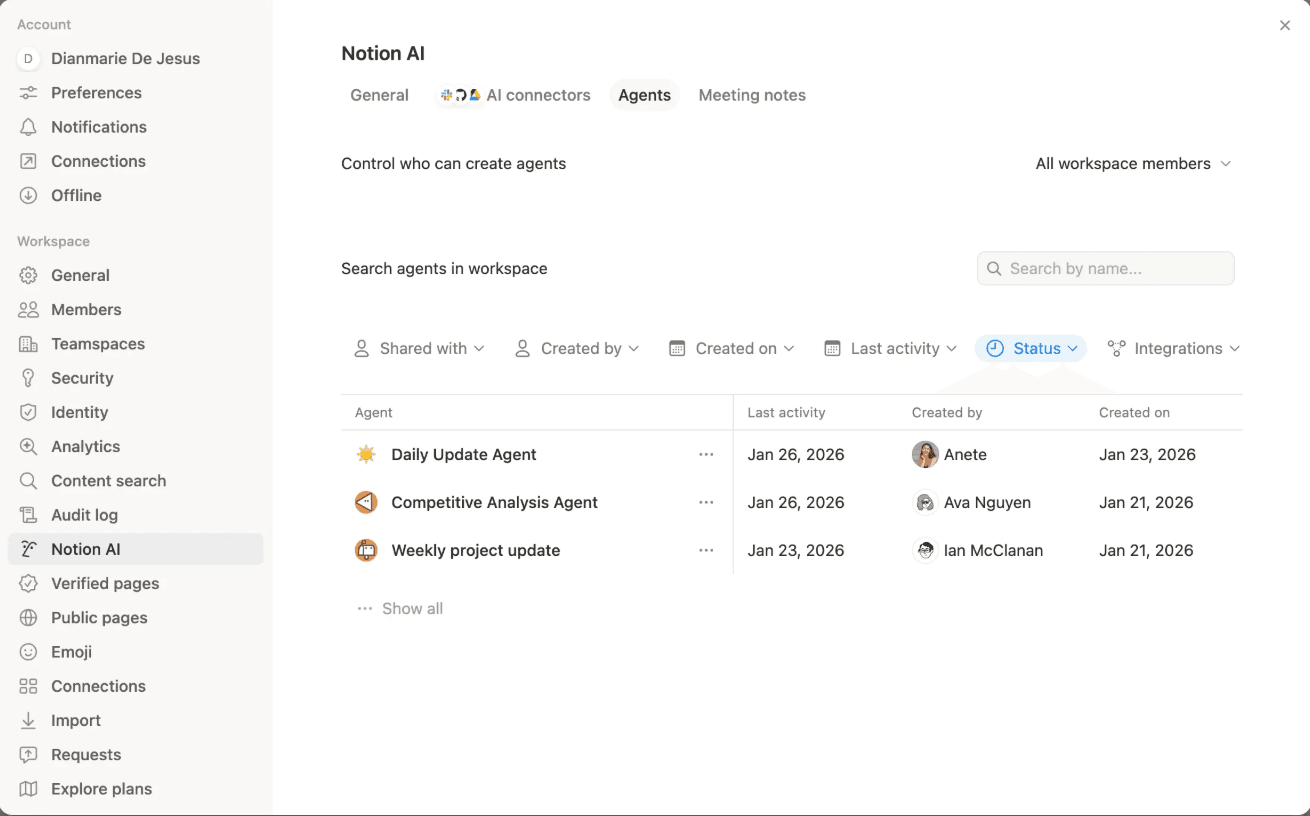
Agent Directory
Search and view all Custom Agents in your workspace.
See who created each agent and when it was last active.
Disable and re-enable agent editing, chatting, and triggers to stop automated runs.
Enterprise only: Change permissions and delete any agent, even if you don't have access to it.
To access the Agent Directory, go to Settings, select Notion AI from the sidebar, enter the Agents tab. Browse or search for agents in your workspace.
Creation controls
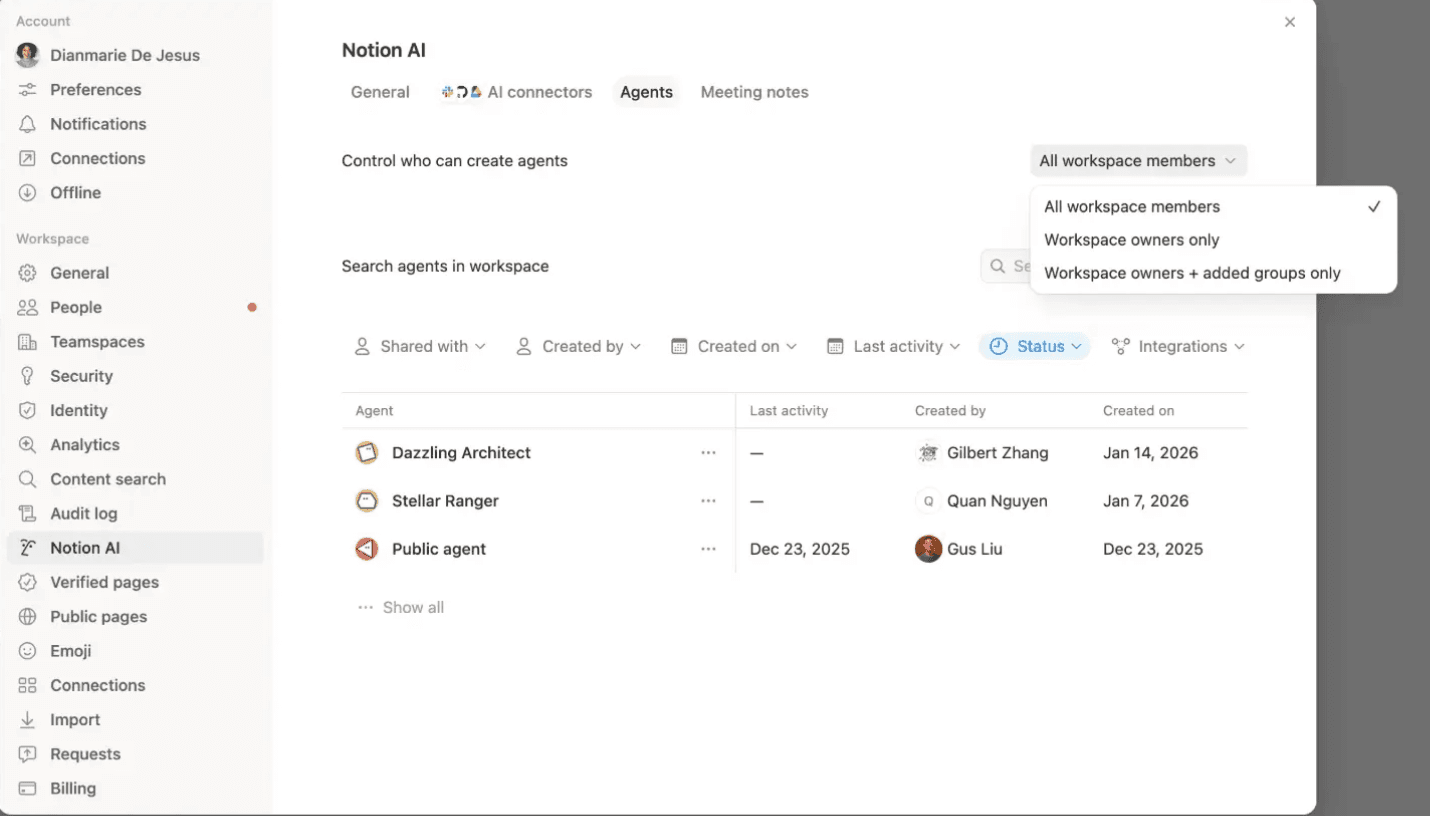
Restrict who can create Custom Agents:
Go to
Settings>Notion AI.Enter
Agentstabs and go toControl who can create agents.Choose who can create agents:
All workspace members(default),Workspace owners only, orWorkspace owners + added groups only.
Content Admin Search
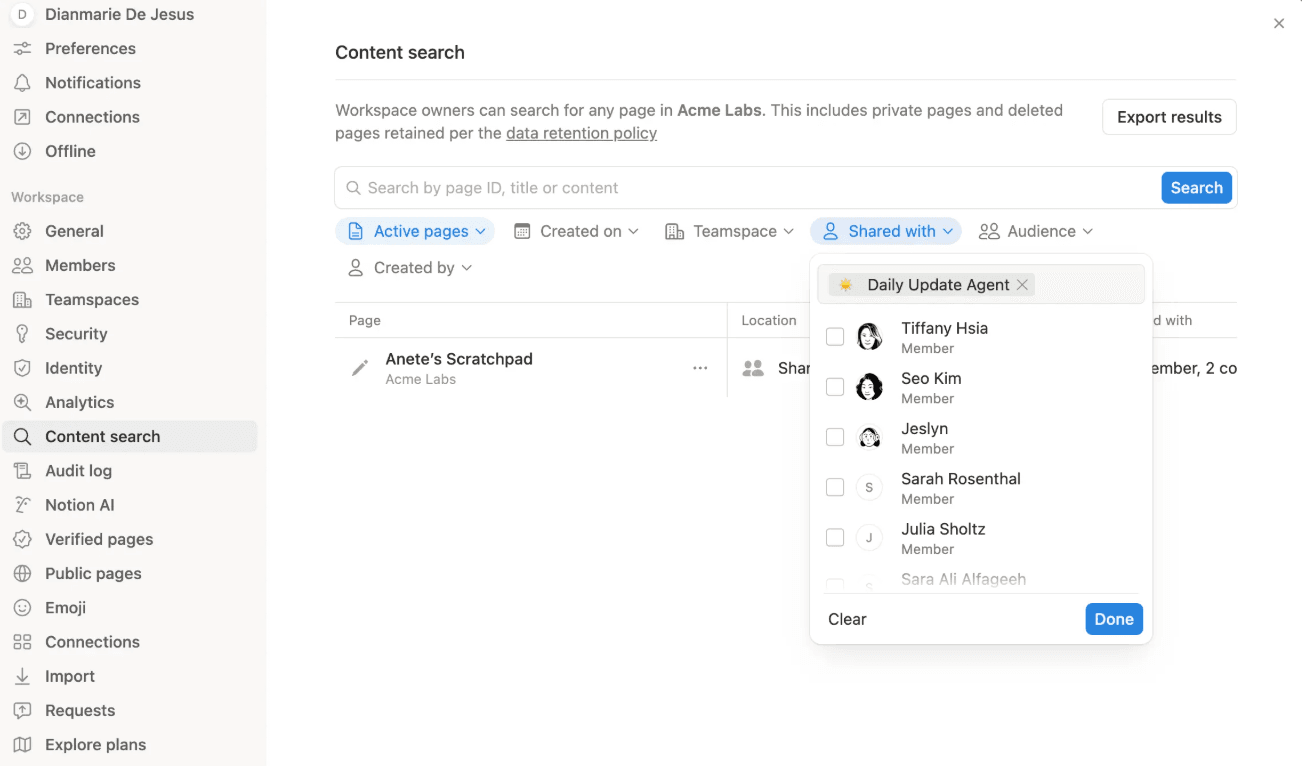
See what pages and databases each Custom Agent can access.
Manage agent permissions on specific resources.
Remove agents from accessing sensitive content.
To access Content search, go to Settings > Content search and use the Shared with filter to select a Custom Agent.
Note: Any page or database owner can remove an agent from their resource—even if they don't have access to the agent itself.
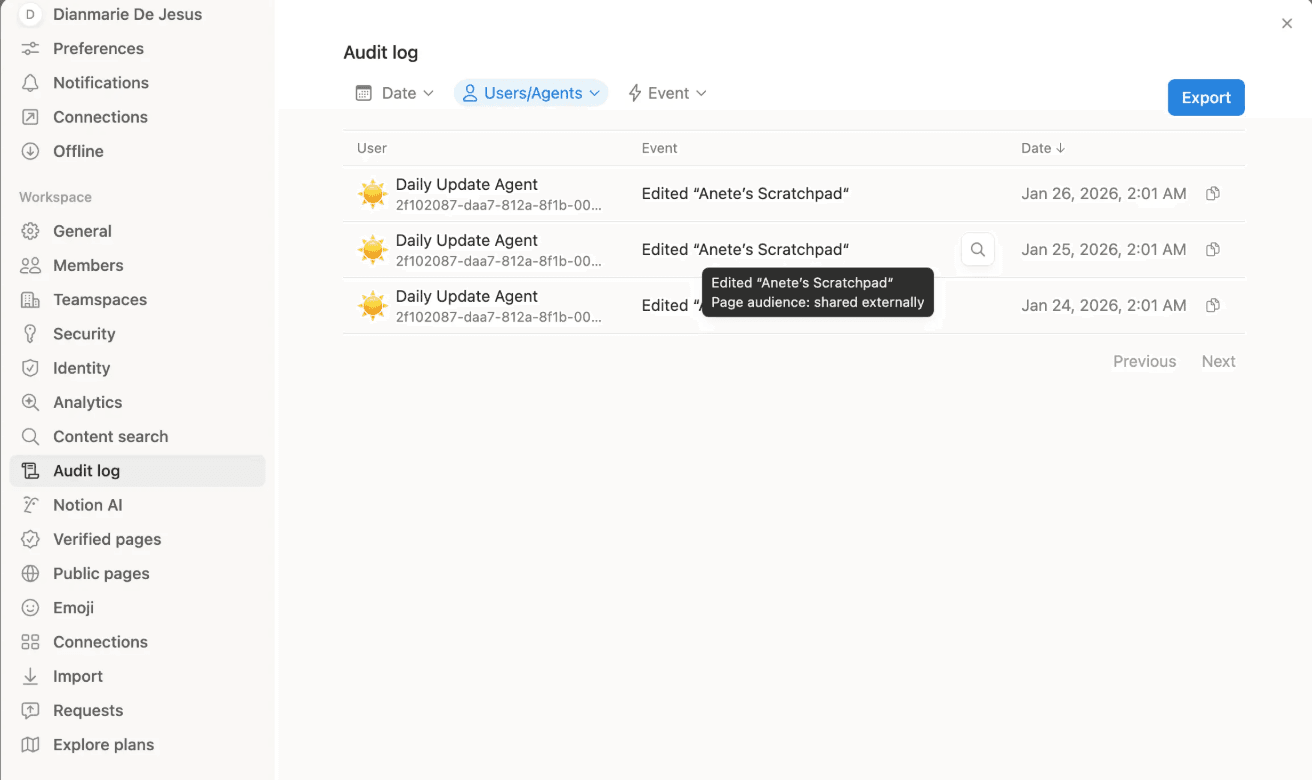
Audit Log
Full history of all Custom Agent actions.
Filter by agent, user, date, or action type.
To access the Audit Log, go to Settings > Audit log and filter for Custom Agent events by choosing the agent from the Users/Agents dropdown.
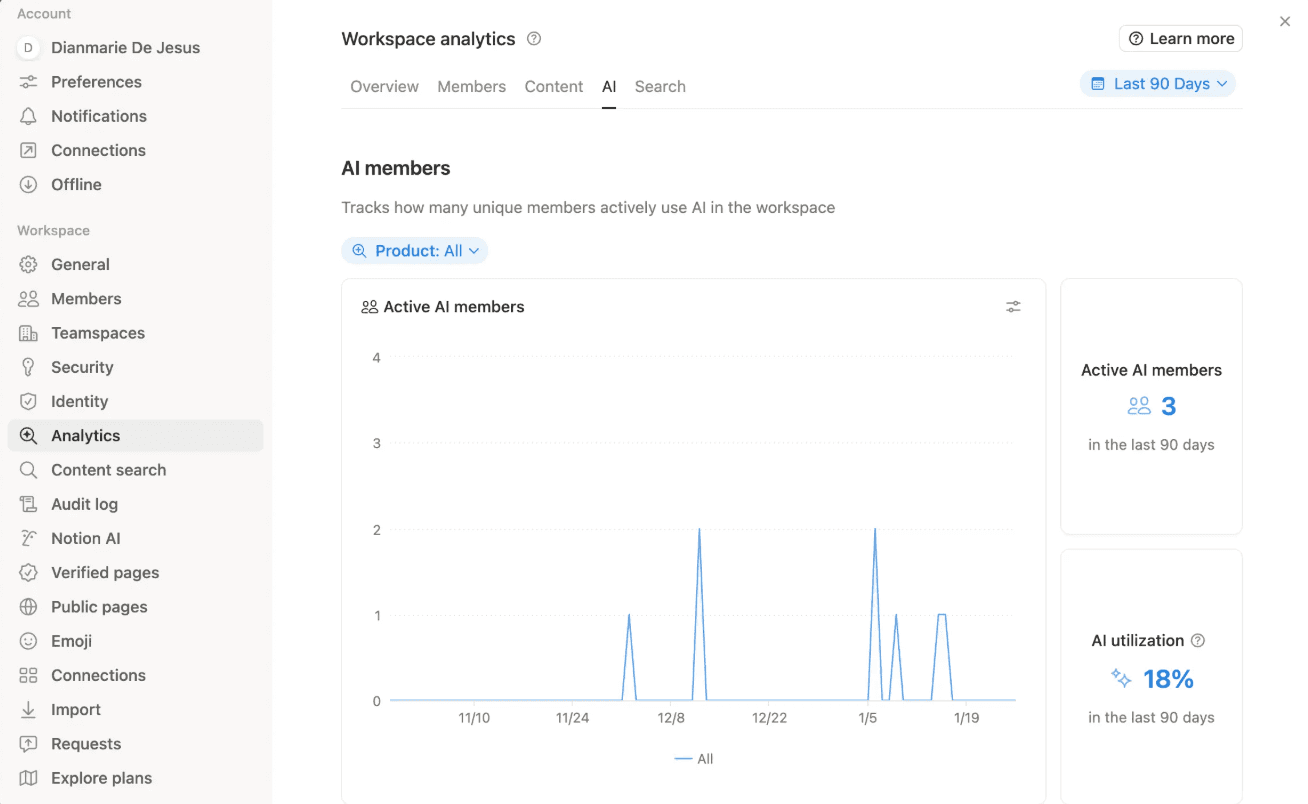
AI Analytics
Identify most-used and unused agents.
Monitor adoption and value.
To access AI Analytics Go to Settings > Analytics and enter the AI tab.
Transfer ownership
Transferring ownership ensures business-critical agents continue running when users leave the workspace. After 7 days of no ownership, the agent stops running.
Go to
Settings>Membersand enter theRecently Lefttab.Recently left users will have agents show up as "private agents" in the content re-provisioning flow.
Choose the new owner and confirm the transfer.
Transferring ownership is also supported via Public API.
常見問題
What's the difference between Custom Agents and Notion AI?
What's the difference between Custom Agents and Notion AI?
Notion AI acts as you—it respects your personal permissions and only sees what you can see.
Custom Agents act as specialized team members with their own permissions. They have access to specific resources you grant them, and anyone who uses the agent can benefit from that access.
Notion AI is on-demand, whereas Custom Agents are autonomous and can run automatically in the background.
Learn more about pricing and how Custom Agents use Notion credits.
Can a Custom Agent access something I can't see?
Can a Custom Agent access something I can't see?
Yes. If someone shares a Custom Agent with you, that agent might have access to resources you don't personally have access to. You only see information the agent includes in its responses. This is by design, allowing agents to coordinate work across permission boundaries.
However, if read and write access is enabled for the resource, the agent can edit those resources on your behalf. This means you can instruct the agent to make changes, not just retrieve information.
What happens if I remove someone from a private page that a Custom Agent can access?
What happens if I remove someone from a private page that a Custom Agent can access?
The person will lose direct access to that page, but if they can still use the Custom Agent, they might be able to get information from that page through the agent.
If you want to fully prevent access, either remove the page from the agent's access, or remove that person's access to the agent.
Can I see what resources a Custom Agent has access to before using it?
Can I see what resources a Custom Agent has access to before using it?
Anyone with Can view and interact permission can see the agent's settings page, which shows all connected resources.
To view an agent's settings, open the Custom Agent page, go to the Settings tab, and review the Tools and access section.
What if I accidentally give an agent too much access?
What if I accidentally give an agent too much access?
You can remove resources from an agent's Tools and Access settings at any time. The changes take effect immediately.
If you own a page or database: Remove the agent from that resource directly through the share menu—even if you don't have access to the agent itself.
If you're an Enterprise workspace owner: Use the Agent Directory to modify any agent's permissions, even if you didn't create it.
Can I stop a Custom Agent from accessing my content?
Can I stop a Custom Agent from accessing my content?
Yes. As a page or database owner, you can remove any Custom Agent from your resource through the share menu.
To remove an agent, open the page or database, click Share, find the Custom Agent in the list, and click the X to remove it.
How do I know if an agent is accessing my content?
How do I know if an agent is accessing my content?
Custom Agents appear in the share menu of any page or database they have access to—just like people do.
To check, open the page or database, click Share, and look for Custom Agents in the list.