Manage your Library
Use Library to find, organize, and manage pages across your workspace, including customizing what shows up in your sidebar 📚
Library helps you find and organize pages across your workspace, all from one place.
In your sidebar, select Library.
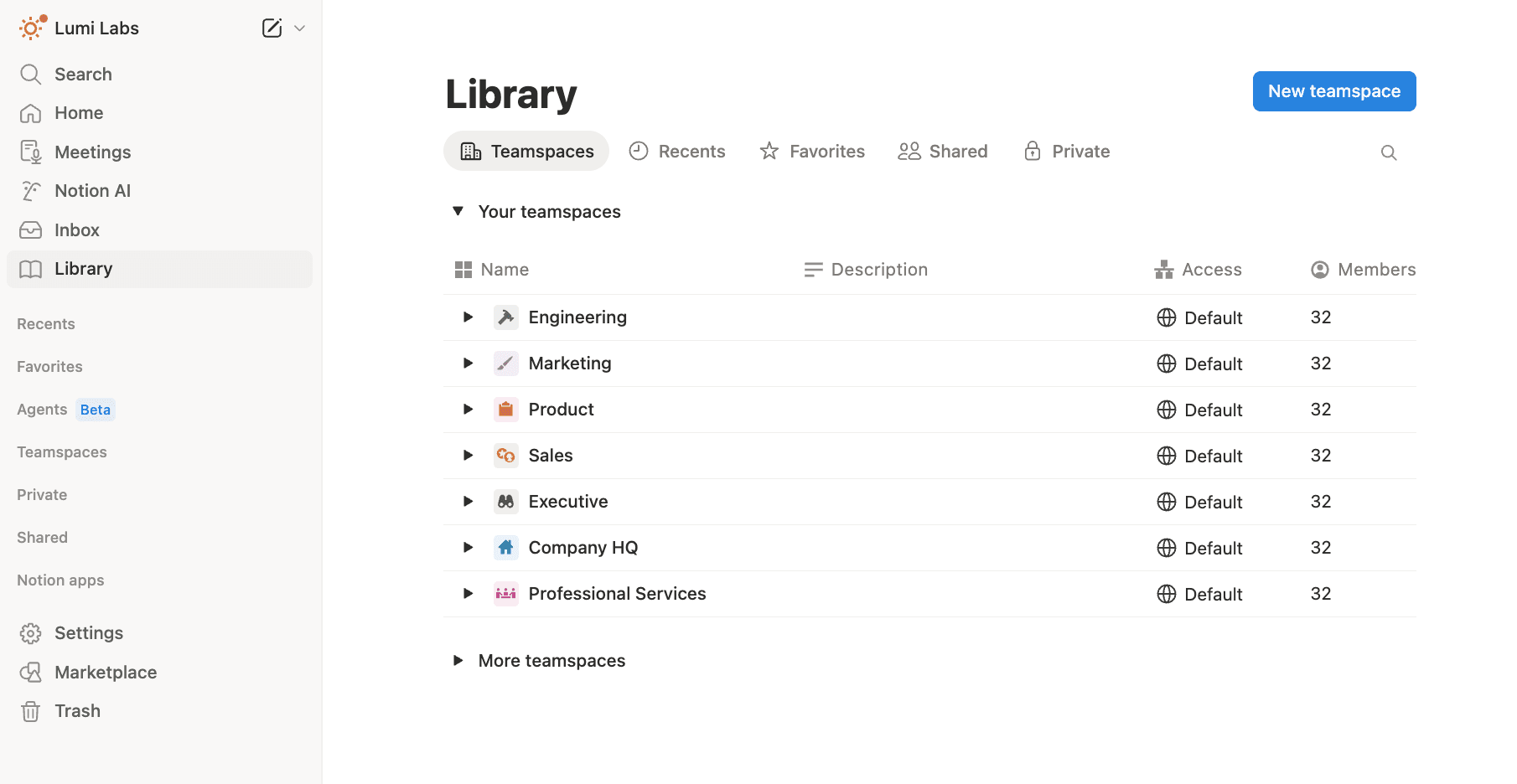
With Library, you can remove sections from your sidebar to keep it clean. Customize which sections show in your sidebar, and choose how many favorites appear. If you remove a section from your sidebar, you can still access it later from your Library.
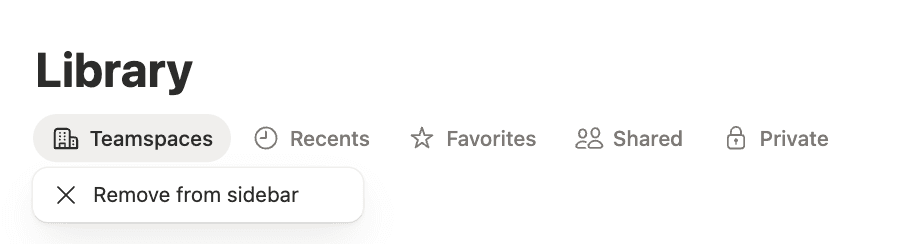
Go to your Library.
Click the section name.
Select
Remove from sidebarorAdd section to sidebar.
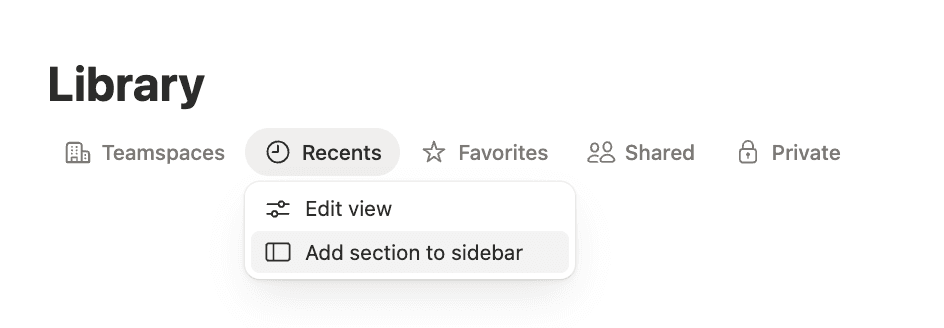
At the top of Library, you’ll find tabs that help you browse different parts of your workspace:
Teamspaces — Find content from your teamspaces.
Recents — Quickly find pages you viewed recently.
Favorites — Find all pages you’ve favorited.
Shared — Find pages shared with you.
Private — Find your personal pages.
In Library, you can:
Search for a page by name.
Use filters to narrow results.
Customize which details show up when you browse, search, or filter pages.
Library lets you take several actions in one go so you can manage multiple pages more quickly. For example:
Select several loose pages from your Private or Recents tab, and move them all into a teamspace.
Select multiple important pages, and delete them all at once.
Select multiple pages, and remove them all from your Favorites section at once.
Edit page icons on multiple pages at once.