Connect Custom Agents to your tool stack with MCP integrations
MCP lets Custom Agents securely connect to external tools, so you can bring live context into Notion and automate end-to-end workflows across your stack safely and with control.
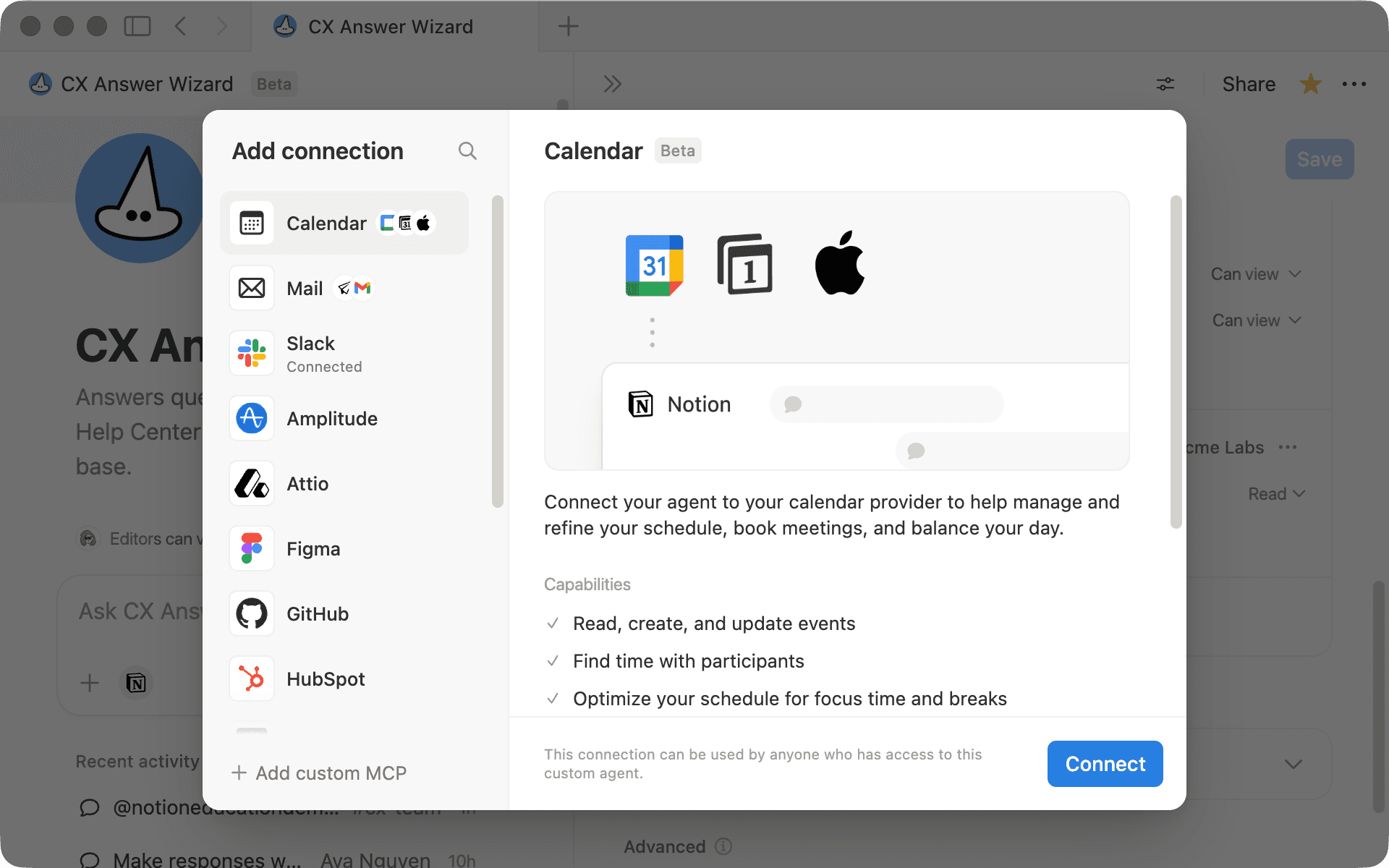
Your work doesn’t live in one place: brainstorms in FigJam, bugs in Linear, fixes in GitHub, revenue in Stripe, plans in Notion. Without connected tools, people become the glue—copying context just to keep things moving.
A Custom Agent becomes far more powerful when it can work across your entire stack.
With MCP (Model Context Protocol), your agent can securely connect to external tools and use them as part of a single workflow. With the right permissions, it can pull live data, take action, and coordinate work wherever it lives—on a schedule, from events, or on demand.
In this guide, you’ll learn how to:
Decide when MCP is the right fit for your workflow
Connect a pre-configured MCP server (using FigJam as an example)
Add and configure a custom MCP server for internal tools and APIs
Roll out safely with scoped access, approvals for write actions, and clear ownership
Troubleshoot common MCP connection and run issues

New to Custom Agents?
A Custom Agent can act like a teammate inside Notion. You define the workflow, and it runs on a schedule, in response to events, or whenever you need it, using the context and permissions you’ve set.
Without MCP, an agent can still automate work inside Notion—but workflows that depend on other tools may still require manual handoffs and context switching.
MCP lets those workflows connect with the rest of your tool stack. Your agent can bring in data and context from other systems automatically.
Use MCP when a workflow spans Notion and another system. For example:
Updating tickets in Linear or Jira
Creating or tracking work in GitHub
Logging payments or subscription updates in Stripe
Pulling product metrics from Amplitude

MCP connections are available on Business and Enterprise plans
Let’s say your team runs planning sessions, brainstorms, and workshops in FigJam, but the outcomes—action items, decisions, and diagrams—stay stuck on the board. Meanwhile, your Notion workspace is where specs, project pages, and tasks actually live. To keep work moving, you need a way to connect ideation with execution so nothing gets lost in between.
In this example, we'll use Figma (FigJam) to show what an end-to-end workflow looks like.
1) Start by telling your Custom Agent what you want
From your workspace sidebar, create a new agent. Then chat with it to describe the workflow you’d like it to run. Take a moment to get clear on the job you want your agent to handle.
Here's an example you can adapt:
"When I share a Notion doc or outline with you, turn it into a FigJam board with the right diagram type: a flowchart, user journey, or system map. And when I share a FigJam board link, extract the stickies, annotations, and key themes and turn them into a structured Notion doc with clear next steps."
As you set this up, it helps to spell out a few details in your instructions:
What kind of output you expect, such as a flowchart for process docs, a user journey for research findings, or an org chart for team planning
When the agent should move work forward on its own versus when it should pause and ask for clarification
Where your source of truth should live, for example always linking the source Notion page when creating a FigJam board, and always linking back to the FigJam board when summarizing outcomes in Notion
Write clear agent instructions
2) Connect Figma via MCP
Next, you'll connect Figma to your Custom Agent using MCP. This is what allows your agent to move work between Notion and FigJam as part of a single workflow. To do this:
Open your agent's Settings
Go to Tools & Access
Click Add connection
Select a pre-configured server (for example, Figma), then click Add
Follow the authentication prompts to connect your Figma account
Select the tools you want your agent to use (these vary by server)
Click Save
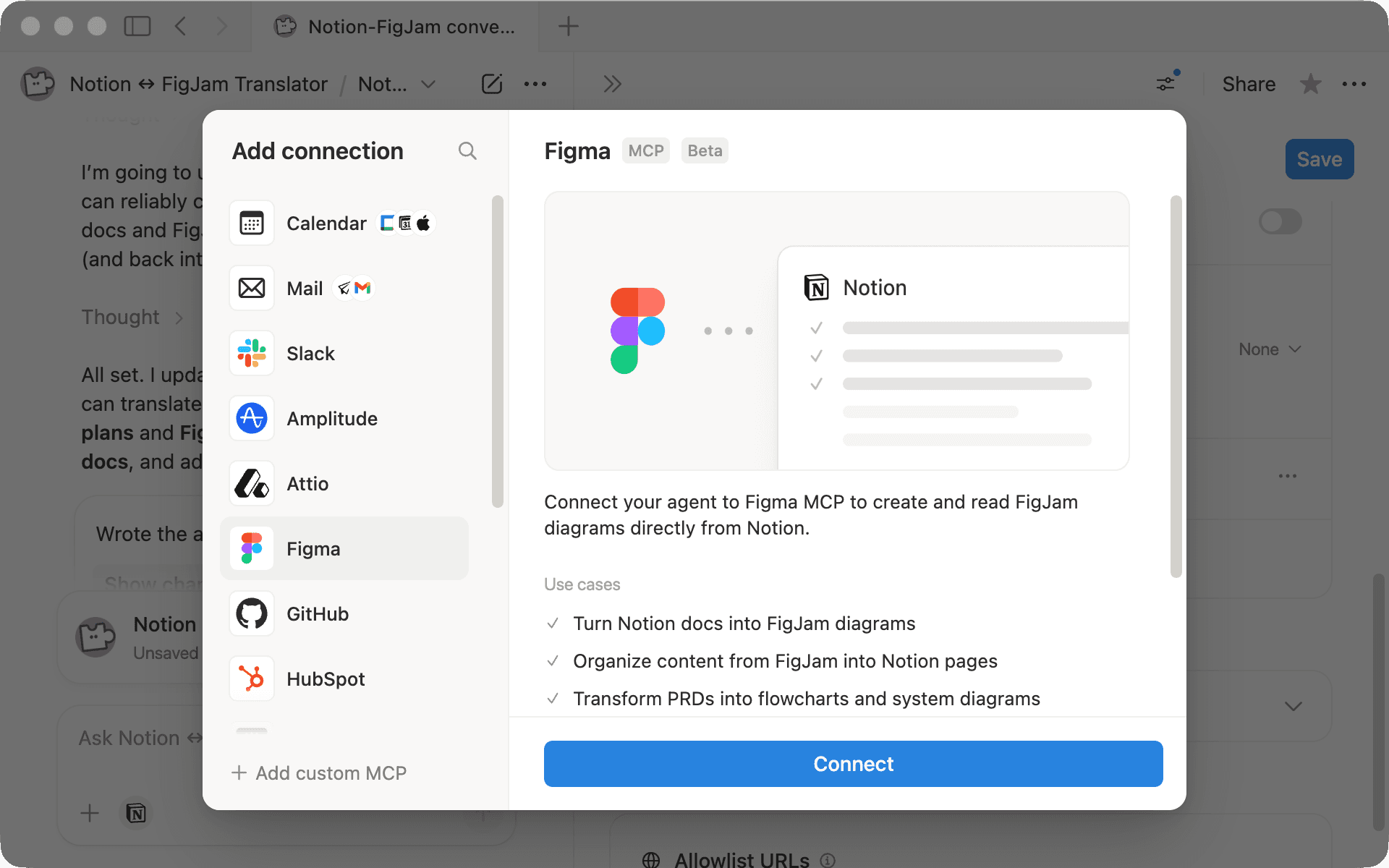
Once Figma is connected, it shows up as a set of tools your agent can use, just like Notion tools. From here on, your agent can read FigJam boards, generate new diagrams, and keep everything connected back to Notion.
As you're setting this up, start small. Turn on only the tools your agent needs for this workflow, and keep write tools set to Always ask while you're testing so you can review changes before anything is created or updated.
Connection ownership and admin controls
3) Decide what lives in Notion vs. what lives in FigJam
A good starting point is to separate structured documentation from visual thinking.
Think of Notion as the place where specs, plans, meeting notes, and decisions live. For example, when a PM writes a PRD, a team lead drafts OKRs, or a researcher compiles findings, it starts as a structured page in Notion with clear sections and context.
FigJam, on the other hand, is where visual thinking happens. It's where teams brainstorm on sticky notes, map out user journeys, sketch system diagrams, and run workshops.
Once that split is clear, your agent connects the two. It can take a Notion doc and generate a first-draft FigJam board (e.g., a flowchart, journey map, or system diagram), so your team can jump straight into visual collaboration without starting from a blank canvas.
After a brainstorm or workshop, the agent works in the other direction: it reads the FigJam board, extracts key themes, decisions, and open questions from stickies and annotations, and turns them into a clean Notion doc with structured next steps. No more manually copy-pasting sticky notes.
Here are a few example use cases showing how popular pre-configured MCP tools can work with custom agents. These ideas aren’t exhaustive, just a starting point to explore what’s possible.
Linear: Summarize project progress; create issues from Notion docs; turn PRDs into structured Linear projects
GitHub: Track new PRs and summarize code changes; open issues from security alerts; generate weekly engineering status updates
Stripe: Create invoices/payment links; look up customers, subscriptions, and invoices; process refunds and disputes; manage products and pricing
Ramp: Analyze spend by department/vendor; track transactions and reimbursements; monitor limits; review corporate card usage
Amplitude: Generate recurring analytics reports; track experiments; pull product insights to inform planning, positioning, and copy
Pre-configured MCP connections are great for popular tools your team already uses. But many of the most important workflows may live outside standard SaaS apps.
A custom MCP server lets you connect your agent to the tools your organization actually runs on, including internal APIs and systems, and turn them into usable actions inside a Notion workflow.
This is especially helpful when your work depends on things like:
Internal admin panels or operational tools
Data platforms and metrics layers
Billing, entitlements, or subscription systems
Incident management or on-call tooling
Inventory, ops, or proprietary CRMs
MCP connection types
Connecting a custom MCP server
Before adding a custom MCP server, a workspace owner or admin needs to enable custom connections in Settings → Notion AI → AI connectors → Enable Custom MCP servers.
Once that’s enabled:
Open your agent’s Settings and go to Tools & Access
Click Add connection, then choose Custom MCP server
Enter the MCP server URL and a display name
Add any required authentication details
Click Save
After that, the tools exposed by your MCP server will be available for your agent to use in workflows, just like pre-configured connections.
Custom MCP servers also give teams stronger control and safety. You can limit exactly what actions an agent can take, apply permissions at the server level, keep write actions behind approval while testing, and maintain clear audit trails of what runs when.
When you connect an agent to external tools and MCP servers, safety and control matter just as much as capability. These practices help you limit access, review changes before they happen, and move gradually from testing to trusted automation.
1) Start safe with read-only access
Begin with read tools like search, list, fetch, and view to validate your prompts and workflow end to end.
Think of enabling write actions as a later milestone, not the starting point.
2) Keep changes behind approval while you test
While you’re rolling things out:
Leave write tools set to Always ask so you can review each change
When you’re ready to automate, switch tools to Run automatically one at a time and monitor results
Read vs. write tools (and confirmations)
3) Scope access tightly (least privilege)
Only enable the tools your workflow actually needs.
Avoid exposing a full server’s tool list “just in case”
Choose narrower actions when possible, like creating issues in a specific project or team
For custom MCP servers, expose the smallest set of actions and fields required
Who can run an agent vs. who can configure it
4) Reduce guesswork with clear instructions
In your agent’s instructions, spell out:
What “done” looks like, including required fields, acceptance criteria, and links back to Notion as the source of truth
When the agent should ask for clarification versus taking action
Clear guardrails, such as never closing issues or changing priority without approval
5) Separate drafting from publishing for higher-risk actions
A simple safety pattern that works well:
The agent drafts the content, such as ticket text, updates, or announcements
A human reviews and approves
The agent executes the final write

More resources
For recommended rollout patterns and guardrails, see Security best practices for agent connections
For a rundown of built-in safety controls, see Custom Agents security features
For role-based access and collaboration details, see Custom Agents sharing & permissions
For step-by-step setup and troubleshooting for a specific MCP connection, see MCP connections for Custom Agents
我們有漏掉什麼嗎?