ライブラリの管理
ライブラリを使用して、ワークスペース全体のページを検索、整理、管理します。サイドバーに表示される内容をカスタマイズすることもできます。
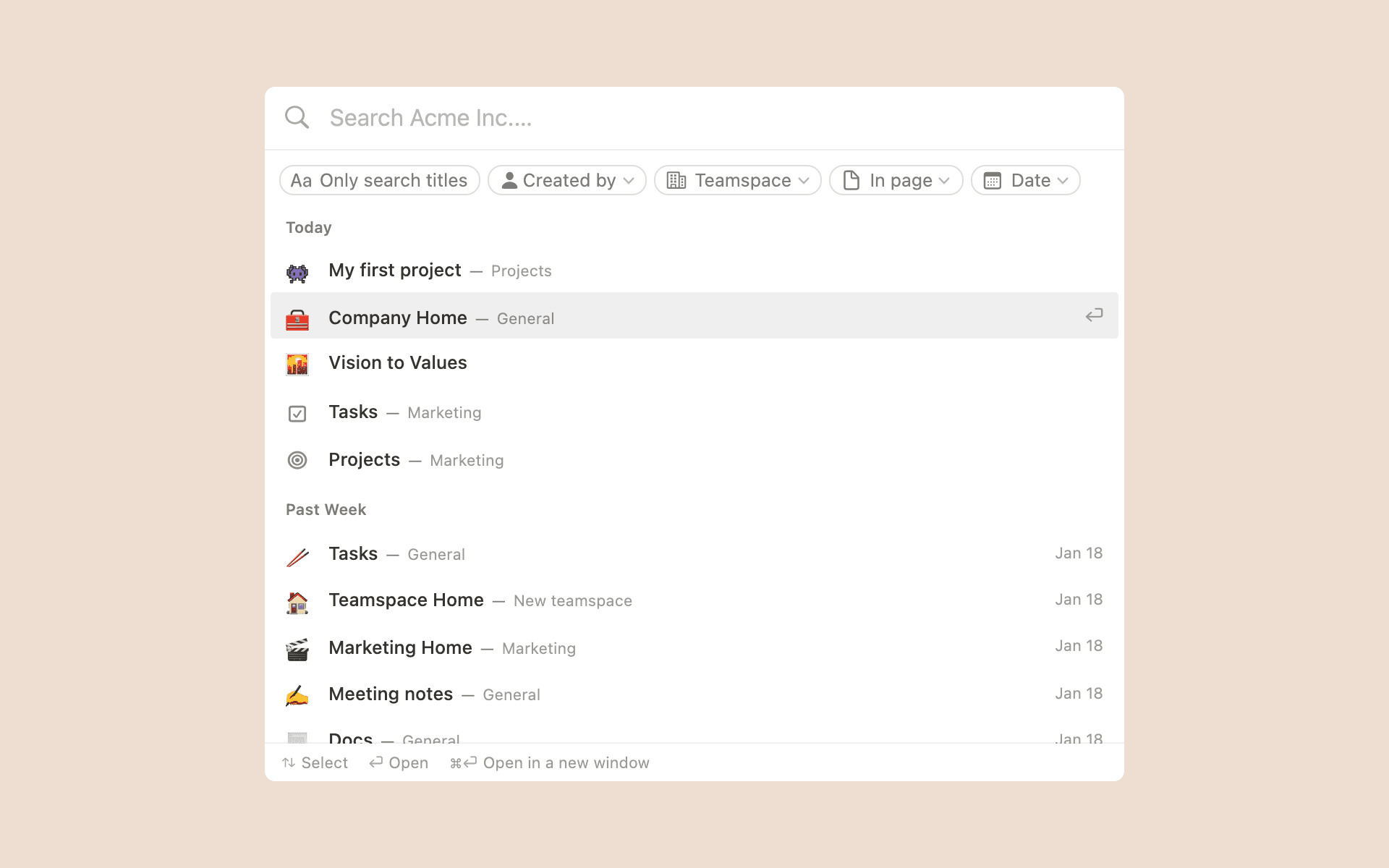
ライブラリを使用すると、ワークスペース全体のページを1か所で検索して整理できます。
サイドバーでライブラリを選択します。
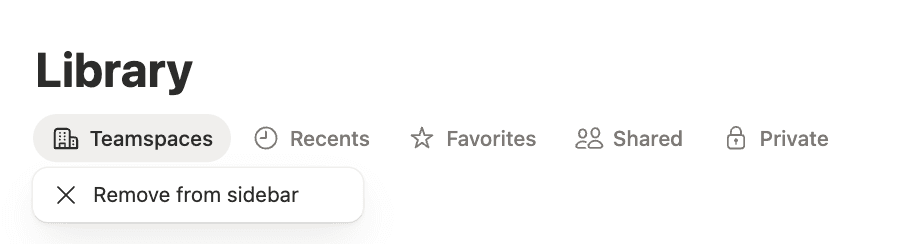
ライブラリを使用すると、サイドバーからセクションを削除して、サイドバーをすっきり保てます。サイドバーに表示するセクションをカスタマイズしたり、表示するお気に入りの数を設定したりできます。サイドバーからセクションを削除しても、後でライブラリからアクセスできます。
ライブラリに移動します。
セクション名をクリックします。
サイドバーから削除またはサイドバーにセクションを追加を選択します。
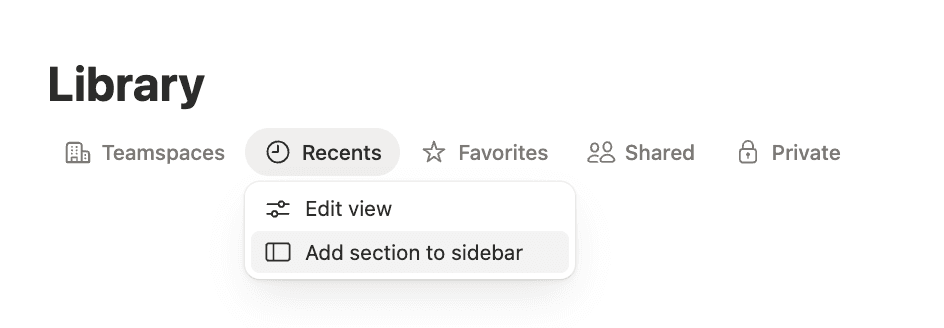
ライブラリの上部には、ワークスペースのさまざまな部分を参照するのに役立つタブが表示されます。
チームスペース :チームスペースのコンテンツを検索できます。
最近のページ :最近閲覧したページをすばやく見つけられます。
お気に入り :お気に入りに登録したすべてのページを検索します。
共有:共有されているページを検索します。
プライベート :個人ページを検索します。
AI ミーティングノート — 参加したミーティングのメモを検索します。フォローアップしやすいようにここに整理されています。
エージェント — 新しいカスタムエージェントを作成し、既存のエージェントを表示します。
ライブラリでは、次のことができます。
名前でページを検索する。
フィルターを使用して結果を絞り込む。
ページの閲覧、検索、またはフィルタリング時に表示される詳細をカスタマイズする。
ライブラリでは、一度に複数のアクションを実行できるため、複数のページをより迅速に管理できます。例えば:
「プライベート」タブまたは「最近」タブから複数のページを選択し、それらをすべてチームスペースに移動します。
複数の重要なページを選択して、一度にすべてを削除します。
複数のページを選択し、一度にすべてを「お気に入り」セクションから削除します。
一度に複数のページのページアイコンを編集します。