Template localization on Marketplace
Learn how to localize your templates in the Notion Marketplace. 🌎
Template localization enables creators to quickly and easily translate their templates into different languages. AI localization uses Notion AI to translate your template and Marketplace listing, letting you publish your work to a global audience.
When you localize your template, you're creating a translated version of your existing template listing — not submitting an entirely new template. This means your localized versions share the same link and slug as your original template on Marketplace, but users in different regions will see the version in their preferred language.
Users can change which language they see by adjusting their language settings in the Notion app or by changing the language option in the footer on notion.com.
Localizing your templates helps you:
Reach a global audience — Make your templates discoverable to millions of Notion users worldwide who prefer to work in their native language.
Increase template duplications — Users are more likely to add and use templates in their preferred language.
Build an international presence — Grow your creator business beyond English-speaking markets.
Save time — Let AI handle translations instead of creating multiple versions manually.
To translate your template into another language, start from your creator profile and choose a template you’d like to translate.
![[HC] Edit templates](/_next/image?url=https%3A%2F%2Fimages.ctfassets.net%2Fspoqsaf9291f%2F7gRnmZDRZE2kXehZgdLEV2%2Ffa43428c7f219b338575deac8365fc77%2Facc87c82eec735bbbf84fc901caecda062892b5d35ca779d412e05df916d3e4b_copy.png&w=3840&q=75)
Click the language dropdown at the top right of the page. Choose
Manage languagesfrom the menu. Then clickAdd a translation.![[HC] Template Manage Languages](/_next/image?url=https%3A%2F%2Fimages.ctfassets.net%2Fspoqsaf9291f%2F6QnZDJjPyyFEUnWj28dzSh%2Fa7f6fc9d9853e8aa9216c1a39e058570%2Ftemplate_managelanguages.png&w=3840&q=75)
Select the desired language and then choose whether to translate just the template listing or both the listing and the template contents.
![[HC] Template Add a Translation](/_next/image?url=https%3A%2F%2Fimages.ctfassets.net%2Fspoqsaf9291f%2F4Rhk3DMwpH9NFzrywT6uDW%2F8390fcd5fd8b160881cbe83f2b0bd6bb%2Ftemplate_addatranslation.png&w=3840&q=75)
You will see a popup in the bottom left when your translated template is ready.
 Template ready message
You can click
See templateto view your template or look for the translated page in the parent page of the original template.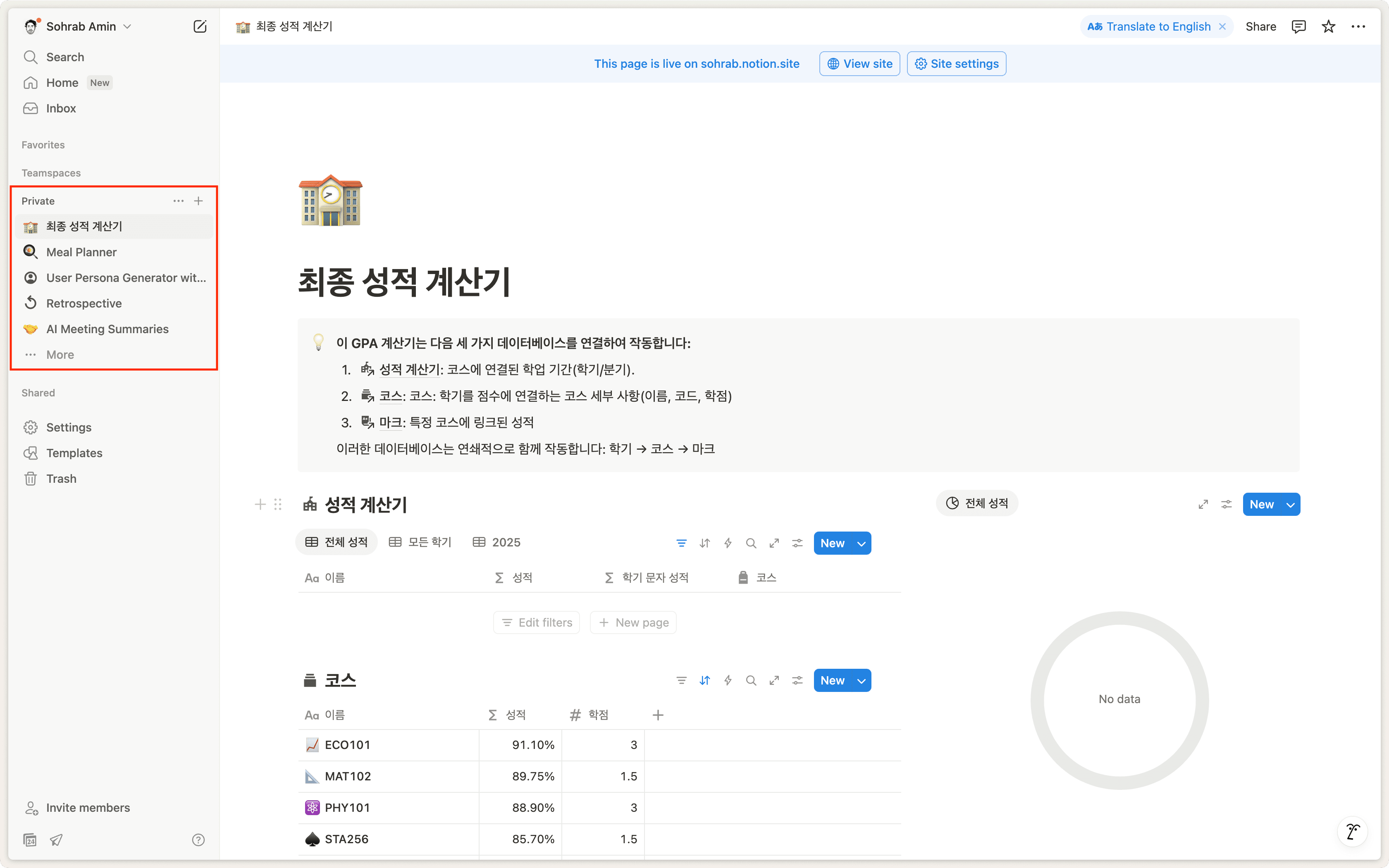
Click
Site settingsand copy the public site link from the newly translated page and add it to the newly made template listing template link field.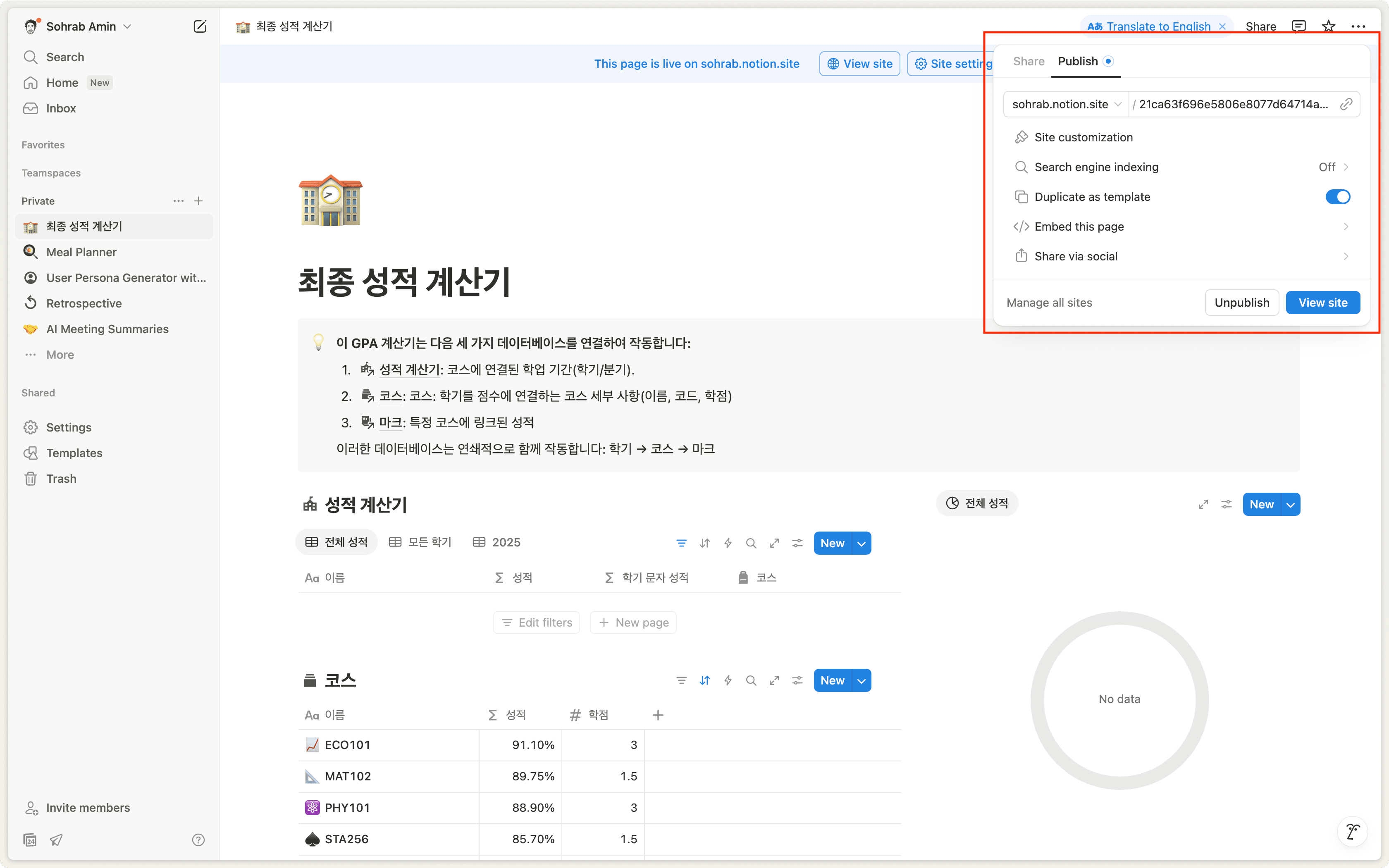
Click
Regenerateto get a new screenshot.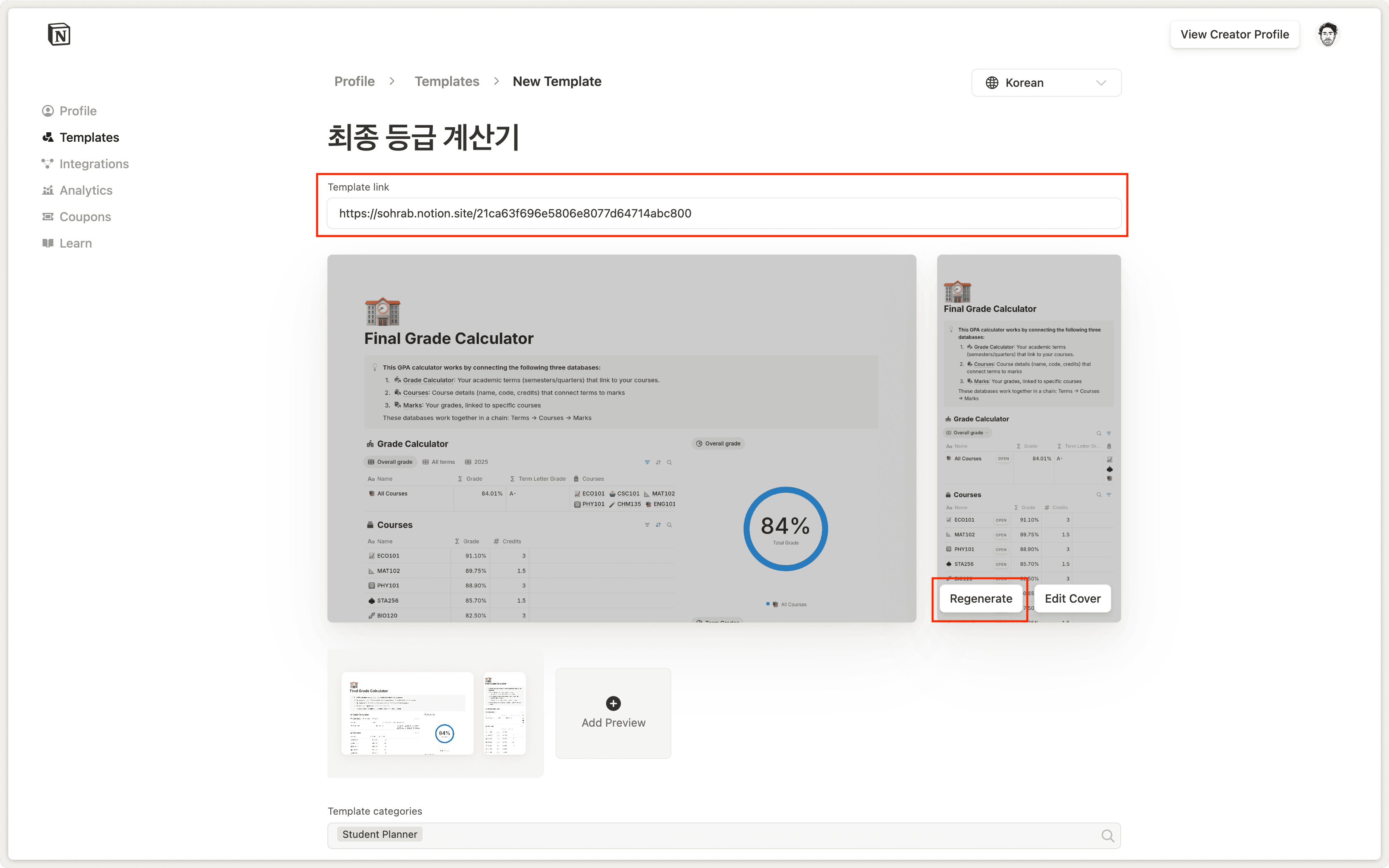
Review before publishing — While AI translations are convenient, it's always a good idea to review them (or have a native speaker review them) before making them live. Your template may be rejected if it’s not fully localized.
Keep language simple — Templates with clear, straightforward language tend to translate more accurately than those with complex idioms or jargon.
Update all versions — When you make changes to your original template, remember to update your localized versions as well to keep them in sync.
You can only translate templates with a total block size of less than 20,000.
Automations, buttons, custom AI block instructions are not included in translations.
This feature is only available if your workspace is on a plan that includes Notion AI.
