Integrate Salesforce (legacy)
Bring important information from Salesforce into Notion.
Jump to FAQs
Note: This legacy integration will stop working on October 30, 2026. Your existing synced databases will remain in Notion, but will stop updating. To keep your external data current, set up your new syncs before October 30. Follow the steps in Connect Salesforce to Notion ->
At this time, updates from Salesforce will sync to Notion — not the other way around. Any changes you make in Notion won’t reflect in Salesforce.
Each Notion workspace can only be connected to one Salesforce account.
Salesforce and Notion permissions aren’t 1:1. Admins should use a dedicated integrated user to restrict access to sensitive fields (for example, ARR) directly from Salesforce. Notion permissions apply only after data has been synced.
We don’t currently support bulk syncing all records for an object (such as all Accounts or Leads). However, you can bulk populate Salesforce connected properties for existing rows using a column of Salesforce record URLs and the
Populate propertyaction — learn more here →
Initial authentication by an admin
To connect Salesforce and Notion, you need to be a Notion workspace admin. Admins can take the following steps to connect via a secure OAuth flow:
Log into Salesforce.
Open Notion and go to
Settings.Select
Connections→Salesforce (Workspace)→Connect Salesforce.
Once the connection is made, you’ll have enabled the Salesforce integration for your whole workspace.
Note:
Salesforce has recently introduced a new security requirement where an admin must explicitly approve the Notion app before members of the org can authenticate. Without approval, you may see this error:
OAUTH_APPROVAL_ERROR_GENERIC. To approve the Notion app in Salesforce:Sign in as a Salesforce System Administrator (or a user with the “Approve Uninstalled Connected Apps” permission).
Go to
Setup→Apps→Connected Apps→Connected Apps OAuth Usage.Locate the Notion integration and select
Install.
This setup is fully managed within Salesforce. If the Notion app isn’t appearing for approval, it’s likely due to Salesforce’s configuration requirements. See Salesforce’s article for detailed setup scenarios and troubleshooting.

Tip: If Auto-approve “Built by Notion” connections is off in your Notion settings, manually add Salesforce under Add approved connections so members can authenticate.
Individual member authentication
Once an admin has authenticated the workspace, each user must sign in to sync their own data. This ensures users only access the Salesforce data they have permission to view. There are several ways individual users can connect:
Go to Notion
Settingsand selectConnections→Salesforce→Connect Salesforce.Paste a Salesforce report URL into a Notion page.
Add a Salesforce property to a Notion database.
You can bring reports from Salesforce into Notion as databases. To do this:
Open a report in Salesforce.
Copy the Salesforce report URL.
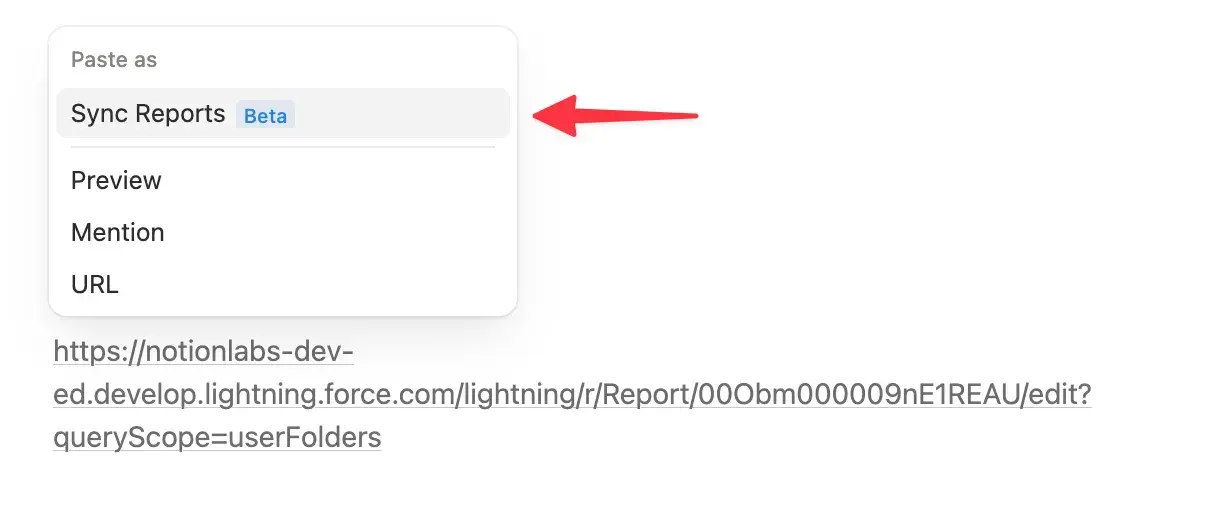
Paste it into a Notion page. In the menu that appears, select
Sync Reports.
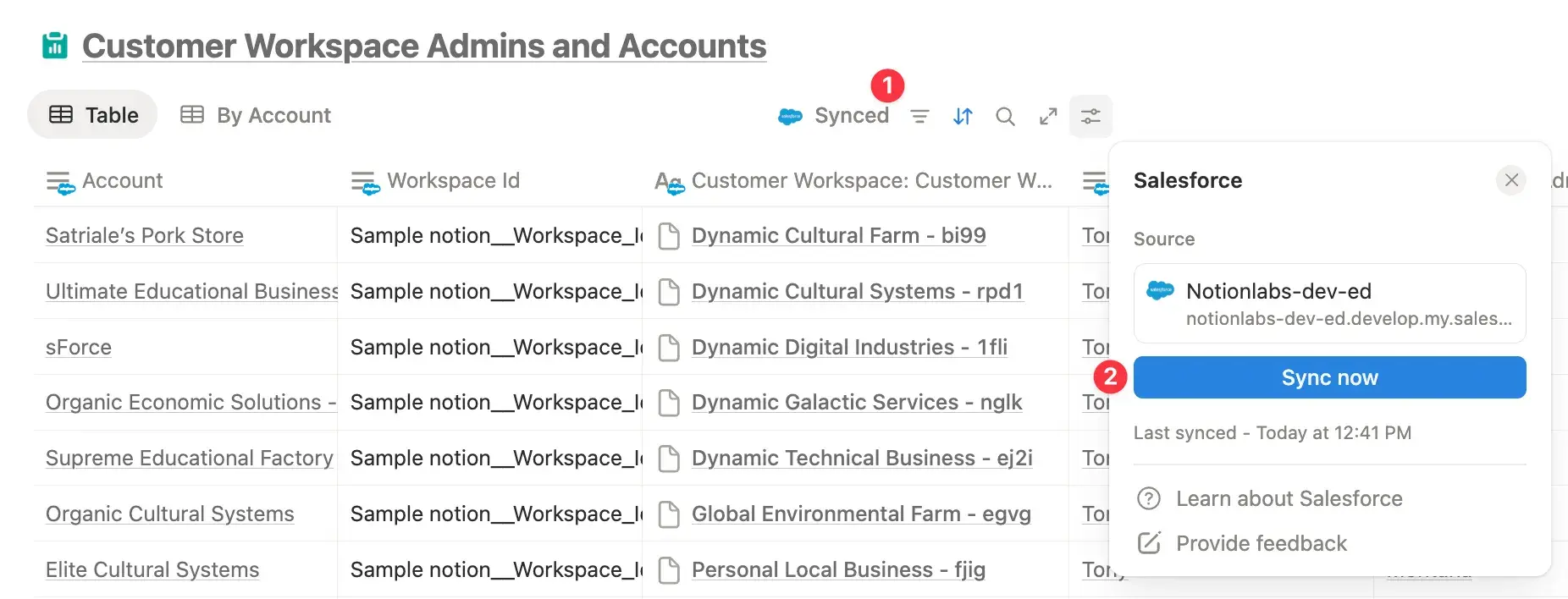
Notion will automatically refresh your reports every four hours. If you want to manually refresh or re-sync a report, select Synced at the top of the database → Sync now.
Salesforce report sync limitations
It may take longer to filter or sort synced reports that have more than 2000 rows.
You can’t export Salesforce reports from Notion at this time.
We currently don’t support:
Encrypted text fields
Formula fields
Geolocation fields
Reference fields
Multiple currencies (we only show whatever currency the SFDC report is set to)
You can add a Salesforce property to a database. To do this:
Open a Notion database and select
Add propertyat the top.In the menu that appears, find and select
Salesforce Object.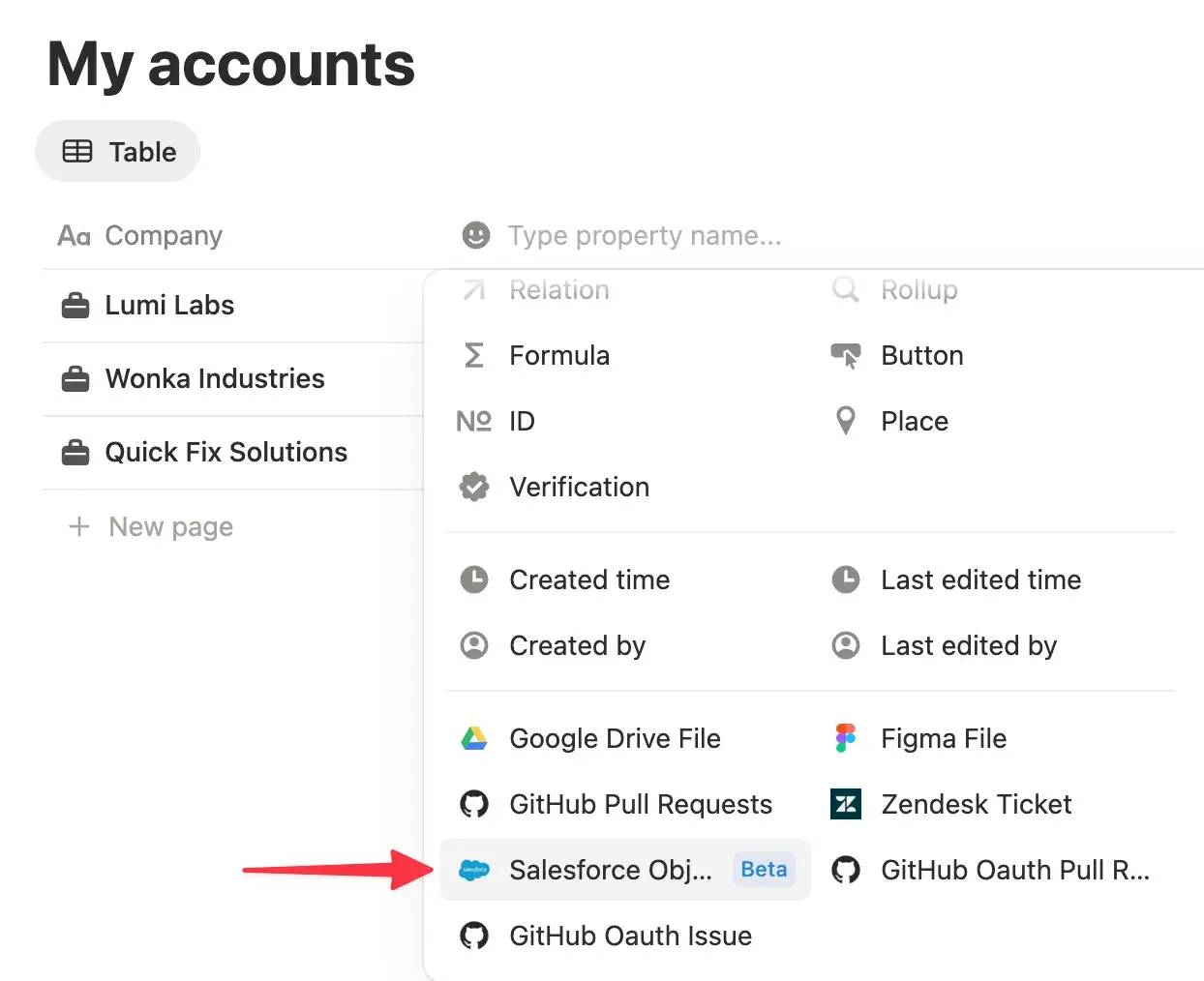
Select a Salesforce object (for example,
Account).Select the fields you want to sync, then select
Add properties.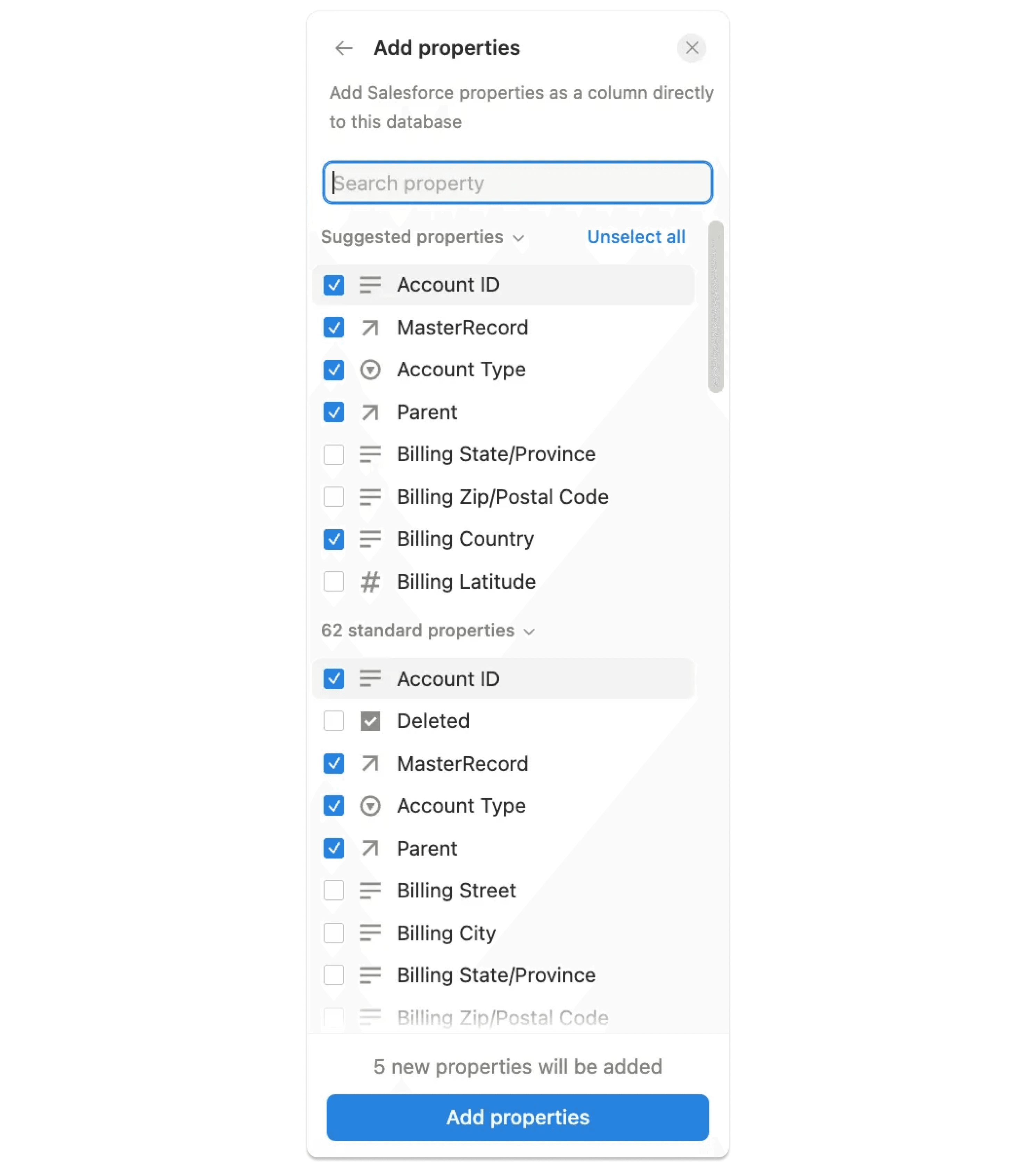
Select the name of the object in the database, then select a record from the dropdown or paste the record’s URL directly into the cell.
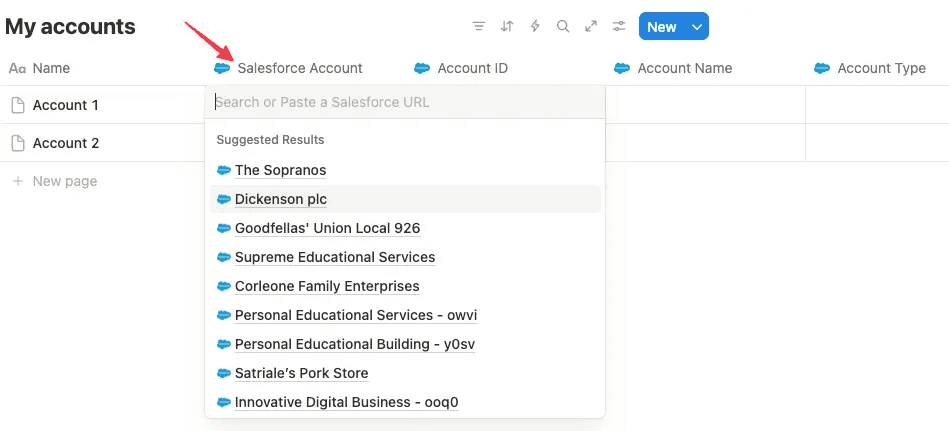
Once you’ve set this up, data will populate automatically across your database’s columns. If you want to edit or add more fields, select the object column → Edit property.
Bulk linking from URL or text property
Use a URL or text property in your Notion database to bulk link Salesforce records and auto-fill connected fields in one step. To do this:
Add a URL (for example, Salesforce URL) or text property to your Notion database and paste links to your Salesforce records from the same object (for example, Account URLs → Account property).
Click on your Salesforce connected property, then select
Edit property→Populate property→ your URL or text column.
Notion will match each URL or text property and fill the selected fields for all rows.
Note: This is a one-time bulk action; run it again if you add new rows. You can also generate record URLs from record IDs using a formula. See more information in our FAQs.
Salesforce connected property limitations
Every workspace can sync a maximum of 200 unique Salesforce fields per object, and up to 50 per database.
Rollups for synced Salesforce properties in Notion don’t support grouping by select or multi-select fields, or double rollups (in other words, rollups of a rollup).
If you connect a Salesforce property that has the same name as another property in the same database, the Salesforce property will have
1next to it to differentiate the two properties.
FAQs
Why did the admin authentication step fail?
Why did the admin authentication step fail?
If authentication failed, it means you are likely not logged into your Salesforce instance, or logged into multiple ones. To successfully authenticate, log out of all Salesforce accounts and sign in to the one you want to connect with Notion.
As an admin, how do I create a Salesforce service account?
As an admin, how do I create a Salesforce service account?
Find step-by-step instructions here.
As a user, why can’t I see the Salesforce connection?
As a user, why can’t I see the Salesforce connection?
If the Salesforce connection isn’t visible, your workspace may have admin restrictions on adding new connections. In this case, please ask your admin to manually approve Salesforce.
As a user, how do I get API permissions for my Salesforce account?
As a user, how do I get API permissions for my Salesforce account?
A Salesforce admin can help you get setup with the required API permissions directly in Salesforce. You can find more information here.
What is the difference between the Salesforce (Workspace) and Salesforce tiles?
What is the difference between the Salesforce (Workspace) and Salesforce tiles?
Salesforce (Workspace): Used by admins to connect Salesforce to the entire Notion workspace. This step must be completed first.Salesforce: Used by individual users to authenticate personal access after the workspace connection is set up by the admin.
How does Notion determine which Salesforce account to connect if I’m logged into multiple accounts?
How does Notion determine which Salesforce account to connect if I’m logged into multiple accounts?
Salesforce doesn’t offer an account picker during authentication. If you're signed into multiple accounts, the connection may default to the wrong one or fail. To avoid this, log out of all Salesforce accounts and sign in to the one you want to connect to Notion.
Why am I seeing the error OAUTH_APPROVAL_ERROR_GENERIC?
Why am I seeing the error OAUTH_APPROVAL_ERROR_GENERIC?
The error is tied to a new Salesforce admin approval flow that Salesforce began enforcing in September 2025.
To unblock:
A Salesforce admin from your org needs to approve the Notion app within their Salesforce setup (
Setup→Connected Apps OAuth Usage→Notion→Install).Once approved, users should be able to connect without running into the OAuth error.
I’m an admin and unable to authenticate. I get the error: “Cannot connect to a different Salesforce organization SALESFORCE INSTANCE A. This workspace has existing user connections to SALESFORCE INSTANCE B.”
I’m an admin and unable to authenticate. I get the error: “Cannot connect to a different Salesforce organization SALESFORCE INSTANCE A. This workspace has existing user connections to SALESFORCE INSTANCE B.”
This means your workspace is already connected to a different Salesforce instance. Only one Salesforce instance can be connected at a time.
To fix this:
Individual users can disconnect their own Salesforce accounts from the workspace.
Admins can reset the connection for everyone. In Notion, go to
Settings→Connections→Salesforceand revoke access for all users. Once removed, your workspace will be able to connect to the correct Salesforce instance as a fresh start.
Why is the Edit property menu in my database disabled?
Why is the Edit property menu in my database disabled?
This menu is temporarily disabled while data is syncing. The menu will automatically become available again once the sync is complete, typically within a few minutes.
Why can’t I add more properties to my database?
Why can’t I add more properties to my database?
You may have reached the sync limit. Each workspace can sync up to 200 unique Salesforce fields per object, and each database can include up to 50 fields.
How can I quickly get Salesforce record URLs for bulk linking?
How can I quickly get Salesforce record URLs for bulk linking?
Use a synced Salesforce report in Notion to gather the record URLs, then copy them into your URL property.
If some rows don’t populate, check that each URL is valid and points to the correct Salesforce object.
How do I generate Salesforce URLs if I only have record IDs?
How do I generate Salesforce URLs if I only have record IDs?
Create a Text or Formula property to build the URL from your Salesforce domain, object path, and record ID. Examples:
Account:
"<https://yourdomain.lightning.force.com/lightning/r/Account/>" + prop("Account ID") + "/view"Opportunity:
"<https://yourdomain.lightning.force.com/lightning/r/Opportunity/>" + prop("Opportunity ID") + "/view"
Does Populate property run automatically for new rows?
Does Populate property run automatically for new rows?
No, it’s a one-time action. If you add new rows later, run Populate property again to link them.
How do I manually re-sync a Salesforce report?
How do I manually re-sync a Salesforce report?
If you want to manually refresh or re-sync a report, select Synced at the top of the database → Sync now.
I’ve successfully pasted my Salesforce report into Notion, but no data is showing. Why?
I’ve successfully pasted my Salesforce report into Notion, but no data is showing. Why?
If the report appears to load but no data syncs, it’s likely because the report includes grouped columns (i.e. grouping across). Currently, Notion’s Salesforce integration doesn’t support this report format, so no data will be pulled in.
To resolve this, create a version of the report without grouped columns. Reports that use grouped rows (i.e. grouping down) are supported and will display as database views in Notion.
How is the Salesforce integration secured, and how does Notion handle data and compliance?
How is the Salesforce integration secured, and how does Notion handle data and compliance?
Security & Compliance: Notion maintains SOC 2 Type II and ISO 27001 certifications. Our Data Processing Addendum includes the latest Standard Contractual Clauses (SCCs) for GDPR compliance. You can view our audit reports and documentation on the Conveyor Trust Portal and Security Practices page.
Data Residency & Sub-processors: If your workspace is hosted in the EU, all workspace data - including Salesforce integration data - is stored in our EU data center. Our current list of sub-processors is published here.
Authentication & Data Flow: The integration uses OAuth 2.0 for authentication and only accesses the Salesforce objects and fields selected for sync that the authenticating user has permission to view. For additional control, we highly recommend configuring a dedicated service account (integration profile) in Salesforce so Admins can manage exactly what data can sync into Notion.
Access Controls: Users who don’t have a Salesforce license can still view synced data in Notion if they have access to the relevant pages, but they cannot initiate new syncs themselves.
Data Usage: Customer content, including synced Salesforce data, is not used for analytics or model training. Only limited metadata is collected, as outlined in our Cookie Notice.