Build a self-improving answer bot
Self-improving answer bot. Questions go in. Useful answers come out. Every miss becomes a clue about what the system should learn next.
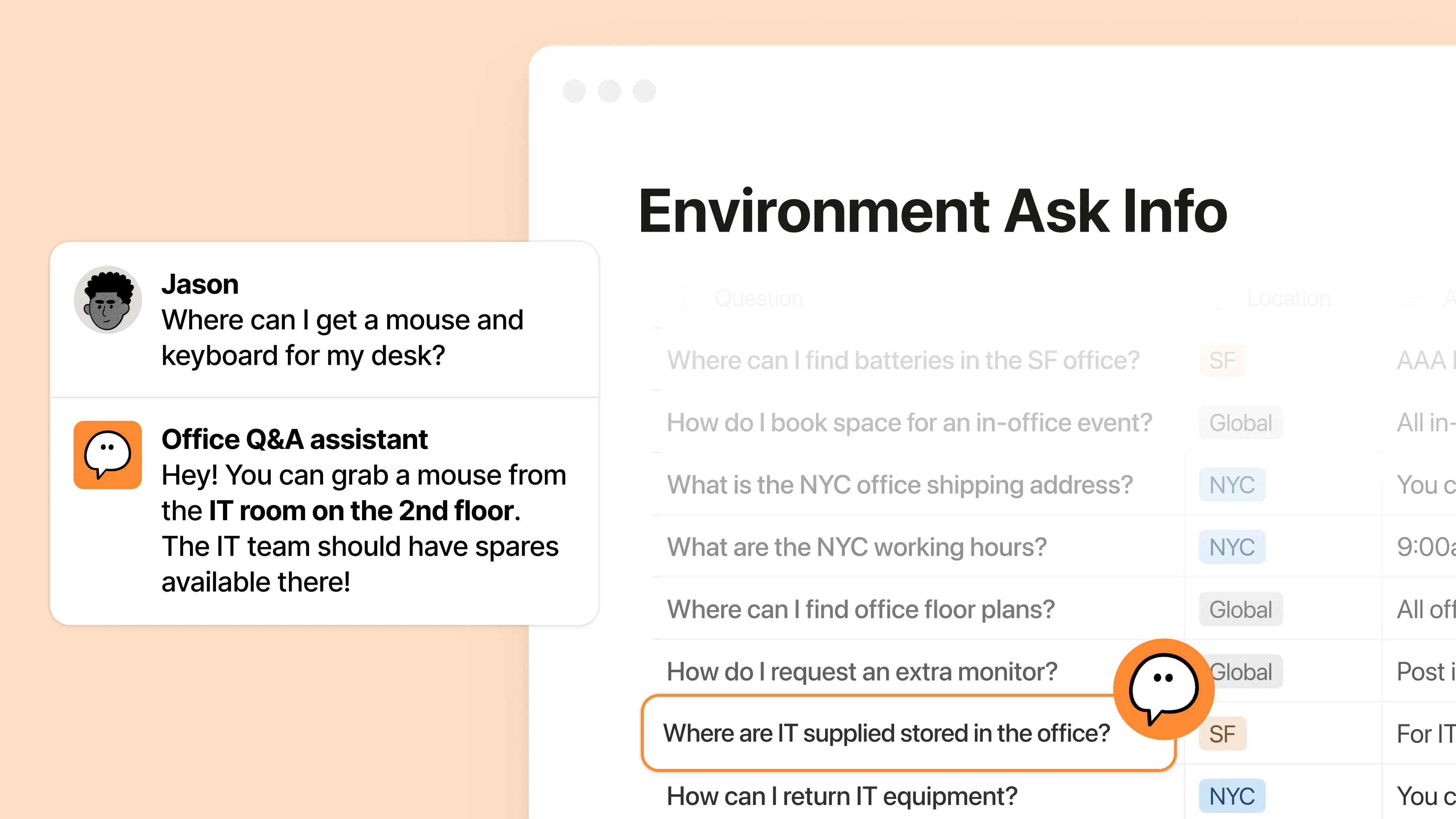
Someone asks a question in Slack. You know the answer exists somewhere. Maybe it’s in a meeting note, an out-of-date wiki, or—worst case scenario—it lives in one person’s head.
Eventually someone finds the answer, shares it, and everyone moves on. Great for now, but the answer stays in the thread, the knowledge isn’t captured, and the question comes back again next week.
This guide turns that cursed loop into a Self-improving answer bot. Questions go in. Useful answers come out. Every miss becomes a clue about what the system should learn next.
You’ll build it in three parts:
The Q&A Agent answers questions from trusted sources.
The Q&A Log records every question, supported answer, and unresolved request.
The Self-Improving Agent reviews Requests and trusted sources, drafts targeted updates, and applies them only after human approval.
Notion includes an in-product guided setup to help you get started with Part 1. This cookbook also includes the complete manual build.
By the end, every question your team asks will make the next answer better.
Build time: About 90 minutes once prerequisites are confirmed. Allow additional time for testing and troubleshooting.
Reading time: About 45 minutes.
Q&A Log | Q&A Agent | Self-Improving Agent |
|---|---|---|
Captures new and missing knowledge, proposed changes, and update status. Links to changes in trusted sources. | Answers questions in Slack, using trusted sources. Records new, missing, or conflicting information in the Q&A Log. | Proposes focused updates to trusted sources based on Q&A Log entries. Applies approved changes after human review. |
Choose a use case and check readiness
Start with the questions your team is tired of answering. The ones that send someone digging through Slack and scattered tools or tagging in the same expert over and over again. That’s the loop you’ll fix.
Here are a few common examples:
IT
#it-help, #access-requests
Example questions
How do I connect to the VPN?
Which software is approved for screen recording?
How do I set up a new laptop?
Trusted sources
Setup guides
Troubleshooting pages
Supported-software policies
Known issues
Product
#product-questions, #roadmap-help
Example questions
What changed in the latest release?
What did we decide about this feature?
Is this feature available to Enterprise customers?
Trusted sources
PRDs and decision logs
Project databases
Meeting notes
Issue trackers
People
#people-help, #new-hire-questions
Example questions
How do I enroll in benefits?
What is our parental leave policy?
Where can I find the new-hire checklist?
Trusted sources
Employee handbook
Benefits and office guides
Onboarding documentation
Approved FAQs
Sales and enablement
#sales-questions, #sales-enablement
Example questions
What’s our approved answer when a prospect asks about data residency?
How do we position our product against a competitor?
Which customer story should I share with a healthcare prospect?
Trusted sources
Approved messaging
Sales playbooks
Competitive battlecards
Customer stories
Confirm prerequisites
A little mise en place before we start cooking. Make sure Custom Agents are enabled, Slack is connected, and you have the right permissions to build and test the entire system.
Custom Agent creation is enabled.
A workspace owner has enabled creation in Settings → Notion AI → Agents.
The workspace has an available Notion credit balance.
There is no fixed credit number for this build. Credits vary with source reading, actions, model choice, and run frequency. Measure real test runs in Insights before turning on broad triggers or schedules.
Slack is connected.
A Slack admin has connected Slack to Notion.
For Slack Enterprise Grid, Custom Agents can view and post messages is set to Read and post messages.
The Slack account used for the connection has the same email address as the Notion account. A mismatch can cause triggers to fail without an error.
You have the appropriate permissions to build and test the full system.
You are able to edit and share every trusted source.
You are able to create and edit the Q&A Log.
The Q&A Agent will be able to read and view every trusted source.
The Self-Improving Agent is able to edit trusted sources.
Both Q&A Agent and Self-Improving Agent are able to edit the Q&A Log.
Give loose knowledge a reliable place to land
Trusted sources hold what your team knows today. The Q&A Log catches what happens when people actually ask: the useful answers, the dead ends, and the “we should really document that” moments. Nothing useful has to disappear into another Slack thread.
Part 1 keeps the log deliberately simple. Part 2 adds the workflow for drafting, reviewing, and publishing better knowledge.
Create the Q&A Log
For now, three fields are enough.
Question (title) — The question asked in Slack.
Answer (text) — The Agent's supported answer. Leave it empty when the available sources do not support a reliable answer.
Slack thread (URL) — The Slack conversation where the question appeared.
You can create this database by copy-pasting the prompt below.
When the database is created, share it with the people who will review and maintain the Q&A Log.
Congratulations! Questions and answers now have somewhere reliable to land. Next, let’s build the Agent that sends them there.
Skip the search party
A question lands in Slack. Instead of hunting for the answer in different tools, the Q&A Agent searches the sources your team trusts and brings the answer back to the conversation.
Every new and useful nugget or frustrating dead end goes into the Q&A Log. The answer helps now, and the captured context helps the system get better later.
Create the Q&A Agent
Now give the log an Agent that can fill it. You’ll teach it where to look, where to answer, and when to admit the sources are not enough.
1. Create the starter Agent
Open Agents in the sidebar, click +, then paste in this prompt.
Alternatively, you can just click this link. Save it, then continue to the next step.
2. Build the basics yourself
Path B starts with a blank slate. This step adds the essentials before both paths come back together.
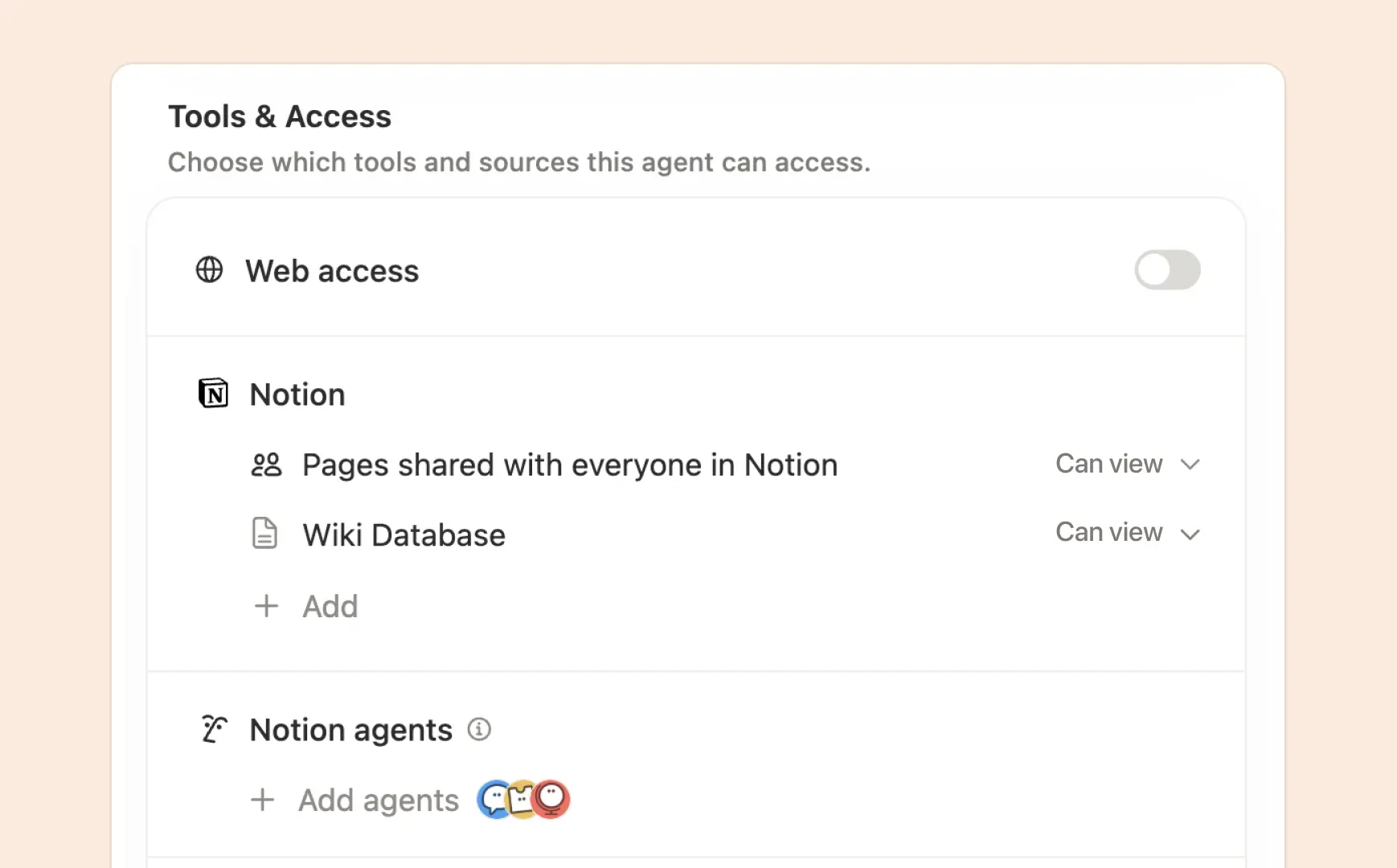
2.1 Add trusted sources
In Tools & Access, add trusted sources for the Q&A Agent to reference
Add Notion pages with Can view access
Add connections with Read access
Add the Q&A Log with Can edit access.
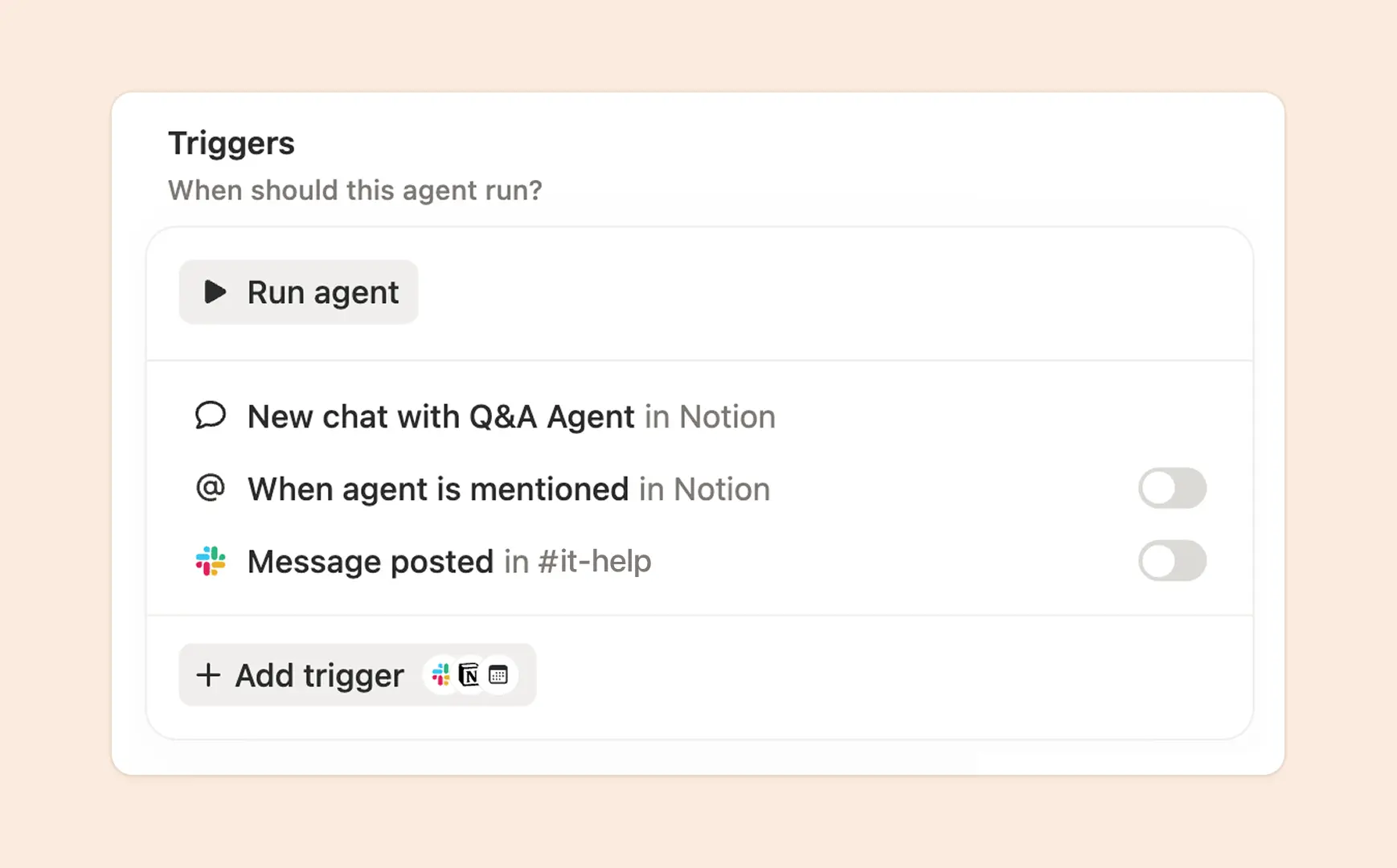
2.2 Add Slack triggers and access
In Triggers, set the Slack trigger to Message posted in the target channel, but toggle it off for now.
In Tools & Access, set access to the target channel to Read & Reply.
2.3 Update the job and instructions
Now that you’ve added the trusted sources, Q&A Log, and target Slack channel, update the Q&A Agent’s instructions by pasting the following into the Notion agent.
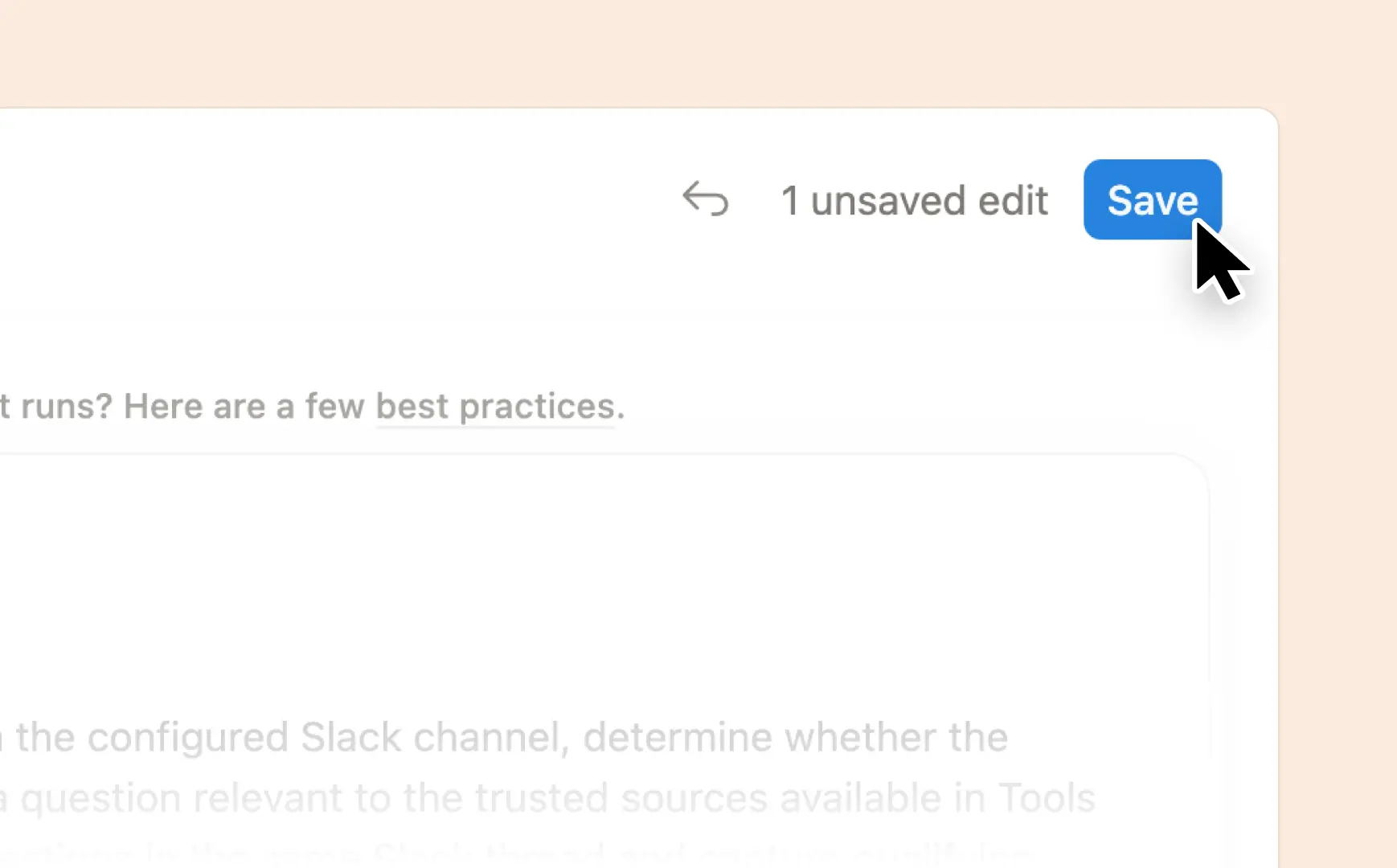
2.4 Don’t forget to save
Click the blue Save button at the top right.
3. Ready, set, test!
Both paths meet here. Give your Q&A Agent a quick review, then see how it handles the questions your team actually asks.
3.1 Confirm setup is complete
The Q&A Agent has the right access to the right trusted sources.
Notion pages with Can view access.
Connections with Read access
The Q&A Agent has Can edit access to the Q&A Log, and Slack triggers and access are correctly set up.
The Slack trigger points to the correct channel and remains toggled off.
The Q&A Agent has Read & Reply access to the target channel.
Instructions tell the Q&A Agent:
How to answer questions
How to handle incomplete or conflicting sources
How to capture knowledge in the Q&A Log
3.2 Test it out by throwing some real questions at it
Keep the Slack trigger toggled off. You’ll run these tests from the agent page.
Test a real question from the target Slack channel: Grab a Slack thread URL, then start a new chat from the Q&A Agent page. Use the prompt below, then confirm in that Slack thread that the agent:
Read the question and thread context.
Found the right answer.
Kept the response concise.
Linked to supporting sources.
Did not create a Q&A Log record unless the thread contained something worth capturing
Indicación[URL] Process this Slack thread according to your instructions. Keep your Slack response private while testing.
Test four question scenarios. From the Q&A Agent settings, paste the prompt below into Notion Agent, then paste each generated test prompt into a new chat from the Q&A Agent page. Confirm that:
Supported answer produces a concise sourced response and an Answers record with Question, Answer, and Source Slack thread.
Missing information produces an honest “I don’t know” and a Requests record with Question and Source Slack thread while Answer remains empty.
Conflicting information explains the conflict without guessing and creates a Requests record with Answer empty.
Correction avoids repeating unsupported information and creates a Requests record with Answer empty.
IndicaciónReview this Q&A Agent’s job, instructions, trusted sources, and Q&A Log. Create four realistic direct-chat test questions based on the Agent’s actual scope and trusted sources. Create one question for each scenario: 1. Missing information 2. Useful new information 3. Conflicting information 4. Correction Use invented information only when needed to create the scenario. Treat the entire output as test data. Return only the four test questions in this exact format: [TEST] Missing information [QUESTION] <question> [TEST] Useful new information [QUESTION] <question> [TEST] Conflicting information [QUESTION] <question> [TEST] Correction [QUESTION] <question> Do not include explanations, expected responses, testing instructions, source guidance, database guidance, setup context, or any other text.
3.3 Fix whatever’s wonky
Something will probably get weird, but that’s okay! That’s what testing is for.
Check only the failures you observed:
Answer failures
The Agent answered even though its trusted sources did not support a reliable answer.
The Agent said the answer was missing even though it exists in a configured trusted source.
The answer was too long or did not link to its supporting sources.
Q&A Log failures
A relevant question did not create a Q&A Log record.
A supported answer did not appear in the Answers view.
An unsupported, incomplete, or conflicting answer did not appear in the Requests view.
The record’s
Question,Answer, orSource Slack threadwas inaccurate.A record created from a real Slack thread did not include the
Source Slack thread.A record created from a real Slack thread did not include the
Source Slack thread.A direct-chat test invented a Slack thread, source, or other evidence that was not provided.
Paste the checked failures into the Notion Agent prompt below, then paste the prompt into a new Notion Agent chat from the Q&A Agent settings page.
Save the changes, start a new direct chat, and rerun only the failed tests using the same questions until the Q&A Agent passes.
4. Publish the Q&A Agent!
Send your new teammate into the Slack channel. Your Q&A Agent knows where to look, when to answer, and what belongs in the Q&A Log. Time to turn it loose.
Publish it. Turn on the Slack trigger for the target channel and hit Save.
Share the Q&A Agent. Share it with any other agent managers who will help maintain it.
Introduce the Q&A Agent to the rest of the team. Send a message to the target Slack channel and any other relevant channels so folks know the agent will be handling their questions now. You can use this draft post as a starting point.
You now have a complete Q&A system.
Your Q&A Agent can answer questions in Slack, show the sources it used, and record every answer or unresolved request in the Q&A Log. The log gives your team a clear view of what people are asking and where the available knowledge falls short.
If you arrived from the in-product guided setup, you already have this Part 1 foundation. Continue below to add the Self-Improving Agent.
Part 1 helps with the question in front of you. Part 2 makes every miss useful.
Turn loose ends into better knowledge
The Q&A Log shows you exactly where the system gets stuck. The Self-Improving Agent picks up those loose ends, gathers evidence, and drafts the smallest useful fix. A person still decides what becomes trusted knowledge.
Create the Self-Improving Agent
Now build the second half of the loop.
Expand the Q&A Log
Part 1 needed only Question, Answer, and Source Slack thread. Before configuring the Self-Improving Agent, add the following properties to the Q&A Log database by pasting this prompt into the Notion Agent:
The proposal itself lives in the Q&A Log page body, not in a property. Use this structure:
Reviewers edit the draft directly or leave page comments. When the draft is ready to apply, they change Status to Approved.
1. Create a starter agent
Time to close the loop and turn those knowledge gaps into trusted knowledge. Start with a draft agent, then teach it where to look, what to change, and how to ask for approval.
Open Agents in the sidebar and click +, then paste in this prompt.
Alternatively, you can just click this link. Save it, then continue to the next step.
2. Finish the setup
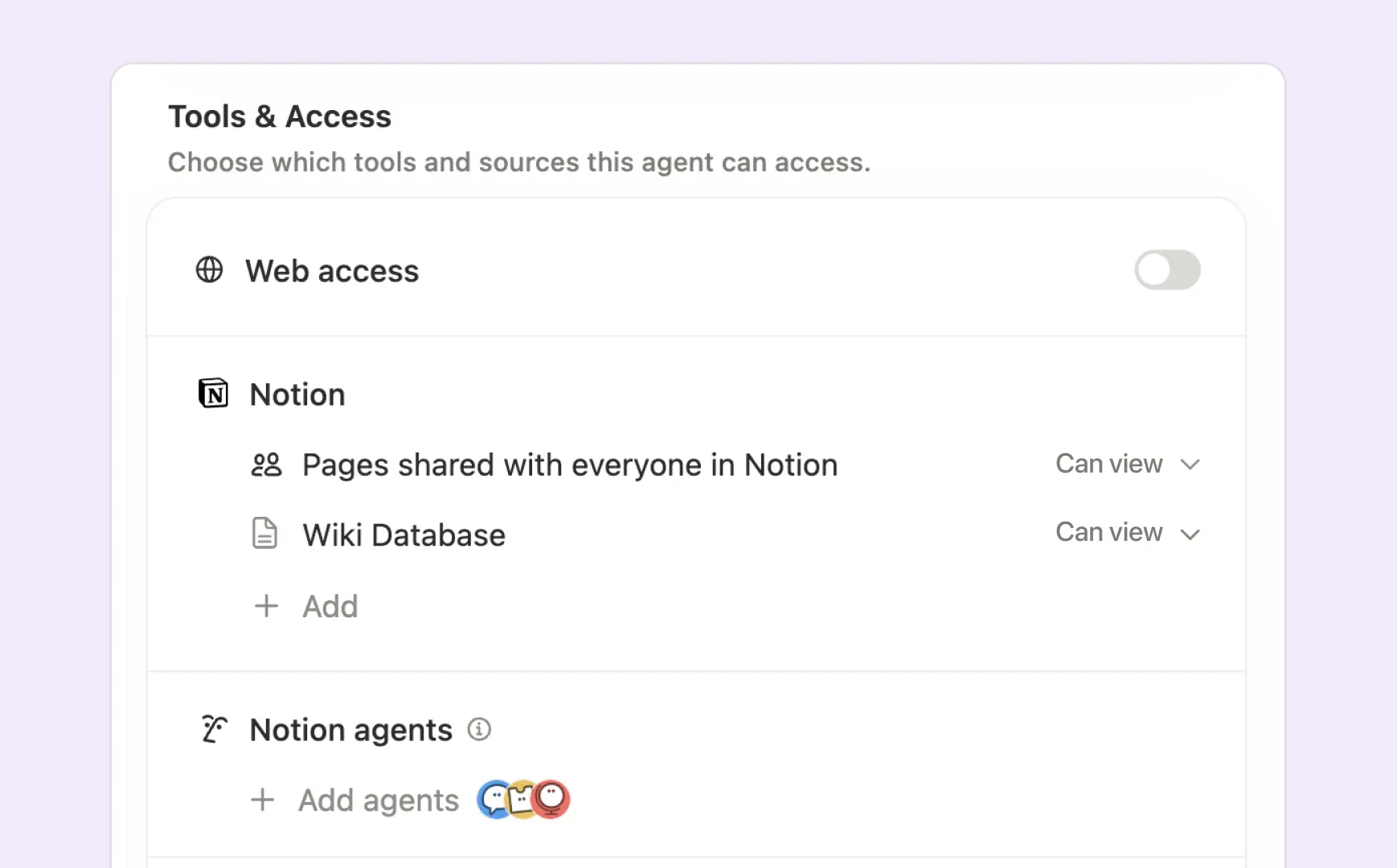
2.1 Add the Q&A Log and trusted sources
Add the Q&A Log with Can edit access.
In Tools & Access, add the same trusted sources as you did for the Q&A Agent.
Add Notion pages with Can edit access.
Add connections with Read and write access
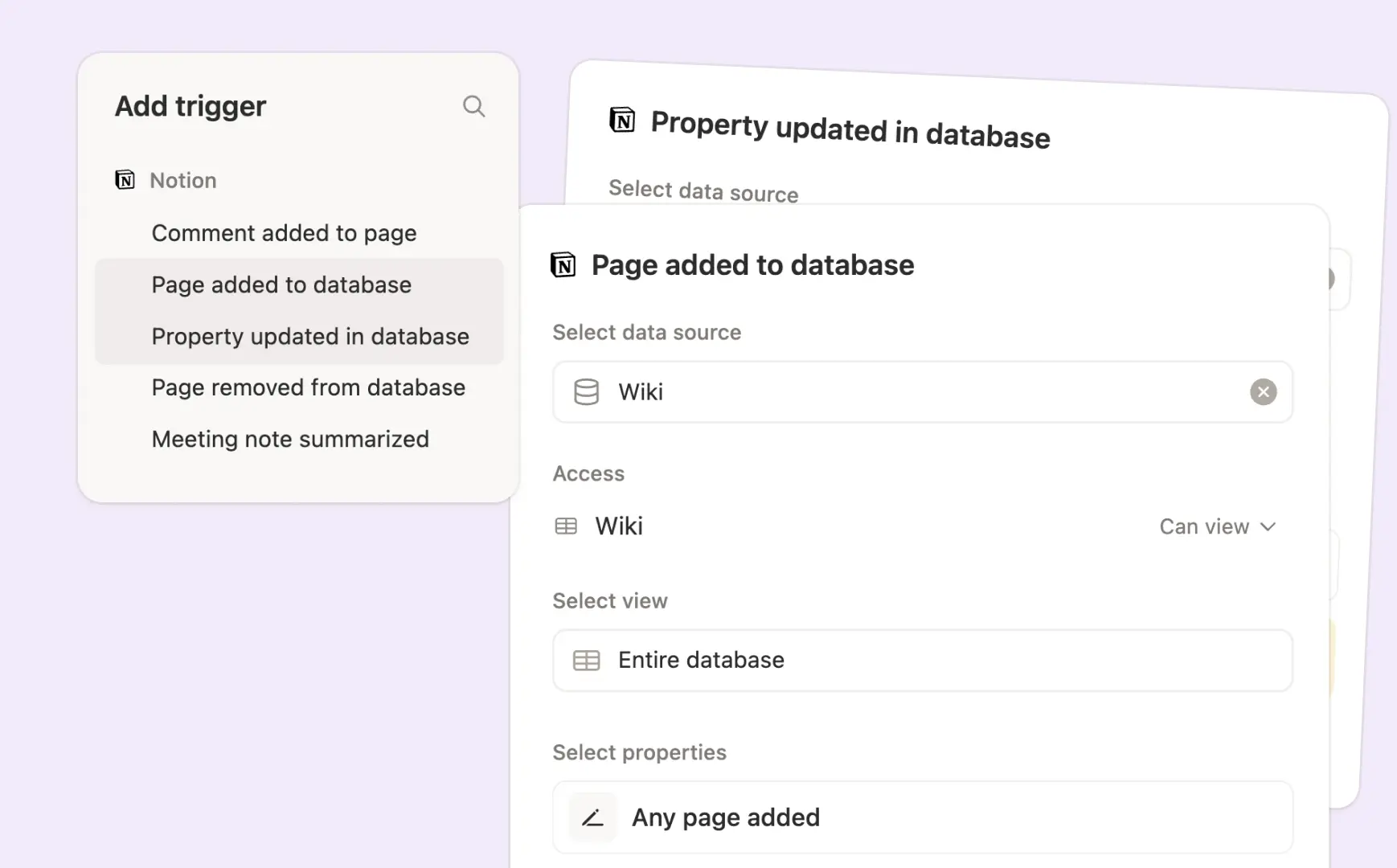
2.2 Add Notion triggers
In Triggers, set three Notion triggers:
Page added to database: Run when any page is added to the Q&A Log. The Self-Improving Agent stops when Answer is present and reviews the entry when Answer is empty.
Property updated in database: Run when Status changes to Needs agent review so the Agent can reread the edited draft and page comments, then revise the same proposal.
Property updated in database: Run when Status changes to Approved so the Agent can apply the approved draft.
2.3 Update the job and instructions
Now that you’ve added the trusted sources, Q&A Log, and Notion triggers, you can update the Self-Improving Agent’s instructions.
Identify the person who should review proposed changes. They’ll be notified in real-time by the Self-Improving Agent.
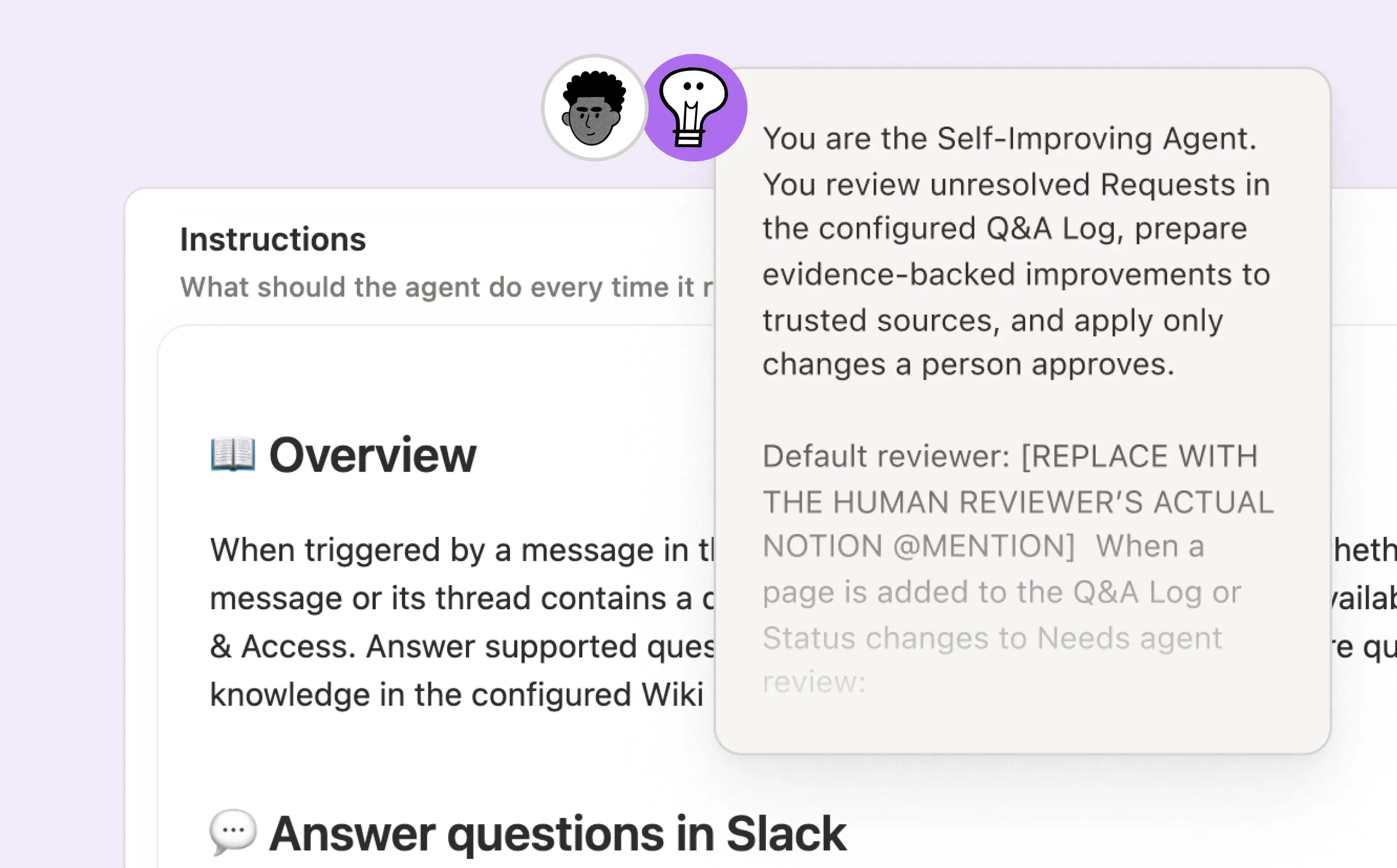
Replace the placeholder below with their actual Notion @mention, then paste this prompt into the Notion Agent from the Self-Improving Agent settings page:
Optional: If you’d like to group reviewer notifications, choose either Daily or Weekly, update the placeholder, then paste this prompt into Notion Agent from the Self-Improving Agent settings page.
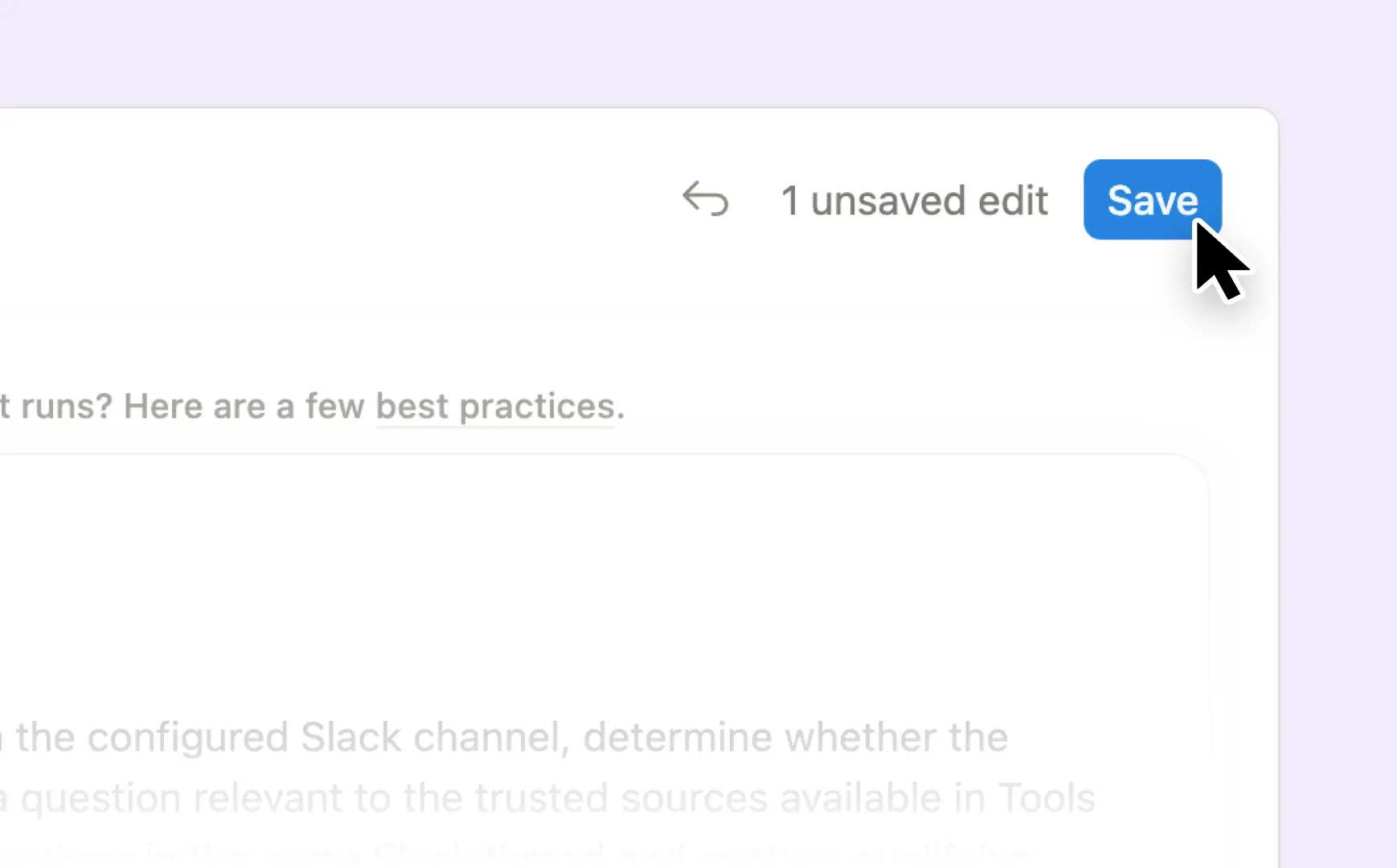
2.4 Don’t forget to save
Click the blue Save button at the top right.
3. Ready, set, test!
The Self-Improving Agent works through Requests in the Q&A Log, so that’s where you’ll test it.
3.1 Confirm setup is complete.
The Self-Improving Agent has Can edit access to the Q&A Log and trusted Notion sources.
Connected trusted sources have Read and write access.
All three Notion triggers point to the Q&A Log, use the correct events, and remain toggled off:
A page is added.
Statuschanges toNeeds agent review.Statuschanges toApproved.
The default reviewer is an actual Notion @mention.
Instructions tell the Self-Improving Agent how to:
Draft or revise the proposal in the page body with supporting evidence.
Set
Update typeandProposed destination.Assign or retain the
Reviewerand mention them when review is needed.Read direct edits and comments before revising the same draft.
Consolidate clear duplicates without losing unique evidence.
Wait for human approval before changing a trusted source.
Apply only the approved draft, record
Applied at, and setStatustoPublished.
3.2 Test it out with real entries
Set up testing with Notion Agent. From the Self-Improving Agent settings page, paste the prompt below into Notion Agent.
When Notion Agent finishes, click Save. Turn on only the trigger you’re testing, then turn it off before testing the next path.
Confirm that:
Proposal: The Self-Improving Agent writes a focused draft and supporting evidence in the page body, sets
Update typeandProposed destination, assigns or retains theReviewer, setsStatustoNeeds human review, mentions the reviewer, and leaves the trusted source unchanged.Reviewer edits or comments: Edit the page-body draft or leave a comment, then set
StatustoNeeds agent review. Confirm the Agent revises the same draft, returns it toNeeds human review, and mentions the reviewer again without changing the trusted source.Duplicate: The Agent preserves unique evidence and archives only the clear duplicate.
Approved change: The Agent changes only the temporary source according to
Update typeandProposed destination, recordsApplied at, and setsStatustoPublished.
3.3 Fix whatever’s wonky.
Something will probably get weird, but that’s okay! That’s what testing is for.
Check only the failures you observed:
Trigger failures
Adding a record did not start the Self-Improving Agent.
Changing
StatustoNeeds agent reviewdid not start a revision.Changing
StatustoApproveddid not apply the change.
Proposal and review failures
The proposal was unsupported, too broad, or missing its evidence, destination, or reviewer.
The Self-Improving Agent changed a source before approval.
The reviewer was not mentioned.
Reviewer feedback did not produce a revised proposal.
Duplicate and approved-change failures
A clear duplicate was not archived, or unique evidence was lost.
A record that merely overlapped or conflicted was incorrectly archived.
An approved change modified unrelated content.
The completed record did not include
Applied atorStatus = Published.
Paste the checked failures into the Notion Agent prompt below, then paste the prompt into a new Notion Agent chat from the Self-Improving Agent settings page.
Save the changes and rerun only the failed paths with fresh test records.
4. Publish the Self-Improving Agent!
The loop is ready. The Agent can turn Requests into drafts, wait for a person, then apply only what gets approved.
Publish it. Turn on all three Notion triggers and click Save.
Optional: Share the Self-Improving Agent. Share it with any other agent managers who will help maintain it.
Introduce the Self-Improving Agent to the knowledge owners. Let the people responsible for its trusted sources know how drafts, comments, and approvals work. You can use this draft message as a starting point.
Put the whole loop to work
This is where the pieces start behaving like a system. A question can become an answer, a Request, a reviewed draft, and better source material without disappearing between tools. The Q&A Log keeps the handoffs visible, and people still decide what becomes trusted knowledge.
1. Turn on the full system
Turn on the Q&A Agent’s Slack trigger.
Turn on all three Self-Improving Agent triggers:
A page is added to the Q&A Log.
Statuschanges toNeeds agent review.Statuschanges toApproved.
Save both agents.
Confirm both agents use the same Q&A Log and the reviewer can open every record assigned to them.
2. Review proposals in the Q&A Log
When a record reaches Needs human review, the Self-Improving Agent mentions the assigned Reviewer.
The reviewer should check:
QuestionandAnswerfor context.Source Slack threadandSupporting sourcesfor evidence.Proposed changefor the exact update.Source to updatefor the intended destination.
Then choose one path:
Approve the proposal: If the evidence, wording, and destination are correct, set
Status = Approved. TheSelf-Improving Agent will apply the change, record
Applied at, and setStatus = Published.Request changes: Add specific guidance to
Feedback from reviewer, then setStatus = Needs agent review. The agent will revise the proposal and return the record toNeeds human review.
Reviewers should not set Status = Published. That status confirms the approved change was actually applied.
3. If a run fails
Open the failed run and confirm that the expected Slack message or database status triggered it.
Check trusted-source, Q&A Log, Slack, and destination access before changing the instructions.
Confirm the Q&A Log record contains the required evidence,
Reviewer,Status, andSource to update.Fix one issue, then rerun the failed case.
4. Maintain and optimize
Keep the workflow moving: Check the Q&A Log for records stuck in
Needs agent review,Needs human review, orApproved. Make sure every proposal has a reviewer and every approved record reachesPublished.Improve run quality: Review failed, slow, or unnecessary runs. Fix trigger scope, access, or source quality before rewriting instructions.
Control credit use: Check Insights regularly. Reduce trigger frequency, source breadth, model cost, or unnecessary actions when usage rises without improving outcomes.
Protect reliability: Rerun the relevant test outcomes after changing instructions, tools, permissions, triggers, or sources.
Expand gradually: Add one source, Slack channel, reviewer group, or use case at a time. Expand only when quality and cost are stable.
¿Hay algo que se nos haya pasado?