Link previews
See live, synced visualizations of links from popular platforms right in your workspace — no need to switch between apps or lose context 🔗
跳转到常见问题Link previews allow you to see live, synced visualizations of links directly in Notion. This is currently supported for several platforms:
GitHub | Jira |
Slack | Asana |
Trello | Linear |
Zoom | Figma |
Adobe XD | Dropbox |
OneDrive & Sharepoint | Pitch |
Amplitude | Hex |
GRID | GitLab |
Box | Lucid (Lucidspark and Lucidchart) |
Whimsical | ClickUp |
Zendesk |
Note: Users will need edit access in SharePoint and OneDrive in order to use link previews.

Copy a link from any of the supported platforms. Paste it into Notion and select
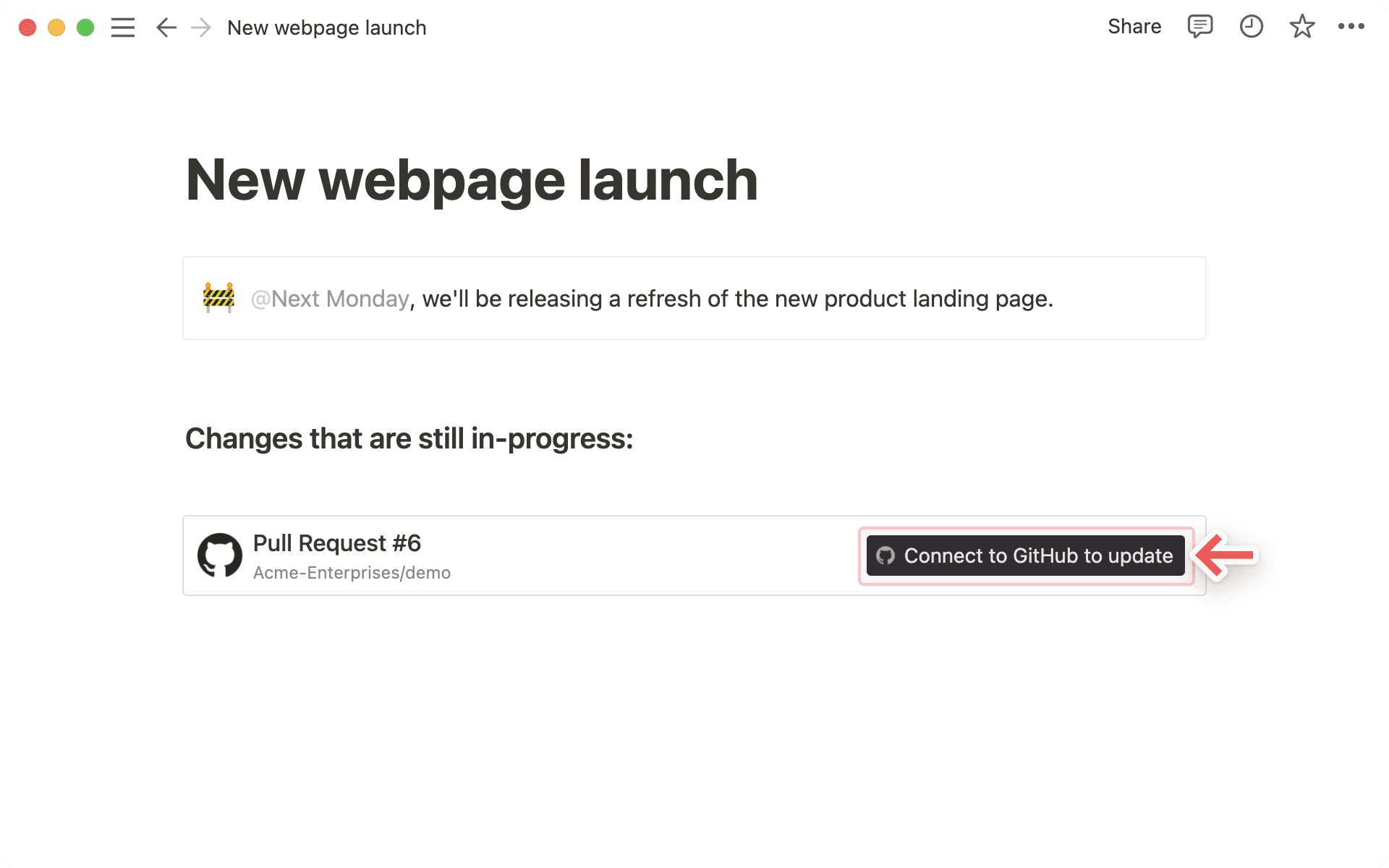
Paste as: Preview.The first time that you paste a link from one of these platforms, you'll see a button that asks you to connect to the app.

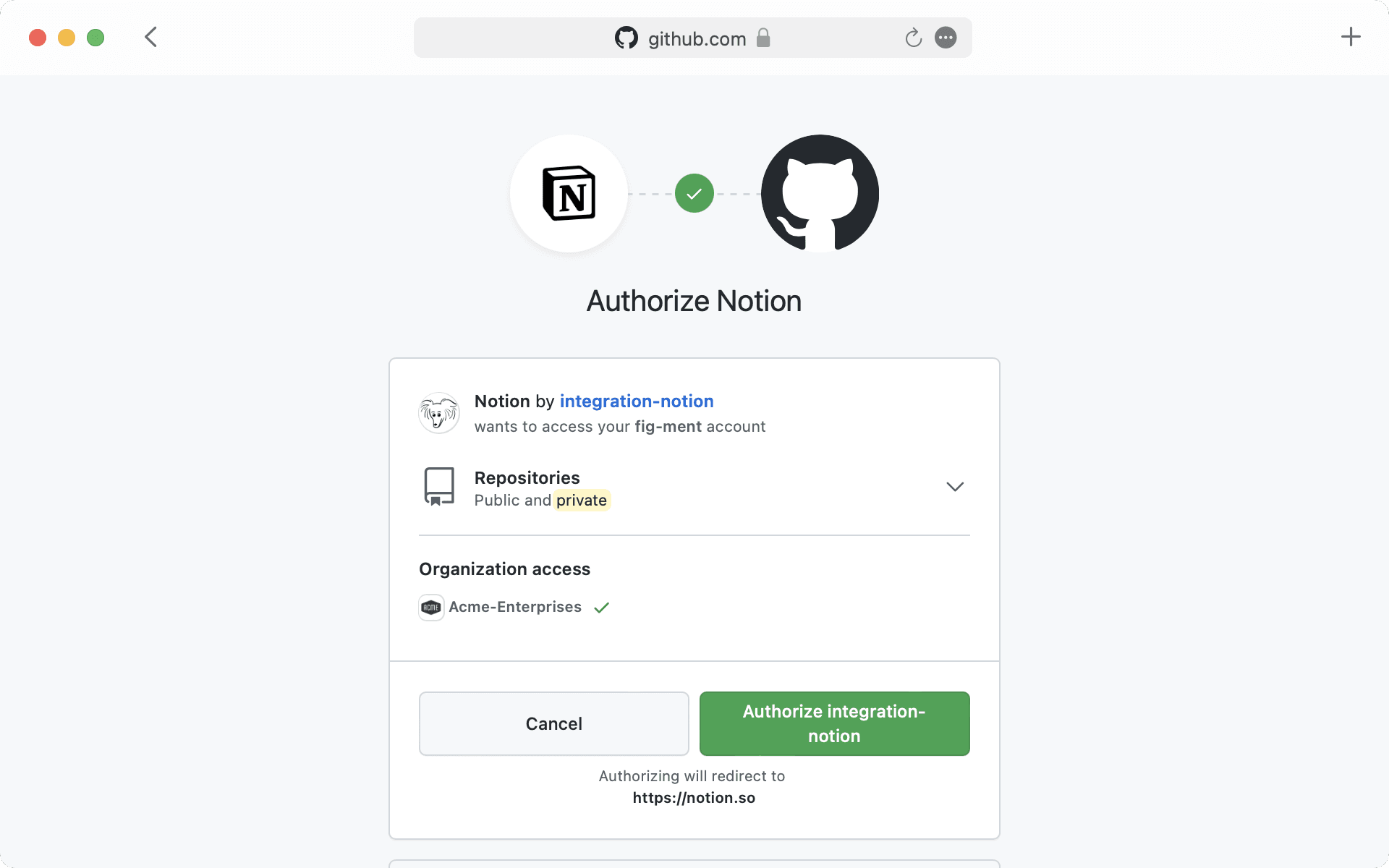
Once you click the button to connect, you'll be redirected to a browser window. Here, the app will ask for authentication and permission to display content in Notion.
When you've authenticated with the app, you'll see a detailed preview of the linked content. This preview updates as changes are made to any relevant fields.
Note: Once you've authenticated a connected app, anyone who can view your Notion page will be able to see corresponding content that you've pasted as a link preview.
In some cases, information will be abstracted (e.g., channel names from Slack private channels and DMs).
In addition to previews, you can also paste links from these platforms as mentions. These provide a more condensed visualization of the content in the link.

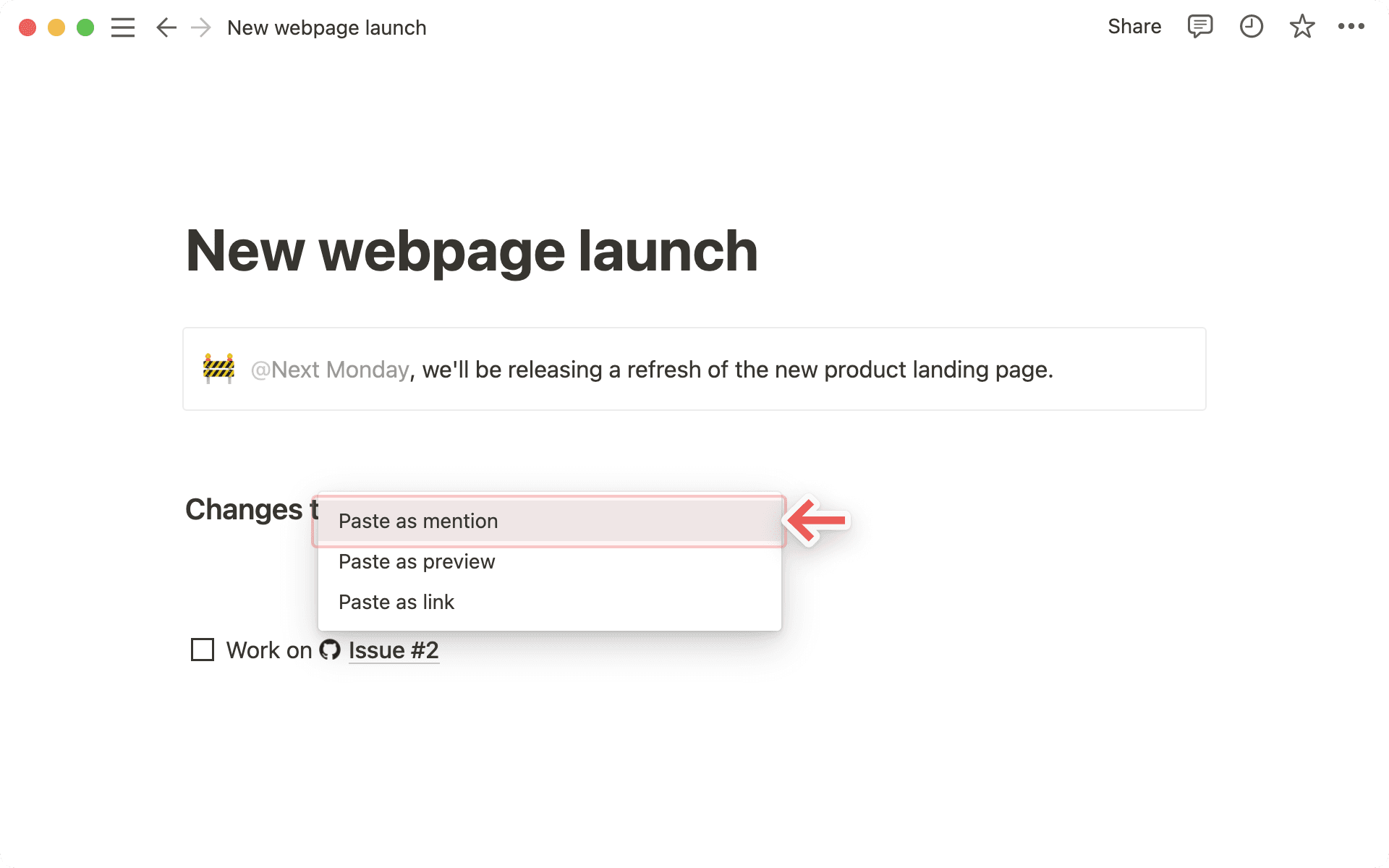
Copy a link from any of the supported platforms. Paste it into Notion and you'll see the option to
Paste as: Mention.Similarly to previews, you'll have to authenticate the app the very first time you paste a corresponding link in Notion. Click the button to open the authentication window and grant the necessary permissions. Afterward, you'll see the link mention pop up!
Tip: You can paste links as mentions directly inline, next to other text!
常见问题
我在链接预览中收到“拒绝访问”或“找不到内容”错误。
我可以为链接预览连接添加多个登录账户吗?
可以!你可以通过 设置 → 我的连接 进行操作。对于所需的连接,选择“连接另一个账户”。
注意:某些应用在浏览器中不支持多账户登录(如 GitHub),所以你可能需要退出当前在浏览器中登录的账户,系统才会提示你使用其他账户登录。
我们将确定用你哪个帐号来预览资源,如果都不成功,就会显示错误。