Search Scope
Search Scope AI Visibility
About
Search Scope AI Visibility checks how well AI assistants such as ChatGPT, Claude, Gemini and Perplexity can understand, trust and quote a public website, and saves the full report as a new page in your Notion workspace.
Enter a website address, choose the Notion page to save into, and about 30 seconds later the report is there. It includes an executive summary with Strong, Moderate or Weak ratings for entity clarity, AI retrievability, information gain, trust, internal linking and structured data, a ranked list of fixes with suggested rewrites, and 20 AI search prompts worth monitoring. Each finding quotes the page text it is based on, and anything not seen on the site is marked as a gap rather than guessed.
The service reads a small sample of the site's public pages (8 by default), analyses them in memory and does not save the audit or the report on its servers. The Notion access is used for that one save and then discarded, so the connection cannot read or change your workspace afterwards. It is free and needs no account.
It does not measure real citations or rankings inside AI assistants: it reports what is on the website itself.
Built by Search Scope, an SEO consultancy in Perth, Western Australia, founded in 2021 by SEO consultant Dorian Menard.
Features
- Read & insert contentCan read & insert pages, databases, and blocks shared with this connection.
How to use
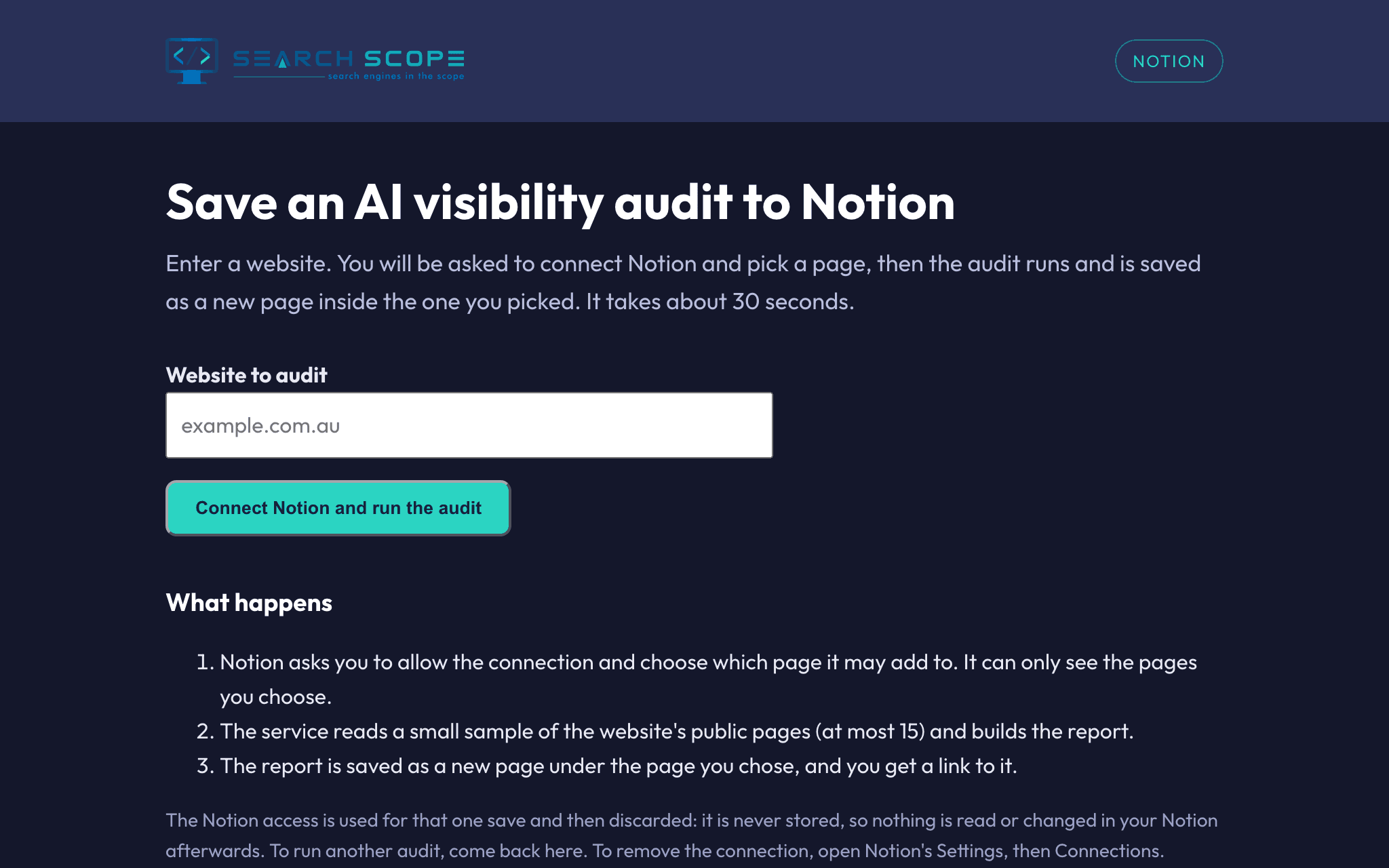
1. Open https://mcp.searchscope.com.au/notion
2. Enter the website you want to audit, for example yourbusiness.com.au, and select "Connect Notion and run the audit".
3. In Notion, choose "Select pages" and tick the page the report should be saved under. A new, empty page works well, for example "AI visibility audits". Then select "Allow access".
4. Wait about 30 seconds. You will see a link to the new report page in Notion.
To audit another website, start again at step 1. To remove the connection, open Notion Settings, then Connections.