Ställ in automatisk justering för Notion-krediter
Automatisk justering köper automatiskt fler krediter när din arbetsyta har ont om dem, så att dina AI-funktioner och agenter fortsätter att fungera utan avbrott.
Gå till vanliga frågorAutomatisk justering är en valfri inställning för arbetsytor som använder Notion-krediter. När din kreditförbrukning närmar sig din gräns köper Notion automatiskt ett kreditbelopp som du har valt och lägger till det i ditt saldo direkt. Detta förhindrar att agenter, AI-funktioner och annan kreditbaserad användning avbryts under en faktureringsperiod.
Några saker att känna till:
Automatisk justering är avstängd som standard. Du kan välja att slå på den.
Du bestämmer när utlösaren aktiveras och hur mycket du ska köpa.
Du meddelas varje gång en justering sker.
Justeringar från din nuvarande period överförs till din nästa faktureringsperiod.
Du kan redigera eller stänga av den när som helst.
När automatisk justering körs läggs krediter till på ditt konto omedelbart och ditt månatliga kreditbelopp ökar framöver. Detta är en permanent planändring, inte ett engångsköp. Din arbetsyta förnyas med det uppdaterade beloppet i början av din nästa faktureringsperiod. Varje gång automatisk justering körs ökar ditt månatliga belopp igen, baserat på den tidigare justeringen, upp till ditt utgiftstak.
Endast arbetsytans ägare och administratörer med åtkomst till fliken fakturering kan aktivera eller hantera automatisk justering. Arbetsytans medlemmar har inte åtkomst till fakturering och kommer inte att se dessa inställningar.
Var du hittar automatisk justering beror på hur din arbetsyta betalar för sin plan.
Om din arbetsyta betalar månadsvis:
Gå till
Inställningar→Fakturering.Hitta kortet för automatisk justering.
Använd /växla för att slå på automatisk justering.
Välj dina inställningar (se nedan).
Välj
Aktivera automatisk justeringför att bekräfta.
Om din arbetsyta betalar årligen:
Gå till
Inställningar→Faktureringoch välj sedanHantera krediter.Du kan även välja
Lägg till krediterfrån din kreditkontrollpanel.
I fönstret som öppnas aktiverar du
Automatisk justering.Välj hur många krediter som ska läggas till varje gång (
Påfyllningsbelopp) och det högsta antal krediter som Automatisk justering kan lägga till (Maximalt belopp).Välj
Spara ändringarför att bekräfta.
Du kan även aktivera den från aviseringen ”närmar dig din gräns” som visas i Notion när du närmar dig din kreditgräns, eller direkt efter att du har gjort ett manuellt kreditköp.
När du aktiverar Automatisk justering ställer du in:
Belopp: Hur många krediter som ska köpas varje gång. Välj ett förinställt belopp (till exempel 10 $, 20 $ eller 50 $) eller ange ett eget belopp.
Utgiftstak (rekommenderas): Det högsta belopp som Notion kommer att spendera på justeringar under en faktureringsperiod (till exempel 150 $). Detta förhindrar oväntade avgifter.
Om din arbetsyta betalar årligen: Du ställer in dessa som
PåfyllningsbeloppochMaximalt beloppi fönstret för kreditbetalning, mätt i krediter.
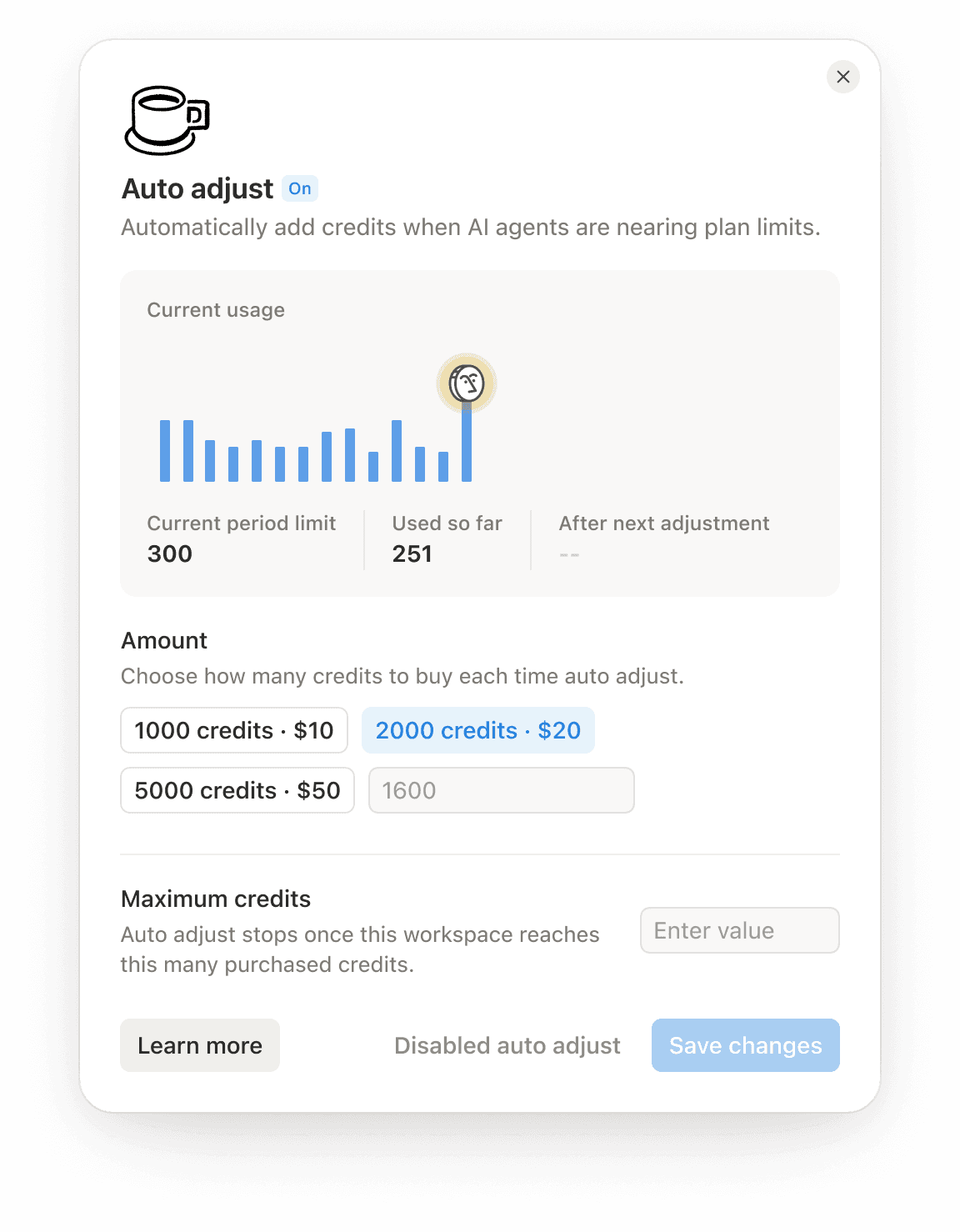
Här är vad du kan förvänta dig:
Din kreditanvändning når 80 % av din gräns.
Notion debiterar betalningsmetoden på ditt konto för det belopp du har angett.
Om debiteringen går igenom läggs krediter till på ditt saldo direkt.
Du får en avisering i appen som bekräftar justeringen. Till exempel: ”Automatisk justering lyckades: +50 $ i krediter.”
Om en justering misslyckas (till exempel om det är problem med din betalning) lägger Notion inte till några krediter. Du får en avisering där du ombeds uppdatera din betalningsmetod.
När du når ditt utgiftstak får du en avisering om detta. Notion kommer inte att justera igen förrän din nästa faktureringsperiod börjar.
När Automatisk justering är aktiverad får du inte den vanliga varningen om att gränsen närmar sig vid 80 %. Istället får du en bekräftelse varje gång en justering genomförs.
Du får fortfarande ett meddelande om du når 100 % av din gräns. Till exempel om du har nått ditt utgiftstak eller om ett betalningsproblem förhindrade en justering.
Du kan när som helst ändra dina inställningar på fliken Fakturering:
Stäng av den: Träder i kraft omedelbart. Inga framtida justeringar kommer att utlösas. Du behåller alla krediter som redan har lagts till.
Sänk beloppet: Träder i kraft omedelbart.
Höj beloppet: Kräver ny bekräftelse.
Ändra utlösartröskeln: Träder i kraft omedelbart.
Om din arbetsyta betalar årligen: Välj
Hantera krediterpå fliken Fakturering för att öppna dina inställningar för Automatisk justering.
Att köpa färre krediter för nästa faktureringsperiod stänger inte av Automatisk justering. Om du inte längre vill ha Automatisk justering måste du stänga av den manuellt.
Om du nedgradera ditt abonnemang kan du fortfarande redigera Automatisk justering (stänga av den eller justera beloppet), och den fortsätter under den aktuella faktureringsperioden.
Vanliga frågor
Vad händer om min betalning misslyckas?
Vad händer om min betalning misslyckas?
Notion lägger inte till några krediter. Du får ett meddelande där du ombeds uppdatera din betalningsmetod. När din betalningsmetod har uppdaterats kommer Automatisk justering att fungera igen.
Kan arbetsytans medlemmar använda detta?
Kan arbetsytans medlemmar använda detta?
Nej. Automatisk justering hanteras på fliken Fakturering, som endast är tillgänglig för ägare och administratörer av arbetsytan.
Hur stoppar jag Automatisk justering?
Hur stoppar jag Automatisk justering?
Gå till fliken Fakturering och /växla Automatisk justering av. Det träder i kraft omedelbart, och du behåller alla krediter som redan har lagts till.
Om din arbetsyta betalar årligen, välj Hantera krediter på fliken Fakturering och /växla sedan Automatisk justering av.