Database-automatiseringer

Forbedre effektiviteten ved hjelp av automasering av de mest kjedelige delene av arbeidet ditt.
Hopp til vanlige spørsmålDatabaseautomatiseringer er sekvenser av handlinger som skjer hver gang en spesifikk endring i en database inntreffer. Automatiseringer består av både utløsere (hendelsene som starter automatiseringen) og handlinger (effekten av automatiseringen). Databaseautomatiseringer er ment å hjelpe deg med å spare tid og forenkle arbeidet ditt, og kan være veldig enkle eller mer komplekse avhengig av dine behov.
Automatiseringer i databaser kan brukes til mange ting, blant annet:
Tilordne en oppgave til en bestemt person når statusen endres.
Sende et Slack-varsel til en kanal når en side legges til i en database.

Merk:
Automatiseringer vil ikke utføre handlinger på sider der tilgangen er begrenset. Du kan kontrollere og endre sidetilgang i Del-menyen.
Databaseautomaseringer kan ikke utløses av andre automaseringer.Knappehandlinger kan imidlertid utløse databaseautomaseringer. For eksempel:
En gjentakende malautomasering vil ikke utløse en databaseautomasering.
En databaseautomasering som oppretter en side i en annen database, vil ikke utløse en databaseautomasering.
En bruker som klikker på en knapp som oppretter en side, vil utløse en databaseautomasering.
Databaseautomatiseringer er tilgjengelige på betalte abonnementer på alle plattformer.
Databaseautomatiseringer kan opprettes, redigeres eller slettes av brukere med betalt abonnement som har full tilgang til databasen.
Imidlertid kan Slack-automatiseringer kun redigeres av Oppretter.
Brukere med kostnadsfritt abonnement kan opprette Slack-varsel-automatiseringer, men ingen andre typer automatiseringer.
Brukere med kostnadsfritt abonnement kan bruke eksisterende automatiseringer i maler, men de vil ikke kunne redigere dem.
Slik oppretter du en databaseautomatisering:
Klikk på
⚡øverst i en database →Ny automatisering.Gi databaseautomatiseringen et navn hvis du vil.
Velg
Ny utløserfor å opprette en utløser. Velg deretterLegg til utløserfor å opprette flere utløsere. Lær mer om typene utløsere nedenfor →Velg
Ny handlingfor å opprette en handling. Velg deretterLegg til handlingfor å opprette flere handlinger. Lær mer om typene handlinger nedenfor →Velg
Opprett.

Visste du at du også kan legge til en knappegenskap til databasen? Ved å klikke på en knapp kan det utføres handlinger i databasen på dine vegne. Finn ut mer her →
Automatiseringer kan ha én utløser eller flere utløsere. Når du setter opp en automatisering, kan du bestemme om automatiseringen skal skje Når noen av disse inntreffer eller Når alle disse inntreffer.
Merk: Hvis du har flere er redigert-utløsere som alle må inntreffe for at automaseringen skal kjøres, må disse utløserne skje innenfor et kort tidsvindu på omtrent tre sekunder. Hvis ikke, kan det hende at automaseringen ikke utløses riktig. For å unngå dette kan du:
Opprett separate automaseringer for hver utløser.
Bruk en mer spesifikk utløser enn
er redigert, somer satt tilellerinneholder.
Du kan velge mellom tre typer utløsere:
Side lagt tilbetyr at automatiseringen din utløses når en ny side legges til i databasen din.Egenskap redigertbetyr at automatiseringen din utløses når en spesifikk egenskap fra databasen din redigeres. For egenskaper av typen navn, person, tall, tekst, valg og relasjon, kan du velge hvilke typer redigeringer gjort på den egenskapen som skal utløse en automatisering. Du kan for eksempel ha en liste over kontakter i en Notion-database og sette opp en automatisering der utløseren er et telefonnummer som starter med tallene 732, og handlingen er at personens delstat settes til New Jersey.Hver {frequency}betyr at automatiseringen din vil være gjentakende. Utløseren vil skje gjentatte ganger basert på frekvensen du angir. Du kan stille inn automatiseringen til å gjentas hver dag, uke, måned, og så videre. Du kan også angi et tidspunkt for når automatiseringen skal utløses, datoen for når utløseren skal begynne og slutte, samt tidssonen.Merk:
Hver {frequency}-utløser fungerer med alle automaseringshandlinger bortsett fraRediger egenskap.
Du kan ha mer enn én betingelse for utløseren din, slik at to eller flere ting må være sanne for at automatiseringen skal skje. Merk at en gjentakende utløser (som du setter til å gjentas hver uke, måned osv.) ikke kan kombineres med en annen type utløser.
Merk: Hvis du vil at automaseringen skal legge til eller redigere sider og databaser, må du sørge for at du har Tilgang til å redigere disse sidene og databasene. Sørg i tillegg for at redigerte sider er tilgjengelige og ikke er Privat eller Delte sider. Ellers vil ikke automaseringen fungere.
Automaseringer kan utføre én handling eller flere handlinger. Du kan velge mellom en rekke handlinger:
Rediger egenskapvil redigere egenskapene til sider i databasen du for øyeblikket er i. For egenskaper av typen flervalg, personer og relasjon, kan du legge til eller fjerne individuelle verdier i stedet for å legge til eller fjerne alle verdier samtidig. Du kan for eksempel ha en oppgavedatabase der navnet ditt legges til i person-egenskapen hvis oppgavenavnet inneholder ordet «blogg», selv om det allerede er andre personer tilordnet den oppgaven.Legg til side itil vil legge til en side i en database som du velger, og redigere egenskapen til den siden.Rediger sider i: Dette vil redigere egenskaper for sider i en database du selv velger.Send varsel tilsender et varsel til bestemte personer i Notion-arbeidsområdet ditt. Mottakeren kan være opptil 20 personer i arbeidsområdet ditt, eller personer som er knyttet til en bestemt Person-egenskap i databasen din. Legg til en melding som du vil sende sammen med varselet.Send Mail tilvil sende en Mail fra Gmail-kontoen din til én eller flere mottakere. Lær mer om dette nedenfor.Send webhookvil sende en HTTP POST-forespørsel til den angitte URL-en. Lær mer i denne artikkelen →Send Slack-varsel tilvil sende et tilpasset varsel til Slack-kanalen du ønsker. Denne Funksjonen er kun tilgjengelig på Plus-, Business- og Enterprise-abonnement. Lær mer her →Definer variablerlar deg opprette en egendefinert variabel ved hjelp av omtaler og Formler. Du kan deretter bruke denne variabelen i andre databaseautomaseringshandlinger. Lær mer om dette nedenfor.

Få mer inspirasjon til å bruke databasearbeidsflyt i denne veiledningen →
Send Mail til
Merk:
Du trenger en Gmail-konto for å bruke denne automaseringen.
Når noen har koblet Gmail-kontoen sin til en automasering, er det bare de som kan redigere automaseringen. Andre vil bare kunne bruke automaseringen.
E-poster sendt med denne automaseringen kan ta opptil to minutter før de kommer frem til mottakerens Innboks.
Vær oppmerksom på Gmails begrensninger for hvor mange mottakere en melding kan ha, eller hvor mange e-poster du kan sende i løpet av en dag.
Handlingen Send Mail til for en databaseautomasering vil sende en Mail fra Gmail-kontoen din til én eller flere e-postadresser når en utløser inntreffer. Dette er nyttig hvis du vil sende en Mail til noen for å minne dem på å fullføre en forfalt oppgave, eller for å oppdatere teamet ditt om Statusen for alle dine Åpne prosjekter.
Slik setter du opp en automatisering for å sende en Mail:
Klikk på
⚡øverst i en database, og velg deretterNy automatiseringeller en eksisterende automatisering.Velg
Ny handlingellerLegg til handling→Send mail til….Hvis Notion-kontoen din allerede er knyttet til en Gmail-konto, vil du se e-postadressen din ved siden av
Send mail fra. Hvis du vil bruke en annen Gmail-konto for denne automaseringen, klikker du på e-postadressen din →Legg til Gmail-konto.Du kan sette opp ulike deler av mailen din:
Til: Dette kan være en egenskap for en person (somDen som utløsteellerOppretter), en person i arbeidsområdet ditt eller en spesifikk mailadresse. Denne mailadressen kan være ekstern – den trenger ikke å tilhøre noen i arbeidsområdet eller organisasjonen din.Velg
CC/BCCved siden avTil-feltet for eventuelt å sende kopi (CC) eller blindkopi (BCC) til andre personer.
Tema: Skriv inn et tema for mailen din. Velg@iTema-feltet hvis du vil at temaet skal inneholde en egenskap fra utløser-siden, et klokkeslett eller en dato, en person eller gruppe i arbeidsområdet ditt, eller en lenke til en side i arbeidsområdet ditt. Velg∑iTema-feltet hvis du vil opprette en Formel for temaet ditt.Melding: Skriv inn en melding for e-posten din. Velg@iMelding-feltet hvis du vil at meldingen skal inneholde en egenskap fra utløser-siden, et klokkeslett eller en dato, en person eller gruppe i arbeidsområdet ditt, eller en lenke til en side i arbeidsområdet ditt. Velg∑iMelding-feltet hvis du vil opprette en Formel for meldingen din.Send med visningsnavn: Dette valgfrie visningsnavnet vil vises ved siden av e-posten din når mottakeren mottar den. Velg@i feltet for visningsnavn hvis du vil at visningsnavnet skal inneholde en egenskap fra utløser-siden, et klokkeslett eller en dato, en person eller gruppe i arbeidsområdet ditt, eller en lenke til en side i arbeidsområdet ditt. Velg∑i feltet for visningsnavn hvis du vil opprette en Formel for visningsnavnet ditt.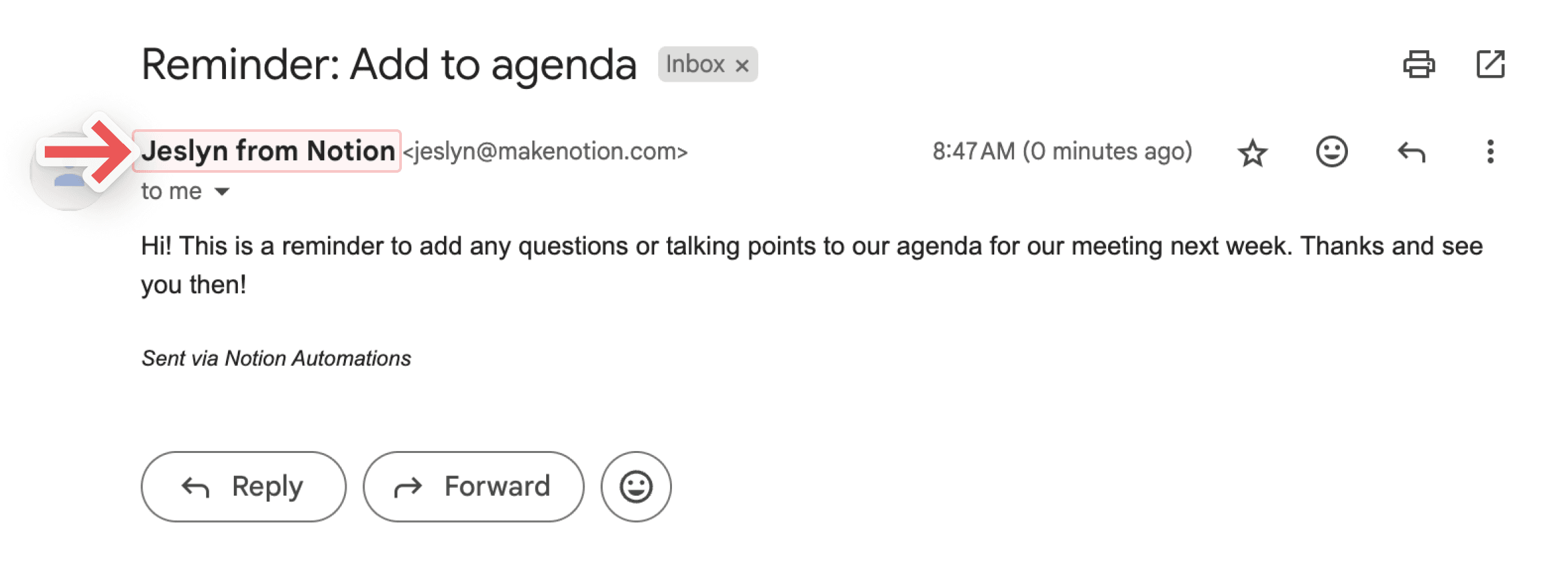
Send svar til: Hvis du vil at svar på e-posten din skal sendes til noen andre enn e-postadressen du brukte til å sende den, kan du bruke denne valgfrie innstillingen til å sende svaret til en person-egenskap, eller en person i arbeidsområdet ditt.
Definer variabler
Du kan definere en egendefinert variabel med omtaler og formler. Du kan deretter bruke denne variabelen i andre databaseautomaseringshandlinger. Slik definerer du en variabel:
Klikk på
⚡øverst i en database, og velg deretterNy automaseringeller en eksisterende automasering.Velg
Ny handlingellerLegg til handling→Definer variabler.Klikk på
Variable 1for å gi variabelen et navn, redigere formelen eller duplisere den. Du kan også velgeLegg til variabel.Velg
@eller∑i variabel-feltet for å definere variablene dine.Du kan bruke disse variablene i flere automaseringshandlinger.
La oss se på et eksempel på når og hvordan du ville opprettet en egendefinert variabel. La oss si at du vil sette opp en automasering der alle under-elementene til en overordnet oppgave automatisk merkes som fullført når den overordnede oppgaven merkes som fullført.
Klikk på
⚡øverst i en database, og velg deretterNy automaseringeller en eksisterende automasering.Velg utløseren som
Status satt til Fullført.Velg
Ny handlingellerLegg til handling→Definer variabler.Velg
∑i feltet underVariable 1.I vinduet som åpnes, velger du
Utløser sidei listen over egenskaper til venstre.Sett et punktum rett etter
Utløser sidei formelen din, slik at formelen lyderUtløser side.. Når du har gjort dette, vil du se utløser-sidens egenskaper i listen over egenskaper til venstre.Velg
Sub-item. Formelen din skal nå lydeUtløser side.Sub-item.Saveformelen din. Nå er den egendefinerte variabelen din definert som under-elementene til siden som utløser automaseringen din, eller med andre ord, siden som er merket som fullført.Nå, i innstillingene for databaseautomasering, velger du
Legg til handling.Velg
Rediger sider i....Åpne
Velg database-rullegardinmenyen og velgVariable 1. Dette betyr at automaseringen vil redigere sider knyttet til variabel 1, eller med andre ord, under-elementer knyttet til siden som er merket som fullført.Åpne
Rediger en egenskap-rullegardinmenyen og velgStatus.Åpne
Velg-rullegardinmenyen og velgFullført.Velg
Lagre.
Neste gang du markerer et overordnet element med under-elementer som fullført, bør du se at statusen til alle under-elementene også endres til fullført!
Merk:
Foreløpig kan omtaler og formler bare brukes i handlinger for databaseautomasering, ikke utløsere.
Formler kan ikke brukes når du sender Slack-varsler.
Du kan bruke omtaler og formler i databaseautomaseringshandlingene dine for å få automaseringene til å fungere bedre for deg. For eksempel:
Du vil kanskje omtale datoen i navnet på en ny side som opprettes i databasen din.
Du vil kanskje sette opp en databaseautomasering for å sende et varsel til noen som omtaler en spesifikk side.
Du vil kanskje automatisk sende en melding til noen når en sak er Løst, og bruke en formel i den meldingen som beregner tiden det tok å fullføre saken.
For å inkludere en omtale eller formel i en databaseautomatiseringshandling:
Velg glidebryterikonet øverst i en database →
Automaseringer.Velg
Ny handlingellerLegg til handling. Finn handlingen du vil ha, og velg den.Når du setter opp automaseringshandlingen, velger du
@i feltet hvis du vil omtale en dato, person, side eller en egenskap fra utløser-siden i databasen din. Velg∑i feltet hvis du vil opprette en formel.Velg
Savenår du er ferdig.
Notion KI kan hjelpe med å opprette og redigere formler, samt svare på spørsmål om formler. Lær mer her →
For å sikre at automaseringen din fungerer som den skal, hjelper vi deg med å forstå hvor automaseringen er ugyldig.
Hvis automaseringen din støter på feil mens du setter den opp:
Du vil se informasjon om hvor og hva disse feilene er mens du bygger eller redigerer automaseringen.
Du vil ikke kunne lagre automaseringen før du har gjort de nødvendige rettelsene.
Hvis automaseringen din har fungert tidligere, men støter på en feil, vil automaseringen bli satt på pause.
Vi vil varsle deg om feil i visse tilfeller, inkludert når en database eller databaseegenskap som automaseringen din oppdaterer mangler, eller en tredjepartstilkobling som Gmail eller Slack ikke lenger er gyldig eller må autentiseres.
I andre tilfeller, inkludert når formler ikke kjøres riktig eller det er problemer med webhooks, kan det hende du ikke blir varslet.
Du kan klikke på varselet for å gå direkte til den ødelagte automaseringen og fikse den slik at den kan brukes igjen. Når automaseringen er fikset, må du slå den på, eller oppheve pause, manuelt. For å gjøre dette:
Åpne databasen som automaseringen din er knyttet til, og velg
•••→Automaseringer.Hold markøren over automaseringen du nettopp har fikset, og velg
•••.Slå på
Aktiv.
Automatiseringer kan mislykkes hvis de prøver å utføre datoberegninger (som
dateAdd) på et felt som er tomt eller udefinert når automatiseringen kjøres.Som en løsning kan du opprette en filtrert visning som bare inkluderer elementer der feltet ikke er tomt, og konfigurere automatiseringen til å bare kjøre på den visningen.
Automaseringer kan mislykkes hvis de brukes på en databasevisning som filtrerer bort relevante oppføringer. Sørg for at automaseringen kjører på en visning som inkluderer alle elementene den trenger å handle på.
For å se og administrere alle eksisterende automaseringer for en database:
Klikk på
⚡øverst i databasen.Hold musepekeren over automaseringen og klikk på
•••.Velg
Rediger,Sett på pauseellerSlett.
Vanlige spørsmål
Hvor ofte skannes databasen for «endringer» i egenskaper?
Hvor ofte skannes databasen for «endringer» i egenskaper?
Automatiseringer av databaser fungerer over et vindu på tre sekunder. Innenfor dette tresekundersvinduet kan en bruker for eksempel fjerne en utløser og slette eventuelle endringer, uten at noen egenskaper endres i automatiseringen.
Fungerer automatiseringer på sider i hele databasen, eller på sider i en enkelt databasevisning?
Fungerer automatiseringer på sider i hele databasen, eller på sider i en enkelt databasevisning?
En av dem. Under opprettelsesprosessen kan du angi om automatiseringen skal kjøre på sider i hele databasen, eller i en bestemt visning. Hvis noen av filtrene i visningen endres, vil automatiseringen gjelde for den justerte listen over sider.
Kan gjester med full tilgang til en database opprette automatiseringer?
Kan gjester med full tilgang til en database opprette automatiseringer?
Dessverre kan ikke gjest opprette databaseautomasering.
Hvorfor utløses ikke databaseautomaseringen min?
Hvorfor utløses ikke databaseautomaseringen min?
Hvis databaseautomaseringen din ikke utløses, kan det skyldes:
Automaseringen er satt til å utløses av en annen automasering. Automaseringer kan foreløpig ikke utløse andre automaseringer. Prøv å bruke en annen, ikke-automatisert utløser i stedet.
Siden samsvarer ikke lenger med filtrene i en visning etter at den er redigert. Automaseringer kjøres bare hvis siden fortsatt samsvarer med visningen når utløseren inntreffer.
Databasen er låst.