Suivre l’utilisation dans le tableau de bord des crédits Notion
Découvrez comment utiliser le dashboard des crédits Notion pour suivre l’utilisation des crédits, planifier les besoins futurs en crédits et gérer les dépenses en cours.
Aller directement aux questions fréquentesLe dashboard des crédits Notion offre une vue claire de la manière dont les agents personnalisés, le Remplissage automatique, les Workers et les modèles d’IA premium utilisent les crédits Notion dans l’espace de travail. Utilisez-le pour suivre l’utilisation des crédits, planifier les besoins futurs en crédits et gérer les dépenses en cours. Pour y accéder, allez dans Paramètres → Accès et facturation → Crédits Notion.
Les administrateurs des Forfaits Business et Enterprise peuvent surveiller l’utilisation dans le dashboard. Les Créateurs d’agents personnalisés et de Workers peuvent également voir la consommation des crédits au niveau de l’espace de travail. Le tableau affichera uniquement les agents personnalisés ou les Workers qu’ils ont créés.
Dans le dashboard, vous pouvez voir :
L’utilisation des crédits en temps réel.
L’utilisation estimée jusqu’à la date de votre renouvellement mensuel.
Les exécutions et l’utilisation des crédits au niveau des agents, afin que vous puissiez identifier les agents qui génèrent des dépenses et les ajuster si nécessaire.
Les membres de l’espace de travail qui utilisent des crédits au-delà de la limite d’utilisation.
Crédits dépensés par chaque membre pour des modèles premium.
Les crédits d’essai fournis par votre équipe de gestion de compte. Ils apparaissent dans leur propre catégorie, ce qui vous permet de les suivre séparément des crédits que vous avez achetés.
Si vous gérez plusieurs espaces de travail, vous disposerez également d’un dashboard des crédits Notion dans votre console d’administration, où vous pourrez suivre la consommation des crédits et l’utilisation au sein de votre organisation.
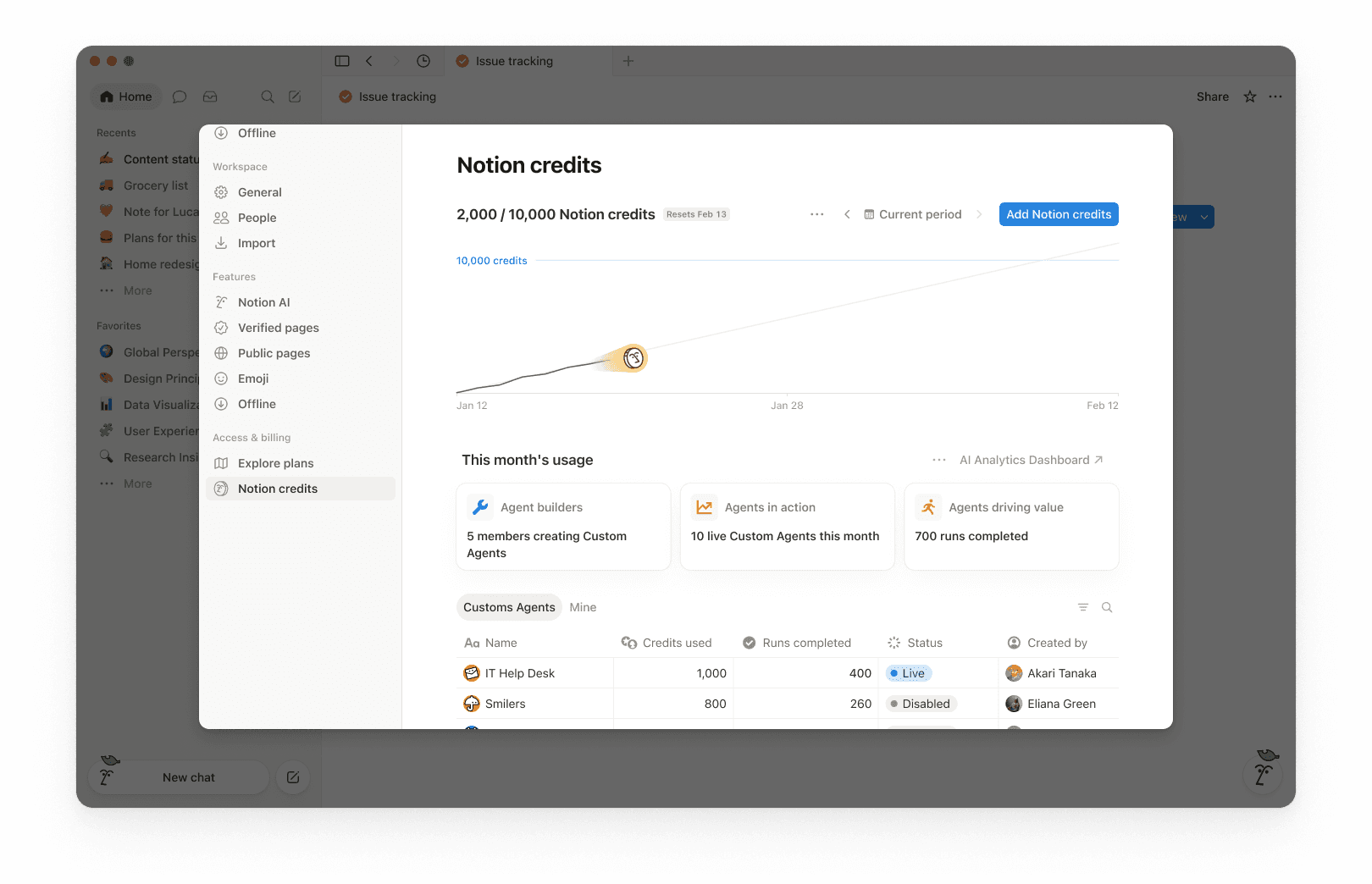
En haut du dashboard, vous verrez le nombre total de crédits Notion utilisés pour la période sélectionnée et la date de réinitialisation de vos crédits. La période sélectionnée est basée sur le cycle de facturation de votre espace de travail.
Cela vous donne un aperçu rapide de votre utilisation jusqu’à présent et de la date de fin de votre cycle de facturation mensuel.
Dans le coin supérieur droit, utilisez le sélecteur de période (par exemple, Période actuelle) et les flèches de navigation pour examiner les périodes précédentes.
Le graphique d’utilisation montre l’utilisation des crédits au fil du temps :
Actuel indique vos crédits réellement utilisés jusqu’à présent.
Projections estimées de votre utilisation à la date de réinitialisation des crédits si les tendances actuelles se poursuivent. Cette estimation est fournie à titre informatif uniquement et l’utilisation réelle future peut différer.
Utilisez cette option pour savoir si vous êtes sur le point de manquer de crédits avant la réinitialisation.
Sous Utilisation ce mois-ci, vous verrez des indicateurs d’adoption et d’activité tels que :
Les créateur·rices d’agents : nombre de membres qui créent des agents personnalisés.
Les agents en action : nombre d’agents personnalisés en cours d’exécution pendant la période.
Les exécutions terminées : nombre de tâches que les agents ont accomplies dans votre espace de travail.
Le tableau d’utilisation est organisé en onglets afin que vous puissiez filtrer par type.
Tous : Chaque agent personnalisé, Remplissage automatique et Worker de votre espace de travail.
Agents personnalisés : Dépenses liées à l'agent personnalisé uniquement.
Remplissage automatique : Dépenses de remplissage automatique uniquement.
Workers : Dépenses des Workers uniquement. Les Workers affichent une pastille « Gratuit » pendant la période bêta.
Les miens : Uniquement les agents personnalisés et les Workers que vous avez créés.
Pour chaque élément, la table indique :
Crédits Notion utilisés
Exécutions terminées
État
Créé par
Les dépenses des membres ont leur propre ligne. Cela couvre les crédits que les personnes dépensent au-delà de la limite d’utilisation de l’IA et les crédits qu’elles dépensent pour des modèles premium, afin que vous puissiez voir qui les utilise et combien ils coûtent.
Par défaut, les dépenses des Workers sont suivies séparément des dépenses des agents personnalisés et ne sont pas incluses dans le graphique d'utilisation principal ou dans le nombre total de crédits. Pour intégrer les dépenses des Workers dans le graphique et le total, sélectionnez le menu à trois points ••• en haut du dashboard et activez Inclure les dépenses des Workers.
Si votre équipe de gestion de compte a accordé des crédits d'essai à votre organisation, voici comment ils fonctionnent :
Les crédits d'essai apparaissent dans le dashboard des crédits Notion en tant que catégorie propre, distincte des crédits que vous avez achetés. Si votre organisation dispose d'un contrat multi-espace de travail, vous pouvez également les voir dans la console de l'organisation.
Les administrateurs reçoivent une alerte lorsque votre organisation a utilisé 80 % de ses crédits d'essai, et une autre lorsque les crédits d'essai sont entièrement utilisés.
Les crédits d'essai inutilisés ne sont pas reportés après la fin de l'essai.
Les administrateurs peuvent surveiller l’utilisation des crédits afin que les dépenses restent prévisibles. Les administrateurs disposent de plusieurs moyens pour gérer le rythme de consommation des crédits :
La visibilité : suivre l’utilisation et les tendances dans le tableau de bord des crédits Notion.
Gardes-fous : Décidez qui peut créer des agents (et définissez des limites). Fixez une limite de crédits pour chaque membre.
Contrôle : Interrompez ou désactivez les agents à tout moment pour arrêter l’utilisation pendant que vous enquêtez ou effectuez des changements. Désactivez les modèles premium pour l’espace de travail.
L’optimisation : ajuster les agents pour supprimer les étapes superflues et améliorer l’efficacité.
Utilisez le dashboard des crédits Notion pour suivre l'utilisation au fil du temps et voir quelles fonctionnalités consomment le plus de crédits. Notion avertit également les administrateurs lorsque l'espace de travail approche ou a atteint la limite de crédit, afin qu'ils aient le temps d'agir.
Lorsqu'un membre utilise des crédits Notion au-delà de la limite d'utilisation, son utilisation apparaît sous forme de ligne individuelle dans le dashboard des crédits. Les administrateurs peuvent voir quels utilisateurs consomment des crédits au-delà de la limite et combien ils en ont utilisé.
Les modèles premium qui consomment des crédits apparaissent de la même manière. Lorsqu’un membre en utilise un, son utilisation apparaîtra sur une ligne ici.
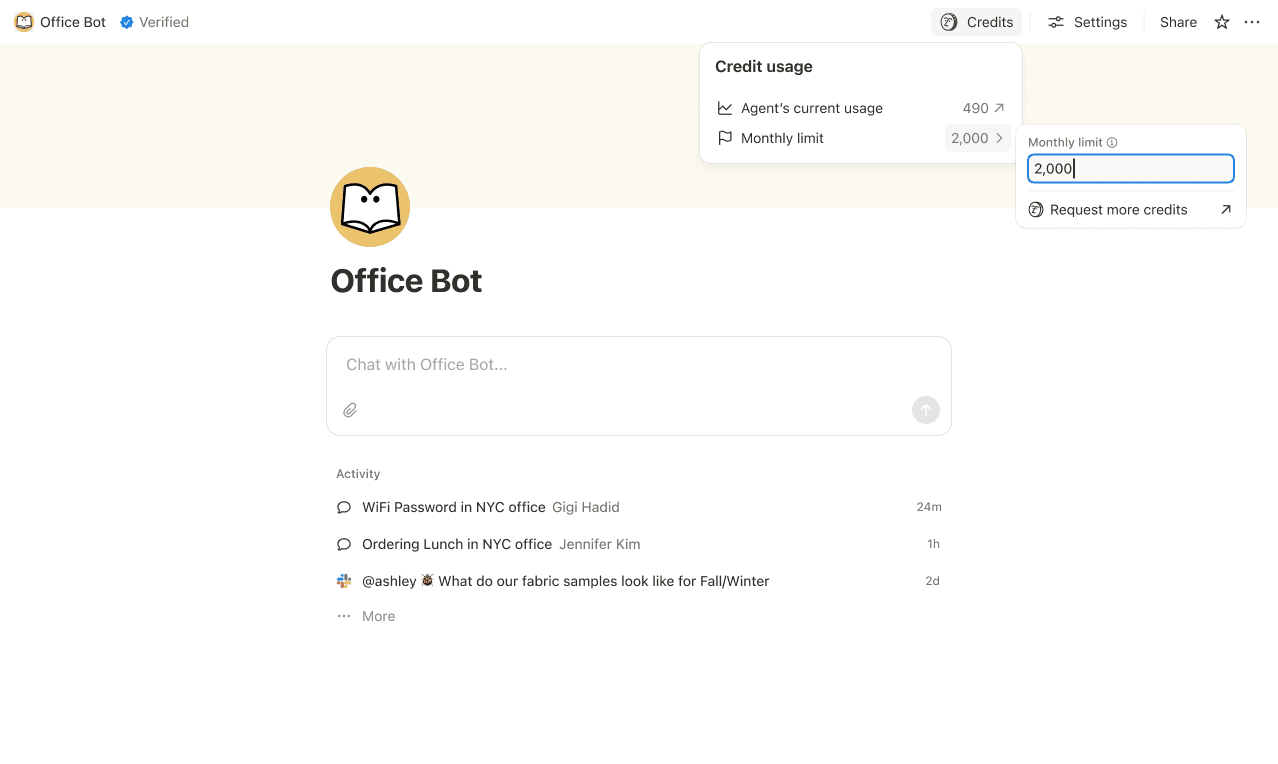
Définissez des limites de crédit pour les agents personnalisés individuels afin qu'ils s'interrompent lorsqu'ils atteignent un seuil. Dans certains cas, un agent peut dépasser la limite afin de terminer une tâche en cours. Si une tâche est déjà en cours d'exécution lorsqu'elle atteint le plafond, nous la laissons se terminer avant d'interrompre toute nouvelle utilisation.
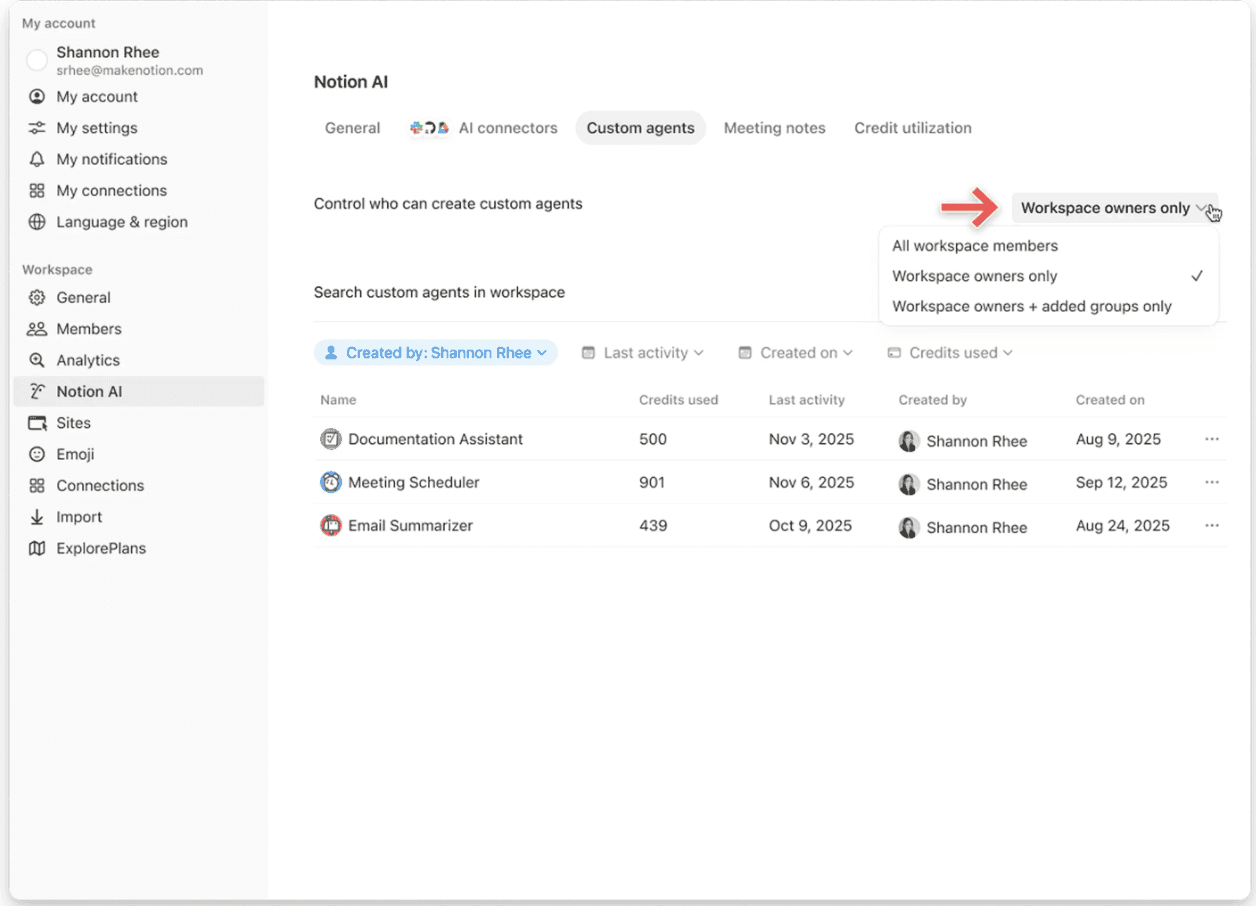
Contrôlez qui peut créer des agents personnalisés (tout le monde, les propriétaires de l’espace de travail uniquement ou les membres sélectionnés).
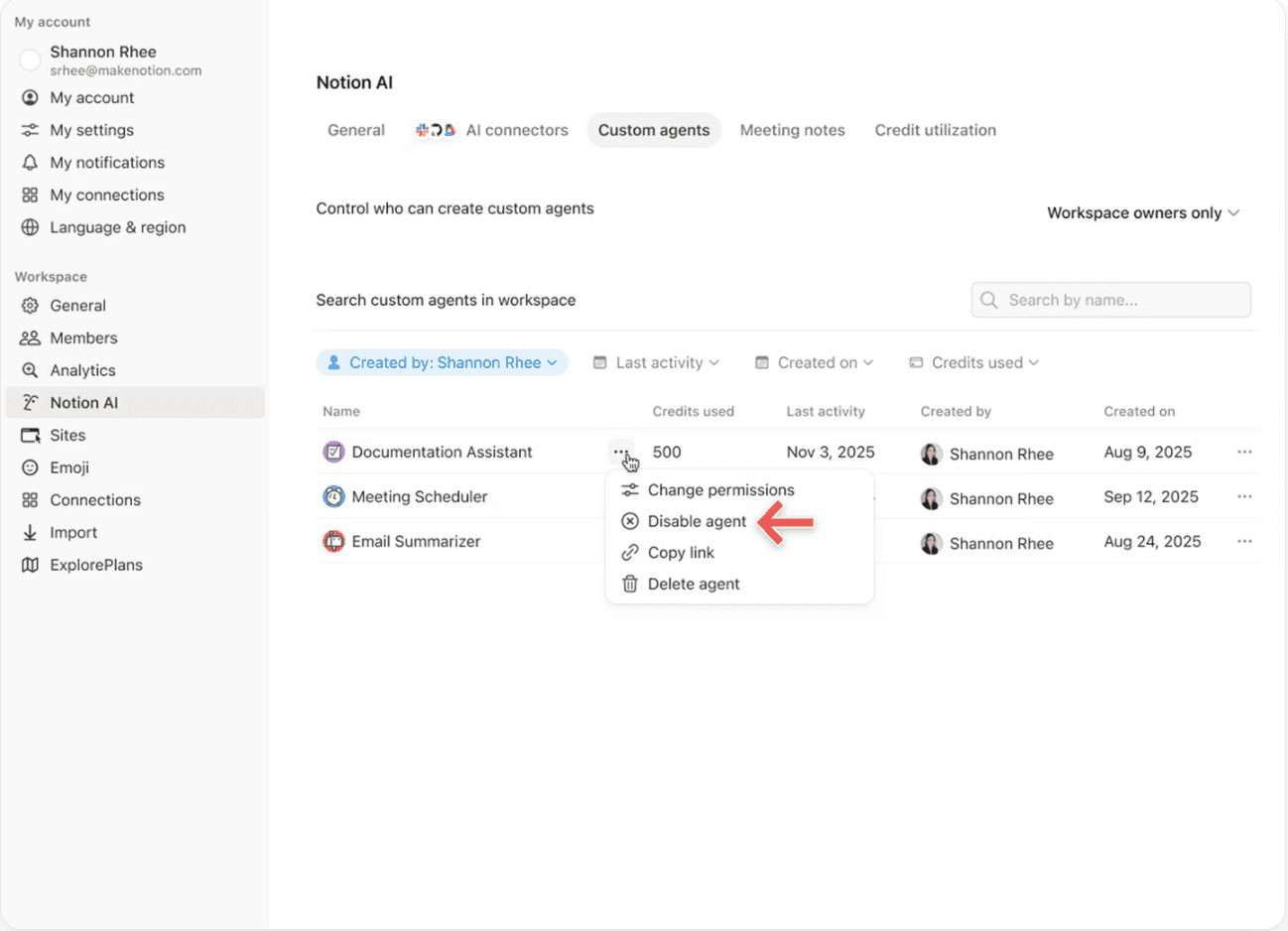
Suspendez ou désactivez un agent personnalisé à tout moment pour interrompre immédiatement l’utilisation des crédits pendant que vous examinez son activité ou ajustez ses paramètres.
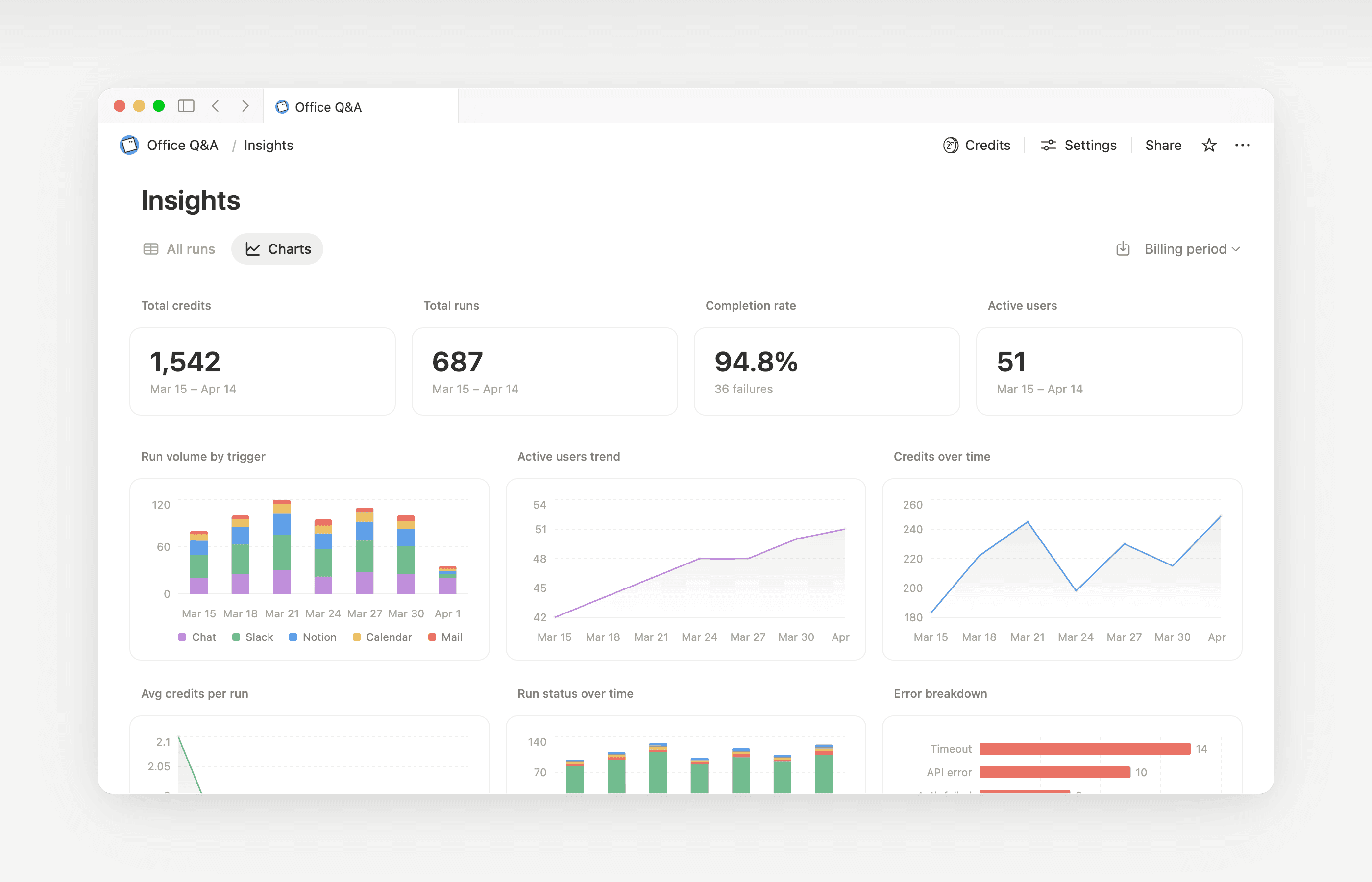
Insights aide les Créateurs d’agents personnalisés et les administrateurs d’espace de travail à comprendre l’activité afin qu’ils puissent effectuer des mises à jour ciblées visant à améliorer les performances. Utilisez Insights pour repérer les exécutions qui nécessitent des étapes supplémentaires, qui échouent et réessaient, ou qui utilisent un modèle plus coûteux que ce que la tâche exige. Ensuite, mettez à jour les instructions ou les paramètres de l’agent pour qu’il s’exécute plus efficacement.
Ouvrez les informations directement depuis un agent pour :
Surveillez l’activité et l’utilisation des crédits de votre agent personnalisé.
Identifier les exécutions plus chères que prévu.
Passer en revue les modèles, les outils et les déclencheurs utilisés.
Trouver et corriger les exécutions ayant échoué afin que votre agent fonctionne de manière plus fiable.
En savoir plus sur l’utilisation d’Insights pour réduire les coûts et améliorer un agent personnalisé→
Les propriétaires d’espace de travail peuvent décider si les membres peuvent utiliser des crédits Notion après avoir atteint la limite d’utilisation. Lorsque cette option est désactivée, les membres qui épuisent leur limite doivent attendre que la période glissante ou mensuelle soit réinitialisée. Découvrez comment gérer ce paramètre →

Découvrez ce que sont les agents personnalisés et comment ils fonctionnent.
Découvrez comment les agents personnalisés accèdent aux informations, comment fonctionne le partage et ce que les administrateurs et administratrices peuvent contrôler : partage et autorisations des agents personnalisés →
Découvrez d’autres bonnes pratiques pour optimiser les crédits Notion et l’efficacité des agents personnalisés dans un guide de démarrage des agents personnalisés pour les administrateurs →
Questions fréquentes
Que se passe-t-il si nous n’avons plus de crédits Notion ?
Que se passe-t-il si nous n’avons plus de crédits Notion ?
Si votre espace de travail ne dispose pas de suffisamment de crédits Notion, les agents personnalisés seront automatiquement interrompus jusqu’à la réinitialisation des crédits ou jusqu’à ce qu’un administrateur ajoute plus de crédits. Les modèles premium seront également interrompus.
Comment les administrateur·rices sont-ils ou elles informé·es lorsque les crédits Notion sont bientôt épuisés ?
Comment les administrateur·rices sont-ils ou elles informé·es lorsque les crédits Notion sont bientôt épuisés ?
Les admins reçoivent des notifications dans l’application (et par e-mail) lorsque votre espace de travail atteint 80 % et 100 % de son utilisation des crédits Notion, afin que vous ayez le temps de vous adapter avant la mise en pause des agents.
Comment acheter des crédits Notion supplémentaires ?
Comment acheter des crédits Notion supplémentaires ?
Les admins peuvent acheter des crédits directement dans Notion ou via leur équipe de gestion de compte. En savoir plus sur la façon d'acheter des crédits Notion.
Comment fonctionnent les modifications de crédits Notion en milieu de mois ?
Comment fonctionnent les modifications de crédits Notion en milieu de mois ?
Si vous augmentez vos crédits au milieu de votre période de service mensuelle, les crédits supplémentaires sont disponibles immédiatement pour la période de service en cours. Vous serez facturé·e pour le montant de crédit récurrent plus élevé au début de votre prochaine date de service mensuelle.
Si vous diminuez vos crédits au milieu de votre période de service mensuelle, le montant inférieur prend effet au début de la période de service suivante. À partir de ce moment, vous serez facturé·e pour le montant de crédit récurrent inférieur chaque mois.
Je travaille avec une équipe de gestion de compte pour acheter des crédits Notion. Que se passe-t-il si mon forfait Business ou Enterprise, qui inclut des crédits Notion annuels, est mis à niveau, étendu ou renouvelé en cours de période de facturation ?
Je travaille avec une équipe de gestion de compte pour acheter des crédits Notion. Que se passe-t-il si mon forfait Business ou Enterprise, qui inclut des crédits Notion annuels, est mis à niveau, étendu ou renouvelé en cours de période de facturation ?
Vous recevrez des crédits calculés au prorata pour les crédits Notion annuels prépayés non utilisés, correspondant au montant le plus faible entre :
Le montant en euros des crédits Notion annuels restants non utilisés, ou
Le montant des frais de crédits Notion annuels au prorata de la durée restante de l’abonnement
Ce crédit s’applique lorsqu’un nouveau bon de commande Business ou Enterprise remplace le vôtre avant la fin de sa durée d’abonnement. Les crédits Notion n’ont aucune valeur monétaire. Tout crédit s’applique au nouveau forfait.
La remplissage automatique utilise-t-il des crédits Notion ?
La remplissage automatique utilise-t-il des crédits Notion ?
Le remplissage automatique propose deux options : « remplissage basique » et « remplissage avec agent personnalisé ».
Le remplissage automatique basique est inclus dans les forfaits Business et Enterprise et n’utilise pas de crédits Notion.
Le remplissage automatique avec agent personnalisé utilise des crédits Notion, car il fonctionne avec les fonctionnalités de l’agent personnalisé (comme l’utilisation d’un contexte plus riche et d’un raisonnement plus avancé).
Qu’advient-il des agents personnalisés si je passe à un forfait inférieur ?
Qu’advient-il des agents personnalisés si je passe à un forfait inférieur ?
Si vous passez à un forfait inférieur (gratuit ou Plus), tous les agents personnalisés existants sont désactivés, sans être supprimés. Vous pouvez consulter (mais pas modifier) la page de discussion et les paramètres de l’agent personnalisé. Les agents personnalisés peuvent être réactivés si vous repassez à un forfait Business ou Enterprise.
Puis-je acheter des crédits Notion si je gère mon abonnement via l’App Store ou Google Play ?
Puis-je acheter des crédits Notion si je gère mon abonnement via l’App Store ou Google Play ?
Pas directement. Si votre abonnement Notion est géré via une boutique d’applications mobiles (App Store d’Apple ou Google Play), vous ne pourrez pas acheter de crédits Notion depuis Notion.
Pour acheter des crédits, vous devrez :
Résilier votre abonnement dans la boutique d’applications mobiles.
Passer à un forfait Notion directement sur notion.com (Business ou Enterprise, avec l’IA incluse).
Une fois votre nouvel abonnement activé, les admins peuvent acheter des crédits Notion dans
Paramètres→Accès et facturation→Crédits Notion.
Assurez-vous que votre nouveau forfait inclut l’IA avant d’acheter des crédits. Les crédits Notion ne sont disponibles que sur les forfaits Business et Enterprise.
Existe-t-il une limite au nombre de crédits que l’on peut acheter ?
Existe-t-il une limite au nombre de crédits que l’on peut acheter ?
Non. Vous pouvez acheter autant de crédits Notion que nécessaire pour votre espace de travail (y compris de grandes quantités). Si votre moyen de paiement met quelques jours à être validé, votre équipe peut continuer à utiliser les crédits Notion jusqu'au montant que vous avez prévu d'acheter, en attendant le traitement du paiement.
Que deviennent nos crédits Notion si un paiement échoue ?
Que deviennent nos crédits Notion si un paiement échoue ?
Votre équipe conserve les crédits Notion que vous avez déjà payés. Les crédits Notion dépassant ce montant sont mis en attente jusqu'à ce qu'un·e admin régularise le paiement, puis ils sont débloqués automatiquement. Un échec de paiement de crédits Notion n'affecte pas votre forfait Notion principal. En savoir plus sur le fonctionnement des paiements de crédits Notion →