

About
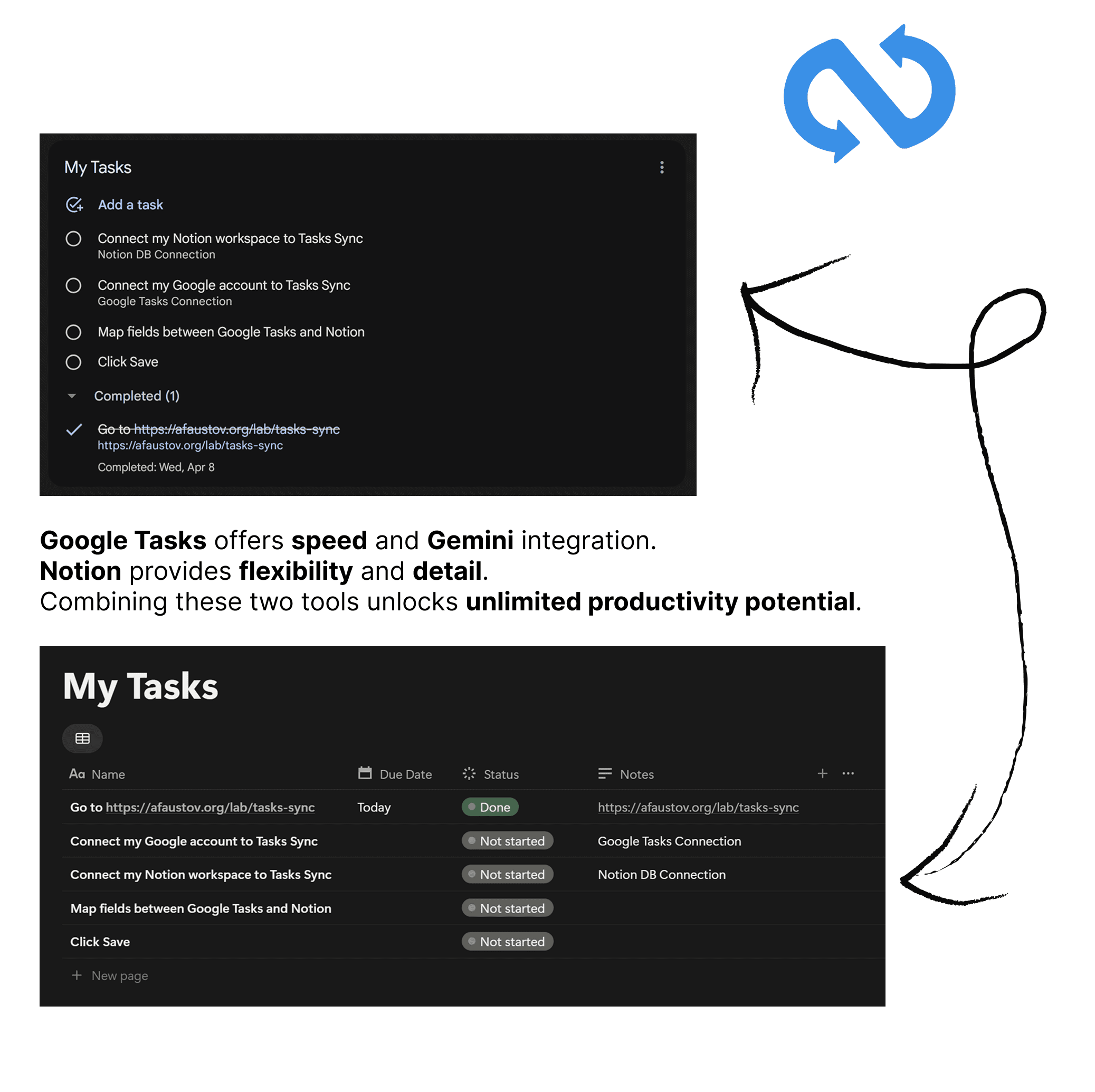
Tasks Sync connects Google Tasks with Notion so you can capture tasks quickly and organize them in your Notion database. Set up the connection once; synchronization runs in the cloud without keeping your browser or computer open.
Two-way synchronization: new Google tasks create Notion pages, and new Notion items create Google tasks. Mapped titles, completion status, all-day due dates, and optional notes stay aligned in both directions.
Direct integration: connect your accounts and map your fields without building Zapier or Make workflows. You can configure separate pairs of Google task lists and Notion data sources.
Free plan: new free configurations target a sync every 4 hours. New accounts can initially import up to 500 existing tasks. Paid plans offer faster target intervals; current pricing is available on our website.
Background processing: this is scheduled synchronization, not real-time. Actual start and completion times vary with queue load, provider limits, and the amount of data. Initial imports may take longer.
Important limits: due dates synchronize as all-day dates. Google-created recurring tasks and Notion page bodies are not supported. Custom recurring logic can use Frequency and Next Due properties in Notion.
Setup guide: https://afaustov.app/tasks-sync/how-it-works/
Features
- Read, insert, & update contentCan read, insert, & update pages, databases, and blocks shared with this connection.
How to use
1. Open https://afaustov.app/tasks-sync/ and connect Google and Notion. Approve access with each provider and share the Notion database you want to use.
2. Select one Google task list and one Notion data source.
3. Map your Notion Date property and completion field (Checkbox, Status, or Select). For Status or Select, explicitly choose the completion values. Notes are optional.
4. Review your sources and fields, choose a target interval, then start the sync. The initial import runs in the background. New free configurations target updates every 4 hours; actual timing may vary.
5. Check your saved sync status to see progress or any action needed.
Step-by-step guide and troubleshooting: https://afaustov.app/tasks-sync/how-it-works/
Plans and limits: https://afaustov.app/tasks-sync/pricing/
Details
- Automations
- Productivity