PlayLex
LexTrace
About
Time tracking that stays inside Notion
LexTrace helps you track, review, and understand your time directly inside your Notion workspace.
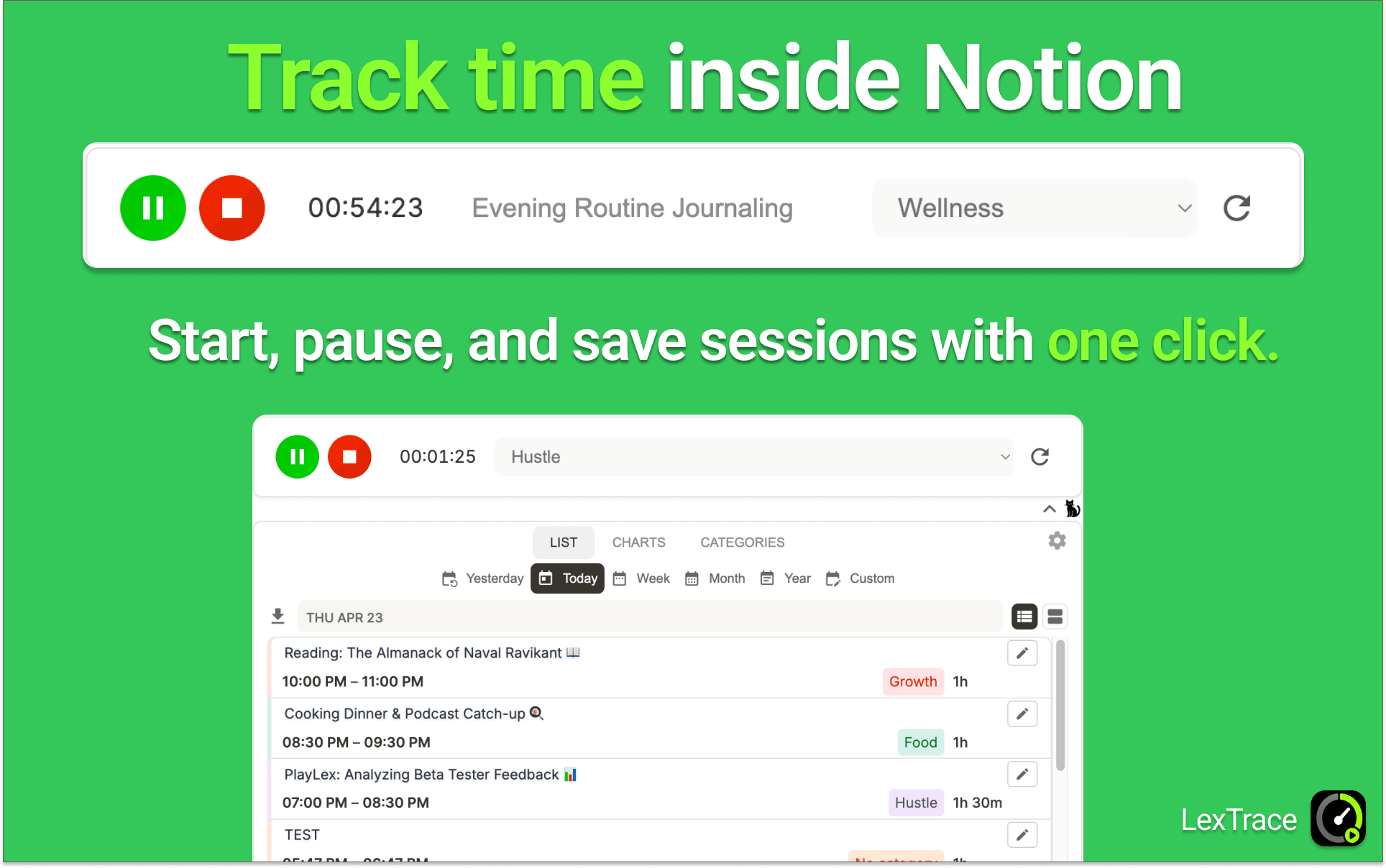
Start a timer with one click, pause for a break, resume when you return, and stop when the work is done. LexTrace automatically saves each session to your Notion database, so your time records stay organized, editable, and available where your work already lives.
What you can do with LexTrace
- Track work sessions with simple start, pause, resume, and stop controls
- Save session records automatically to a Notion database
- Organize time by category, project, client, work type, or focus area
- Review your day, week, month, year, or custom date range
- Explore your time with charts, reports, totals, trends, and category breakdowns
- Set goals and see whether your progress is on track
- Export records for billing, reporting, reviews, or archives
Why use LexTrace
LexTrace is useful for freelancers, consultants, creators, students, founders, and anyone who wants a clearer picture of how they spend their time.
Instead of switching between a separate timer, spreadsheet, and reporting tool, you can keep your time tracking connected to the same Notion workspace where you already plan projects, manage tasks, and review your work.
Your records stay in Notion, where you can view, edit, filter, duplicate, and export them whenever you need.
Features
- Read, insert, & update contentCan read, insert, & update pages, databases, and blocks shared with this connection.
- View workspace usersReads basic profile details about workspace members and guests, including their email addresses.
How to use
How to get started
Need a walkthrough? Watch the LexTrace setup and feature overview video, or open LexTrace Cabinet and follow the guided setup.
Video: https://www.youtube.com/watch?v=TmZ1Rcm43L0
Cabinet: https://app.trace.playlex.io/cabinet/
More info: https://app.trace.playlex.io/
-
Step 1:
Open LexTrace Cabinet and approve the Notion connection to link LexTrace with your workspace.
-
Step 2:
Choose the Notion page where LexTrace should create your time-tracking database.
-
Step 3:
Copy your LexTrace embed link and paste it into the Notion page where you want the timer to appear.
-
Step 4:
Verify the pairing code from the embedded LexTrace timer in your Cabinet.
Once connected, you can start tracking time directly inside Notion.