About
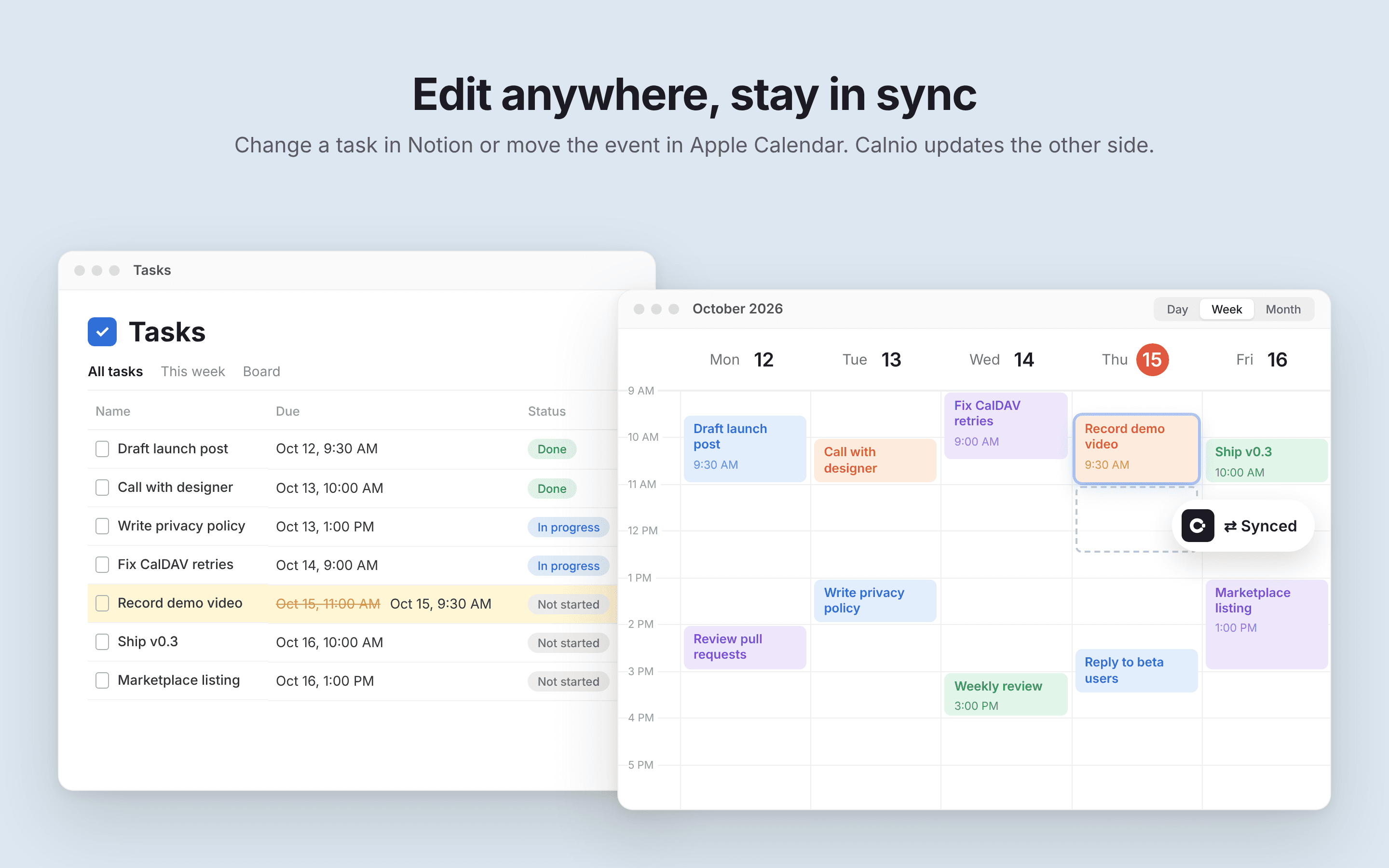
Calnio syncs tasks from your Notion databases with Apple Calendar, both ways.
Unlike webcal feed subscriptions, Calnio creates real events in your iCloud calendar over CalDAV. No read-only subscribed calendars and no waiting for a feed to refresh: your tasks show up as regular Apple Calendar events on iPhone, iPad, Mac and Apple Watch.
How it works:
1. Connect your Notion workspace and pick the database with your tasks
2. Connect your iCloud calendar
3. Choose which calendar the events go to
Edit a task in Notion or move the event in Apple Calendar, and Calnio keeps both sides in sync.
Features
- Read, insert, & update contentCan read, insert, & update pages, databases, and blocks shared with this connection.
- View workspace usersReads basic profile details about workspace members and guests, including their email addresses.
How to use
1. Go to calnio.myroslavrepin.com and sign in.
2. Connect your Notion workspace and select the database with your tasks.
3. Pick which properties to use for the task title and date.
4. Connect your iCloud account using an app-specific password (create one at account.apple.com → Sign-In and Security → App-Specific Passwords).
5. Choose the Apple Calendar your tasks should sync to.
That's it. Calnio creates your tasks as events in Apple Calendar, and changes you make on either side stay in sync.