
最近更新
及时了解最新版本、改进和修复。

将自定义代理添加到私人 Slack 频道
自定义代理现在可以在私人 Slack 频道中阅读和回复消息。你可以在工作空间设置中开始操作,路径如下:设置→Notion AI → AI 连接器 → 启用对私人内容的访问权限。自定义代理只能看到你邀请其加入的私人频道。
在帮助中心进一步了解我们的 Slack AI 连接器 →
汇总现在可以显示为货币、百分比等格式
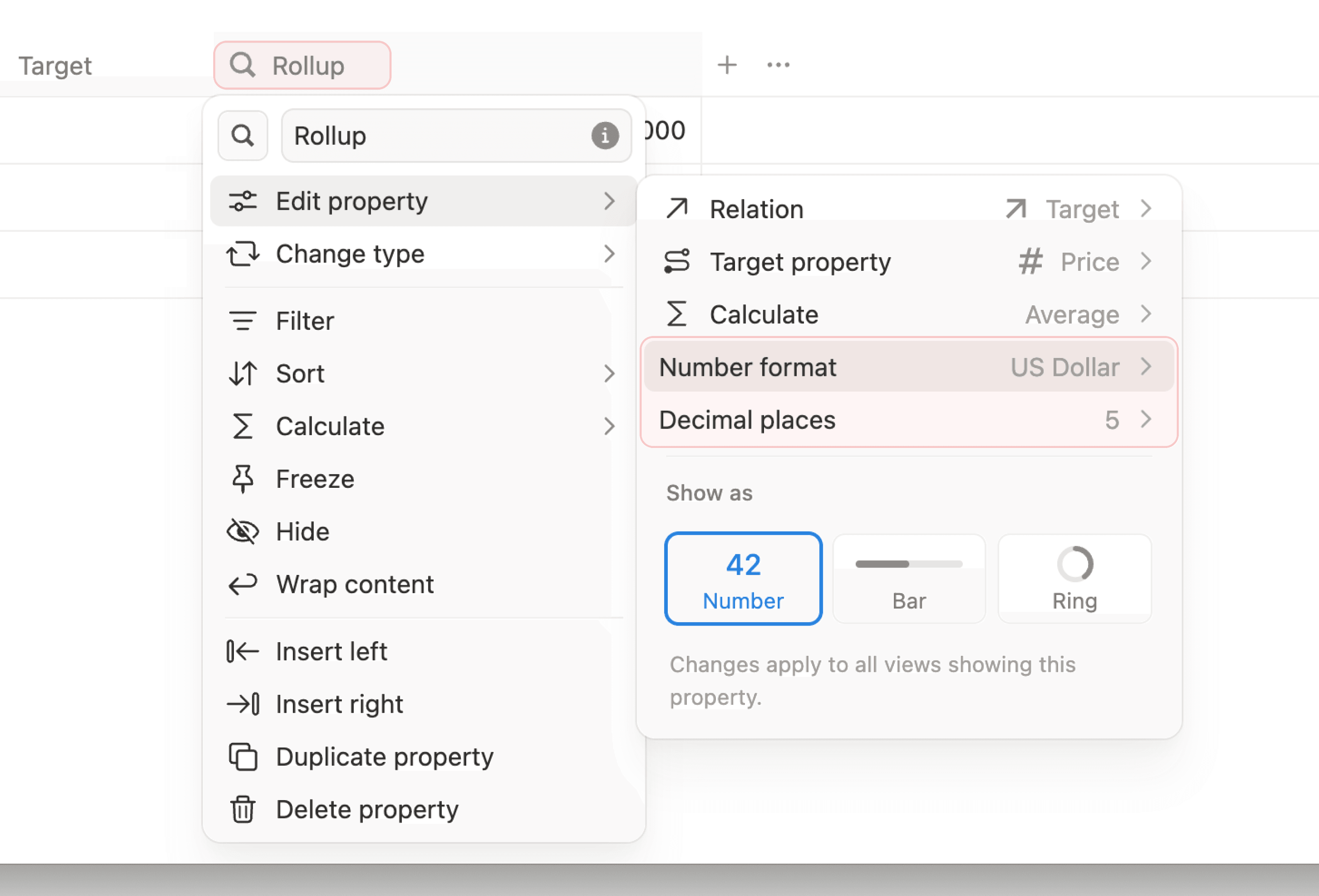
汇总现在支持数字格式设置(美元、欧元、百分比等)和小数位数设置。在汇总中显示预算总额、转化率等信息,无需任何公式变通。
在帮助中心进一步了解关系和汇总 →
通过路径栏更快地查找页面
将鼠标悬停在路径栏的任何项目上,即可查看同级页面,包括数据库中的页面。这样,你就能更轻松地查找相关页面并在工作空间中浏览。
在 X 平台查看公告 →
邮箱和日历,现已引入设置页面
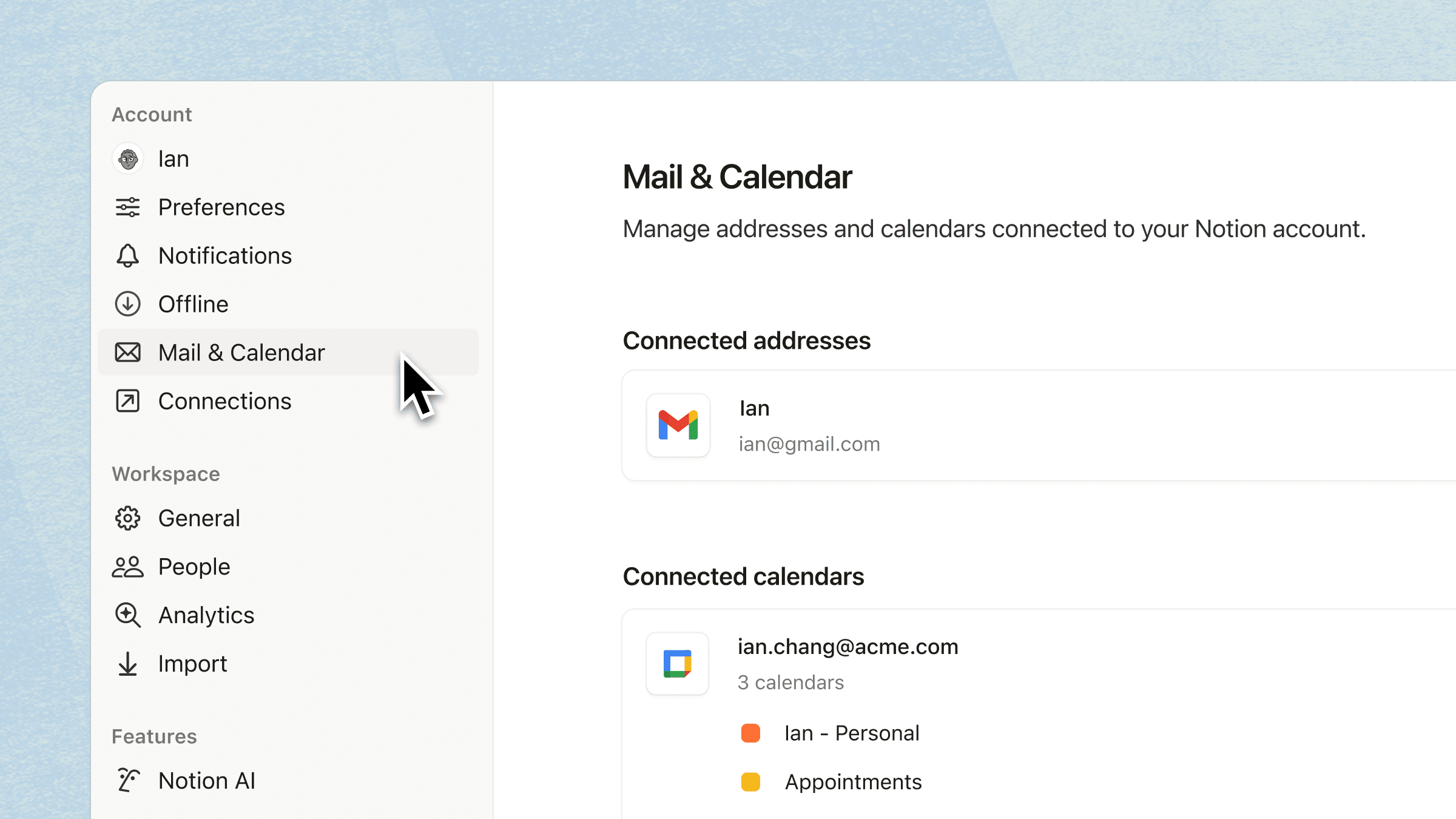
通过设置中的全新专用选项卡,连接你的日历和邮箱。关联帐号后,Notion AI 可以跨应用处理工作,例如安排会议和撰写电子邮件。
Opus 4.7 现已登陆 Notion
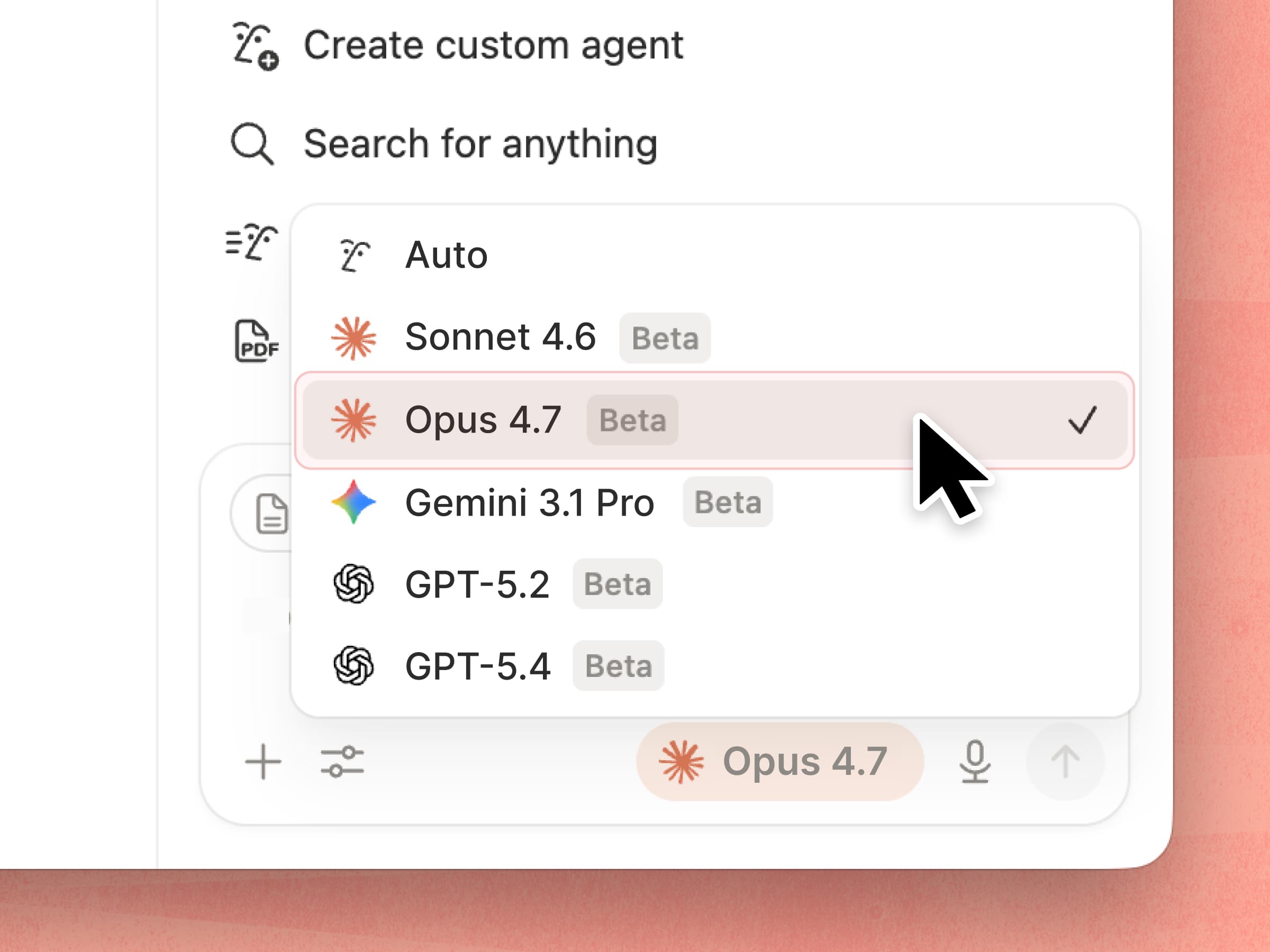
Anthropic 的最新模型 Claude Opus 4.7 现已登陆 Notion。它使用的令牌更少,工具错误减少了 3 倍,处理复杂工作流程也前所未有地可靠。
在 X 平台查看公告 →
使用 Notion 代理安排会议
Notion 代理现在会显示你的日历,帮助你找到与团队成员会面的可用时段。查看按排序显示的选项列表,比较日程安排,然后进行预约。无需离开对话,即可完成所有这些操作。
在 X 上查看公告 →
Notion 3.4,第 2 部分
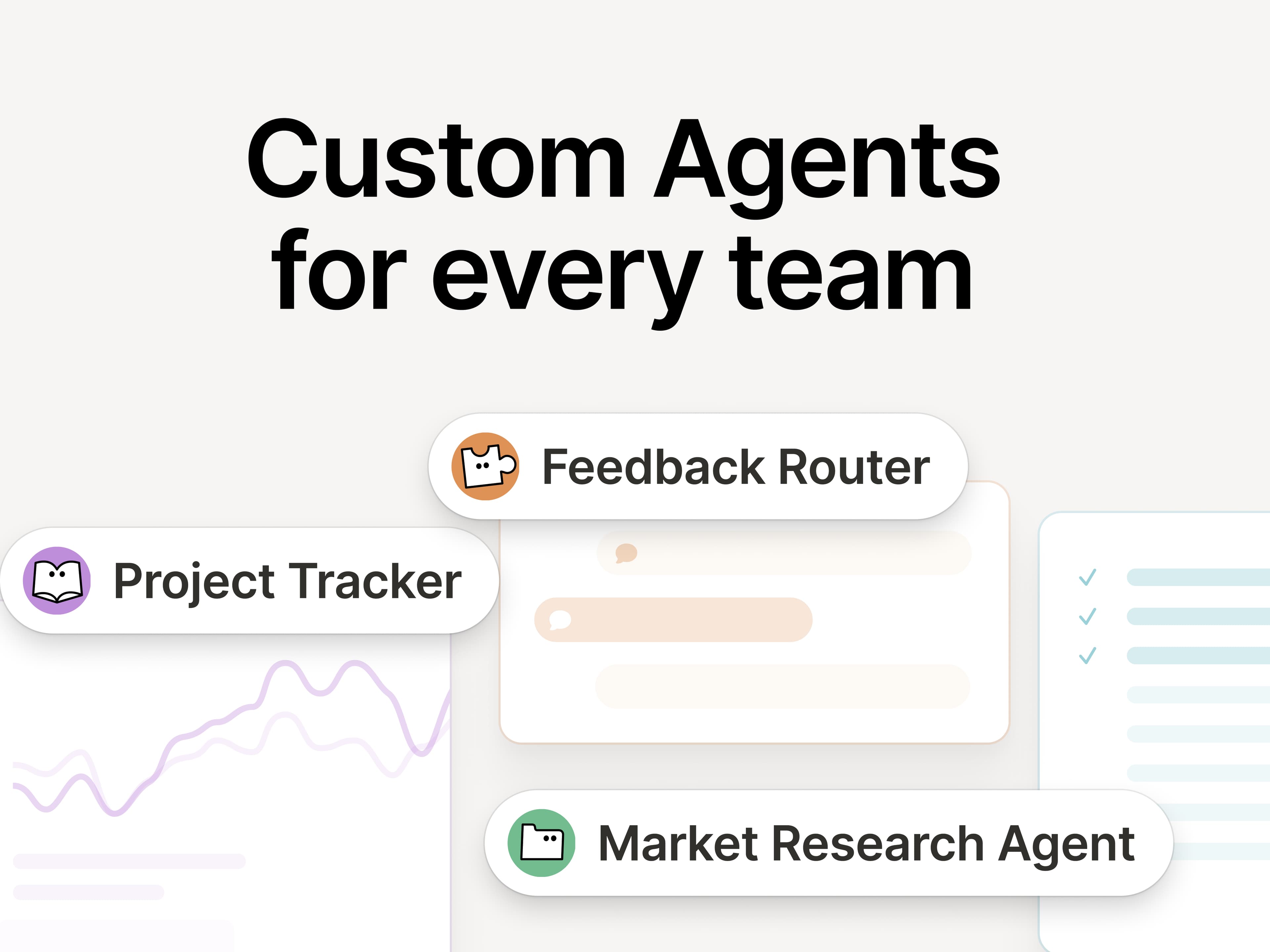
我们在几周前推出了自定义代理,而团队构建的速度已经超出了我们的预期。在 Notion 3.4 中,你的代理可以为你承担更多日常繁琐工作。
现在,自定义代理更易于精细调整,全新的 AI 自动填充功能可将其直接引入你的数据库中,实现自动完善和维护。此外,你还可以为你的 Notion 代理创建技能,让它能够学习你最重要的工作流程。
自定义代理仍可免费试用至 2026 年 5 月 3 日,现在正是试用的好时机!
团队和自定义代理携手合作
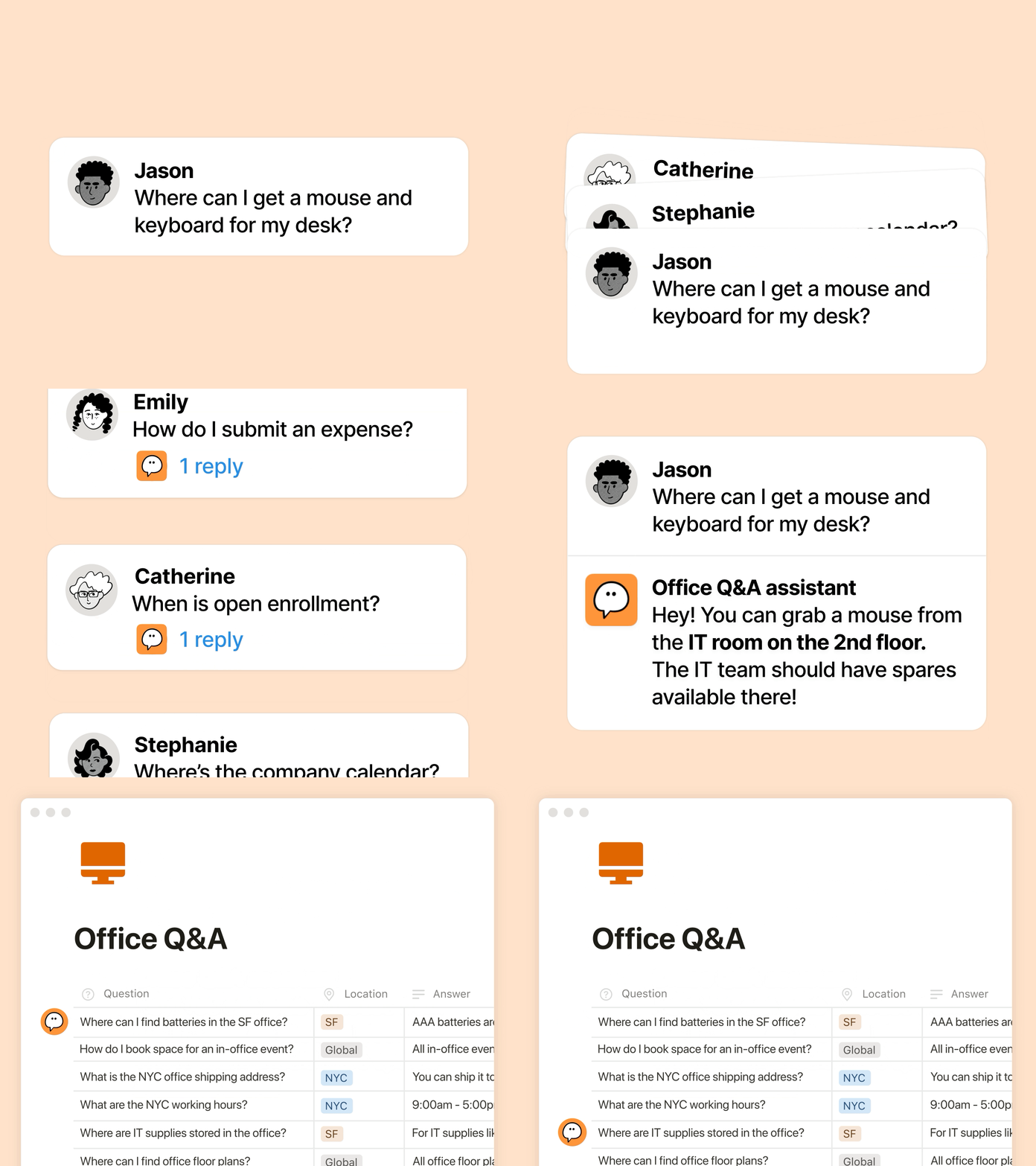
如果你错过了相关信息,以下是关于自定义代理的简要回顾:自定义代理就像是你的 AI 团队伙伴,可以为你处理重复性工作。自一个月前推出以来,我们看到各类团队都发掘出了全新的使用方式:
在合适的时间提供合适的信息:Ramp 的 GTM 团队使用 Enablement Eddie 来调出合适的资源并解答客户问题。
处理重复问题:Clay 运行了一个 IT Buddy,能够在几分钟内解决员工的常见问题。
自动化报告:Braintrust 的竞争对手情报代理会跟踪网络上和 Gong 通话转录中的竞争对手动态,然后每天早上修订内部文档,确保团队当天拿到最新信息。
新的自定义代理升级:效率、透明度、上下文
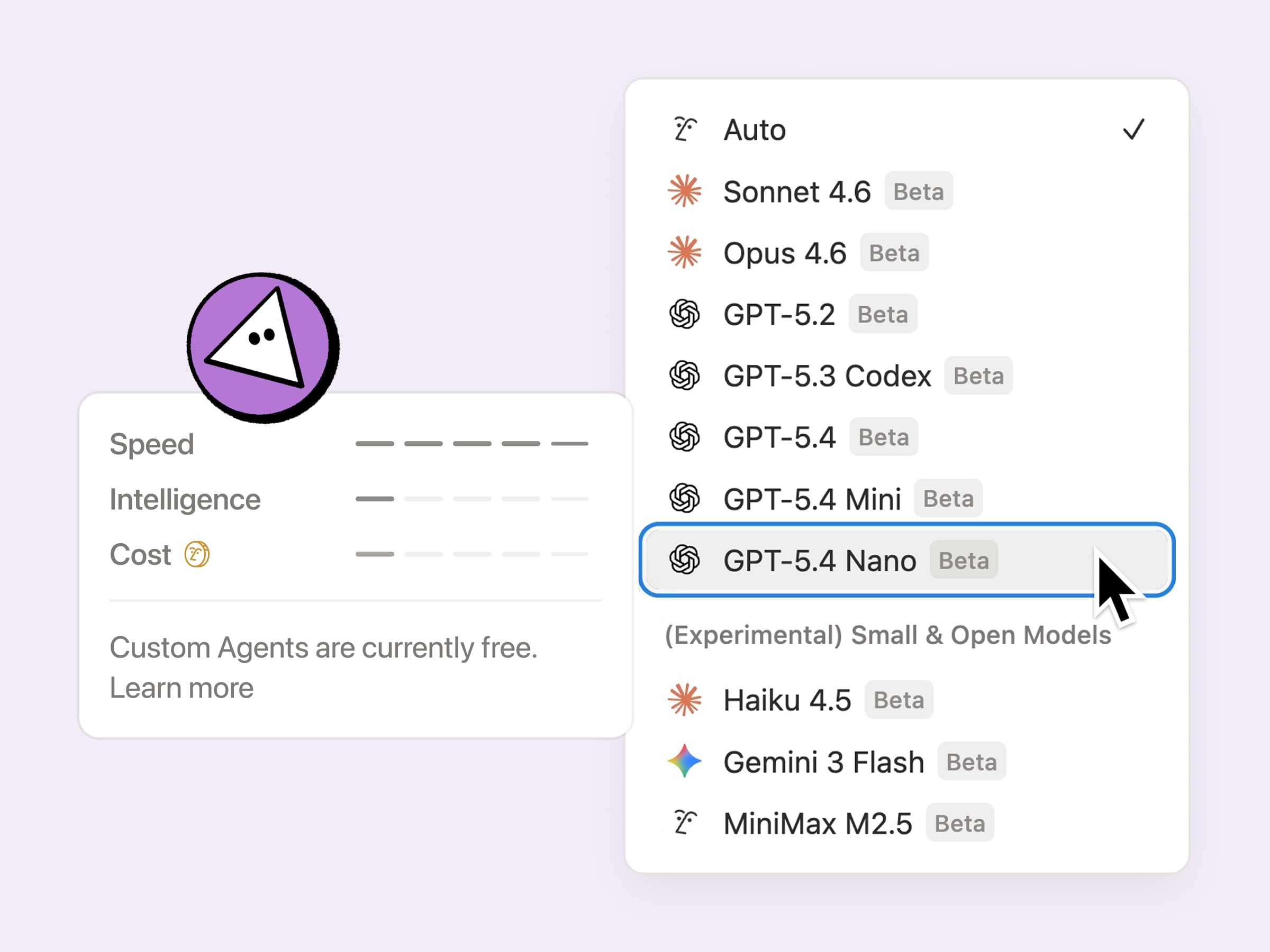
你希望代理能够提供助力,但同时也需要可灵活扩展的定价方案、清晰掌握代理的操作行为,并与你现有工具栈的集成。本次更新同时满足了这三个要求:
运行效率更高:现在,自定义代理的运行成本整体降低 35% 至 50%,对于邮件分类这类重复性任务,效果尤为明显。如果你选择 GPT-5.4 Mini 和 Nano、Haiku 4.5 以及 MiniMax M2.5 等新模型,它们的成本效益会 更高,因为这些模型使用的积分最多可减少 10 倍。
清晰掌握代理积分使用情况:现在,你可以更轻松地对代理进行精细调整,并通过 Notion 积分管理面板了解各项功能的使用情况。我们将继续不断添加更多信号,以便你更轻松地进行优化并决定哪些功能值得运行。在这里了解精细调整代理的技巧。
可利用更多上下文信息:自定义代理现已支持进入私人 Slack 频道,从此不再错过关键对话。未来还将推出更多集成,包括 Microsoft Teams、Google 云端硬盘、Salesforce 和自定义连接器。
从 5 月 4 日起,自定义代理将按使用可购买的 Notion 积分。目前,自定义代理还可以免费使用几个星期,现在正是试用的好时机。
由自定义代理提供支持的数据库 AI 自动填充功能
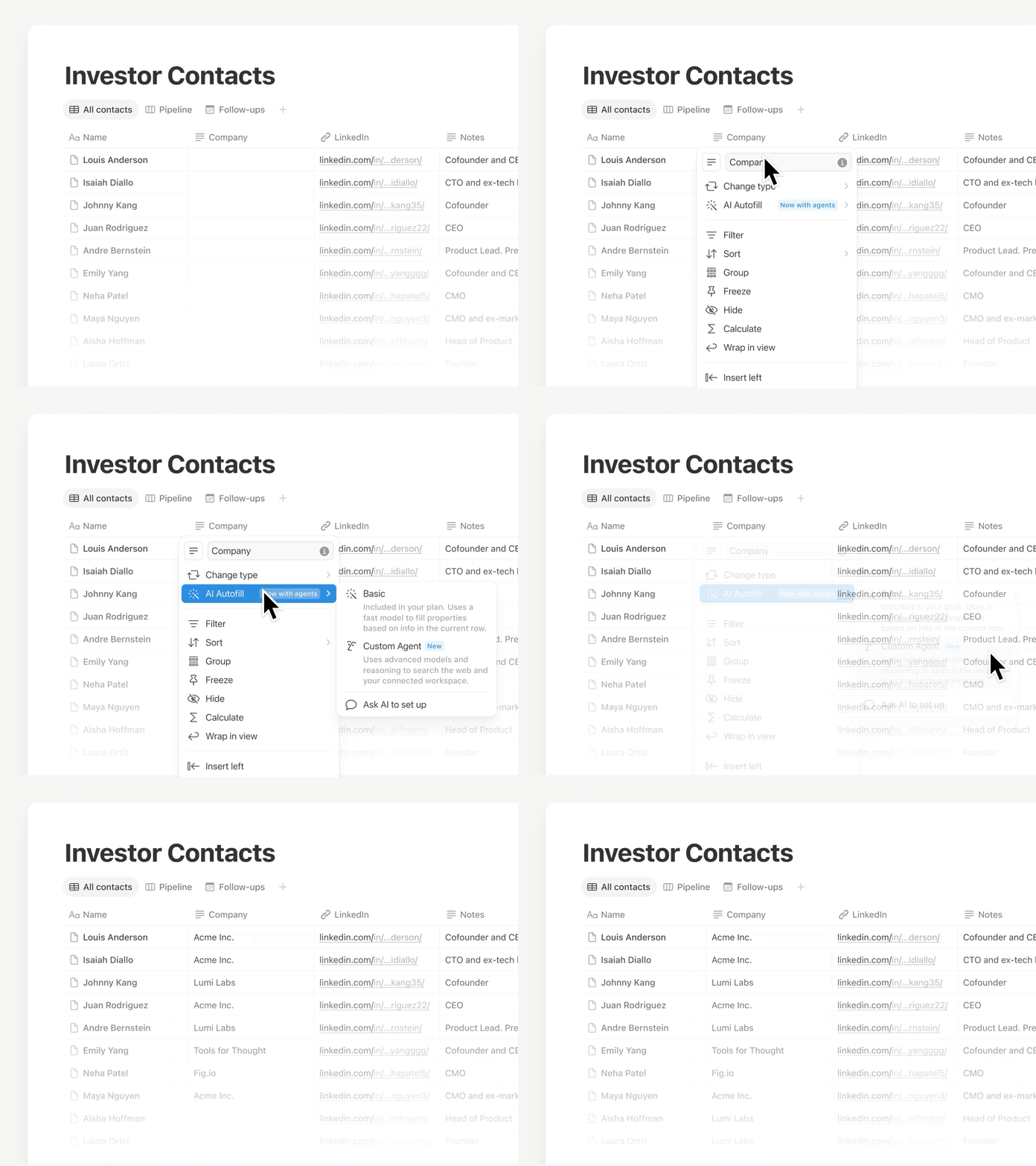
借助自动填充功能保持数据及时更新,现在更全面搭载自定义代理的强大智能能力。持续完善、提取每一行中的信息并对其分类,让你的数据库始终保持可靠,而无需手动审核。
此功能目前正在逐步推出,若你暂未看到,很快就会开放。针对更简单的填充,基础 AI 自动填充功能仍然包含在商业版和企业版中。了解更多 →
你的 Notion 代理拥有了全新的技能、集成……而且你还可以与它对话!
借助技能,你可以将“经常让 Notion 代理做的那件事”转变为它可以根据命令完成的任务。将你最常用的工作流程保存为技能,例如撰写每周更新、按照团队格式重新编排文档,或者在会议前准备简报。
你的 Notion 代理还拥有更多“隐藏”功能:
与日历、邮箱和 Slack 集成:让代理在你日常使用的工具中读取内容、总结和跟进。
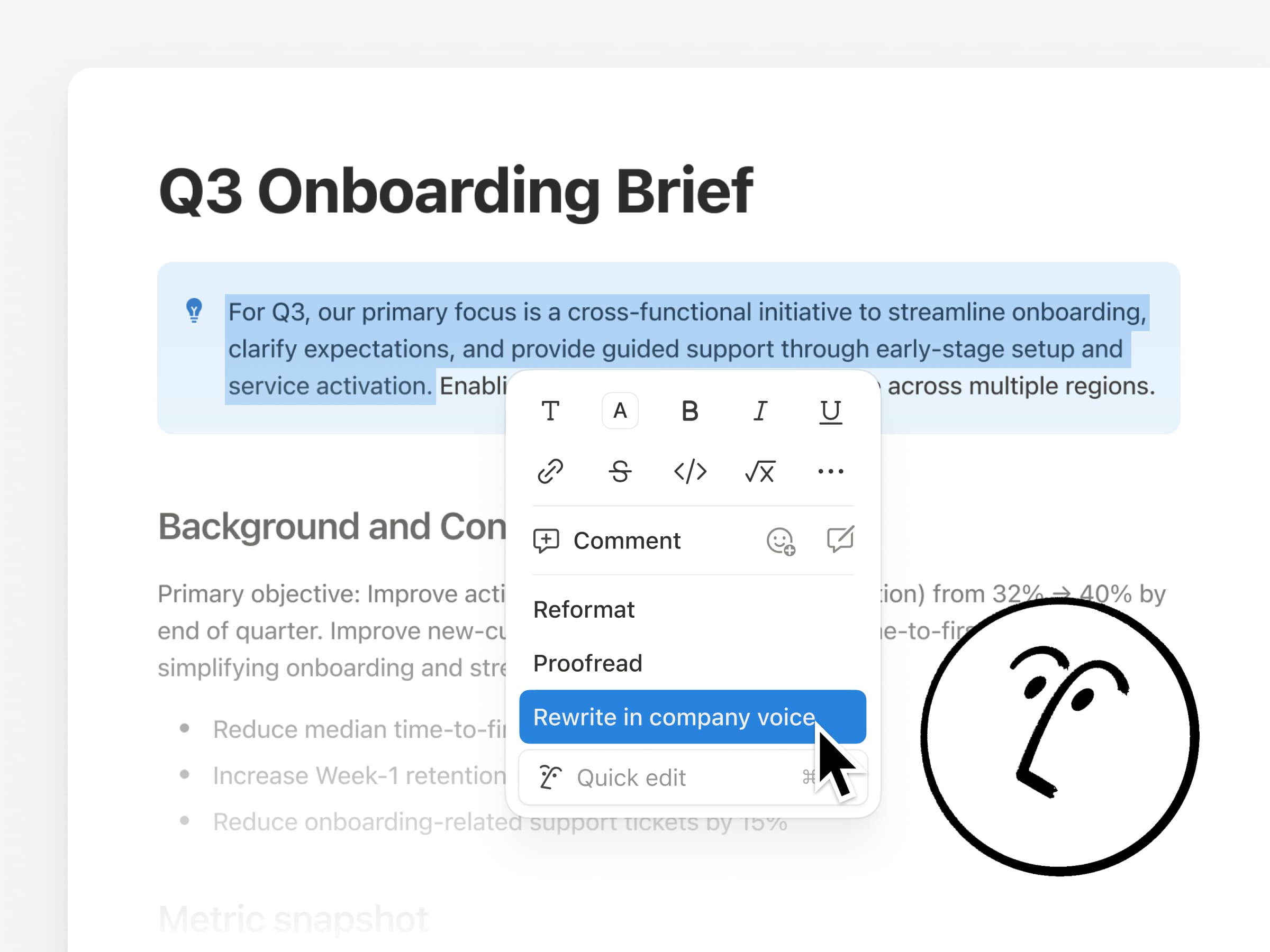
文档行内编辑:在你选择文本后,让代理直接在文档中进行编辑,修改内容会即时生效。
与代理交谈:使用麦克风按钮口述你的指令。
自定义你的 AI 速记摘要
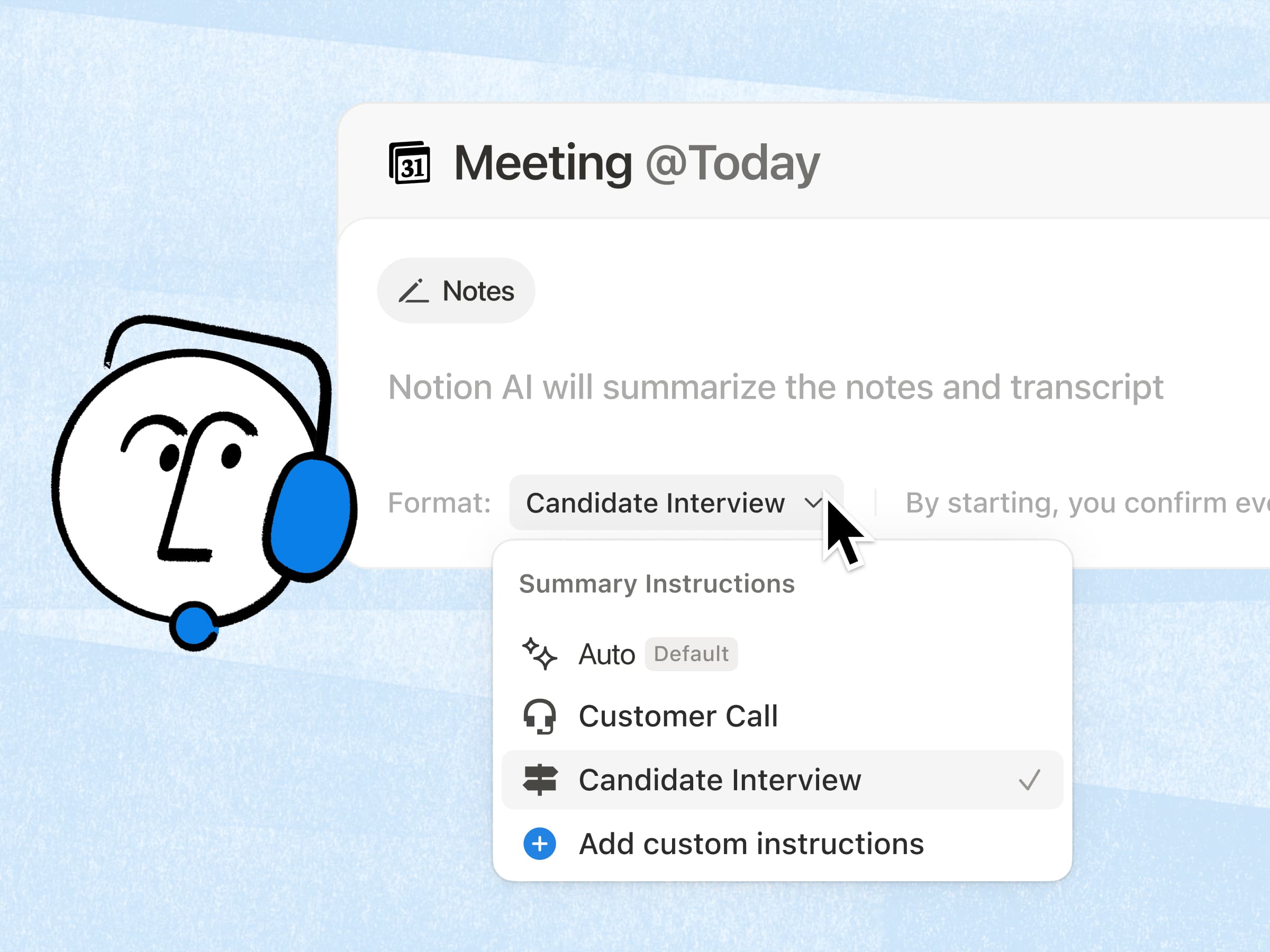
大家呼声最高的 AI 速记功能终于来了!现在,你可以添加一套简易自定义指令,以你偏好的格式生成摘要。此外,摘要质量也进一步提升,因为 AI 现在会整合工作空间上下文,为你省去大量繁琐工作。了解更多 →
全新 AI 连接器:Salesforce 和 Box
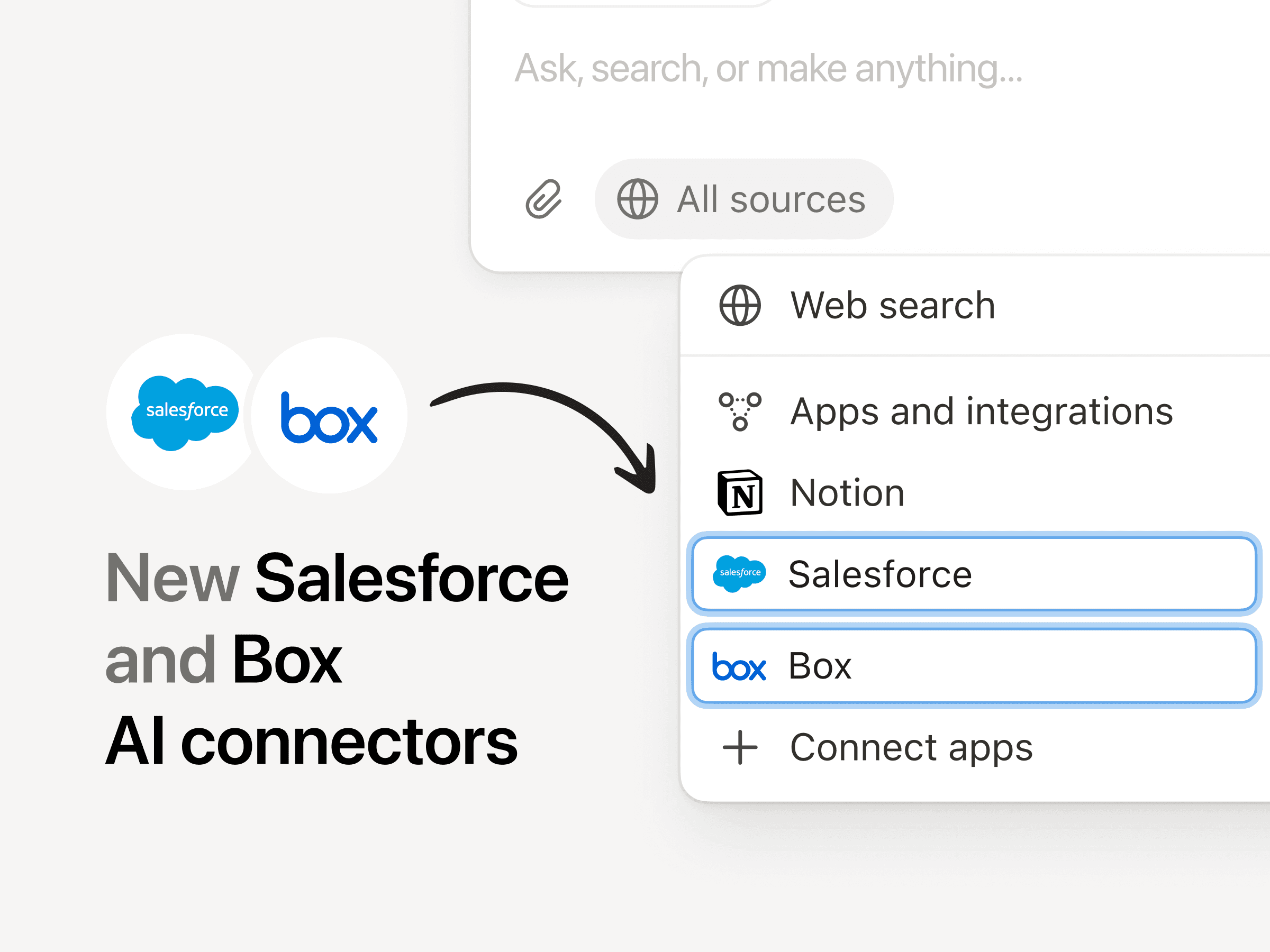
借助 Salesforce 连接器,你可以搜索客户、商机和备注,以便为通话做好准备、撰写跟进信息并制定客户计划,而无需在不同的选项卡之间来回切换。使用 Box 连接器,你可以搜索和总结提案、合同和项目文档等文件,以便提取关键详情、比较不同版本,确保交付工作顺利推进。
显著的性能提升
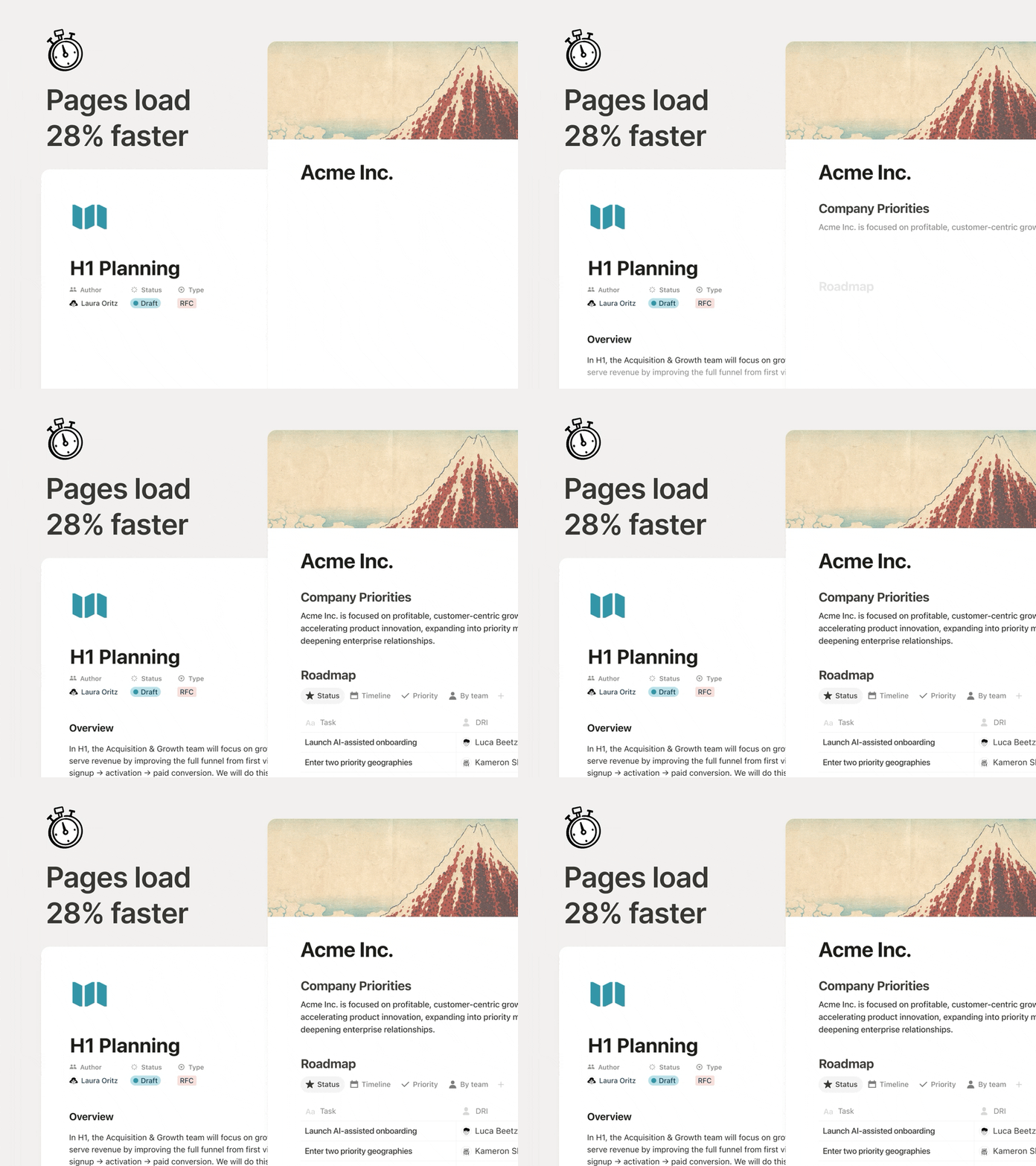
页面加载应做到瞬时响应,尤其是在你整日频繁切换文档的时候。现在,初始页面渲染速度提高了 28%,因此内容显示得更快,让你顺畅工作。这虽是个微小改进,但累积起来的体验提升十分明显。
新的数据库权限:“允许创建页面”
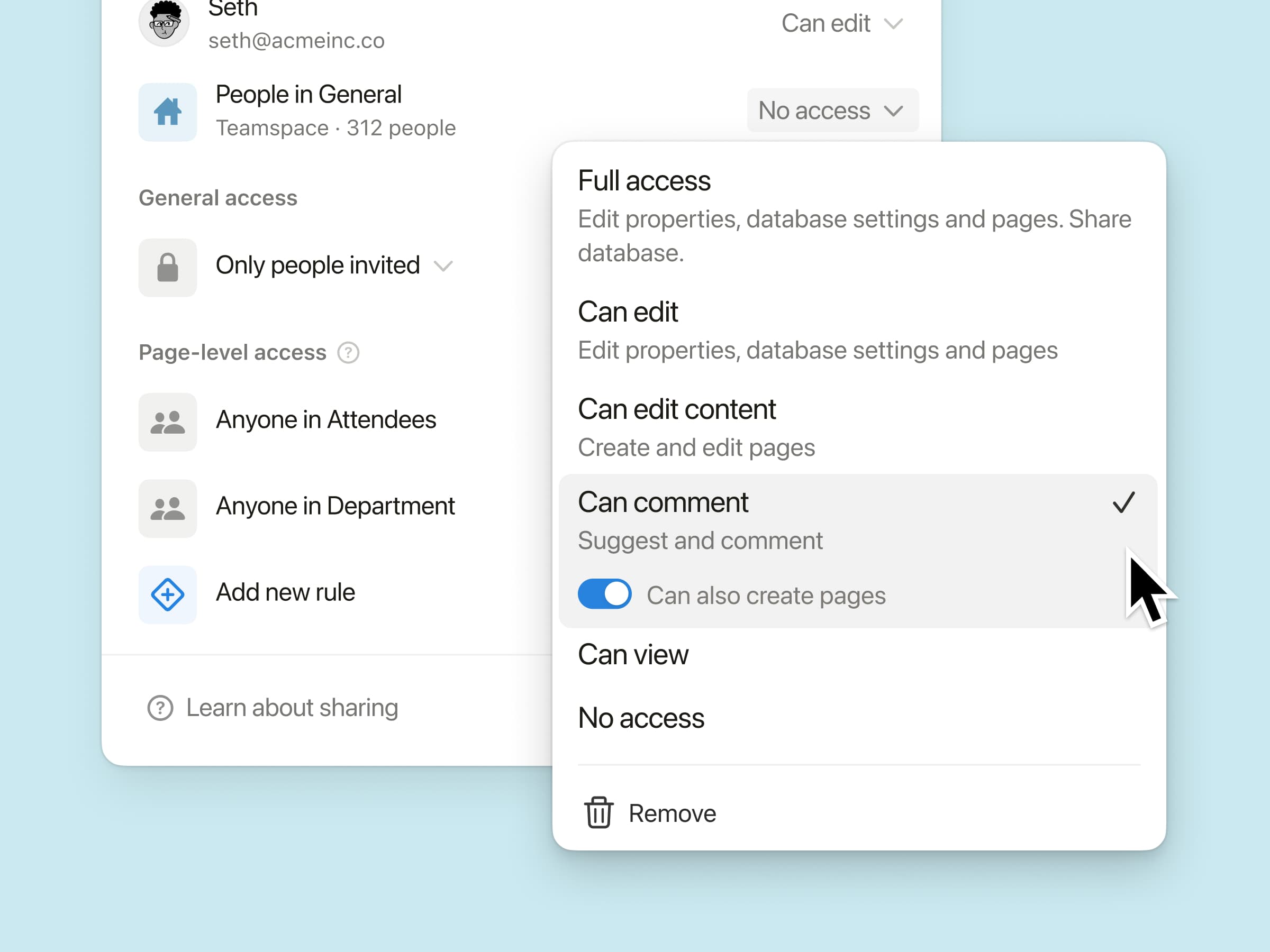
允许团队成员在数据库中创建新页面,同时仍然限制他们查看或编辑自己无权访问的其他内容。
例如,在会议数据库中,团队成员可以查看自己的会议记录并创建新的会议,但无法查看他人的记录。如果你的团队需要与外部贡献者合作或处理敏感信息,不妨试试这项功能。
别急,还有更多惊喜
通过 API 支持 AI 速记:现在,集成可以提取完整的转录和速记摘要,这样,团队就可以在其已在使用的各种工具中自动跟进待办事项。
n8n MCP 集成:将你的自定义代理连接到 n8n,以便它们能够运行你已在使用的自动化流程,并帮助协调你在其他应用和 API 中的工作。
MCP 改进:现在,AI 工具可以在 Notion 中更可靠地处理更多内容,涵盖评论、会议转录和 Notion 网站,响应速度更快,并新增审计、已批准工具等管理员控制功能。
我们将继续努力,让 Notion AI 成为更好地协助(人类)团队合作的工具。
谢谢!
Ivan
对了,我与我们的创意团队合作制作了一段视频,介绍了我们对 AI 的看法。请在这里观看。
自定义数据库中的选项卡
选择选项卡的显示方式(文本和图标、仅图标或仅文本),让数据库保持整洁且易于浏览。此设置仅对你个人生效,其他人不会看到任何变化。
来自经典藏品系列的全新页面封面图片
从 4 大全新系列中选择页面封面图片,作品均来自各大博物馆与公共档案馆。
这些作品包括 Texturelabs 推出的自然纹理、来自大都会艺术博物馆的哈德逊河派绘画、来自美国国立亚洲艺术博物馆的中国丝绸画,以及美国农业部果树水彩画系列中的水彩水果画。