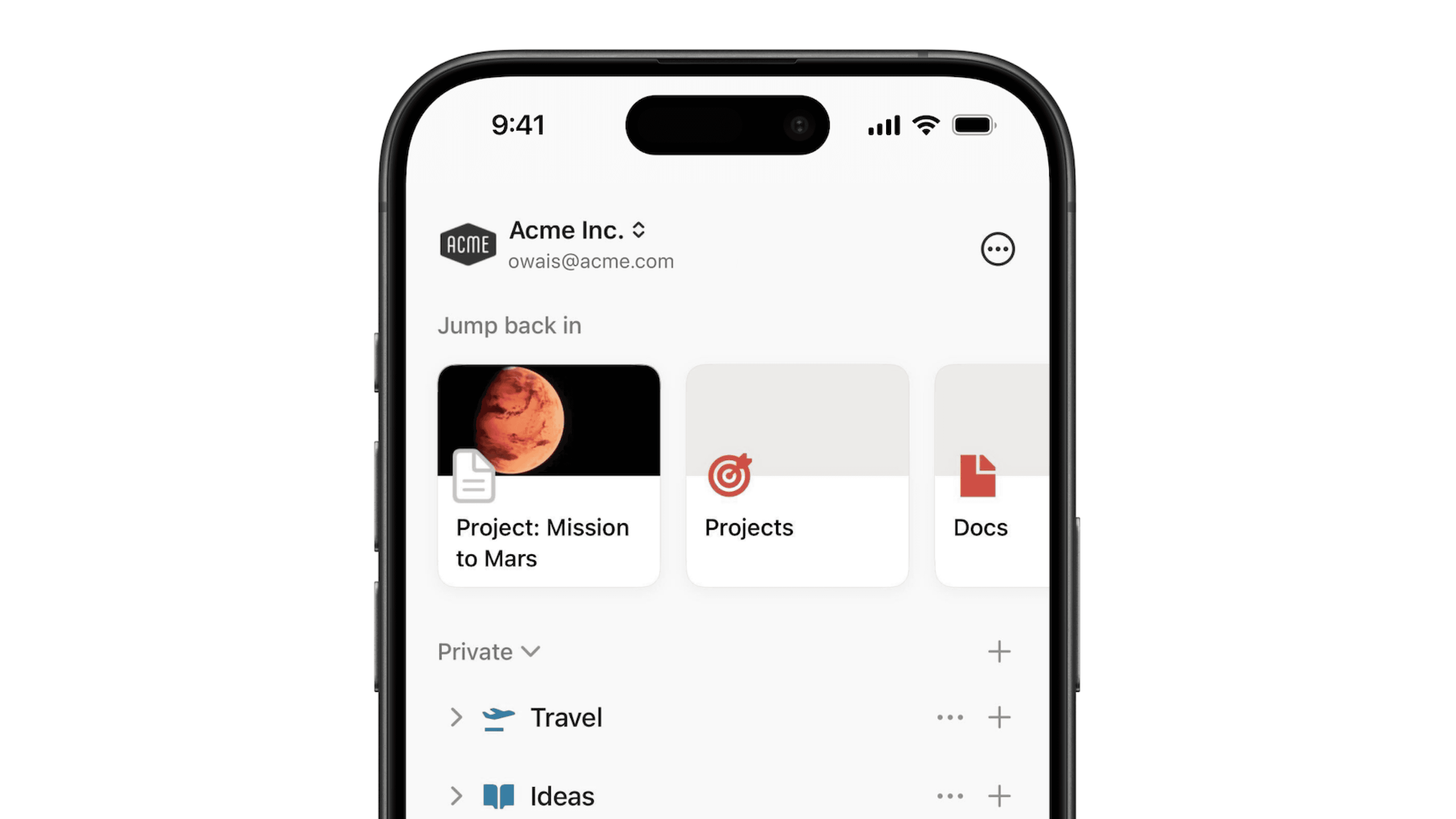
Tạo, tham gia & rời khỏi các không gian nhóm
Không gian nhóm giúp giữ nội dung của bạn được sắp xếp vào các khu vực cụ thể. Hãy giữ cho thanh bên của bạn gọn gàng bằng cách chỉ tham gia những không gian bạn cần truy cập! Đây là cách thực hiện.
Khi bạn tham gia một không gian làm việc trên gói Plus, Business hoặc gói Enterprise, bạn sẽ tự động được thêm vào bất kỳ không gian nhóm nào đã được đặt làm mặc định, trừ khi bạn là thành viên bị hạn chế. Để xem tất cả các không gian nhóm hiện có khác trong không gian làm việc của bạn:
Trong thanh bên trái, hãy nhấp vào
••• More.Ở trên cùng, bạn sẽ thấy các không gian nhóm mà bạn là thành viên.
Bên dưới đó, bạn sẽ thấy tất cả các không gian nhóm mở và không gian nhóm kín trong không gian làm việc.

Ghi chú: Các không gian làm việc trong gói Business hoặc gói Enterprise có quyền truy cập vào tính năng không gian nhóm riêng tư. Chỉ thành viên hoặc chủ sở hữu của một không gian nhóm riêng tư mới có thể mời người khác và những người không được thêm vào sẽ không thể nhìn thấy không gian này.
Khi thiết lập không gian làm việc, bạn có thể muốn tạo thêm một không gian nhóm.
Cuộn đến nhãn
Teamspacestrong thanh bên của bạn và nhấp vào nút+ở bên phải nhãn đó.Để sao chép một không gian nhóm hiện có, hãy nhấp vào
•••bên cạnh không gian nhóm đó và nhấp vàoNhân bản không gian nhóm.
Ghi chú: Tùy thuộc vào cài đặt không gian làm việc của bạn, hành động này có thể bị giới hạn chỉ dành cho chủ sở hữu không gian làm việc. Bạn có thể kiểm tra xem có phải trường hợp này không bằng cách đi tới Cài đặt → Không gian nhóm.
Khi bạn tạo một không gian nhóm, bạn sẽ tự động trở thành chủ sở hữu theo /mặc định. Bạn có thể thêm thành viên và chủ sở hữu khác thông qua cài đặt của không gian nhóm:
Di chuột qua tên không gian nhóm trong thanh bên của bạn.
Nhấp vào nút
•••rồi chọn tùy chọnTeamspace settings.Nhấp vào
Thêm thành viênhoặc tìm kiếm một thành viên hoặc nhóm để thêm vào không gian nhóm.Tùy chỉnh vai trò của họ bằng cách nhấp vào menu thả xuống ở bên phải tên của họ.
Khi duyệt tìm tất cả các không gian nhóm, bạn sẽ thấy danh sách các không gian nhóm mở và không gian nhóm kín trong không gian làm việc.
Các không gian nhóm mở có thể được tham gia trực tiếp từ menu này.
Các không gian nhóm kín sẽ ghi "close". Nhấp vào
Requestbên cạnh không gian nhóm kín để yêu cầu quyền truy cập.
Để rời khỏi một không gian nhóm mà bạn hiện là thành viên:
Di chuột qua tên không gian nhóm trong thanh bên của bạn.
Nhấp vào nút
•••rồi chọn tùy chọnRời khỏi không gian nhóm.
Tìm hiểu thêm về cách quản lý không gian nhóm tại đây →