 Mostafa Yasser
Tasks Widget
Info
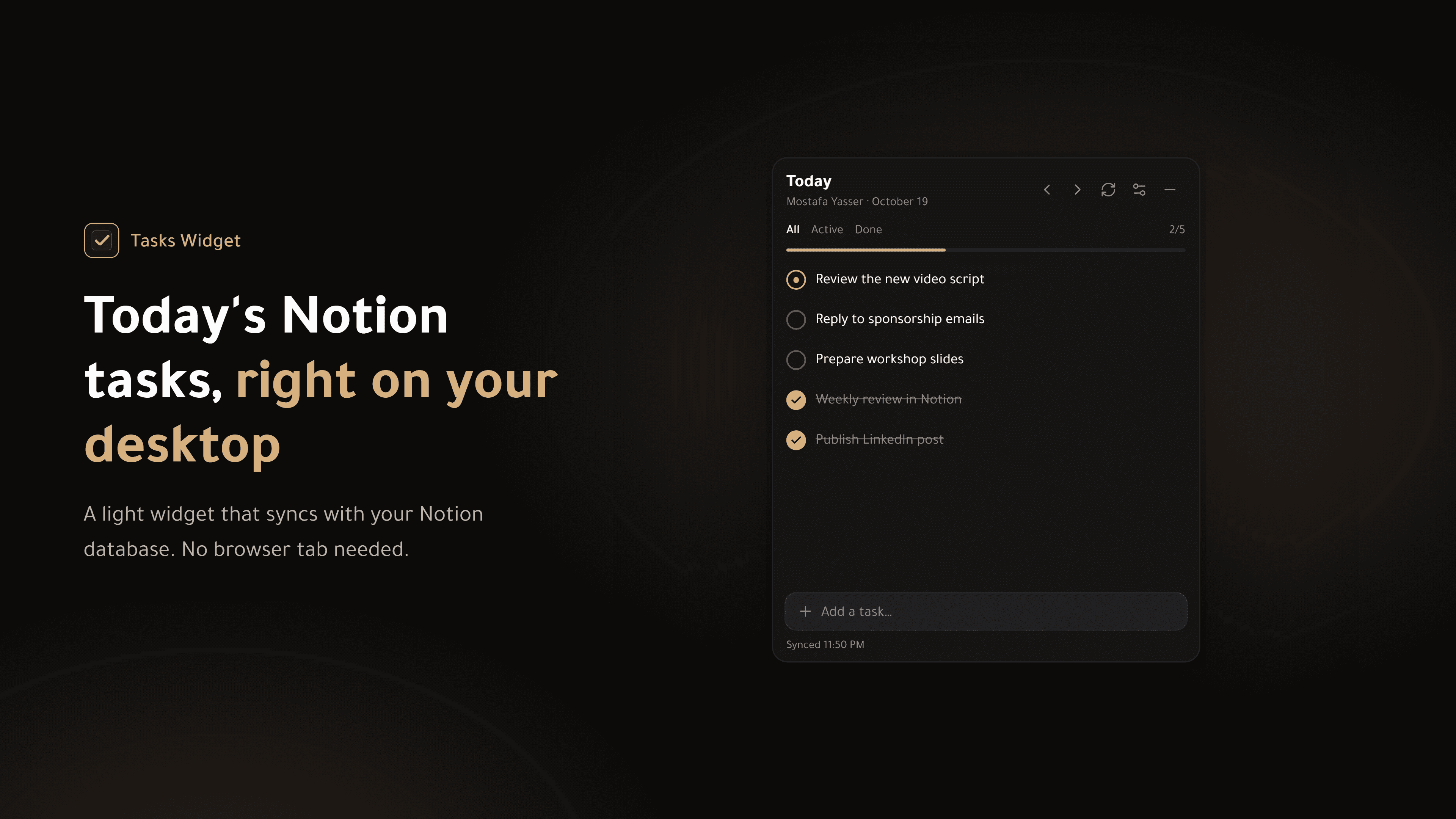
Tasks Widget keeps today's tasks from your Notion database in view all day, so you act on them instead of hunting for them.
Notion stays your source of truth for projects and details. Tasks Widget is a small window onto today: a lightweight desktop widget for Windows, plus home-screen widgets on Android.
What you can do
- See today's tasks from your Notion tasks database, always on your desktop.
- Check off a task in one click. The change is saved to Notion right away.
- Add a task in one line. It's created in Notion with today's date.
- Move a task to the next day, rename it, or open it in Notion.
- Browse yesterday, tomorrow or any day.
- Choose dark, light or system theme, an accent color, opacity, font size and density.
- Full Arabic and English interface, with right-to-left support and optional Arabic numerals.
On Android, three home-screen widgets let you tick tasks and add new ones without opening the app: today's list, your next task, and a daily progress ring.
Connect in one step
Press "Connect with Notion", choose the pages to share, or duplicate the free TaskHub template during sign-in. The app picks your tasks database and its Status and Date properties automatically.
Private by design
Your Notion token is stored encrypted on your device (Windows Credential Manager on Windows), and your tasks go directly between your device and Notion. No tracking, no analytics.
Funktionen
- Inhalte Lesen, einfügen und Update durchführenKann Seiten, Datenbanken und Blöcke lesen, einfügen und Update durchführen, die mit dieser Verbindung geteilt werden.
- Nutzer/-innen des Workspace anzeigenLiest grundlegende Profildetails über Workspace-Mitglieder und Gäste, einschließlich ihrer E-Mail-Adressen.
Informationen zur Nutzung
1. Install Tasks Widget for free from the Microsoft Store.
2. Open the app. The widget appears on your desktop and its icon in the system tray.
3. Open Settings > Notion and press "Connect with Notion".
4. In Notion, select your tasks database, or duplicate the free TaskHub template, and press Allow.
5. Return to the app. It connects on its own and picks your tasks database.
6. Make sure your database has a Status property (Status type) and a Date property. Today's tasks appear right away.
Tip: Turn on "Start with Windows" in Settings > General to keep your tasks in view from the moment you log in.
Details

- Produktivität