 Retell
Retell
Info
Retell connects your Notion workspace with Retell AI voice agents, making it easy to use information stored in Notion to automate outbound phone calls.
You can use the integration for tasks such as customer follow-ups, lead qualification, appointment reminders, confirmations, and other routine conversations. Information from your Notion database can be shared with your Retell agent to give each call the right context.
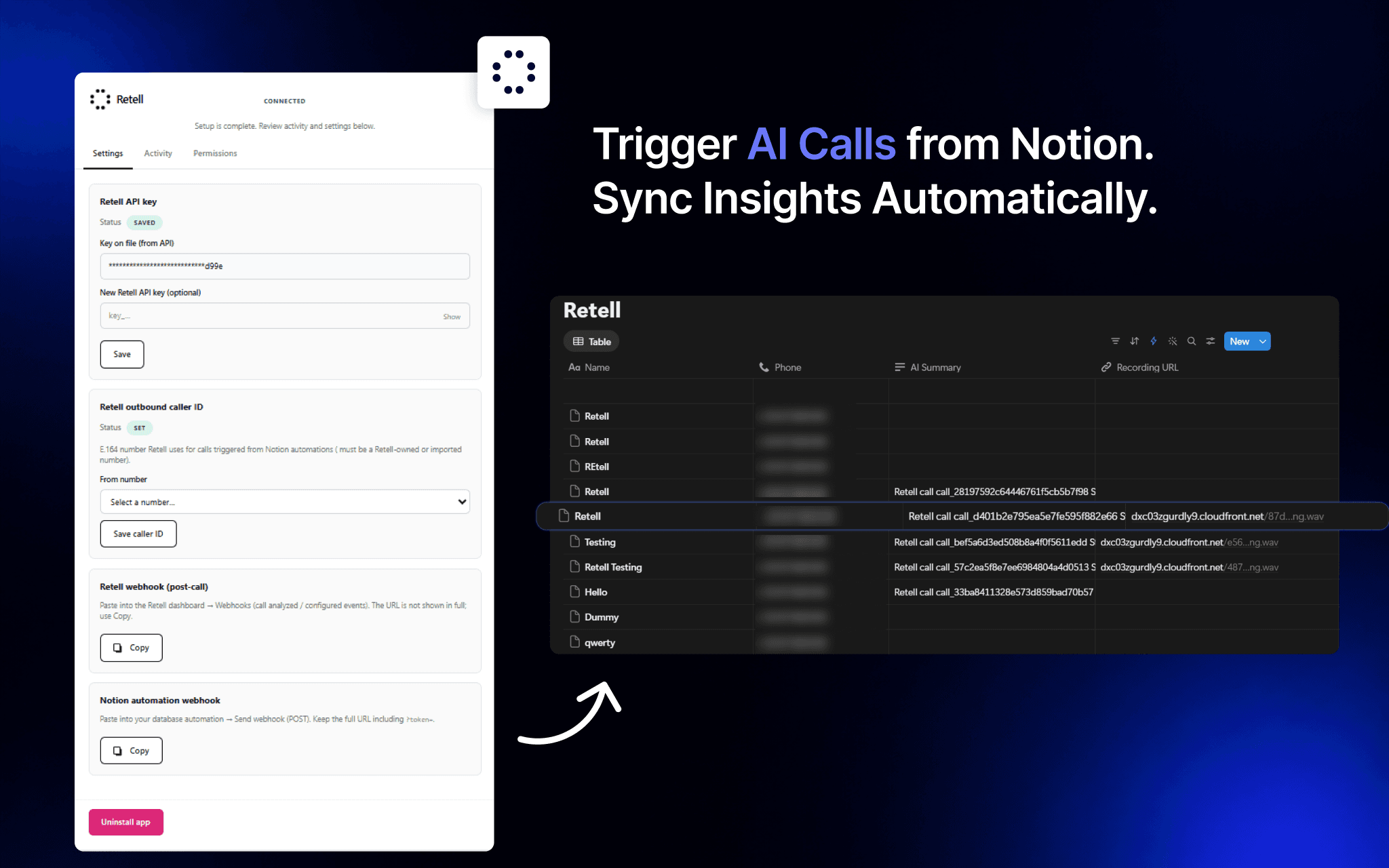
Calls can be triggered automatically through Notion database automations when a new record is added or when specific conditions are met. After a call is completed, post-call analysis and relevant call results can be added back to the same Notion record, helping you keep your database up to date.
Setup is managed through Retell’s Integrations Hub. You’ll need a Retell account, API key, and Retell phone number to use the integration. The Retell dashboard also lets you view your connection settings, webhook information, and recent activity.
Funktionen
- Inhalte Lesen und Update durchführenKann Seiten, Datenbanken und Blöcke lesen und Update durchführen, die mit dieser Verbindung geteilt werden.
Informationen zur Nutzung
How to use
-
Open
https://integrations.retellai.com/notion/setup
and sign in to Retell if prompted.
-
Connect and configure Retell with Notion.
Authorize your Notion workspace, enter your Retell API key, choose the Retell phone number you want to use. Then copy webhook URL and paste in Retell Dashboard > Agent so both platforms can send and receive call information. -
Complete Setup.
Click Complete setup, then use the dashboard for settings, activity, and uninstall.
-
Create a database and set up an automation.
In Notion, create a database you want to use for outbound calls. Add a database automation and select
Send webhook
as the action and paste your notion webhook URL that should run when your chosen conditions are met. -
Add a record to trigger the call.
When a new record meets the conditions you set, the automation triggers Retell to make the outbound call. After the call is completed, post-call analysis and relevant call results are added back to that record.
Details

- Kommunikation
- Produktivität