 Reos
Reos
Reos
Info
Reos is a user research platform. It turns interviews, transcripts and documents into observations, insights and recommendations, each backed by evidence.
The Notion connection works in both directions.
Publish to Notion
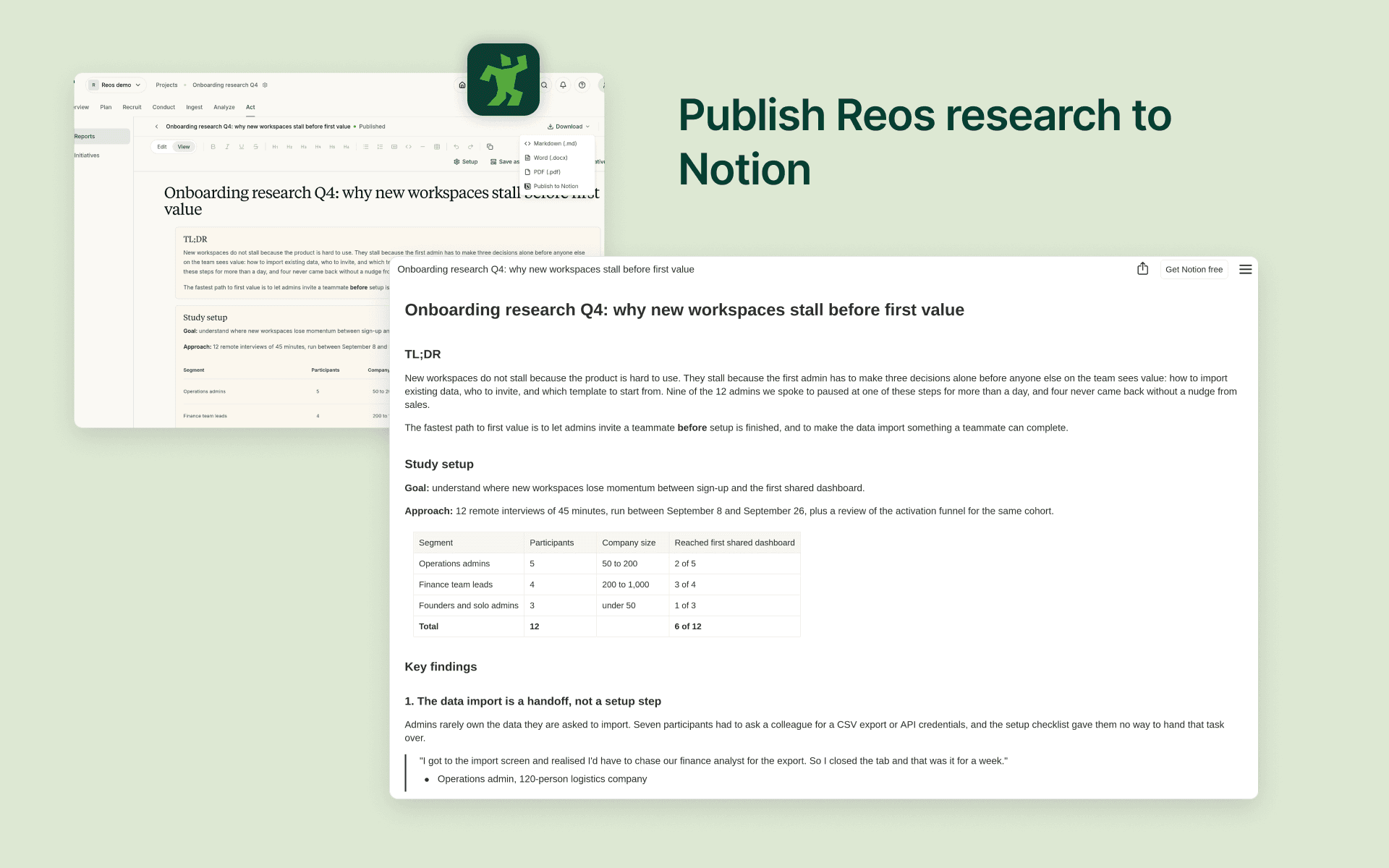
Send any Reos report, document, research plan or discussion guide to a Notion page you choose. Headings, lists, tables, quotes and code keep their formatting, and every page links back to the source in Reos. Publish again later and the same page updates in place, so your team's Notion stays current without copy and paste.
Import pages
Pick Notion pages to add to a Reos project as raw data: interview notes, research briefs, meeting notes or past studies. Reos analyses them alongside your recordings and transcripts.
Sync a database
Connect a Notion database, such as an interview log or a feedback tracker, to a Reos project. Each row becomes a source in Reos, including its properties. New and edited rows sync automatically.
Reos only sees the pages and databases you choose to share with it, and you can share more or disconnect at any time.
Funktionen
- Inhalte Lesen, einfügen und Update durchführenKann Seiten, Datenbanken und Blöcke lesen, einfügen und Update durchführen, die mit dieser Verbindung geteilt werden.
- Nutzer/-innen des Workspace anzeigenLiest grundlegende Profildetails über Workspace-Mitglieder und Gäste, einschließlich ihrer E-Mail-Adressen.
Informationen zur Nutzung
- In Reos, open your account settings and click Connect next to Notion under Connected accounts.
- In the Notion window, choose the pages and databases Reos may access, then allow access.
- An org admin enables Notion for the organization in the org's integration settings.
- To publish, open a report or document, open the Download menu and choose "Publish to Notion", then pick a parent page.
- To import pages, open a project, choose "Add data", then "Import from Notion", and select the pages you want.
- To sync a database, open Channels in a project, create a channel, choose "Notion database" and pick the database.
To give Reos access to more pages later, use "Share more pages" next to Notion in your account settings.
Details

- Customer Experience
- Analysen
- Produktivität