

Info
MakeMidas makes images and videos with the leading AI models (Nano Banana, GPT Image, Seedream, Veo, Kling and more) and saves them to Notion in one click.
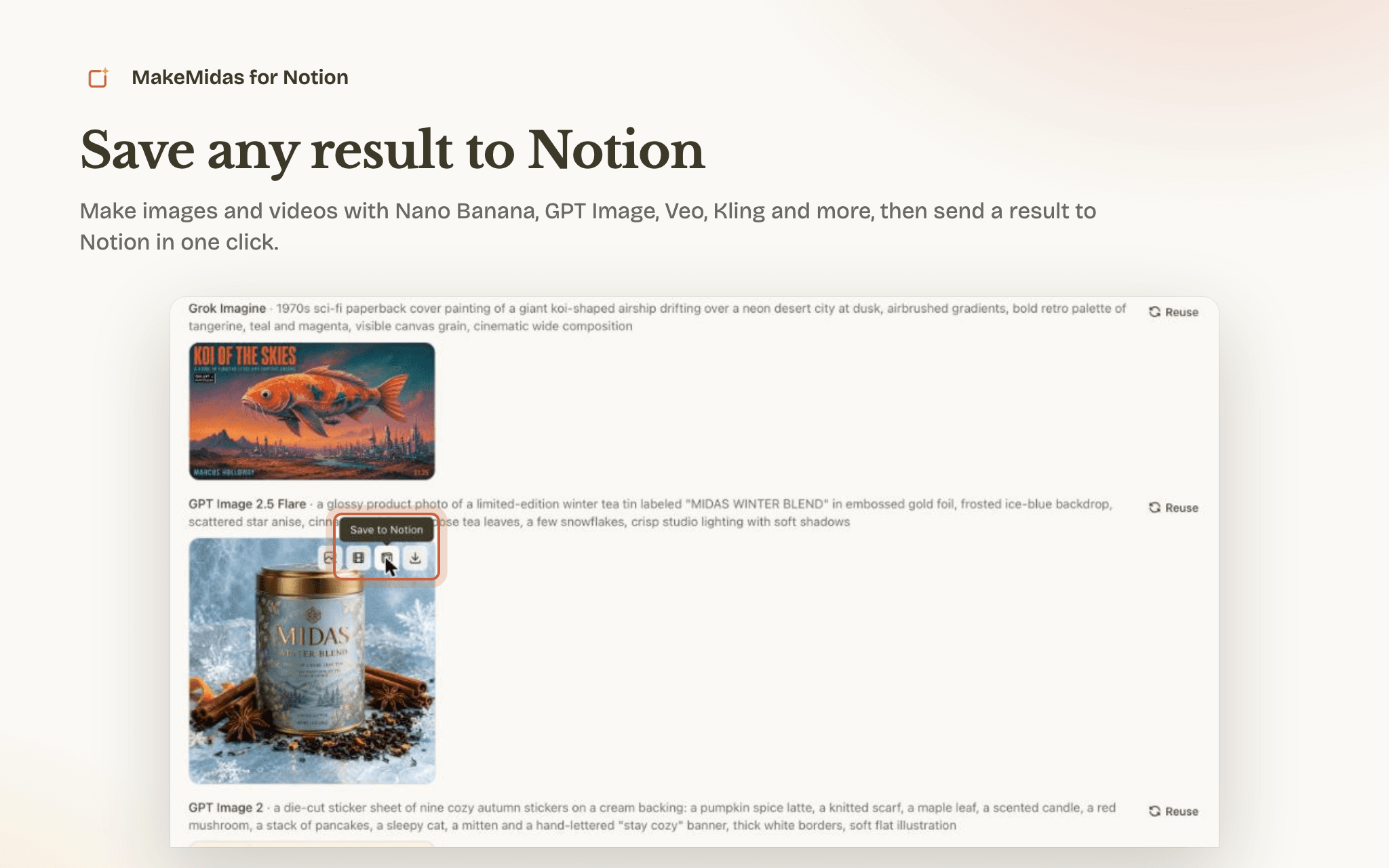
Describe what you want, or start from a picture, and pick a model. When the result is ready, select Save to Notion. You get a new private page in your workspace with:
- The image or video itself, uploaded to Notion
- The prompt you wrote
- The model, aspect ratio, resolution and date, with a link back to MakeMidas
You can also ask ChatGPT or Claude to save a result once MakeMidas is connected there. Move the page into any teamspace, database or project afterwards, like any other Notion page.
Good for mood boards, product shots, ad and social creative, storyboards and reference libraries that you want next to the rest of your work in Notion.
What MakeMidas can do in your workspace: it only creates new pages for the results you save. It doesn't read, change or delete your existing pages. You can disconnect at any time in MakeMidas under Settings → Connections, and remove the connection under Settings → Connections in Notion.
Funktionen
- Inhalte Lesen, einfügen und Update durchführenKann Seiten, Datenbanken und Blöcke lesen, einfügen und Update durchführen, die mit dieser Verbindung geteilt werden.
- Nutzer/-innen des Workspace anzeigenLiest grundlegende Profildetails über Workspace-Mitglieder und Gäste, einschließlich ihrer E-Mail-Adressen.
Informationen zur Nutzung
- Select "Add to Notion" and choose the workspace you want results in. Notion asks you to pick pages; MakeMidas doesn't read them, and creates each result as its own private page.
- Sign in to MakeMidas, or create a free account, then select "Connect Notion" to confirm.
- In MakeMidas, open the generator, describe an image or a video, and generate it. Free accounts get daily credits.
- On the result, select Save to Notion. The new page appears in your workspace under Private.
You can also start from MakeMidas: go to Settings → Connections and select Connect Notion.
Notion's free plan accepts files up to 5 MB, so large images and longer videos may need a paid Notion plan.
Help: https://makemidas.com/help · Contact: https://makemidas.com/contact
Details

- Design