HyNote_bao

HyNote
Info
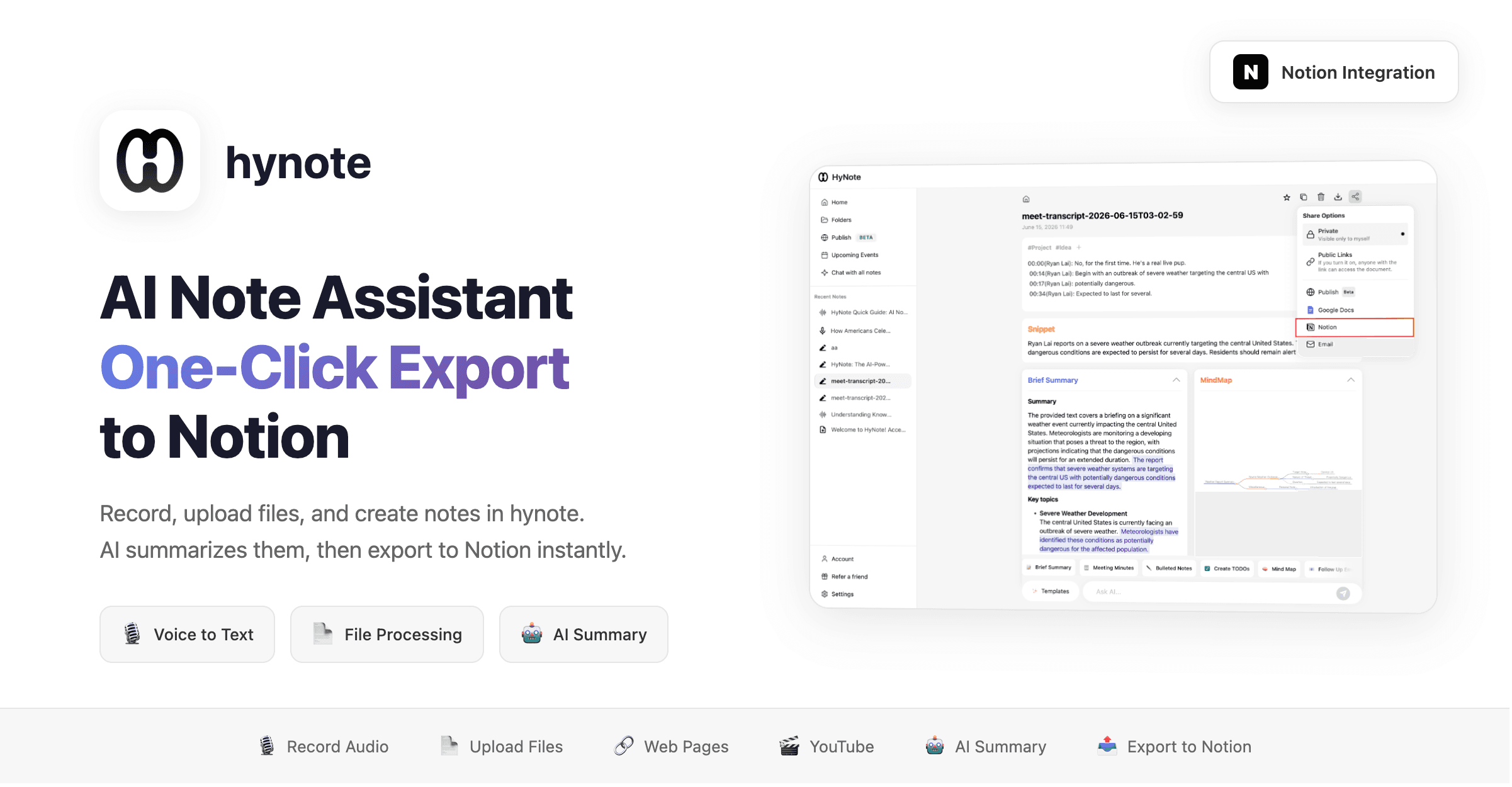
hynote is an AI-powered note assistant that helps you summarize recordings, uploaded files, and handwritten notes, then export them to Notion with one click.
What it does:
- 🎙️ Record audio → AI transcribes and summarizes
- 📄 Upload files (PDF, images, docs) → Extract content and summarize
- ✍️ Handwritten notes → AI organizes into structured content
- 📤 One-click export to Notion pages
Use cases:
- Meeting recording → Auto-generate meeting notes → Export to Notion
- Read a paper → AI summarizes key points → Save to Notion knowledge base
- Class notes → Organize into structured notes → Sync to Notion
Funktionen
- Inhalte Lesen, einfügen und Update durchführenKann Seiten, Datenbanken und Blöcke lesen, einfügen und Update durchführen, die mit dieser Verbindung geteilt werden.
- Nutzer/-innen des Workspace anzeigenLiest grundlegende Profildetails über Workspace-Mitglieder und Gäste, einschließlich ihrer E-Mail-Adressen.
Informationen zur Nutzung
hynote - AI Note Assistant | Notion Integration Guide
Step 1: Create a Note
- Log in to hynote
- Click
New Note - Choose your input method:
- 🎙️
Record Audio
— Record meetings, classes, or voice notes - 📷
Upload Image
— Upload images, screenshots, or handwritten notes - 📄
Import PDF
— Import PDF documents, papers, or reports - 📝
Import Text
— Import text files - 🔗
Import Web Page
— Paste a URL to auto-fetch content - 🎬
YouTube Video
— Paste a YouTube link to extract subtitles - 📸
Take Screenshot
— Capture screenshots as notes - 🎵
Import Audio
— Import audio files
- 🎙️
Step 2: AI Processing
- hynote auto-generates note content
- Use
AI Summary
— One-click intelligent summary - Use
AI Chat
— Chat with your note content for deeper understanding
Step 3: Export to Notion
- Click the
Share to Notion
button in the top right corner - Select the Notion page or database to export to
- Done! Your note is automatically written to Notion
Details
Erstellt von
Kategorie
- Produktivität
Links für Entwickler/-innen