 Houston

Houston
Info
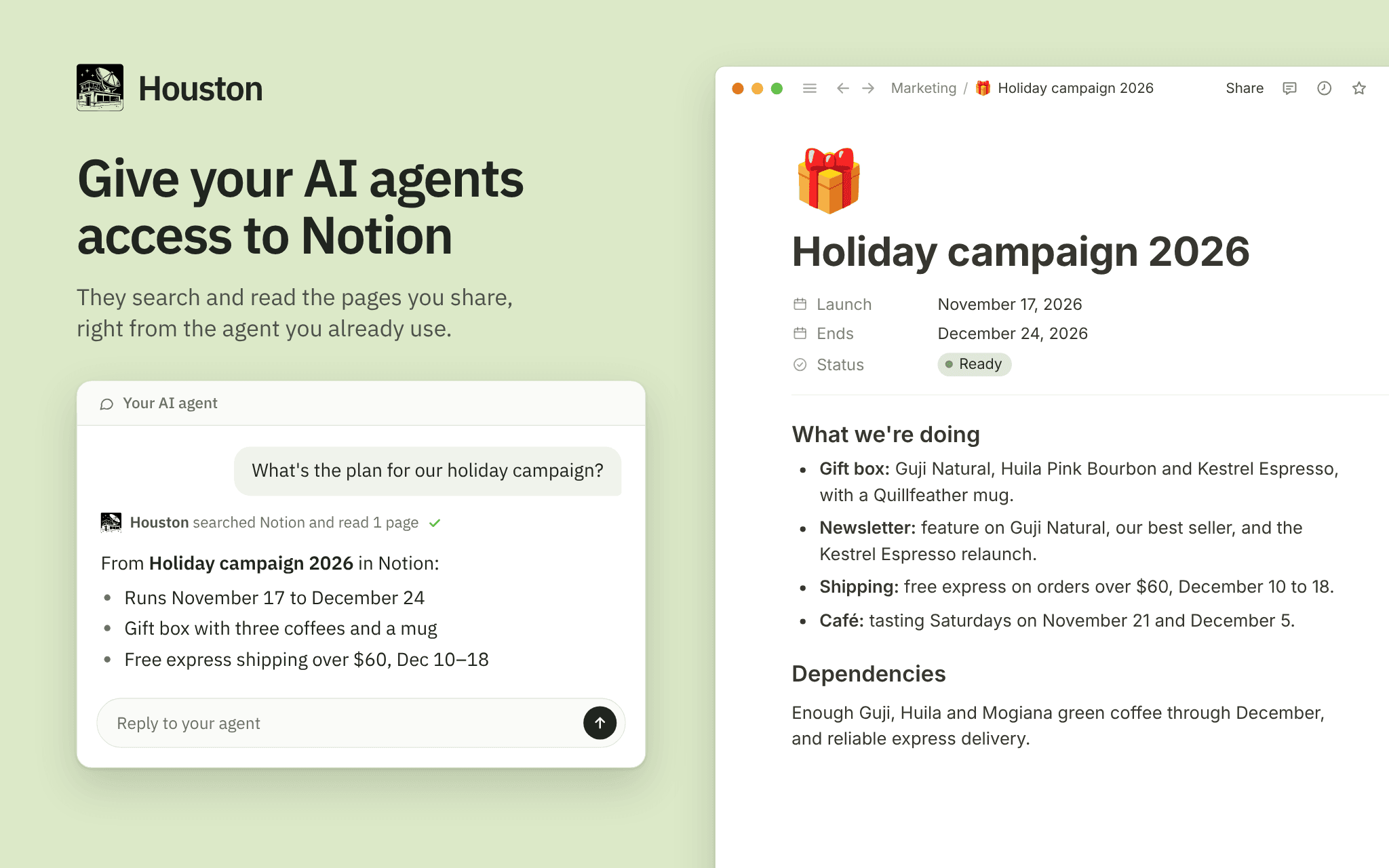
Houston connects your AI agent (Claude, ChatGPT, Cursor and others) to Notion and your other tools. You pick the pages to share, and whether the agent can only read them or also create and edit. You sign in on Notion, so Houston never sees your password; the access you grant is stored encrypted on Houston's servers and is never shown to the agent. Every request is recorded, so you can review what your agent did. Pause or remove the connection in Houston at any time, or disconnect Houston in Notion. Houston requires a paid subscription.
Funktionen
- Inhalte Lesen, einfügen und Update durchführenKann Seiten, Datenbanken und Blöcke lesen, einfügen und Update durchführen, die mit dieser Verbindung geteilt werden.
Informationen zur Nutzung
1. Open Houston from this listing and sign in. New to Houston? Create an account and choose a subscription first (there is no free plan), then open this listing's link again.
2. On the Notion setup page, leave Access on "Read-only", or choose "Read and write" if your agent should also create and edit pages.
3. Click "Continue with Notion".
4. Notion asks which pages Houston may access. Check the workspace shown at the top right, select the pages and databases to share, then click "Allow access". Sub-pages are included automatically. If you share nothing, Houston asks you to authorize again.
5. If your AI assistant is not connected to Houston yet, connect it from your Houston dashboard: the setup card "Connect your agent(s) to Houston" shows how.
6. In your assistant, try: "List the Notion pages you can access and summarize the most recently edited one."
To share more pages later, open the page in Notion, click "•••" > "More" > "Connections" and add Houston, or edit the connection in Houston and authorize again. To stop agent access, pause or remove the connection in Houston. To also revoke Houston's access on Notion's side, go to "Settings" > "Connections" in Notion and disconnect Houston.
Details

- Produktivität
- Sicherheit und Compliance
- Zusammenarbeit