

Info
EveryPage turns any PDF into a tracked, branded document link. Notion is where the reading happens, and where the results land.
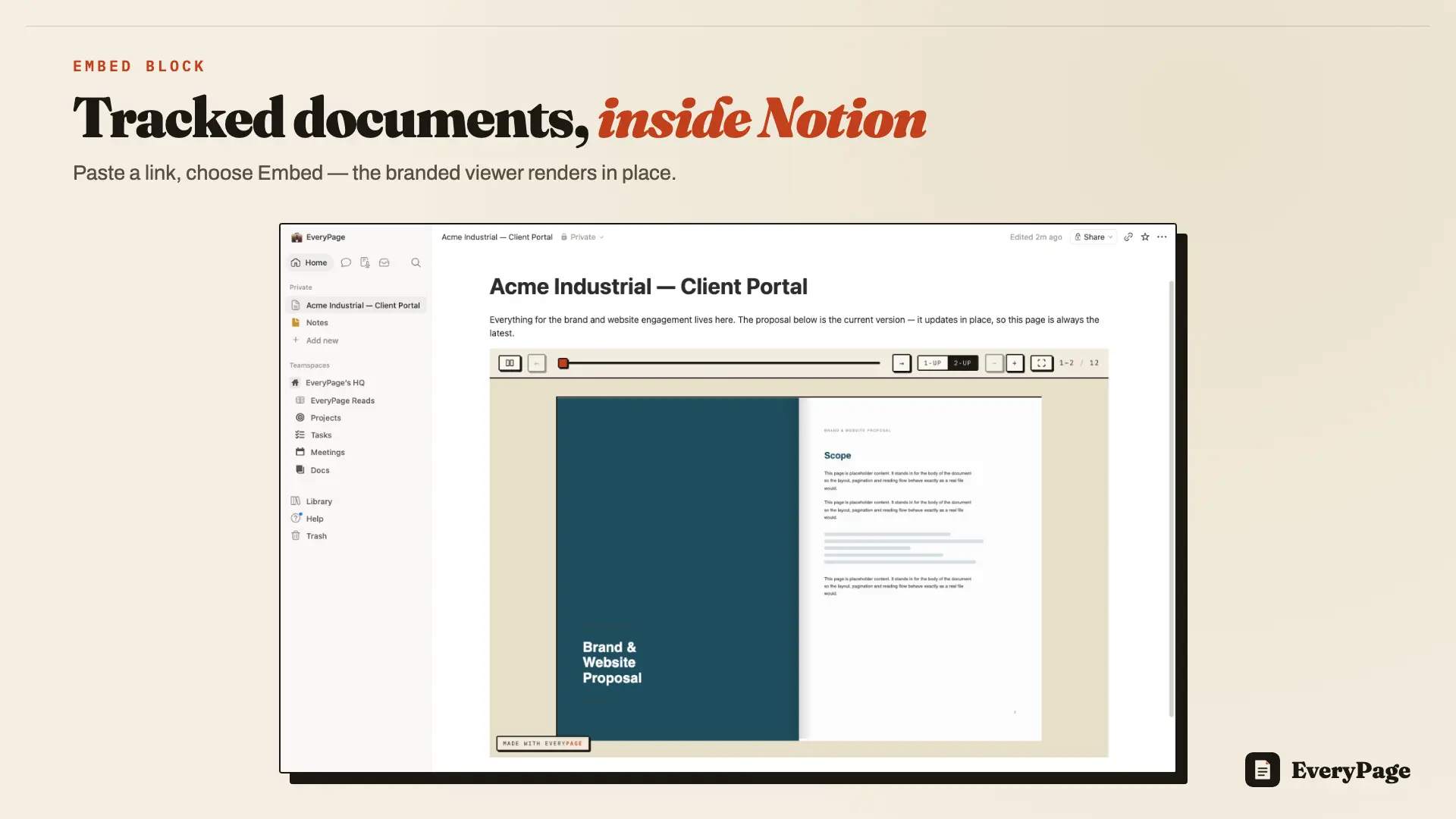
Two halves ship together. Embeds: paste an EveryPage link into any Notion page and choose Embed, and the tracked viewer renders in place - flipbook page-turns, swipe, or standard. Your client portal, project hub or hiring wiki shows the actual document instead of a flat preview card. Database sync: connect your workspace once and EveryPage creates an "EveryPage Reads" database on a parent page you choose, with every property already set up. There is no template to duplicate and nothing to configure inside Notion.
From then on every reading session is written as one row, moments after the reader closes the document: which document, who read it, pages read, minutes spent, read-through percentage, whether they are a returning reader, the source, the country, the share link, a scannable QR code, and a link to the full session. One row per session, not one per click, and never rewritten in place.
Embeds are attributed as their own source, so reads from inside your Notion pages stay distinguishable from direct link opens.
Because it is an ordinary Notion database that you own, it behaves like one. Relate it to your Clients database, build a board view by engagement, sort the follow-up view by read-through percentage, roll reads up into a project page. When you first connect, a 30-day backfill imports the reads that already happened.
Reader IP addresses are never stored - countries are resolved in flight and discarded. Disconnecting removes EveryPage's access to your workspace and leaves the database, and every row already in it, untouched.
Both halves work on every EveryPage plan, including the free one. On Pro the email gate puts real reader names and captured lead fields into the rows; on Free and Basic the Reader column shows a stable pseudonym such as "Reader #214" rather than a blank.
Funktionen
- Inhalte Lesen, einfügen und Update durchführenKann Seiten, Datenbanken und Blöcke lesen, einfügen und Update durchführen, die mit dieser Verbindung geteilt werden.
- Nutzer/-innen des Workspace anzeigenLiest grundlegende Profildetails über Workspace-Mitglieder und Gäste, einschließlich ihrer E-Mail-Adressen.
Informationen zur Nutzung
You need an EveryPage account, free is enough - and edit access to the Notion page you want to work in.
To sync reads into Notion: in EveryPage open Settings, then Account, and choose Connect Notion. Authorize your workspace and select the pages you want to share with the connection. Back in EveryPage, pick a parent page: EveryPage creates an "EveryPage Reads" database inside it with every property ready. Choose whether to sync all your documents or only selected ones, and optionally run Import recent reads to backfill the last 30 days.
To embed a document in a Notion page: open the document's share sheet in EveryPage and use "Copy embed link for Notion". Paste that link into your Notion page and choose Embed from the menu Notion offers - not Bookmark, which makes a flat preview card that sends readers off to another tab. The tracked viewer renders in place. Drag the block handles to resize it, and give flipbooks a full-width section.
That is the whole setup. Rows start appearing moments after each reader closes the document. Rows are inserted and never edited afterwards, so anything you add to the database - relations, formulas, extra properties, your own views — stays yours.
One deliberate limitation worth knowing: a document protected with a password or an email gate refuses to render inside an embed and shows an "Open document" link to the full share page instead, where the protection actually applies. An iframe on someone else's page is no place to type a password.
Full walkthrough: https://everypage.co/guides/notion-embed
Every column and what each plan unlocks: https://everypage.co/integrations/notion
Details

- Produktivität
- Analysen
- Dateiverwaltung