How to scale skills across your Notion workspace
Learn how to manage skills your team uses together. We’ll show you how to organize them in shared databases, control access, and set workspace defaults as your collection grows.
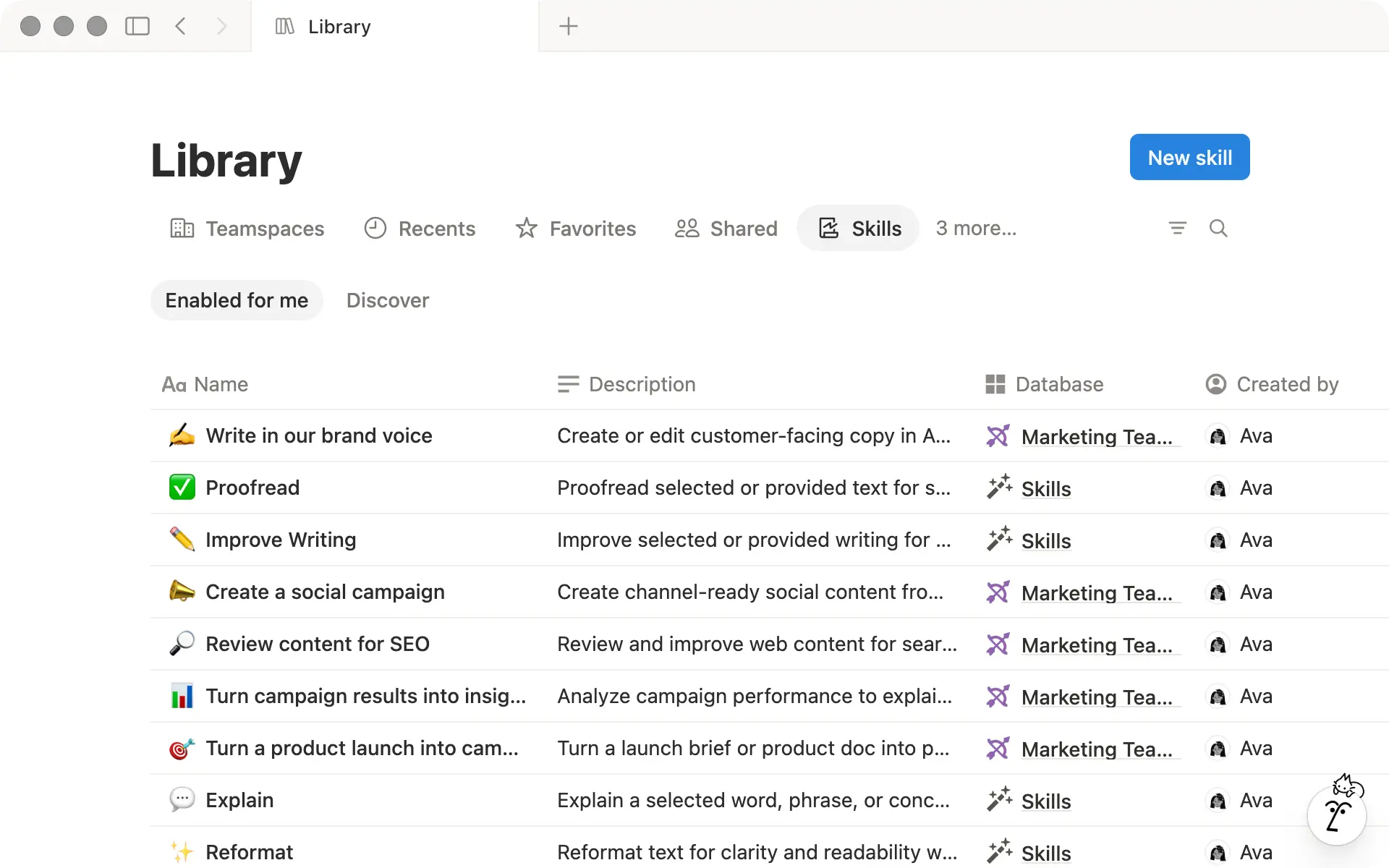
As you and your teammates create more skills, different versions of the same workflow can start to pile up. Sharing skills helps everyone reuse what’s already been built and handle repeatable work more consistently.
Because skills are Notion pages, your team can collaborate on them and control who can view or edit them. You can also organize shared skills in a database, so they’re easy to find and manage in one place.
In this guide, you’ll learn how to:
Choose which skills to share with your team
Organize them in a shared skills database
Decide who can access and edit them
Set workspace-level defaults and controls

과제
New to skills? Start here
If you haven’t built your first skill yet, start with our guide to Getting started with skills in Notion. You’ll learn what skills are, how to create one, and how to use it with Notion Agent, Custom Agents, and supported local agents.
When you’re deciding which skills to share with your team, start with work where others would benefit from reusing the same method, standard, or expertise.
Look for things like:
A method your team repeats: A recruiting team might use a skill to turn interview notes into the same candidate summary each time.
A standard you want others to follow: A marketing team might use a skill to review customer-facing copy against its brand voice and terminology.
Expertise you want to make easier to reuse: A product team might capture how an experienced PM reviews specs for missing requirements, risks, and dependencies.
Once you’ve found a workflow worth turning into a skill, follow our best practices for creating skills.

Need ideas? Browse the Marketplace
Your Skills Library is your personal view of skills in Notion. It includes the skills you’ve created or enabled. Use the Discover tab to find skills shared across your workspace, including useful ones from teams outside your own. When you find one you want to use, choose Enable for me to add it to your library.
When you create your first skill, Notion automatically creates a private skills database for you. As your team creates and shares more skills, move the ones relevant to your team’s work into a shared database. This gives your team one place to organize them and keep them up to date.
A skills database works like any other Notion database. You can add properties, automations and create custom views based on how your team works.
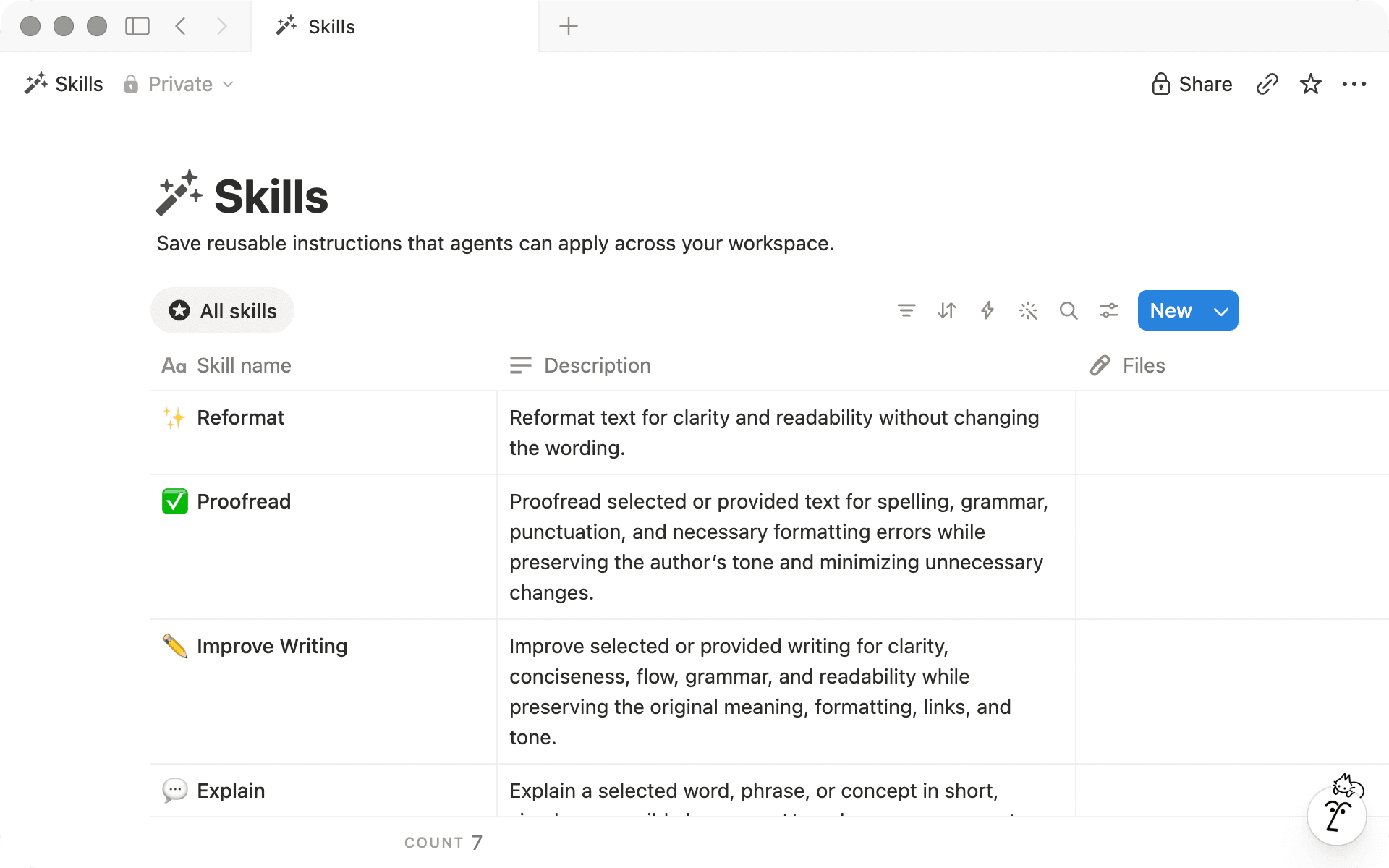
Skills databases come with built-in properties to help people understand what each skill does and what it uses:
Descriptionexplains what the skill does and when to use it.Fileshold supporting material like examples, reference docs, images, data files, or scripts.Tagshelp you group and filter related skills.
You can add your own properties and views on top of these. For example, you might add a select property for team functions like Product Marketing, Content, and Comms, then create a view that groups skills by function.
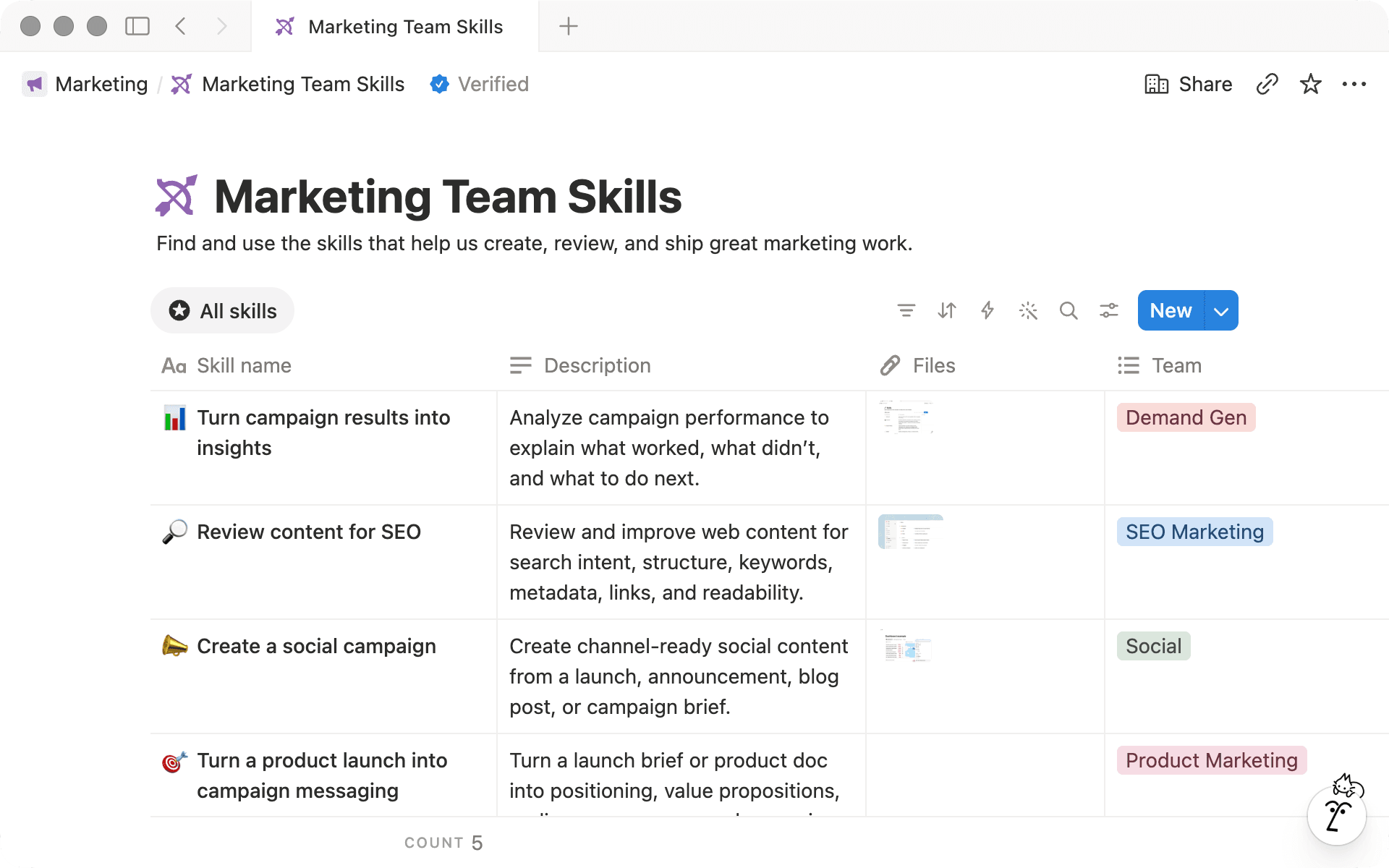
Put your shared skills database in the teamspace your team already uses. That way, it’s easy to find and sits alongside the rest of your team’s shared resources.
Select + next to the teamspace name and choose the skills database template. You can also create a new page and choose Skills as the database type.
Start with one database. Add another database when a group needs different permissions or wants to manage its own set of skills.

Already have work you want to bring into your skills database?
A skill is much easier to keep current when people can quickly understand what it does and when to use it. That starts with how you set it up:
Name each skill for the work it does:
Review copy for brand voiceis clearer than something broad likeBrand standards, especially as your collection grows.Write a clear
Description: Say what the skill does and when to use it. Notion Agent also uses the description to decide when a skill is relevant, so being specific helps it choose the right skill automatically.Keep each skill focused on one job: When a skill starts covering several jobs, split it. Smaller skills are easier to understand and easier to update when the work changes.
Skills follow the same sharing and permission rules as any other Notion page or database. Give edit access only to the people responsible for keeping your team’s skills up to date. Use version history to track changes over time.
Say your marketing team has a Review copy for brand voice skill for checking copy against your guidelines. Everyone on the team might need to use it, but only a few brand experts should be able to change it.
To set access, select Share on a skill or the skills database:
Share a single skill when only a specific person or group needs access.
Share the whole database when you want to give people access to several skills at once.
For more setup instructions on sharing, permissions, and enabling skills, see our help doc.
Access and enabling are different
If you're a workspace admin, you have another layer of control over how skills are used. Admins on Business and Enterprise plans can manage skills across the workspace under Settings → Notion AI → Skills → Workspace settings.
Here are the workspace-level settings admins can manage:
Set default skills for the workspace: Use
Add default skillfor the skills you want everyone to have ready to go. You can set up to 50, so save those spots for skills that are broadly useful across the workspace, not just one team.Control local skill downloads: A local download lets someone take a skill out of Notion to use with a supported local agent.
Allow local skill downloadsis on by default. Turn it off if your organization wants that guidance to stay inside Notion.Disable skills for the workspace: Turn on
Disable skills for workspaceif your organization isn't ready to use skills yet, or if you need to pause access while you decide how they should be used.
Admins can set workspace-wide defaults and controls, but workspace members still manage parts of their own skills setup.
Members choose which shared skills to enable: Outside of workspace defaults, members can browse the
Discovertab in their Skills Library and turn onEnable for mefor the skills they want to use.Members control where skills show up for them: They can add skills to their text editor menu so the ones they use often are close at hand.
Default skills count toward personal limits: Members can enable up to 200 skills, with automatic use turned on for up to 50.

템플릿으로 시작하기
템플릿 갤러리에서 10,000개가 넘는 템플릿을 둘러보세요.
설명되지 않은 부분이 있나요?