

Informazioni
SyncPenguin is a powerful yet easy-to-use data synchronization platform that helps you seamlessly connect your Notion contact database with your favorite apps and services.
Whether you need two-way, one-way, one-to-many, or many-to-one synchronization, SyncPenguin makes it simple to keep your data accurate, up to date, and consistent across all your tools.
With SyncPenguin, you can:
- Set up two-way or one-way syncing in just a few minutes - no complicated configuration required.
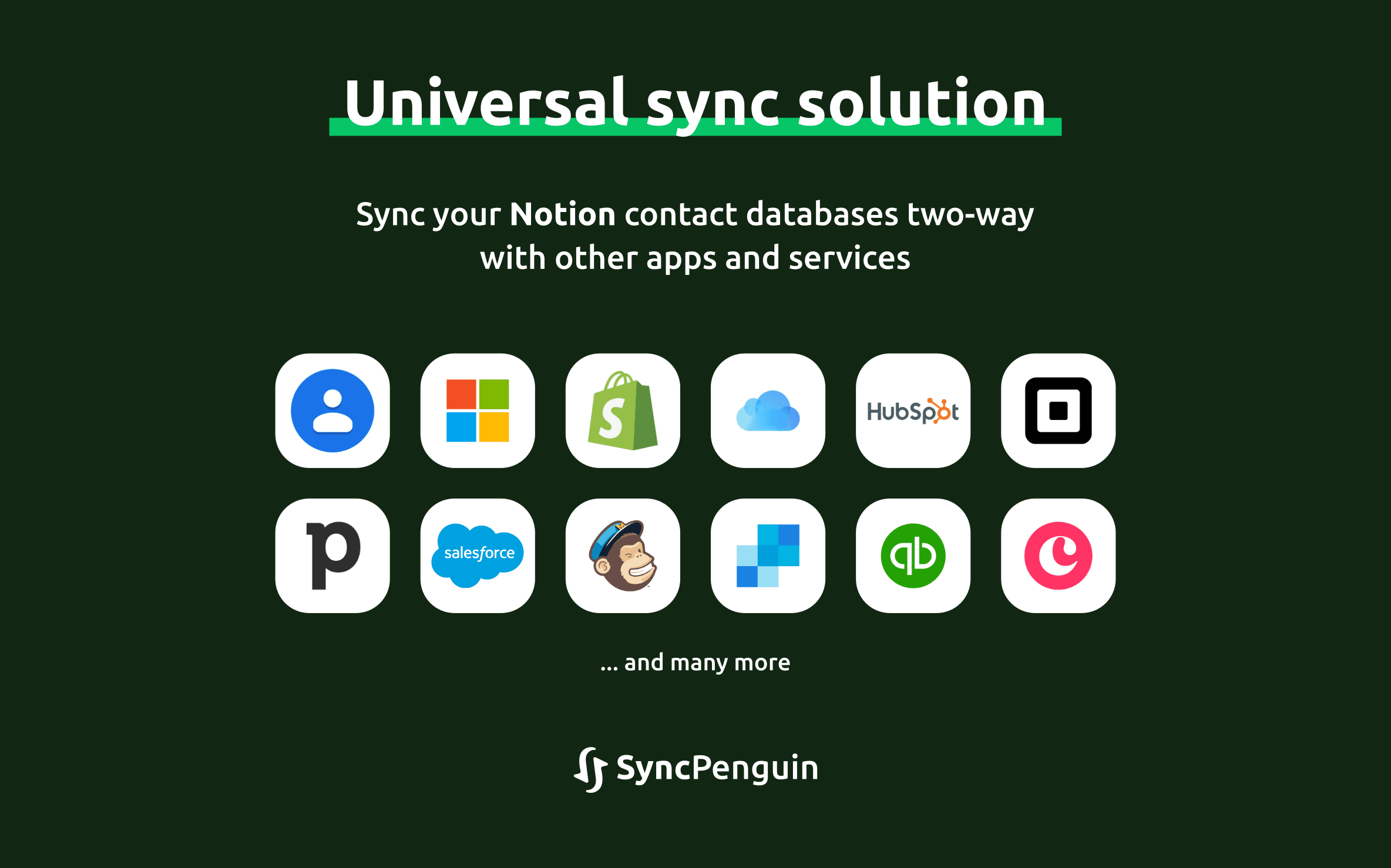
- Synchronize your Notion contacts with Microsoft 365, Google Contacts, iCloud Contacts, Mailchimp, SendGrid, Global Address Lists (GALs), Salesforce, and many other CRMs, email marketing platforms, and third-party applications.
- Customize every aspect of your sync using an intuitive interface with flexible
field mappings, filters, and powerful no-code rules
tailored to your workflow. - Perform an initial data migration and automatically keep all connected systems synchronized as changes occur.
Trusted by 2,000+ customers, from individuals to enterprise organizations, SyncPenguin helps businesses save time, reduce manual work, and maintain reliable data across their entire ecosystem.
Funzionalità
- Leggere, inserire e aggiornare contenutiPuò leggere, inserire e aggiornare pagine, database e blocchi condivisi con questa connessione.
- Visualizza gli utenti dello spazio di lavoroLegge i dettagli di base del profilo dei membri e degli ospiti dello spazio di lavoro, compresi i loro indirizzi email.
Modalità d'uso
Start with a free 14-day trial and experience SyncPenguin with confidence. Our dedicated support team is here to help you configure your synchronization and ensure everything works exactly as you need before you make a commitment
To configure and start syncing, go to the SyncPenguin dashboard and create your synchronization in the Synchronizations section of the left-hand menu.
Once the synchronization has been created, connect the apps you want to sync and customize the synchronization in the Field Mapping & rules section.
When you're ready to begin, click Start Syncing and select one of the available options for the initial sync.
Dettagli

- Automazioni