 Solvin-apps
TickStudio Practice Log
About
TickStudio is a focused metronome and practice companion for musicians on iPhone, iPad, and Android. It helps players keep time, save commonly used tempos, organize practice presets, track completed practice sessions, and build a clearer habit around daily music work.
The TickStudio Practice Log Notion connection brings those practice records into Notion.
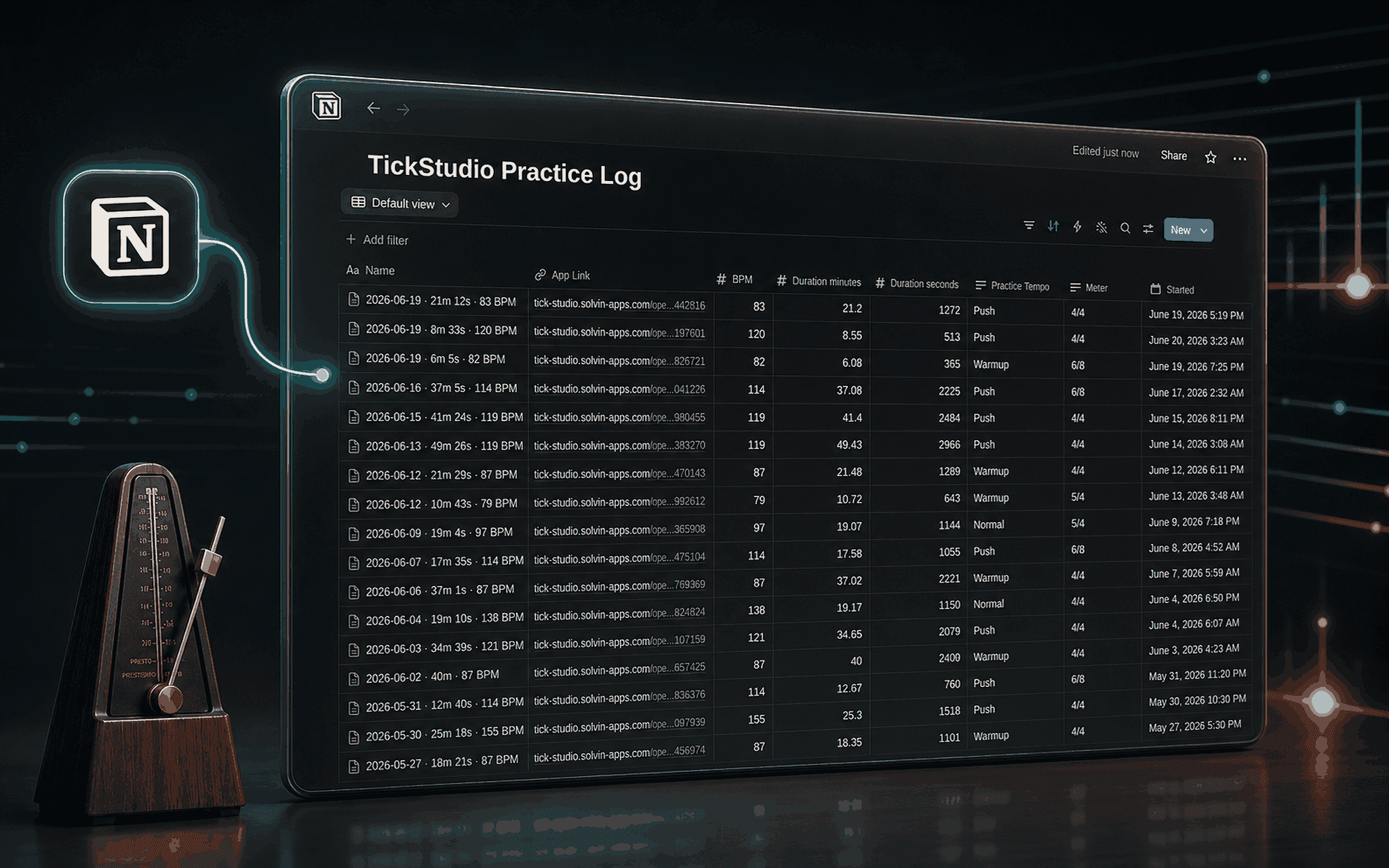
After you connect your Notion workspace from TickStudio, completed practice sessions can be synced into a private Notion database named “TickStudio Practice Log”. This gives musicians, teachers, students, and practice-focused creators a flexible place to review their work outside the app.
Each synced practice entry can include useful session details such as the session name, duration, BPM, meter, practice tempo, start time, and an app link back to the original record. These fields make it easier to filter practice by date, tempo, routine, or session type, and to combine TickStudio practice history with existing Notion systems such as lesson notes, repertoire lists, weekly reviews, habit trackers, or student progress dashboards.
This connection is designed for a simple and private workflow. TickStudio creates and writes to its own practice log database in the selected Notion workspace. It is intended to sync completed TickStudio practice-session data only, not to read or manage unrelated Notion pages or databases.
Use this connection if you want to:
- Keep a long-term Notion archive of TickStudio practice sessions
- Review practice consistency and total time alongside other Notion notes
- Build dashboards for music practice, lessons, repertoire, or student progress
- Share structured practice history with a teacher, coach, or collaborator
- Preserve useful practice metadata such as BPM, meter, duration, and start time
The goal is to keep timing work simple in TickStudio while making practice history easier to
organize, review, and extend in Notion.
Ominaisuudet
- Lukea, lisätä ja päivittää sisältöjäVoi lukea, lisätä ja päivittää sivuja, tietokantoja ja lohkoja, jotka on jaettu tämän yhteyden kanssa.
- Tarkastelee työtilan käyttäjiäLukee työtilan jäsenten ja vieraiden profiilin perustietoja, mukaan lukien heidän sähköpostiosoitteensa.
How to use
Getting started with TickStudio Practice Log
TickStudio Practice Log lets you sync completed TickStudio practice sessions into a private
Notion database. Follow these steps to connect your workspace and start building a Notion
practice archive.
1. Install TickStudio
Download and open TickStudio on your iPhone, iPad, or Android device. Use the metronome as
usual for practice sessions, warmups, lessons, rehearsals, or tempo-focused study.
2. Open the Notion sync settings
In TickStudio, open Settings and choose the Notion sync option. This page shows your
connection status and the sync queue.
3. Connect your Notion workspace
Tap the connect option. TickStudio will open Notion’s authorization screen. Select the Notion
workspace where you want your practice log to live, then approve the connection.
4. Let TickStudio create the practice log
After authorization, TickStudio creates a private Notion database named “TickStudio Practice
Log” in your selected workspace. This database is used to store completed TickStudio
practice-session records.
5. Complete a practice session
Return to TickStudio and practice with the metronome. When a session is completed and saved
in TickStudio, it can be added to the Notion sync queue.
6. Sync all existing check-ins
If you already have practice history in TickStudio, open the Notion sync page and use the
“Sync all check-ins” option. TickStudio will queue all stored practice sessions for Notion
sync.
7. Review the sync queue
Open the Notion sync page to view the sync queue. The queue shows practice sessions waiting
to be uploaded, including useful details such as session name, duration, BPM, meter, queued
time, retry count, and any sync error message.
8. Check your Notion database
Open Notion and find the “TickStudio Practice Log” database. Synced entries can include
session details such as name, BPM, meter, practice tempo, duration, start time, and an app
link back to TickStudio.
9. Organize your practice history
Use Notion views, filters, sorts, and formulas to organize your practice log. For example,
you can create views for weekly practice, warmups, repertoire work, tempo training, lessons,
or student progress.
10. Troubleshooting
If sessions do not appear in Notion immediately, return to the Notion sync page in TickStudio
and check the sync queue.
If the queue shows an error, confirm that your device has an internet connection and that
TickStudio is still connected to the correct Notion workspace.
If needed, reconnect Notion from the sync settings page and try syncing again.
Privacy note
TickStudio Practice Log is designed to write TickStudio practice-session data into its own
Notion database. It is not intended to read or manage unrelated Notion pages or databases.
Recommended workflow
Use TickStudio for focused timing and practice. Use Notion for long-term review, dashboards,
lesson notes, repertoire planning, and progress tracking.
Details
- Automaatiot
- Analytiikka
- Tuottavuus