About
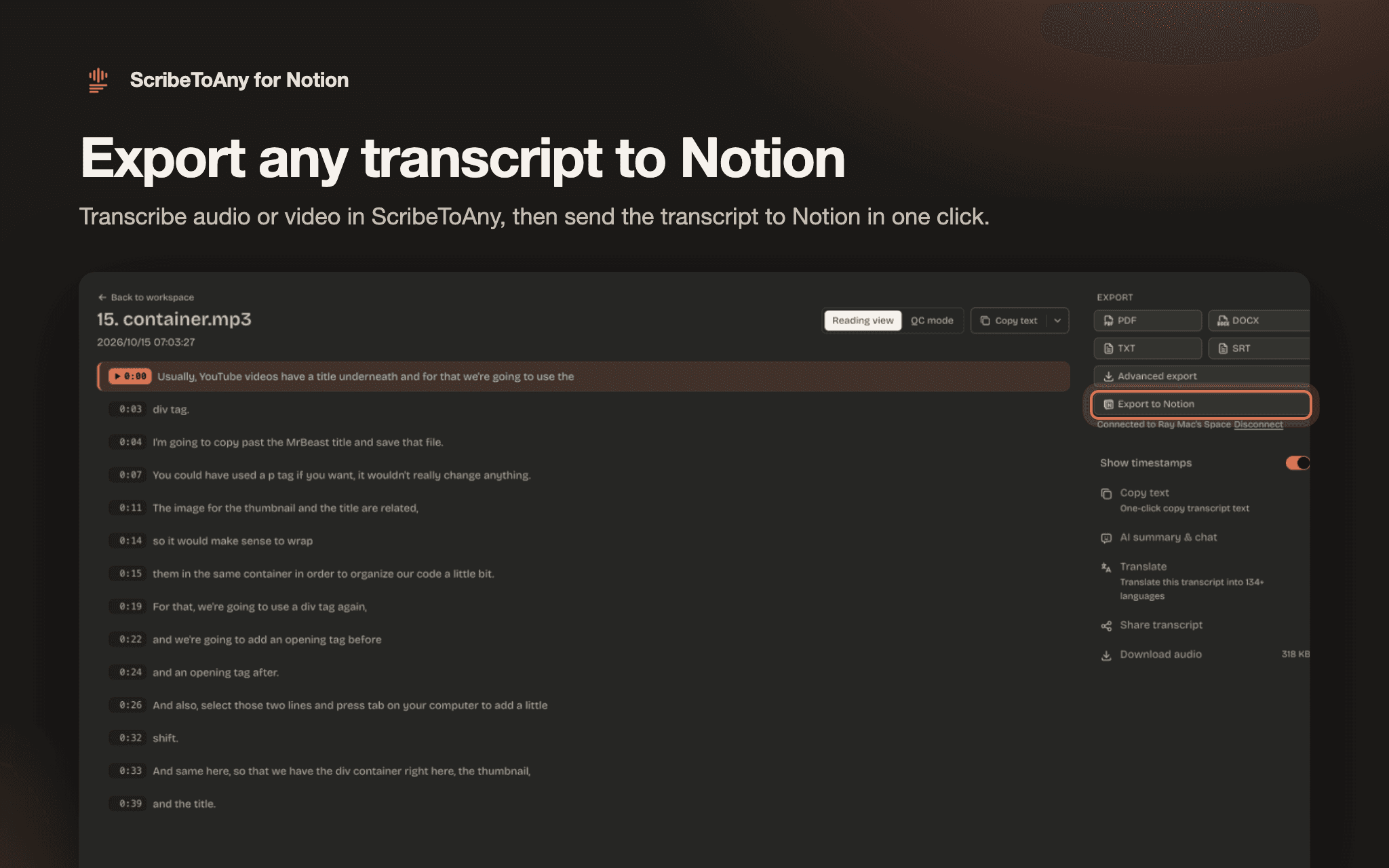
ScribeToAny turns audio and video into accurate, timestamped text, and sends the transcript to Notion in one click.
Upload a recording or paste a link, and ScribeToAny transcribes it in about 98 languages, with optional speaker labels. Then open the transcript and choose Export to Notion. You get a new private page in your workspace with:
- Every line of the transcript, each with its [m:ss] timestamp
- Speaker labels, when speaker detection is on
- The language and duration, with a link back to the recording in ScribeToAny
Long recordings work too: a three-hour meeting arrives as one page. Move the page into any teamspace, database or project afterwards, like any other Notion page.
Good for meeting notes, interviews, lectures, podcasts and research recordings that you want next to the rest of your work in Notion.
What ScribeToAny can do in your workspace: it only creates new pages for the transcripts you export. It doesn't read, change or delete your existing pages. You can disconnect at any time from the transcript page in ScribeToAny, and remove the connection under Settings → Connections in Notion.
Ominaisuudet
- Lukea ja lisätä sisältöjäVoi lukea ja lisätä sivuja, tietokantoja ja lohkoja, jotka on jaettu tämän yhteyden kanssa.
How to use
1. Select "Add to Notion" and choose the workspace you want transcripts in. Notion asks you to pick at least one page; ScribeToAny doesn't read it, and creates each transcript as its own private page.
2. Sign in to ScribeToAny, or create a free account, then select "Connect Notion" to confirm.
3. In ScribeToAny, upload an audio or video file (MP3, WAV, M4A, MP4, MOV and more) or paste a link, and wait until the transcript is done.
4. Open the transcript and select "Export to Notion" in the Export panel. The new page appears in your workspace under Private.
You can also start from ScribeToAny: open any finished transcript, select "Export to Notion", and connect your workspace when asked.
Help: https://scribetoany.com/help · Contact: https://scribetoany.com/contact