

About
Connect Notion to Chaos and turn your existing notes into interactive learning experiences.
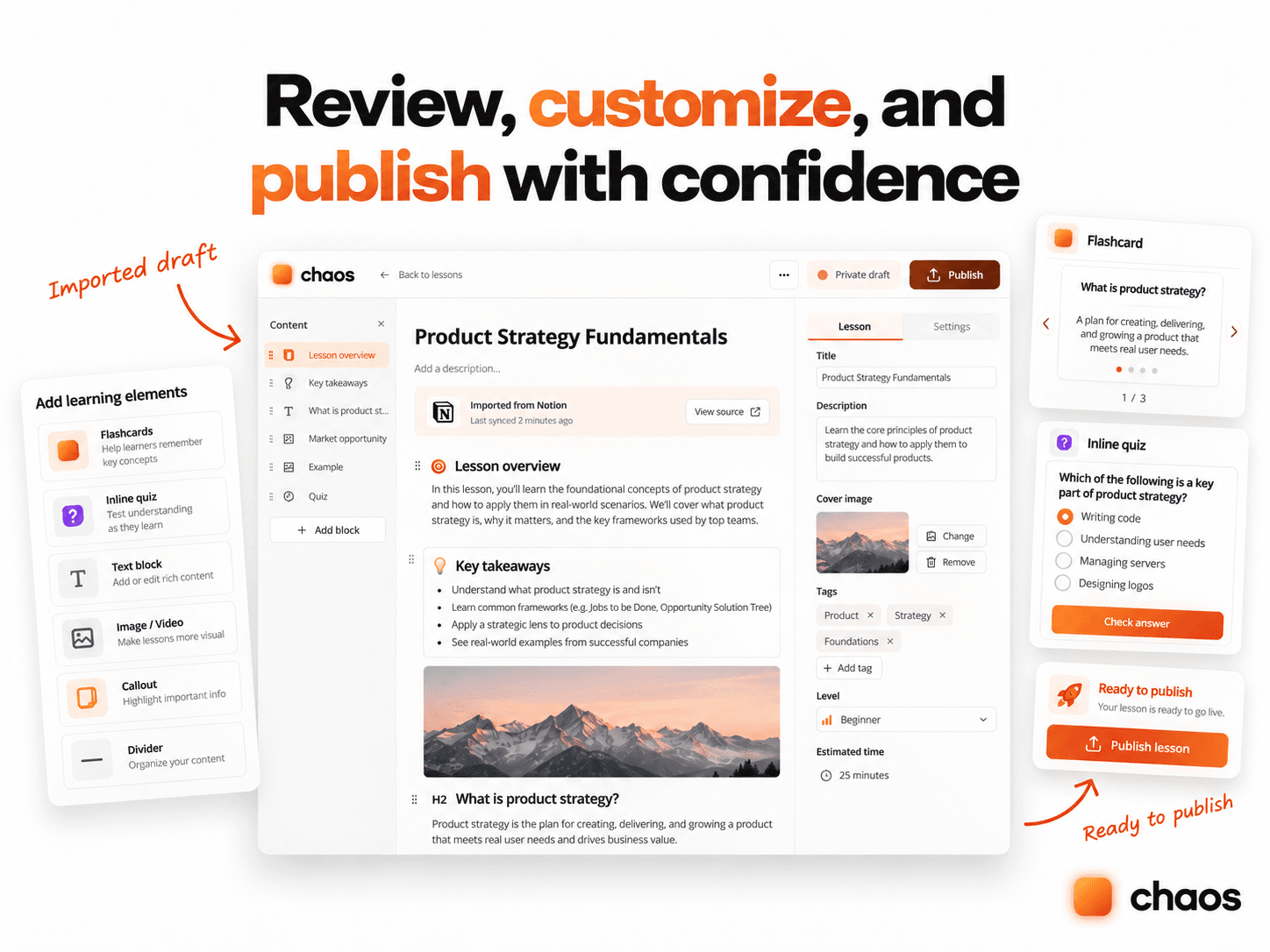
Import Notion pages as private lesson drafts in Chaos, where you can review, edit, organize, and publish them when you’re ready.
You can also send completed form submissions and quiz scores to a Notion database, keeping your learning workflows organized.
What you can do:
- Import Notion pages into Chaos lessons.
- Review and edit lessons before publishing.
- Sync new quiz scores and form completion records to Notion.
- Control which Notion pages and databases Chaos can access.
- Disconnect or stop results synchronization at any time.
Available in English and Arabic. Individual student answers, names, emails, and uploaded files are not sent to Notion.
Ominaisuudet
- Lukea ja lisätä sisältöjäVoi lukea ja lisätä sivuja, tietokantoja ja lohkoja, jotka on jaettu tämän yhteyden kanssa.
How to use
- Visit
https://chaos.fail
and sign in or create a free account. - Open Dashboard → Connections → Apps → Notion.
- Select
Connect Notion
. - Choose your Notion workspace and authorize Chaos to access the pages and databases you select.
- To create a lesson, choose a Notion page and select
Import as lesson draft
. - Open the imported lesson in Chaos, review the content, and publish when you’re ready.
- Optionally, choose a Notion database to receive new quiz scores and completed form submission summaries.
Imported lessons remain private until you publish them. Some unsupported Notion blocks may be skipped during import. You can disconnect your workspace or stop results synchronization from the Connections page.
For help, visit https://chaos.fail/docs/notion.
