 RiverScript – Record & Transcribe with AI
RiverScript – Record & Transcribe with AI
关于
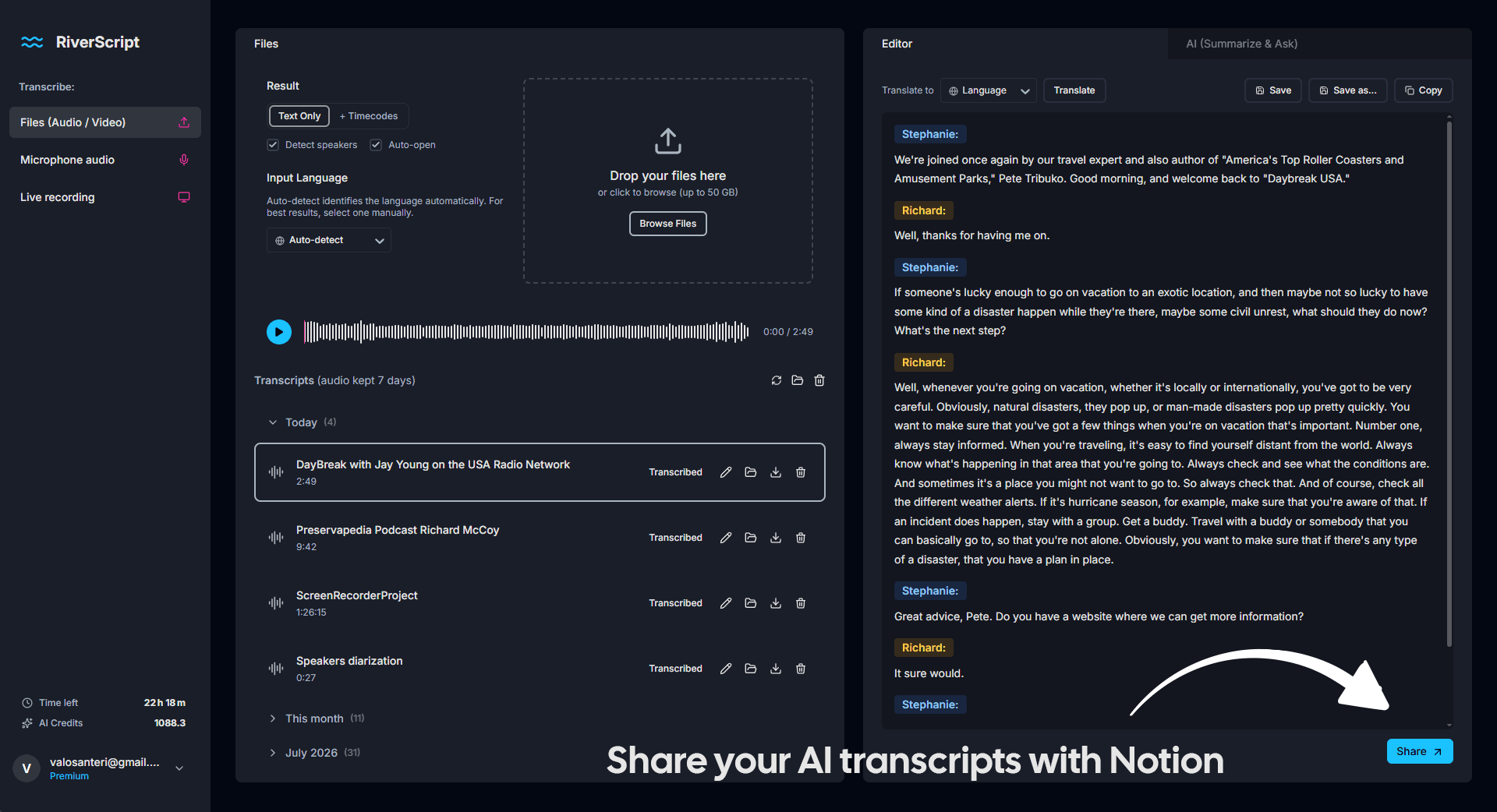
RiverScript’s Notion integration lets you save AI transcripts directly as Notion pages. Send transcripts of meetings, calls, lectures, webinars, and other content recorded with RiverScript, as well as transcripts created from your audio and video files.
The integration preserves transcript structure and speaker names, while keeping timestamps from subtitle-formatted transcripts visible in Notion. You can also save to Notion any transcript translations created by RiverScript with an OpenAI model.
Once connected, you can send any supported transcript from RiverScript to Notion directly from the Share menu, making it easy to build your searchable archive of transcribed content in your Notion workspace.
RiverScript’s Notion integration works the same in the RiverScript web app and in RiverScript Desktop client for Mac and Windows.
功能
- 读取和插入内容可以读取和插入与此连接共享的页面、数据库和区块。
如何使用
- Open any transcript or Ai translation in RiverScript and click Share button.
- Click «Get Link» to create a page.
- Click the Notion icon to connect — you'll be taken to Notion to sign in and choose which page RiverScript can access.
- Click the Notion icon again anytime to send that transcript to Notion as a new page.
- Works the same in the RiverScript web app and in RiverScript Desktop client for Mac and Windows.
