关于
What the Notion Integration Does
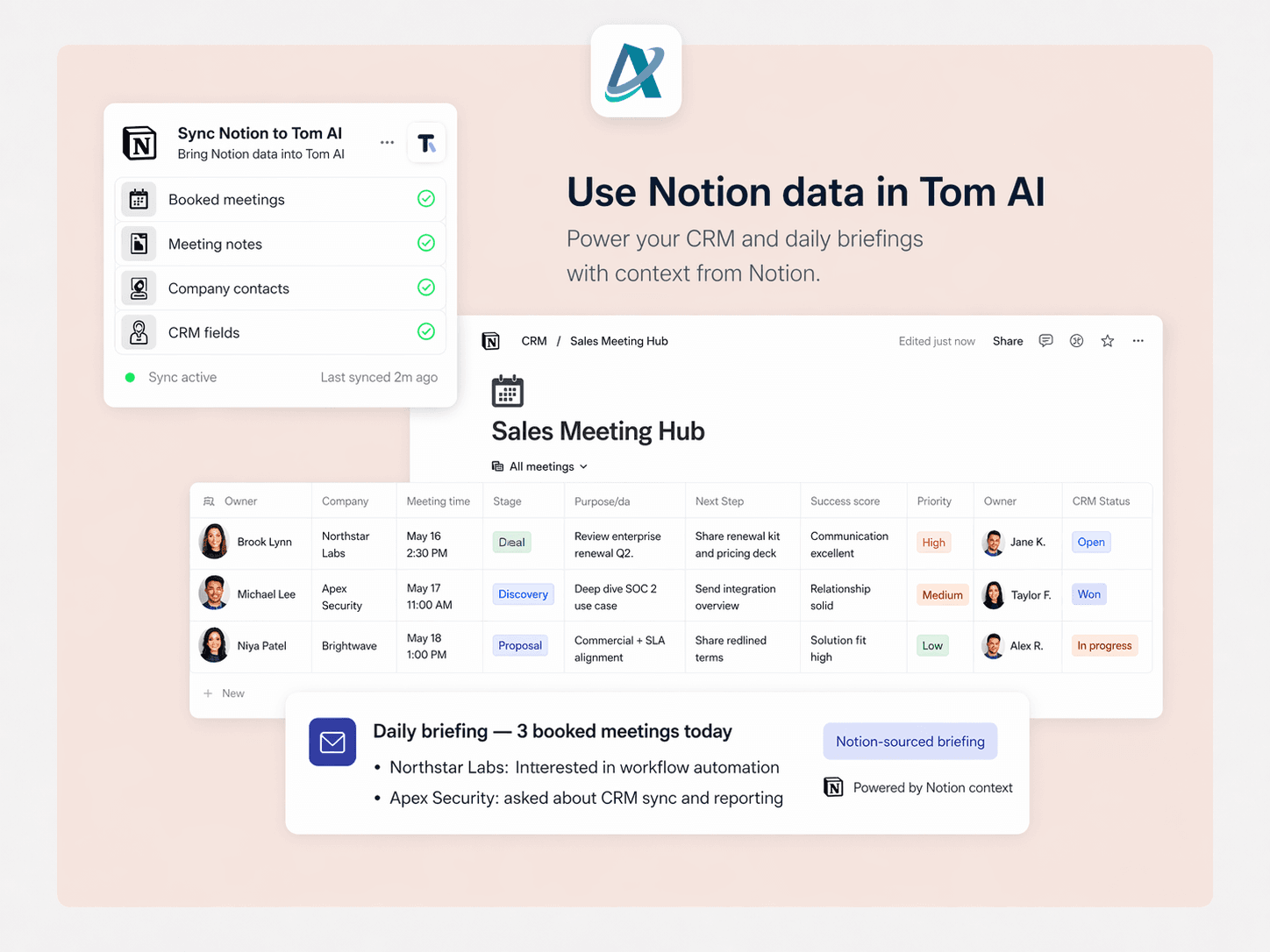
The Notion integration connects your Notion databases (where you track prospects/clients) to Tom AI, so your meeting game plans and daily briefings automatically include information from Notion.
Benefits:
- Richer meeting prep - Game plans include notes, deal stages, and custom fields from Notion
- No duplicate data entry - Information flows automatically from Notion to Tom AI
- Unified view - See Notion data alongside HubSpot and Google Calendar info
How to Connect Notion (First-Time Setup)
Step 1: Go to Integrations Page
- Log in to Tom AI: https://aip-ai.vercel.app
- Click "Integrations" in the navigation menu
- Find the Notion section
Step 2: Connect Your Notion Account
- Click the "Connect Notion" button
- You'll be redirected to Notion's authorization page
- Review the permissions:
- Tom AI is requesting access to read your databases and pages
- You'll select which specific pages/databases to share
Step 3: Select Which Databases to Share
- On the Notion authorization page, you'll see a dropdown: "Select pages"
- Choose your prospect/client database(s)
- Example: "Sales Pipeline", "Client CRM", "Prospects"
- You can select multiple databases - Click "Allow access"
Step 4: Confirm Connection
- You'll be redirected back to Tom AI
- The Integrations page will show: "Notion: Connected ✓"
- You'll see the date/time it was connected
功能
- 读取、插入和更新内容可以读取、插入和更新与此连接共享的页面、数据库和区块。
- 读取和添加 条评论可以在其有权访问的页面和区块上读取和添加评论。
- 查看工作空间用户读取有关工作空间成员和访客的基本档案详细信息,包括其电子邮件地址。
如何使用
Once connected, the integration works automatically - no manual action needed.
Automatic Data Enrichment:
- When you have a meeting scheduled:
- Tom AI detects the calendar event (from Google Calendar)
- Searches your connected Notion databases for the prospect's name or email
- Pulls in Notion data (notes, deal stage, custom fields)
- In your meeting game plan (24 hours before):
- You'll see a "NOTION DATA" section with:
- Notes from your Notion database
- Custom fields (e.g., "Deal Stage: Qualified Lead")
- Any other properties from that Notion page
- In your daily email briefing:
- Prospect information includes Notion notes
- More context for follow-ups and going-cold alerts
Example: What You'll See
Before Notion Integration:
Game Plan for Meeting with Sarah Johnson
WHAT I KNOW ABOUT SARAH
- Email: [email protected]
- Company: ABC Corp
After Notion Integration:
Game Plan for Meeting with Sarah Johnson
WHAT I KNOW ABOUT SARAH
- Email: [email protected]
- Company: ABC Corp
NOTION DATA:
Notes: Met at conference in January. Interested in retirement planning
for employees. Has $2M in assets under current advisor but unhappy
with service.
Custom Fields:
Deal Stage: Qualified Lead
Source: Conference Referral
Last Contact: 2026-03-15
Priority: High
Managing Your Notion Integration
To Disconnect Notion:
- Go to Integrations page
- Click "Disconnect" under Notion section
- Confirm disconnection
To Change Which Databases Are Shared:
- Go to Notion settings: https://www.notion.so/my-integrations
- Find "AIP AI" in your connections
- Click "Manage"
- Update which pages/databases are shared
- Changes take effect immediately
To Reconnect:
- Simply click "Connect Notion" again and repeat the setup steps
Tips for Best Results
- Structure Your Notion Database with These Fields:
- Name (title field) - Prospect/client full name
- Email - Their email address (helps Tom AI match them)
- Phone - Contact number
- Company - Their business/organization
- Notes - Key information, conversation history
- Status/Stage - Where they are in your pipeline
- Keep Your Notion Database Updated:
- Tom AI pulls the latest data each time it generates a game plan
- Updates in Notion appear in your next game plan automatically
- Use Descriptive Database Names:
- Makes it easy to identify which database to connect
- Example: "Client Pipeline" instead of "Database 1"
Troubleshooting
"Notion not showing data in game plans"
- Check that the prospect's email or name in your calendar matches what's in Notion
- Verify the correct database is connected (go to Integrations page)
"Connection failed"
- Make sure you clicked "Allow access" on Notion's authorization page
- Try disconnecting and reconnecting
"Can't find my database when connecting"
- Only databases you have access to will appear
- Make sure you're logged into the correct Notion workspace
Privacy & Security
- Tom AI only accesses the specific databases you approve
- You can revoke access at any time from Notion settings
- Your Notion data is encrypted and never shared with third parties
- Read our full https://aip-ai.vercel.app/privacy-policy
Need Help?
Contact support: [email protected]