 StoreInspect
StoreInspect
À propos
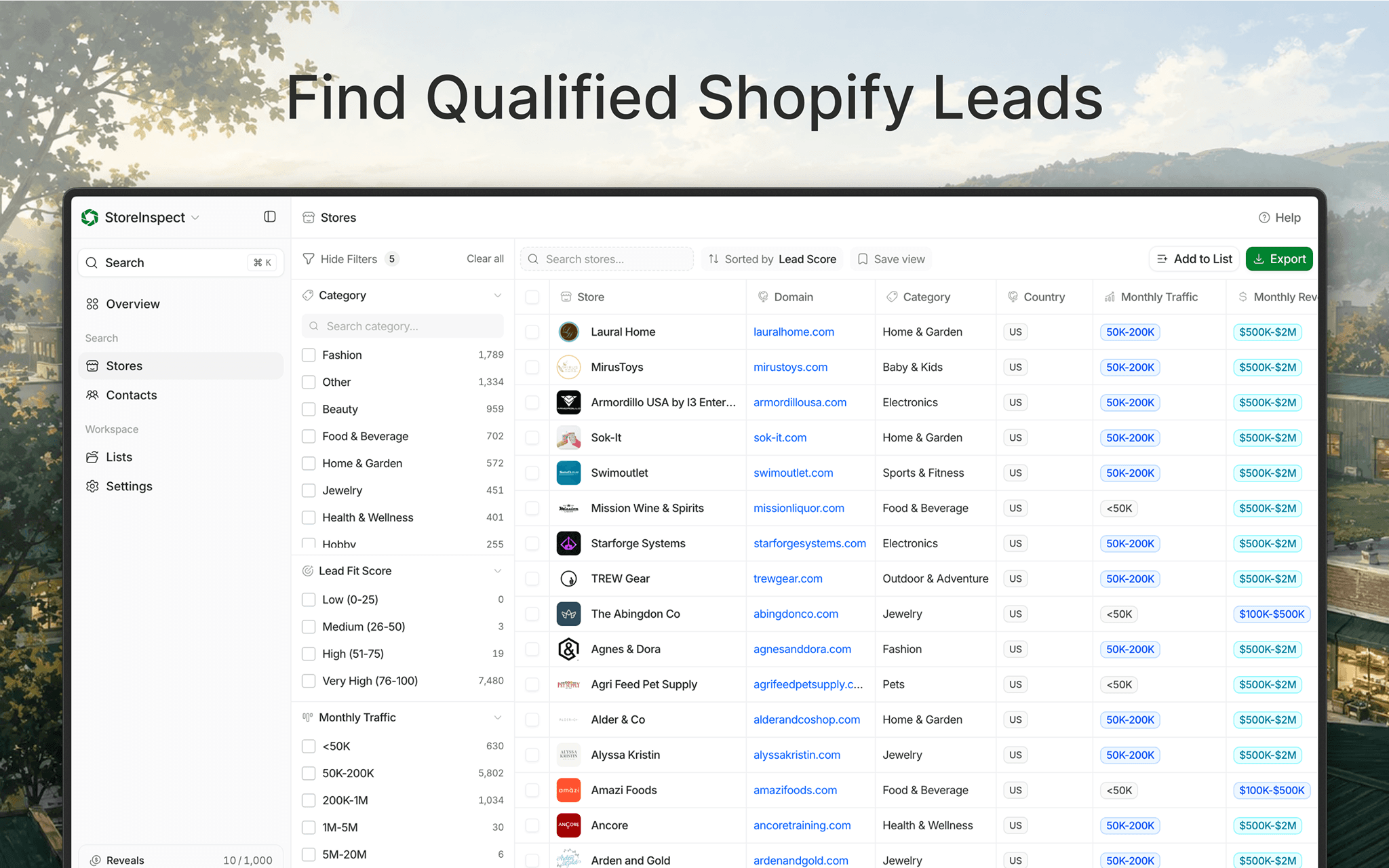
StoreInspect helps sales and ecommerce teams research Shopify companies and move qualified prospects into Notion. Search by country, category, traffic, estimated revenue, Shopify Plus status, technology, and contact availability. Then send selected companies and revealed decision-makers to dedicated Notion databases.
The connection creates StoreInspect Companies and StoreInspect Contacts databases in the authorizing user’s Private section. Company pages include domain, category, traffic, revenue, lead fit score, Shopify Plus status, theme, apps, and pixels. Contact pages include name, title, role, seniority, verified contact channels, company domain, and a relation to the matching company.
StoreInspect matches existing pages by source ID, domain, or email to prevent duplicates. It updates only StoreInspect-managed properties and preserves user-added properties. Exports run in the background with progress, retry support, and 90-day sync history.
Newly revealed contacts use StoreInspect contact credits. Contacts already revealed for the connected account do not use another credit.
Fonctionnalités
- Lire, insérer et mettre à jour contenuPeut lire, insérer et mettre à jour les pages, les bases de données et les blocs partagés avec cette connexion.
Comment utiliser l’intégration
1. Sign in to StoreInspect with a paid plan.
2. Open Settings → Integrations → Notion.
3. Select Connect workspace and approve the requested Notion permissions.
4. In StoreInspect, select the Shopify companies or contacts you want to export.
5. Select Export, choose Notion, and select the destination workspace.
6. Confirm whether to include already revealed contacts or reveal eligible contacts.
7. Open the StoreInspect Companies and StoreInspect Contacts databases in your Notion Private section.
8. Monitor progress or retry failed records under Settings → Integrations → Notion.
Détails

- Ventes