
RankControl
À propos
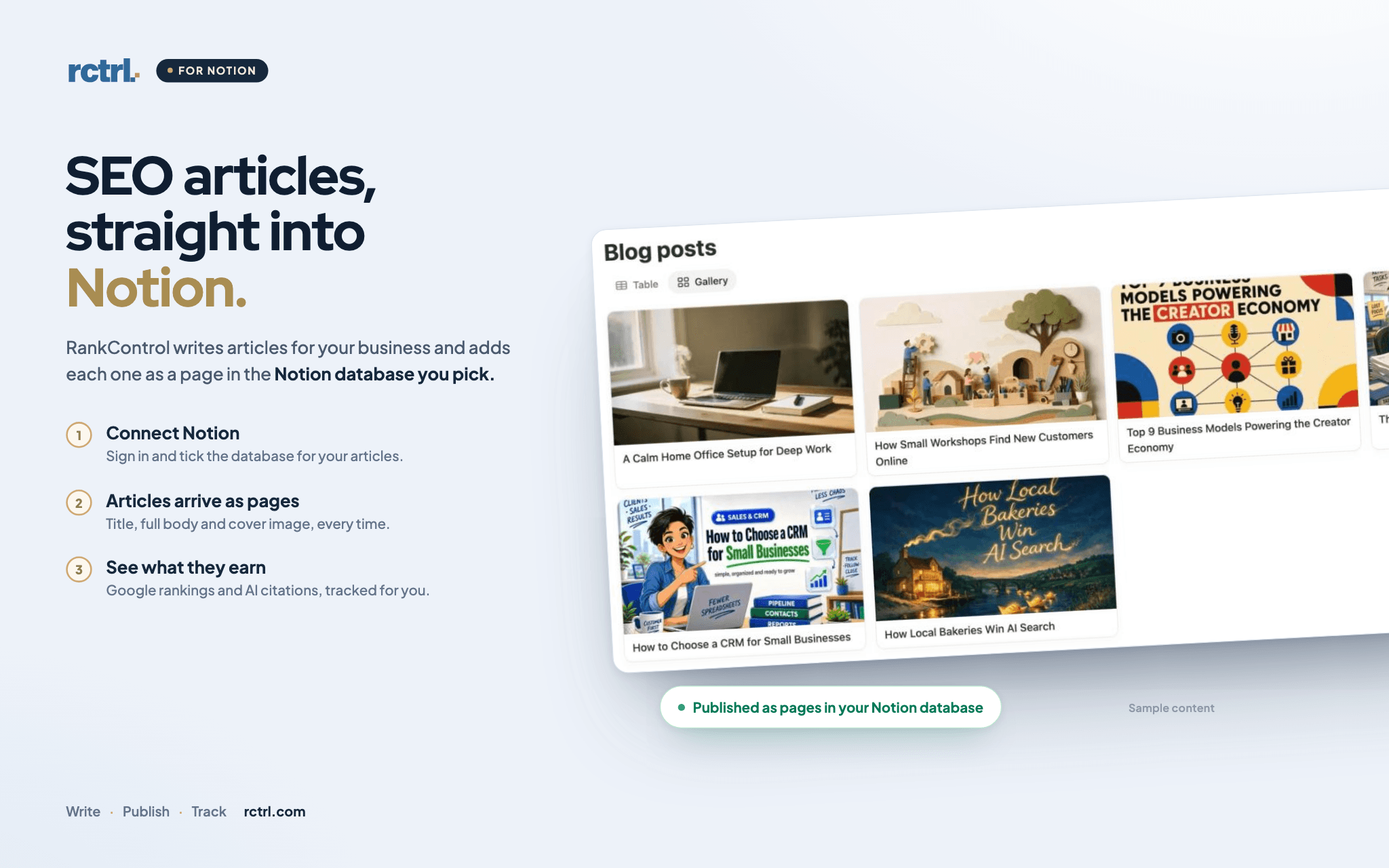
RankControl writes SEO articles for your business and publishes them as pages in a Notion database you pick. It finds the questions your buyers search on Google, then writes articles that answer them in your brand's voice. If your site runs on Notion, with Super, Potion or Notion's own Publish, each new article goes live on your site. No copy and paste.
Each article lands as a new page. The title goes in the title column. The full article goes in the page body as Notion blocks, with headings, lists, tables, quotes, code and images. The hero image becomes the page cover. When RankControl updates an article, it rewrites the same page. It never touches your other columns, so your own status, date and tag columns stay yours.
Once an article is live, RankControl tracks where it ranks on Google. It also checks whether ChatGPT, Perplexity, Claude, Gemini, Grok and Google AI Mode cite it.
RankControl only asks to view, edit and create content in the pages you select. It can't see the rest of your workspace, and it doesn't ask for any user details.
You need a RankControl account. The plan comes with a 7-day free trial at rctrl.com.
Fonctionnalités
- Lire, insérer et mettre à jour contenuPeut lire, insérer et mettre à jour les pages, les bases de données et les blocs partagés avec cette connexion.
Comment utiliser l’intégration
1. Sign up at rctrl.com, or sign in if you have an account.
2. Go to Brand Control, then Publishing. Choose Notion and click Connect with Notion. New accounts see the same choice in the setup steps.
3. Sign in to Notion and click Select pages. Tick the database for your articles, then click Allow access.
4. If you shared more than one database, pick the one for your articles in RankControl and click Save destination.
5. If you already publish somewhere else, open the Notion row and click Make active.
6. To make the pages public, publish the database once in Notion with Share, then Publish.
The full guide, with fixes for common errors, is at https://rctrl.com/docs/notion
Détails
- Marketing