 Harmony
Harmony
À propos
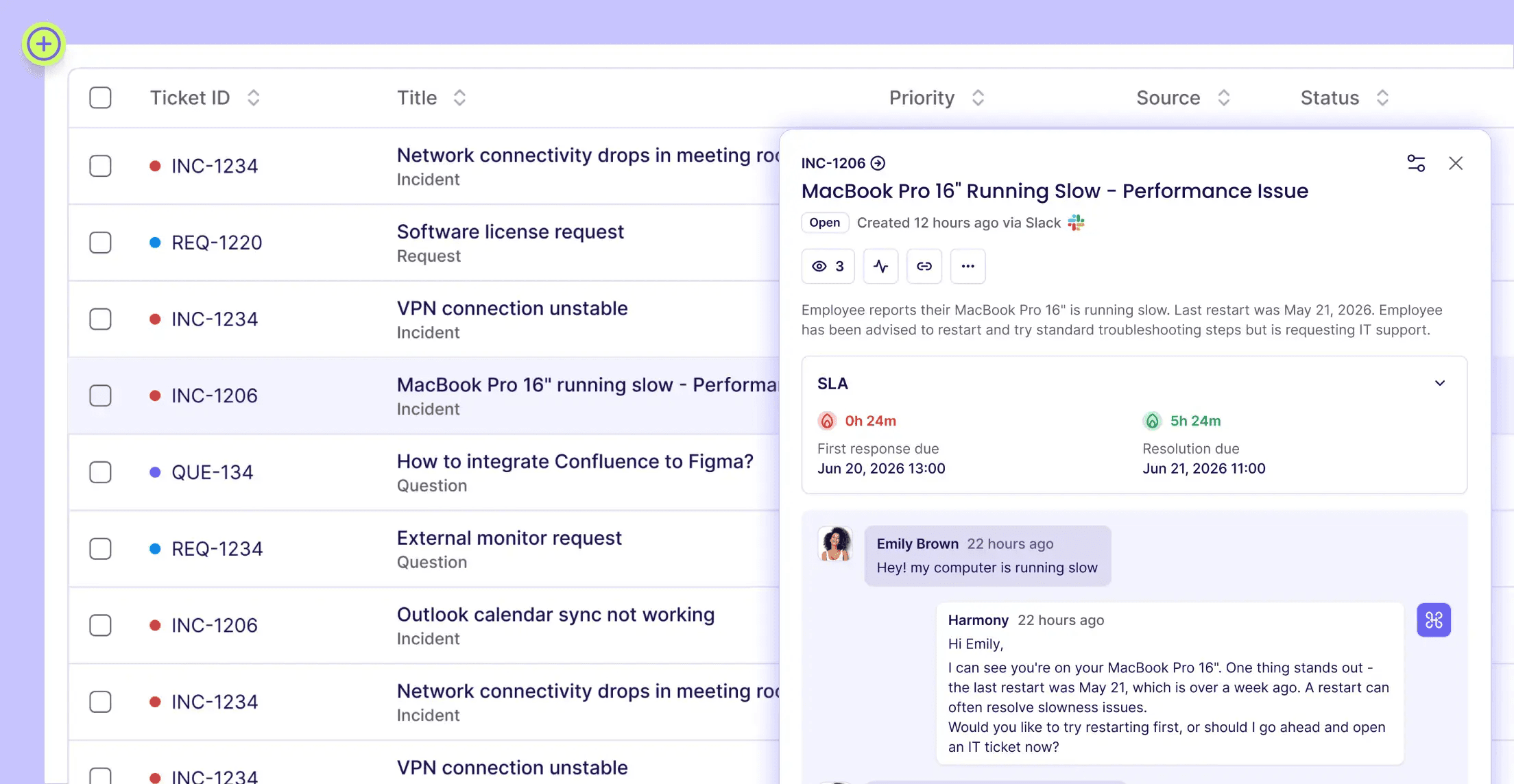
Harmony is an AI-native IT management platform that brings your helpdesk, asset management, SaaS management and workflow automation into one workspace. Its AI agents resolve a large share of employee IT requests on their own, right in Slack, Teams or the employee portal.
The Notion connection makes your existing Notion documentation the knowledge base behind Harmony's AI. Runbooks, IT policies, how-to guides and onboarding docs that already live in Notion become instant, accurate answers for employees, without copying anything into another tool.
What you get:
- AI answers grounded in your docs: Harmony's AI agent searches your Notion pages and databases to answer employee questions and cites the source page.
- Always up to date: Harmony keeps syncing your selected content, so when someone updates a page in Notion, the agent uses the new version.
- You control what's shared: share only the pages you pick during authorization, then narrow it further to specific spaces and databases in Harmony.
- Structure preserved: page hierarchy, database records, titles and links carry over, so answers keep their context.
- Faster ticket resolution: relevant Notion articles show up for IT agents while they work on tickets, and in self-service conversations before a ticket is ever opened.
- Built for large workspaces: syncing is designed to handle large Notion workspaces reliably and respects Notion's API rate limits.
Harmony only reads the pages you share with it. It does not modify your Notion content.
Fonctionnalités
- Lire et mettre à jour contenuPeut lire et mettre à jour les pages, les bases de données et les blocs partagés avec cette connexion.
- Afficher les utilisateur·rices de l’espace de travailLit les détails de base du profil des membres et des invité·es de l’espace de travail, y compris leurs adresses e-mail.
Comment utiliser l’intégration
1. Log in to Harmony at harmony.io (a Notion workspace admin is required to authorize the connection).
2. Go to Settings > Integrations.
3. Find Notion under Knowledge Base and click Connect.
4. You'll be redirected to Notion. Review the permissions, click Select pages, and choose the pages and databases you want Harmony to access.
5. Click Allow access to complete the connection.
6. Back in Harmony, open the Notion connection to fine-tune the sync: choose specific spaces and databases, or leave them empty to sync everything you shared.
7. Harmony runs the first sync. Once it finishes, your synced Notion content appears in Harmony's Knowledge Base and your AI agent starts using it to answer employee questions.
Détails
- Expérience client