 FyneDesk
FyneDesk
À propos
FyneDesk is a customer support help desk. This connection links FyneDesk with Notion so your support and delivery teams work from one source of truth.
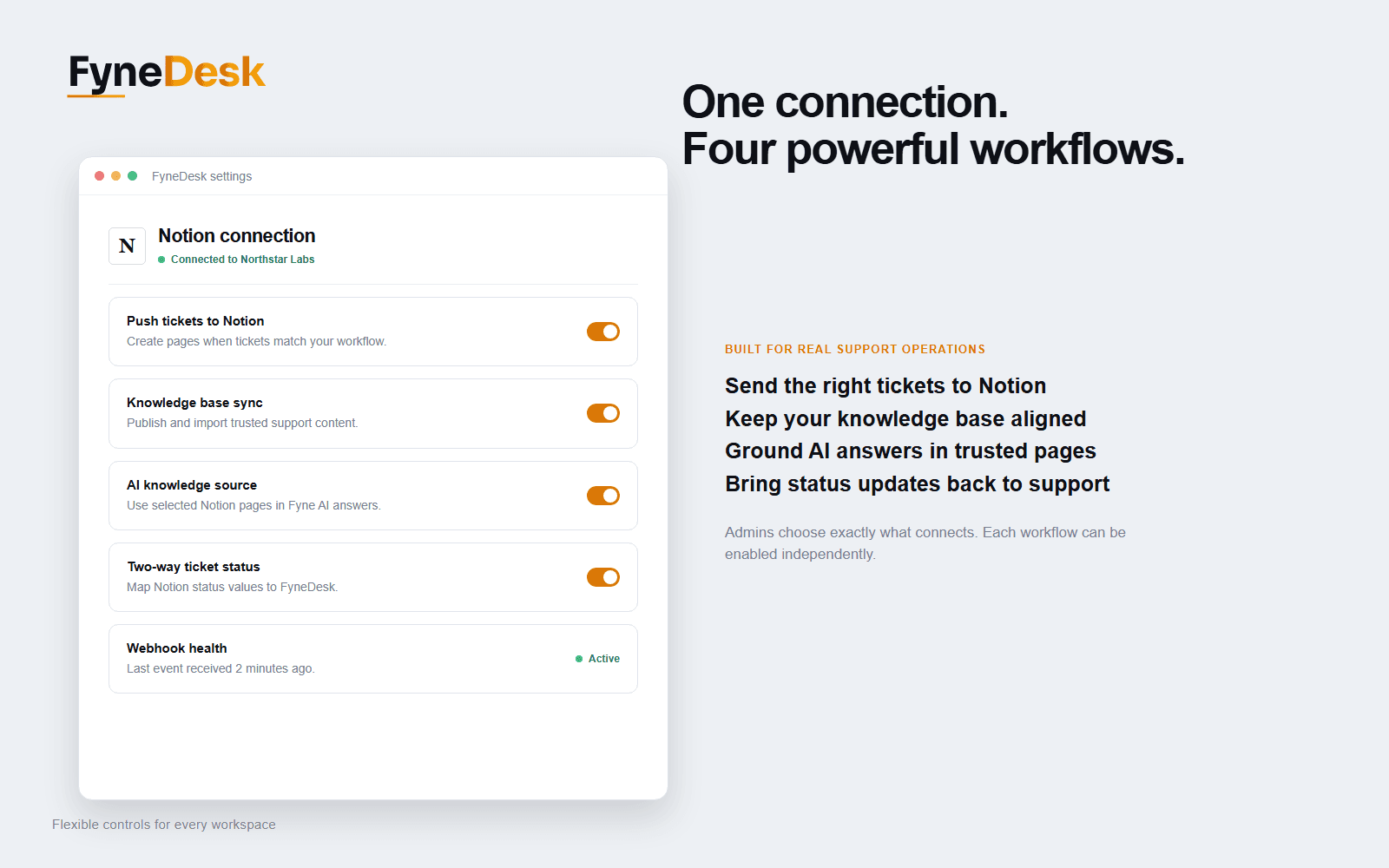
With FyneDesk + Notion you can:
- Push tickets into Notion — turn new, escalated, or tagged support tickets into pages in a Notion database, so engineering, ops, and project teams track them where they already work.
- Two-way Knowledge Base sync — keep FyneDesk Knowledge Base articles and Notion pages in sync. Author in whichever tool you prefer; each article has a clear source of truth and the other side stays updated automatically.
- Power AI replies with your Notion docs — let FyneDesk's AI draft replies, summaries, and triage grounded in your Notion runbooks, SOPs, and product docs.
- Two-way ticket status — when a ticket's status changes in your Notion tracker, the matching FyneDesk ticket updates too.
Connect once at the organization level, choose exactly which Notion pages and databases to share, and manage everything from FyneDesk → Settings → Connections → Notion. Requires a FyneDesk Pro plan.
Fonctionnalités
- Lire, insérer et mettre à jour contenuPeut lire, insérer et mettre à jour les pages, les bases de données et les blocs partagés avec cette connexion.
- Lire et ajouter commentairesPeut lire et ajouter les commentaires des pages et des blocs auxquels elle peut accéder.
- Afficher les utilisateur·rices de l’espace de travailLit les détails de base du profil des membres et des invité·es de l’espace de travail, y compris leurs adresses e-mail.
Comment utiliser l’intégration
1. In FyneDesk, go to Settings → Connections → Notion (a Pro plan is required).
2. Click Connect and authorize your Notion workspace. On Notion's page picker, select the pages and databases you want FyneDesk to access — FyneDesk can only see what you share here.
3. Turn on the integration, then set up the features you want:
• Ticket → Notion: choose the target Notion database and when tickets should be pushed.
• Knowledge Base sync: choose where FyneDesk articles publish to and which Notion pages to import, and set the default owner.
• AI knowledge source: pick the Notion pages that should help FyneDesk's AI write replies, then enable it.
• Two-way status: map your Notion status values to FyneDesk ticket statuses.
4. That's it — your tickets, docs, and AI now stay in sync with Notion.
Need a hand? Email [email protected].
Détails

- Expérience client
- Marketing
- Automatisations