

À propos
BreakGround is a modern Digital Adoption Platform (DAP) that empowers organizations to guide users, run A/B tests, collect feedback, and answer user queries with intelligent AI agents.
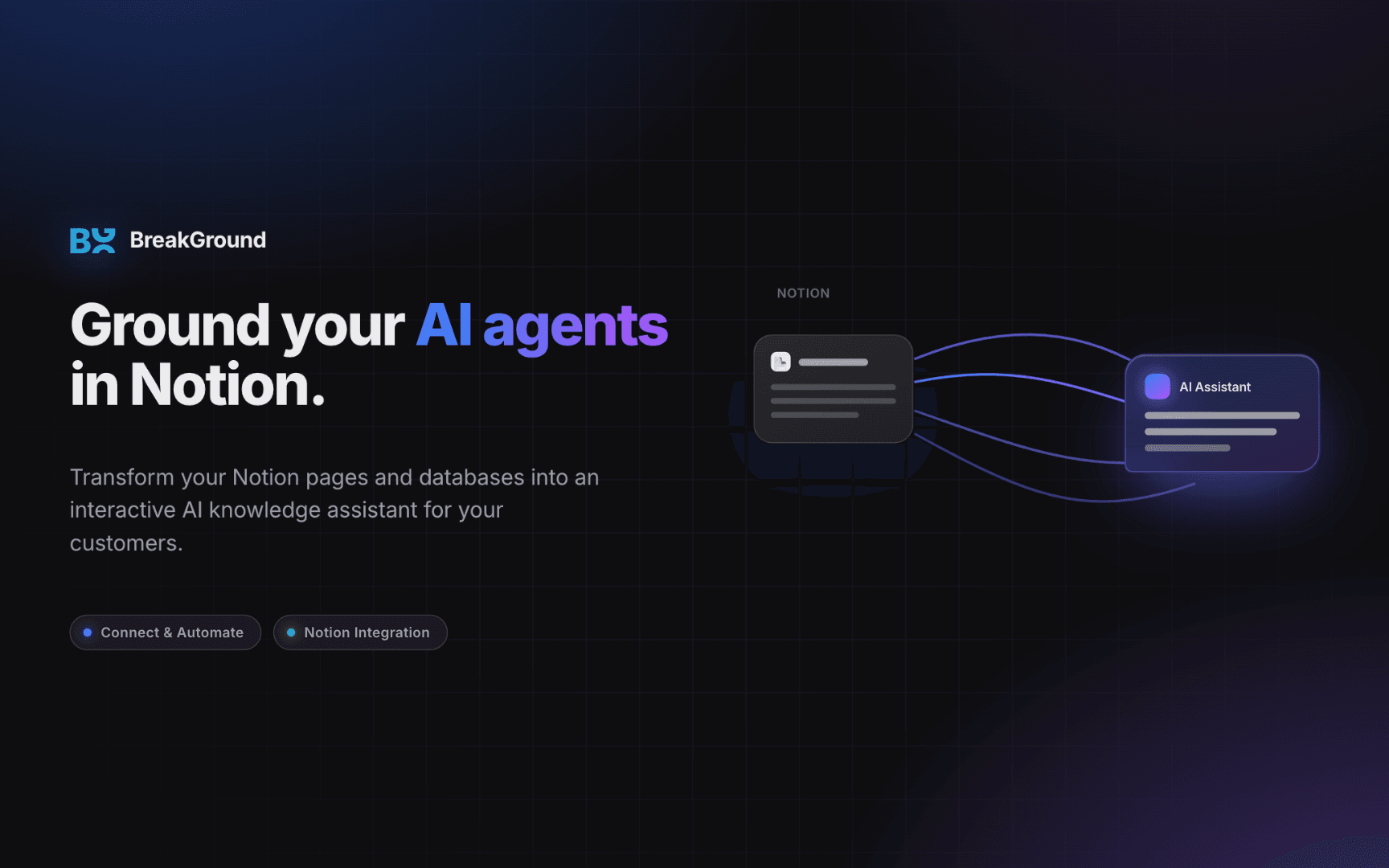
This Notion connection enables you to seamlessly connect your Notion workspace to BreakGround, allowing your AI chat agents to answer user questions using knowledge directly sourced from your Notion pages and databases.
How It Works
Secure Authorization (OAuth 2.0): You authorize the BreakGround connection and select exactly which pages and databases the integration can access.
Background Ingestion & Indexing: BreakGround securely ingests the allowed pages, parses the text content, and indexes it.
When an end-user asks a question to your AI agent, the agent instantly searches the indexed Notion content to synthesize a highly accurate, context-grounded response.
Interactive Backup: If the answer isn't in your knowledge base, the agent automatically falls back to guiding the user through interactive walkthroughs or escalation flows.
NOTE: All document indexing is secure and isolated. Only the pages you explicitly select in the Notion authorization screen will be ingested by BreakGround.
Fonctionnalités
- Lire contenuPeut lire les pages, les bases de données et les blocs partagés avec cette connexion.
- Lire commentairesPeut lire les commentaires des pages et des blocs auxquels elle peut accéder.
Comment utiliser l’intégration
Step 1: Verify Prerequisites
- Ensure you have a registered BreakGround account.
- Verify that you have created at least one Site in your BreakGround dashboard (navigate to Settings → Sites to create or verify your Sites).
Step 2: Open the Source Wizard
- Log in to the BreakGround Dashboard.
- Navigate to AI Agent → Knowledge Base in the sidebar.
- Click the Add Source button in the top right corner.
Step 3: Choose the Notion Integration
- On the "Select Source Type" step of the wizard, click the Notion card (labeled Connect a Notion workspace and pick pages or databases to index).
- Click Next to proceed to the configuration step.
Step 4: Associate a Site
- Select the Associated Site from the dropdown menu. This links your Notion source to a specific website or product environment where your AI widget is installed.
- Confirm that the site selection is correct, as AI agents linked to this site will query this knowledge base source.
Step 5: Authorize on Notion
- Click the Connect with Notion button. This will redirect you to Notion's official OAuth authorization page.
- If prompted, log in to your Notion account.
- Select the workspace you want to connect using the dropdown in the top right.
- Click Select Pages and check the checkboxes next to the specific pages, sub-pages, or databases you want BreakGround to access.
- Click Allow Access to finalize the authorization.
Step 6: Verify Connection
- After authorization, Notion will redirect you back to the BreakGround Dashboard.
- You will see a success message: "Notion workspace connected. Syncing your pages in the background."
- You will be redirected to the Source Detail page, where you can monitor the sync status (Pending, Running, Success).
Détails

- Expérience client
- Automatisations
- Communication