
UICheck
Información
UICheck tests a live website the way a QA tester would: on phones, tablets and desktops, in Chrome, Safari and Firefox. It finds layout bugs (sideways scrolling, overlapping or cut-off text), accessibility problems (WCAG 2.2), broken forms and links, and launch mistakes, and explains each one in plain language with a tested CSS fix.
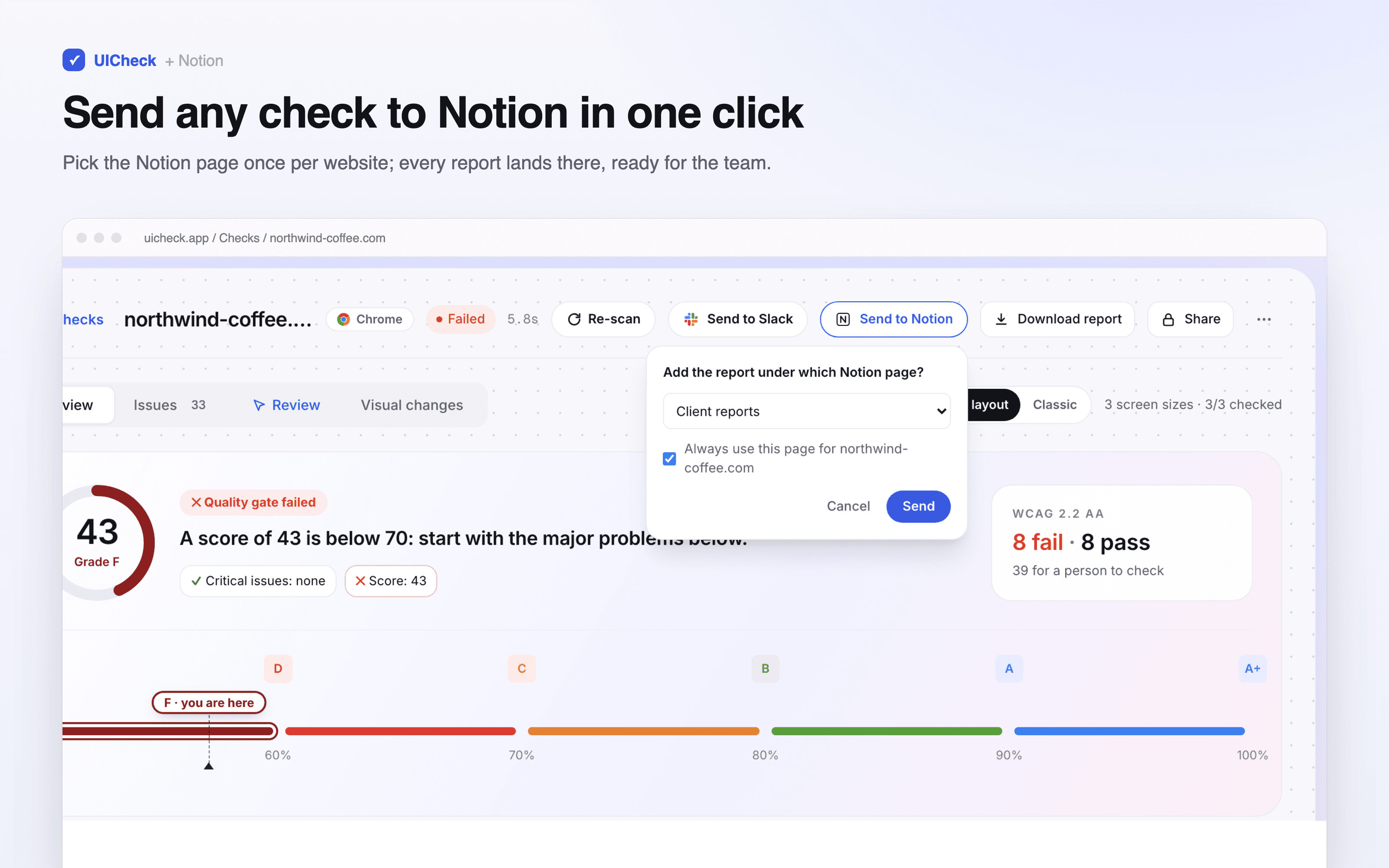
With the Notion connection, any finished check becomes a Notion page in one click:
• the quality gate (passed or failed) and the score
• a table of every page checked, worst first
• each page's first screen at every screen size, side by side
• every finding grouped by area (Layout, Accessibility, Forms, Links…), with an outlined screenshot of the problem, why it matters, how to fix it and the CSS UICheck tested on the page
Reports go under a Notion page you choose, remembered per website, so each client or project keeps its own history of releases. Screenshots are uploaded into Notion, so the report stays complete. UICheck only adds pages under pages you share with it; it never reads or changes anything else in your workspace.
Funciones
- Leer, insertar y actualizar contenidoPuede leer, insertar y actualizar páginas, bases de datos y bloques compartidos con esta conexión.
- Ver usuarios del espacio de trabajoLee información básica del perfil sobre los miembros e invitados del espacio de trabajo, incluidas sus direcciones de correo electrónico.
Cómo se usa
1. Sign in to UICheck (uicheck.app) and run a check of your website, or open an existing one.
2. Go to Integrations → Notion → Connect Notion, and pick the Notion page(s) reports should go under.
3. Open a finished check and click "Send to Notion". The first time for a website, choose the Notion page to add it under (tick "Always use this page" to remember it).
4. UICheck builds the report in a minute or two, then "Open in Notion" takes you to the new page.
Detalles
- Programación
- Automatizaciones