عمليات ربط واجهة برمجة تطبيقات Notion
باستخدام واجهة برمجة تطبيقات Notion، ستتمكن من إنشاء عمليات ربط داخلية مخصصة. قد يطلب بعض شركائنا أيضاً رمز عملية ربط داخلية لربط منصتهم بمساحة عمل Notion الخاصة بك - سنرشدك أدناه إلى كيفية إعداد ذلك.
يمكنك إدارة رموز الوصول الشخصية من Notion. قم بتفعيل وضع المطور من الإعدادات، ثم افتح رموز الوصول الشخصية من قسم المطور في شريطك الجانبي. قم بزيارة مركز المطورين الخاص بنا للحصول على الوثائق والموارد وأدوات إدارة عمليات الربط.

ملاحظة: يدير مالكو مساحة العمل جميع عمليات الربط في مساحة العمل. تعرف على المزيد حول إعدادات ربط المؤسسات →
هل تبحث عن رموز الإدارة؟ الرموز الموجودة في هذه الصفحة تعمل داخل مساحة عمل واحدة وتتولى محتوى الصفحة. إذا كنت بحاجة إلى عملية التشغيل لأعمال الإدارة بالمؤسسة مثل عمليات التصدير، أو تعليق مؤقت، أو تسجيل خروج المستخدمين من السجِل، فراجع واجهات برمجة تطبيقات الإدارة للمؤسسات.
في الشريط الجانبي الأيسر، انتقل إلى
الإعداداتثم علامة التبويبعمليات ربط.مالكو مساحة العمل فقط هم من سيتمكنون من الوصول إلى علامة التبويب
عمليات ربطوإنشاء عمليات تكامل. إذا لم تكن مسؤولاً، فيرجى الاتصال بمسؤول مساحة العمل أو استخدام مساحة عمل مختلفة.قم بتفعيل وضع المطور، ثم افتح رموز الوصول الشخصية من قسم المطور في شريطك الجانبي.
انقر على
+ ربط جديد.قدّم
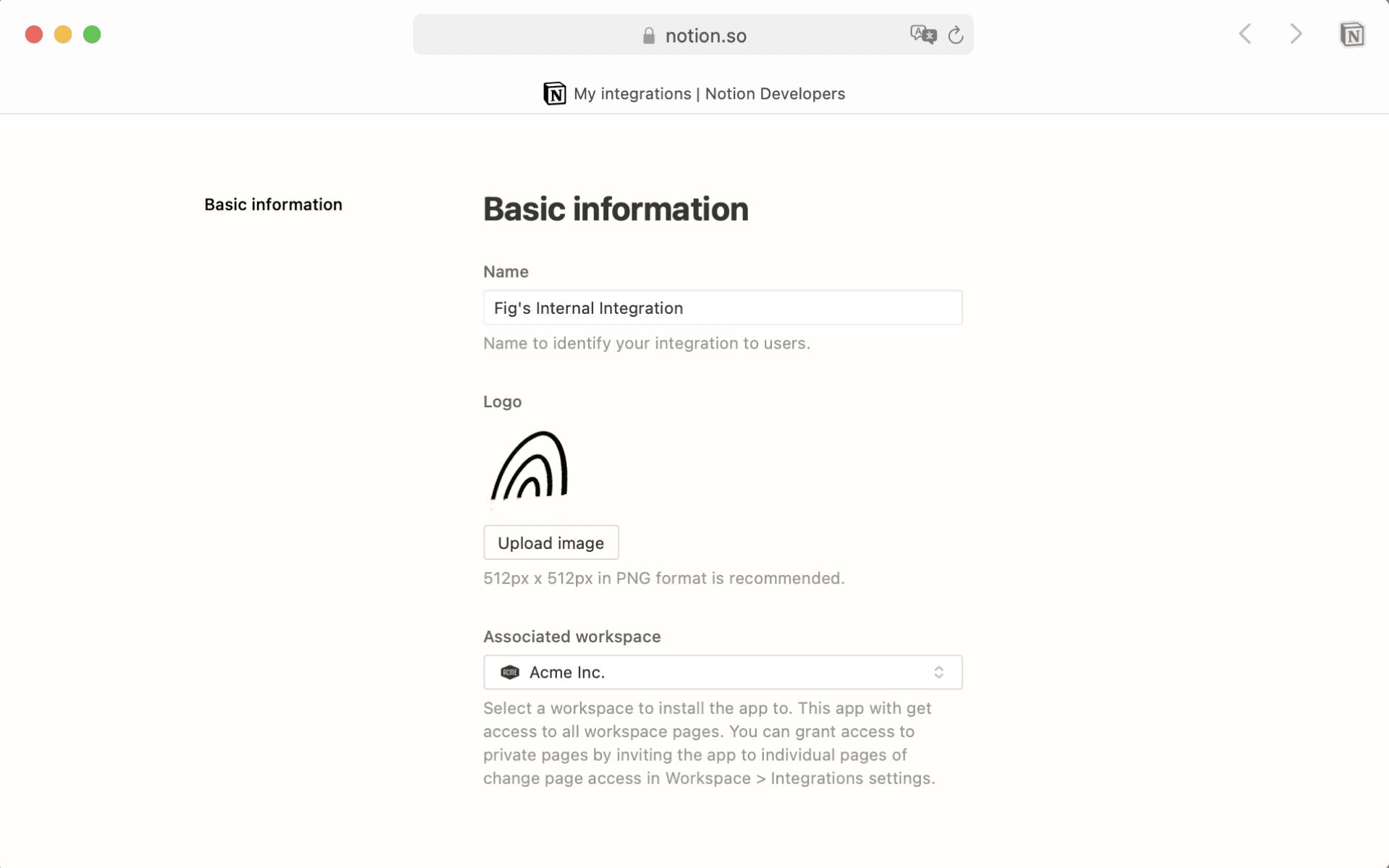
اسماًلعملية الربط الخاصة بك. اختيارياً، يمكنك أيضاً تحميل صورة لاستخدامها كـشعار.استخدم القائمة المنسدلة لتحديد
مساحة العمل المرتبطةالتي تود استخدام عملية الربط هذه معها.ملاحظة: تأكد من تسجيل دخولك إلى Notion في جلسة الويب الخاصة بك باستخدام نفس الحساب الذي استخدمته على سطح المكتب. وإلا، فلن ترى الحساب ومساحات العمل الصحيحة!
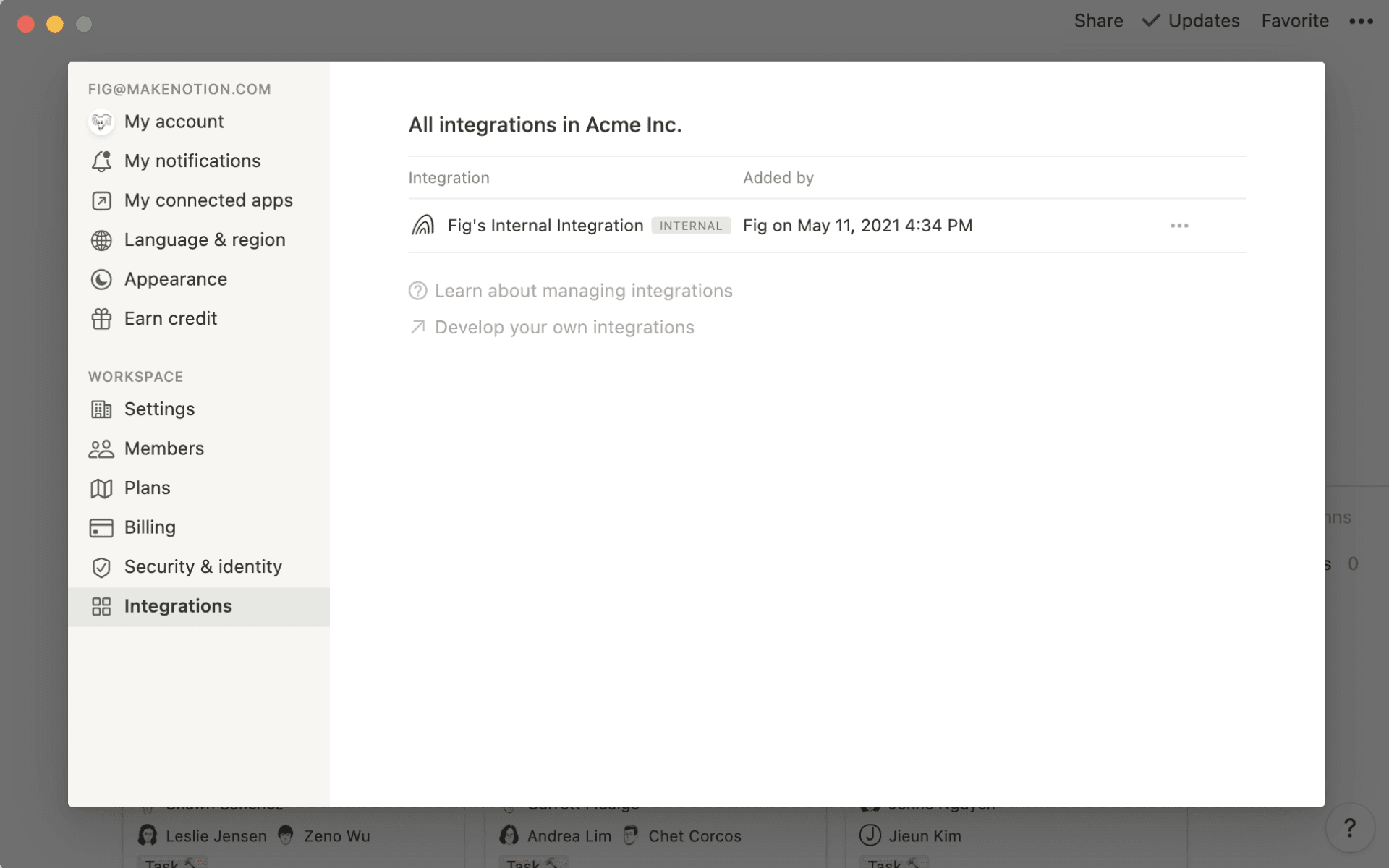
تمت إضافة عملية الربط الداخلية الخاصة بك بنجاح! ستتمكن الآن من رؤيتها في مساحة عملك، في قائمة
الإعدادات←عمليات ربط.انقر على
•••بجوار الربط الداخلي لاسترداد رمز الربط الداخلي. ستحتاج إلى هذا الرمز لأي أتمتة أو سير عمل قائم على واجهة برمجة التطبيقات ينشئه فريقك، أو لربط مساحة عملك ببعض منصات الشركاء.
ملاحظة: عمليات الربط الداخلية خاصة بمساحة العمل، لذا لتغيير مساحة العمل المرتبطة، سيتعين عليك إنشاء عملية ربط جديدة.
جميع عمليات الربط المضافة حديثاً هي عمليات ربط داخلية في البداية. إذا كنت مطوراً تعمل على ربط عام، فاستخدم أولاً التعليمات أعلاه لإنشاء ربط داخلي.
بعد ذلك، اتبع التعليمات الواردة في دليل المطور الخاص بنا لتحويله إلى ربط عام.
أثناء عملية إعداد التطبيق، سيتمكن المطورون من اختيار مستوى الوصول المطلوب من المستخدم.
إمكانات المحتوى:
قراءة المحتوى فقط
كتابة المحتوى فقط
إدراج محتوى
إمكانات المستخدم
لا توجد معلومات مستخدم
قراءة معلومات المستخدم (لا تشمل عنوان البريد الإلكتروني للمستخدم)
قراءة معلومات المستخدم (بما في ذلك البريد الإلكتروني)
عندما يقوم المستخدمون بتثبيت عمليات الربط، سيتم عرض مستوى الوصول هذا. سيظهر أيضاً في قائمة مشاركة لأي صفحات تمت إضافة الربط إليها. تعرف على المزيد حول تثبيت عمليات الربط في مساحة عمل ←
تُمكّن ربط خطافات الويب عمليات ربط من مراقبة التغييرات في مساحات العمل Notion والاستجابة لها في الوقت الفعلي.
عند حدوث تغييرات في الصفحات أو قواعد بيانات مشتركة مع عملية الربط الخاصة بك، يرسل Notion تلقائياً إشعارات إلى نقطة نهاية ربط خطاف الويب الخاصة بك، مما يسمح لعملية الربط الخاصة بك بتحديث الأدوات الأخرى فوراً، أو تنفيذ عمليات تشغيل آلية، أو عرض أحدث التغييرات.
إعداد ربط خطافات الويب
للحصول على التعليمات، يرجى زيارة وثائق المطورين الخاصة بنا.
لا تدعم خطافات الويب لربط حالياً إشعارات لما يلي:
تغييرات المستخدم (بما في ذلك تغييرات عضوية مساحة العمل، وتحديثات البريد الإلكتروني/الاسم، وتعديلات الأذونات).
تغييرات إعدادات مساحة العمل ومساحة الفريق.
بالنسبة لهذه الأنواع من الإشعارات، استخدم سجل التدقيق بدلاً من ذلك.
إجراءات خطاف الويب مقابل ربط خطافات الويب
تتشابه إجراءات خطاف الويب وربط خطافات الويب في بعض الجوانب، فكلاهما يحتوي على مشغلات ويمكنه إرسال أحداث إلى خدمات خارجية. ومع ذلك، يوفر ربط خطافات الويب إمكانات أوسع:
يمكنها مراقبة النشاط عبر مساحات عمل متعددة.
يمكنها التعامل مع عدد غير محدود من الإجراءات.
في المقابل، صُممت إجراءات خطاف الويب لحالات استخدام أبسط ويتم تكوينها من خلال أتمتة قواعد البيانات مع مجموعة محدودة من المشغلات.