سجّل ملاحظات الاجتماع باستخدام الذكاء الاصطناعي في Notion

دوّن ملاحظات مفصّلة من دون الحاجة إلى الكتابة يدوياً أثناء الاجتماعات ومكالمات الفيديو.
الانتقال إلى الأسئلة الشائعةتتولى ميزة "ملاحظات الاجتماع بالذكاء الاصطناعي" (AI Meeting Notes) تدوين ملاحظات مفصلة عن الاجتماع نيابةً عنك حتى تتمكن من التركيز على المحادثة التي تجريها. يقوم Notion AI بنسخ اجتماعك وتحديد النقاط الرئيسية وبنود العمل التي يمكنك مشاركتها مع فريقك بأكمله.
ملاحظات الاجتماع المدعومة بالذكاء الاصطناعي:
يجب أن تكون مشتركًا في خطة Notion للأعمال (Business) أو في الخطة المؤسسية (Enterprise plan) لاستخدام ميزة "ملاحظات الاجتماع بالذكاء الاصطناعي".
تتوفر ميزة "ملاحظات الاجتماع بالذكاء الاصطناعي" أيضًا للاشتراكات المؤهلة على الأجهزة المحمولة التي تتضمن Notion AI.
إذا كنت تستخدم تطبيق Notion لسطح المكتب، فيجب أن تكون في الإصدار 4.7.0 أو أعلى.
إذا كنت تستخدم جهاز Mac، فيجب أن تستخدم macOS 13 أو أحدث.
إذا كنت تستخدم جهاز Windows، فيجب أن تكون في أحدث إصدار.

جرّب ميزة ملاحظات الاجتماع المدعومة بالذكاء الاصطناعي مجاناً
احضر الاجتماعات دون أن يفوتك أي شيء. تلتقط ملاحظات الاجتماع المدعومة بالذكاء الاصطناعي من Notion ملاحظاتك وتلخصها وتنظمها حتى تتمكن من البقاء حاضر الذهن والمغادرة بوضوح.
تتوفر ميزة "ملاحظات الاجتماع بالذكاء الاصطناعي" على تطبيق Notion والمتصفح. يوفر تطبيق Notion أفضل تجربة، خاصةً لمكالمات الفيديو، لأنه يلتقط جميع جوانب المحادثة باستخدام صوت النظام والميكروفون الخاص بك. المتصفح هو الأنسب للمحادثات الشخصية لأنه لا يمكنه التقاط الصوت إلا من الميكروفون الخاص بك. يمكنك أيضاً استخدام ميزة "ملاحظات الاجتماع بالذكاء الاصطناعي" على تطبيق Notion للهاتف المحمول، والذي يسجل من خلال ميكروفون هاتفك.
إذا كنت تستخدم هذه الميزة على متصفحك، فإليك بعض الأمور التي يجب ملاحظتها:
سيتم نسخ مدخلات الميكروفون فقط. لن يتم التقاط صوت النظام.
لن يتم التقاط الصوت من أدوات المؤتمر (Google Meet و Zoom و Microsoft Teams، إلخ) إذا كنت تستخدم سماعات الرأس. إذا كنت لا تستخدم سماعات الرأس ولم يكن مستوى صوت جهازك منخفضًا جدًا، فقد يتم التقاط الصوت من أدوات المؤتمر.
إذا كنت تستخدم هذه الميزة على تطبيق Notion للهاتف المحمول، فإليك بعض النقاط التي يجب ملاحظتها:
يقوم Notion بنسخ الصوت الذي يلتقطه ميكروفون هاتفك فقط. ولا يمكنه التقاط الصوت الذي يتم تشغيله من هاتفك نفسه، مثل أصوات المشاركين الآخرين في مكالمة فيديو.
بسبب هذا، يعمل الهاتف المحمول بشكل أفضل في الاجتماعات الشخصية. كما يعمل بشكل جيد عندما يتم تشغيل صوت الاجتماع بصوت عالٍ من جهاز آخر، مثل مكبر صوت جهاز الكمبيوتر الخاص بك.
إذا انضممت إلى مكالمة فيديو على هاتفك واستمعت من خلال سماعات الرأس أو سماعات الأذن، فلن يتمكن Notion من سماع المشاركين الآخرين أو نسخ كلامهم.
ملاحظة: لاستخدام ملاحظات الاجتماع المدعومة بالذكاء الاصطناعي، يتطلّب Notion الوصول إلى أذونات تسجيل الصوت والشاشة في نظامك.
يتيح لنا ذلك تفريغ الصوت الصادر عن المشاركين الآخرين عندما تستخدم سماعات الرأس أثناء الاجتماعات الافتراضية.
لإنشاء "ملاحظات الاجتماع بالذكاء الاصطناعي"، اكتب /meet في أي صفحة في تطبيق سطح المكتب. إذا كنت تستخدم متصفح ويب، فسيُطلب منك فتح تطبيق Notion لسطح المكتب أو تنزيله إذا لم تكن قد قمت بذلك بالفعل.
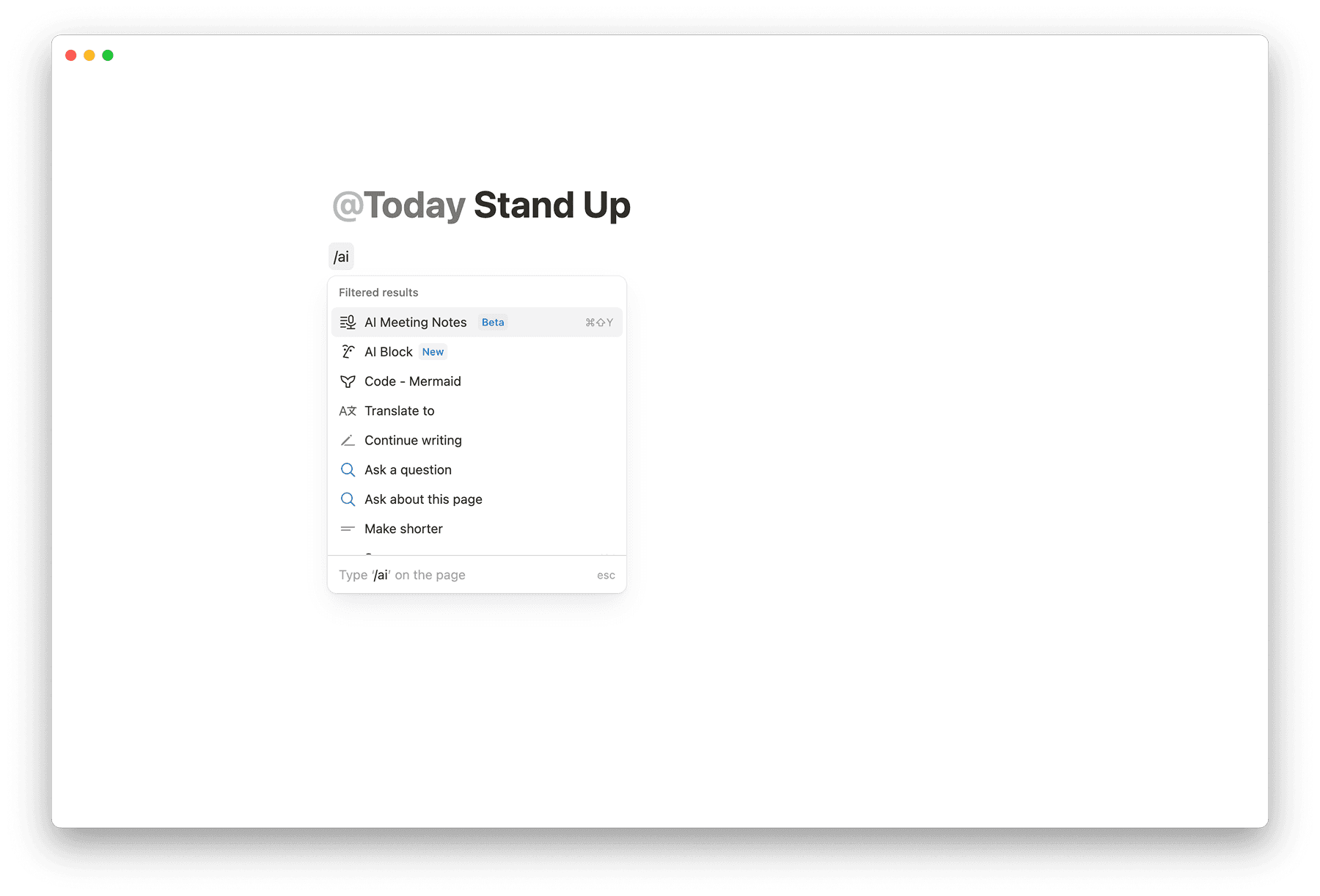

نصيحة: يمكنك أيضاً الوصول إلى ملاحظات الاجتماع المدعومة بالذكاء الاصطناعي مباشرةً من مربّع الأحداث القادمة في الصفحة الرئيسية.
اكتب أي بنود لجدول الأعمال أو سياق تحت
Notesقبل الاجتماع. عند إنشاء الملخص، سيأخذ Notion AI هذه الملاحظات في الاعتبار.بمجرد بدء الاجتماع، حدد
Start transcribing. من خلال القيام بذلك، فإنك تؤكد أن كل شخص في الاجتماع قد أعطى موافقته على تسجيل الاجتماع وتدوينه.بمجرد انتهاء الاجتماع ورغبتك في إيقاف النسخ، حدد
Stop. سيبدأ ملخص الذكاء الاصطناعي في الإنشاء تلقائيًا. لاحظ أنه يلزم وجود دقيقة واحدة على الأقل من الصوت المسجل لإنشاء ملخص.إذا كنت ترغب في استئناف تسجيلك، فانقر على أيقونة شريط التمرير في الجزء العلوي من كتلة ملاحظات الاجتماع ←
نسخ السيرة الذاتية.
يمكنك تحميل تسجيل صوتي موجود إلى كتلة "ملاحظات الاجتماع" حتى يتمكن Notion من نسخه وتلخيصه، حتى لو لم يتم تسجيل الاجتماع مباشرةً في Notion.
لتحميل ملف صوتي:
افتح صفحة تحتوي على كتلة "ملاحظات الاجتماع".
حدد أيقونة الإعدادات في الجزء العلوي من كتلة "ملاحظات الاجتماع".
اختر
Upload audio.حدد ملفًا صوتيًا من جهازك.
سيقوم Notion بنسخ الصوت وإنشاء ملخص، تمامًا كما في التسجيل المباشر.
Supported formats: AAC و M4A و MP3 و WAV.
Note: ملفات MOV و MP4 و Loom غير مدعومة حاليًا للتحميل.
عندما تكتشف AI Meeting Notes أن الشخص المتحدث قد تغير، ستبدأ في النسخ على سطر جديد.
على تطبيق سطح المكتب، يمكن لـ Notion تسمية المتحدثين في النص المنسوخ ليسهل متابعة من قال ماذا. يعمل هذا بشكل أفضل في الاجتماعات الافتراضية الفردية، حيث يمكن لـ Notion التقاط كل من الميكروفون وصوت النظام الخاص بك. إذا كانت ملاحظة اجتماعك مرتبطة بحدث في التقويم، يمكن لـ Notion أيضاً تسمية المشارك الآخر بالاسم.
في إعدادات الاجتماعات الأخرى (مثل المحادثات الشخصية أو اجتماعات المجموعات)، قد تكون تسمية المتحدث محدودة. قد لا ترى تسميات متحدثين موثوقة إذا كنت:
في اجتماع مباشر حيث يتشارك عدة أشخاص ميكروفوناً واحداً.
في اجتماع جماعي مع متحدثين متعددين.
عند استخدام Notion في متصفح أو على تطبيق الهاتف المحمول.
ستجد أيضاً اقتباسات للنص المنسوخ في ملخص ملاحظات اجتماعك. مرر مؤشر الماوس فوق اقتباس لرؤية مقتطف النص المنسوخ الذي تمت الإشارة إليه. يمكنك أيضاً النقر على اقتباس للانتقال إلى السطر المقابل في النص المنسوخ.
يمكن لـ AI Meeting Notes هيكلة الملاحظات بناءً على نوع الاجتماع الذي تعقده، مثل مكالمة مبيعات، أو اجتماع يومي سريع، أو اجتماع فريق. لتغيير كيفية إنشاء AI Meeting Notes للملخص:
انتقل إلى
Instructionsفي أسفل كتلة ملاحظات الاجتماع.انقر على القائمة المنسدلة لتغيير التعليمات من "تلقائي" (Auto).
تطبق تغييرات التعليمات فقط على التسجيلات الجديدة أو عند استئناف النسخ. لتحديث ملخص موجود بتعليمات جديدة، انقر على
Retry summary.
تلميح: اربط ملاحظات الاجتماع المدعومة بالذكاء الاصطناعي بـ تقويم Notion حتى تتمكن من بدء تدوين الملاحظات بنقرة واحدة مباشرة من تقويمك، واربط الملاحظات الحالية بأحداث التقويم. انقر على أيقونة شريط التمرير في أعلى كتلة ملاحظات الاجتماع المدعومة بالذكاء الاصطناعي لإعداد ذلك!
إنشاء تعليمات ملخص مخصصة
بالإضافة إلى التعليمات المضمنة، يمكنك إنشاء تعليمات مخصصة لتحديد هيكل ملخصات اجتماعاتك. لإضافة تعليمات مخصصة:
انتقل إلى
Instructionsفي أسفل كتلة ملاحظات الاجتماع.انقر على القائمة المنسدلة لتغيير التنسيق من "تلقائي" (Auto).
انقر على
+ Add custom instructions.ستفتح صفحة قالب — قم بتحريرها لتحديد الهيكل والتعليمات التي تفضلها.
ستظهر تعليماتك المخصصة الآن في قائمة التعليمات ويمكن اختيارها لأي اجتماع.
Sharing and privacy for custom summaries
تعليمات الملخص المخصصة خاصة افتراضياً — أنت فقط من يمكنه رؤيتها واستخدامها.
إذا استخدمت ملاحظة اجتماع تعليمات مخصصة خاصة، فسيظل المستخدمون الذين لديهم حق الوصول إلى كتلة الاجتماع يرون نفس الملخص. ومع ذلك، ستظهر إعدادات التعليمات تعليماتهم الافتراضية بدلاً من ذلك.
تعليمات مخصصة مشتركة
تعليمات الملخص المخصصة خاصة افتراضياً. إذا شارك شخص ما صفحة تعليمات معك وكان لديك حق الوصول لعرضها، فيمكنك فتح الصفحة — ولكنها لن تظهر تلقائياً كخيار في القائمة المنسدلة لتعليمات ملاحظات الاجتماع الخاصة بك حتى تقوم بإضافتها.
لإضافة صفحة تعليمات مشتركة في اجتماعاتك الخاصة:
افتح صفحة التعليمات المشتركة.
انقر على
+ إضافة إلى تعليماتيفي أعلى الصفحة.
إذا فتحت كتلة ملاحظات اجتماع تم فيها تحديد صفحة تعليمات مشتركة بالفعل، فستراها معروضة كتعليمات محددة حتى لو لم تقم بإضافتها إلى قائمتك بعد.
إذا لم يكن لديك حق الوصول إلى صفحة التعليمات المحددة، فسيتم تعيين إعدادات التعليمات الخاصة بك افتراضياً على تلقائي.
تعيين تعليمات الملخص الافتراضية
يمكنك تعيين أي تعليمات ملخص — بما في ذلك التعليمات المخصصة — كتعليمات افتراضية لك بحيث يتم تطبيقها تلقائياً على جميع الاجتماعات الجديدة.
انتقل إلى
Instructionsفي أسفل كتلة ملاحظات الاجتماع.انقر على القائمة المنسدلة.
مرر مؤشر الماوس فوق التعليمات التي تريد استخدامها كتعليمات افتراضية.
انقر على
•••→تعيين كافتراضي
ملاحظة: يتم تشغيل رسالة الموافقة عبر مكبرات صوت الكمبيوتر، وليس عبر ميكروفون المؤتمر الخاص بك. تأكد من إلغاء كتم صوت مكبرات الصوت وفصل أي سماعات رأس حتى يتمكن الجميع في الغرفة من سماعها بوضوح.
بمجرد تحديد الكتلة، سيتم تذكيرك بالإفصاح عن استخدامك لملاحظات الاجتماع المدعومة بالذكاء الاصطناعي والحصول على موافقة جميع المشاركين في الاجتماع قبل المتابعة.
لمساعدتك في طلب الموافقة، سيكون لديك بعض الخيارات السهلة:
نص: انقر على أيقونة شريط التمرير في أعلى كتلة ملاحظات الاجتماع المدعومة بالذكاء الاصطناعي ومرر مؤشر الماوس فوق
الموافقة. قم بتحرير رسالة الموافقة كما تشاء، ثم انسخها والصقها في دردشة تطبيق مؤتمر الذي تستخدمه.صوت: انقر على
🔈في أسفل كتلة ملاحظات الاجتماع المدعومة بالذكاء الاصطناعي قبل البدء في التدوين. سيؤدي هذا إلى تشغيل رسالة الموافقة الخاصة بك لجميع الحضور.يمكنك تغيير الصوت عن طريق النقر على أيقونة شريط التمرير في أعلى كتلة ملاحظات الاجتماع واختيار أصوات مختلفة للغات مختلفة. سيستخدم Notion تلقائياً لغة اجتماعك لتشغيل الصوت المناسب.
قلها بصوت عالٍ: طلب بسيط يفي بالغرض أيضاً. على سبيل المثال، يمكنك أن تسأل، "هل تمانعون إذا قمت بتسجيل هذا الاجتماع وتدوينه باستخدام ملاحظات الاجتماع المدعومة بالذكاء الاصطناعي من Notion؟"
خيار رسالة الموافقة التلقائية
يمكنك اختيار تشغيل رسالة صوتية تلقائياً في بداية كل عملية تدوين لإعلام الآخرين بأنك تستخدم ملاحظات الاجتماع المدعومة بالذكاء الاصطناعي.
إذا كنت مالك مساحة عمل: يمكنك تفعيل هذه الميزة لجميع المستخدمين في مساحة عملك من خلال الانتقال إلى الإعدادات → Notion AI → ملاحظات اجتماع AI وتحديث إعداد "فرض الموافقة لجميع أعضاء مساحة العمل".
إذا كنت في مساحة عمل تم فيها تمكين هذا الإعداد من قبل مالك مساحة العمل: سيتم تشغيل رسالة الموافقة في كل مرة تستخدم فيها ملاحظات اجتماع AI. تذكر إلغاء كتم صوت مكبرات الصوت وفصل أي سماعات رأس قبل بدء النسخ حتى يتمكن المشاركون في الاجتماع من سماع رسالة الموافقة بوضوح.
إذا كنت في مساحة عمل لا يتم فيها تمكين رسالة الموافقة التلقائية: يمكنك تفعيل هذا الإعداد لنفسك. سترى رسالة في كتلة ملاحظات الاجتماع تطلب منك اختيار خيار الموافقة الافتراضي الخاص بك:
الحصول على الموافقة بنفسي: متابعة الحصول على الموافقة من جميع المشاركين يدويًا
تشغيل الصوت تلقائيًا: تشغيل رسالة الموافقة الصوتية تلقائيًا في بداية كل عملية نسخ
تختفي هذه الرسالة بعد اختيار خيار الموافقة الافتراضي الخاص بك. يمكنك تحديث تفضيلاتك في أي وقت:
انتقل إلى
الإعدادات→Notion AI→ملاحظات اجتماع AIوقم بتحديث خيارتشغيل رسالة الموافقة تلقائيًا عند البدء.افتح قائمة التمرير في الجزء العلوي من كتلة ملاحظات اجتماع AI وقم بتحديث
إعداد
الموافقة التلقائيةهناك.
بشكل افتراضي، تكون ملاحظات الاجتماع التي تنشئها خاصة بك فقط. يمكنك اختيار مشاركة الملاحظات التي يتم إنشاؤها من حدث تقويم Notion تلقائيًا مع المشاركين في الاجتماع الذين هم أعضاء في مساحة عملك.
للقيام بذلك، انتقل إلى الإعدادات → Notion AI → المشاركة التلقائية مع المشاركين في حدث التقويم الداخلي وقم بطي الخيار.
عند تعطيل المشاركة التلقائية
تظل ملاحظات الاجتماع خاصة بك.
بعد إنشاء ملاحظات من حدث تقويم Notion، سترى خيارًا لـ "مشاركة مع المشاركين" إذا كنت ترغب في منح حق الوصول.
يمكنك دائمًا المشاركة يدويًا باستخدام عناصر تحكم المشاركة القياسية في Notion.
عند تمكين المشاركة التلقائية
ستتم مشاركة ملاحظات الاجتماع التي يتم إنشاؤها من نقاط دخول تقويم Notion (علامة تبويب الاجتماعات، إشعارات سطح المكتب، رأس التقويم) تلقائيًا مع المشاركين في الاجتماع الذين هم أعضاء في مساحة عملك.
سيحصل المشاركون على حق الوصول لعرض ملاحظات الاجتماع وتعديلها.
لا يزال بإمكانك تعديل إعدادات المشاركة يدويًا بعد الإنشاء.
ملاحظة: المشاركة التلقائية هي إعداد شخصي. يمكن لكل عضو في مساحة العمل تكوين تفضيلاته الخاصة لملاحظات الاجتماع التي ينشئها.
هل ترغب في تخزين جميع ملاحظات الاجتماع المدعومة بالذكاء الاصطناعي في قاعدة بيانات واحدة لسهولة الوصول إليها؟ لتعيين قاعدة بيانات افتراضية لملاحظات اجتماعك:
انتقل إلى
الإعدادات←Notion AI.افتح القائمة المنسدلة بجوار
قاعدة بيانات الاجتماعات الافتراضية.ابحث عن قاعدة البيانات التي تريد تخزين ملاحظات الاجتماع المدعومة بالذكاء الاصطناعي فيها وحددها.
في المرة التالية التي تنشئ فيها صفحة جديدة لملاحظات اجتماع الذكاء الاصطناعي (من إشعار ملاحظات اجتماع الذكاء الاصطناعي، على سبيل المثال)، سيتم إنشاء الصفحة تلقائياً داخل قاعدة البيانات الافتراضية الخاصة بك.
تأكد من مشاركة كل صفحة من صفحات ملاحظات الاجتماع المدعومة بالذكاء الاصطناعي في قاعدة بياناتك مع الأشخاص المناسبين حتى يتمكنوا من الوصول إليها.
يستمر Notion في طلب الوصول إلى الشاشة وصوت النظام
قد تظهر لك نافذة منبثقة تطلب منك منح Notion حق الوصول إلى شاشتك وصوت النظام، حتى بعد أن تكون قد منحت حق الوصول بالفعل. في بعض الأحيان، يمكن أن تؤدي إعادة تعيين هذه الأذونات إلى حل المشكلة.
كيفية حل المشكلة
حاول إغلاق التطبيقات وعلامات تبويب المتصفح الأخرى لتوفير الذاكرة، ثم حاول مرة أخرى.
في إعدادات جهازك، قم بإلغاء حق الوصول إلى الشاشة وصوت النظام الخاص بـ Notion. ثم أغلق Notion، وأعد تشغيل جهازك، وافتح Notion، واتبع المطالبات لمنح حق الوصول.
تأكد من أنك تستخدم أحدث إصدار من تطبيق Notion لسطح المكتب. إذا لم يكن الأمر كذلك، فقم بالترقية إلى أحدث إصدار وتحقق مما إذا كان ذلك سيؤدي إلى حل المشكلة.
لن يتم إطلاق ملاحظات الاجتماع المدعومة بالذكاء الاصطناعي، أو أن النسخ لا يعمل
اعتماداً على إصدار نظام التشغيل أو تطبيق Notion الذي تستخدمه، قد لا تعمل ملاحظات الاجتماع المدعومة بالذكاء الاصطناعي بشكل صحيح وقد يظهر لك خطأ يشير إلى تعذّر تشغيل الميزة.
كيفية حل المشكلة
إذا كنت تستخدم جهاز Mac، فتأكد من استخدام macOS 13 أو أحدث.
إذا كنت تستخدم جهاز Windows، فتأكد من أنك تستخدم أحدث إصدار.
تأكد من أنك تستخدم أحدث إصدار من تطبيق Notion.
أعِد تحميل صفحتك أو أعد تشغيل التطبيق.
لا يمكن استخدام أمر الشرطة المائلة (/meet) لملاحظات الاجتماع المدعومة بالذكاء الاصطناعي
إذا لم تتمكن من رؤية ملاحظات الاجتماع المدعومة بالذكاء الاصطناعي في قائمة الشرطة المائلة، فمن المحتمل أن يكون قد تم إيقاف تشغيل هذه الميزة في مساحة عملك.
كيفية حل المشكلة
إذا كنت مالكاً لمساحة العمل، فانتقل إلى
الإعدادات→Notion AIوقم بتفعيل خيارملاحظات الاجتماع المدعومة بالذكاء الاصطناعي.إذا لم تكن مالكاً لمساحة العمل، فتواصل مع مالك مساحة العمل واطلب منه تشغيل ميزة ملاحظات الاجتماع المدعومة بالذكاء الاصطناعي لمساحة عملك.
لن تبدأ ميزة "ملاحظات الاجتماع بالذكاء الاصطناعي" أو تعمل على تطبيق الهاتف المحمول
كيفية حل المشكلة
تأكد من أنك تستخدم أحدث إصدار من تطبيق Notion للهاتف المحمول.
أغلق تطبيق Notion تماماً. ثم أعد فتحه وحاول مرة أخرى.
تأكد من أن خطتك تتضمن ميزة "ملاحظات الاجتماع بالذكاء الاصطناعي". وهي متاحة في خطتي Business وEnterprise، وفي اشتراكات الهاتف المحمول المؤهلة التي تتضمن Notion AI.
حاول بدء تدوين ملاحظات الاجتماع في صفحة مختلفة. إذا نجح الأمر هناك، فقد تكون المشكلة خاصة بالصفحة الأصلية.
إذا استمرت المشكلة، احذف تطبيق Notion من جهازك، ثم أعد تثبيته من متجر التطبيقات App Store أو Google Play. غالباً ما يؤدي هذا إلى إصلاح هذه المشكلات. يتم حفظ صفحاتك وملاحظاتك في حسابك، لذا لن تفقدها عند حذف التطبيق.
إذا كانت الميزة تعمل على بعض الأجهزة ولكن ليس على أحدها
في بعض الأحيان تعمل ميزة "ملاحظات الاجتماع بالذكاء الاصطناعي" على أجهزتك الأخرى، مثل جهاز الكمبيوتر أو هاتفك، ولكنها تفشل على جهاز معين مثل جهاز iPad، حتى مع استخدام نفس إصدار التطبيق. إعادة التثبيت لا تؤدي دائماً إلى إصلاح ذلك. عندما يحدث هذا:
دوّن طراز الجهاز الدقيق وإصدار نظام التشغيل (على سبيل المثال، جهاز iPad Air M2 مقاس 11 بوصة يعمل بنظام iPadOS 26.1).
تأكد من إصدار تطبيق Notion الخاص بك، وأنه الأحدث المتاح لهذا الجهاز.
اتصل بالدعم وشارك هذه التفاصيل، بالإضافة إلى الصفحة التي واجهت فيها الخطأ، حتى يتمكن الفريق من التحقيق في المشكلة الخاصة بالجهاز.
يحتوي النص المنسوخ الخاص بي على أخطاء أو كلمات مختلقة
أحياناً، يتضمن النص المفرغ كلمات لم تُقل، أو يسيء قراءة ما تم التحدث به. وعادة ما يعود هذا إلى أحد أمرين:
عدم توفر صوت كافٍ للعمل عليه، عندما يكون هناك القليل جداً من الكلام في التسجيل، قد يسيء Notion AI تفسير أجزاء منه.
جودة صوت رديئة، يمكن أن تؤدي ضوضاء الخلفية أو الميكروفون منخفض الجودة إلى صعوبة تفريغ الكلام بدقة.
كيفية تحسين ذلك
سجّل في مكان هادئ، واستخدم ميكروفوناً جيداً كلما استطعت.
تأكد من أن المتحدثين قريبون بما يكفي من الميكروفون،
بالنسبة للمكالمات الافتراضية، استخدم تطبيق سطح المكتب حتى يتمكن Notion من التقاط صوت النظام مباشرة بدلاً من الاعتماد على ميكروفون الغرفة.
ساعدنا في التحقيق في نص مفرغ سيئ
قم بتشغيل حفظ الصوت بالانتقال إلى
الإعدادات→Notion AI→ملاحظات الاجتماع بالذكاء الاصطناعي، وتفعيل إعداد تخزين صوت الاجتماع. أعد تشغيل Notion بعد تشغيله.عند التواصل مع فريق الدعم بشأن مشكلة في التفريغ الصوتي، شارك ملف الصوت المحفوظ ليتمكن الفريق من مراجعة جودة الصوت ووضوح الكلام.
تشغيل Notion في سطح مكتب افتراضي (VDI)
إذا كانت شركتك تستخدم سطح مكتب افتراضياً (يُسمى أحياناً VDI)، فقد لا يلتقط Notion سوى ما يلتقطه الميكروفون الخاص بك. وذلك لأن Notion يعمل على جهاز كمبيوتر بعيد، بينما غالباً ما يتم تشغيل صوت الاجتماع من أدوات مثل Zoom على جهازك المحلي. وبما أن هذا الصوت لا يصل إلى جهاز الكمبيوتر البعيد، فلا يمكن لميزة "ملاحظات الاجتماع بالذكاء الاصطناعي" تفريغ كلام المشاركين الآخرين. وهذا يعني أن Notion لا يمكنه سماع سوى ما يلتقطه الميكروفون الخاص بك.
كيفية حل المشكلة:
يمكنك أنت أو فريق تكنولوجيا المعلومات لديك تثبيت المكون الإضافي لـ Notion على الجهاز المحلي (العميل الخفيف). قم بتنزيله من
يقوم المكون الإضافي بنقل صوت النظام من جهازك المحلي إلى Notion الذي يعمل على سطح المكتب الافتراضي عبر عملية ربط سطح المكتب البعيد (RDP) الحالية، بحيث تلتقط ميزة "ملاحظات الاجتماع بالذكاء الاصطناعي" جميع أطراف المحادثة.
يتم تحديث المكون الإضافي تلقائياً وهو موقع بشهادة أمان Notion، تماماً مثل تطبيق Notion العادي.
تصبح ملاحظات الاجتماع المدعومة بالذكاء الاصطناعي أكثر قوة مع تقويم Notion. أنشئ ملاحظات الاجتماع ونظمها وشاركها حتى تتمكن من التركيز أثناء الاجتماعات والحفاظ على مزامنة فريقك. بمجرد الانتهاء، يمكنك الوصول بسهولة إلى ملخص الاجتماع مباشرة من الحدث.
البدء باستخدام ملاحظات الاجتماع المدعومة بالذكاء الاصطناعي
لربط ملاحظات الاجتماع المدعومة بالذكاء الاصطناعي بتقويم Notion لأول مرة، لديك ثلاثة خيارات:
في الشريط الجانبي في Notion
افتح الشريط الجانبي الخاص بك
حدد
الاجتماعاتانقر على
اربط تقويمكاختر مزود التقويم الخاص بك → سيفتح متصفحك ويوجهك خلال عملية ربط تقويمك.
في كتلة ملاحظات الاجتماع المدعومة بالذكاء الاصطناعي:
افتح صفحة تحتوي على كتلة ملاحظات الاجتماع المدعومة بالذكاء الاصطناعي الخاصة بك
انقر على أيقونة
الإعداداتفي الجزء العلوي من كتلة ملاحظات الاجتماع المدعومة بالذكاء الاصطناعياختر
ربطالتقويم.إذا لم يظهر لك هذا الخيار، فهذا يعني أن مساحة عملك مرتبطة بالفعل بتقويم Notion.
في تقويم Notion:
في الجزء العلوي من تقويم Notion، انقر على أيقونة ملفك الشخصي →
الإعدادات.تحت
مساحة عمل Notion← اختر مساحة العمل الخاصة بك.اختر
قاعدة بيانات الاجتماعات الافتراضيةالخاصة بك. نوصي باستخدام قاعدة بيانات مخصصة لملاحظات الاجتماع.
إذا اخترت قاعدة بيانات افتراضية لملاحظات الاجتماع في Notion، فسترى نفس القاعدة في تقويم Notion. سيتم حفظ أي ملاحظات اجتماع تنشئها في تقويم Notion هناك.
تعرّف على المزيد حول تعيين قاعدة بيانات افتراضية لملاحظات اجتماعك هنا.
بعد توصيل ملاحظات الاجتماع المدعومة بالذكاء الاصطناعي
بعد الاتصال، يمكنك إنشاء ملاحظات الاجتماع المدعومة بالذكاء الاصطناعي وفتحها وإدارتها مباشرة من حدث في تقويم Notion. اعتمادًا على الحدث وإعداداتك، سترى خيارات مختلفة لإضافة ملاحظات، أو بدء النسخ، أو عرض ملخص.
لن ترى خيار إضافة ملاحظات اجتماع الذكاء الاصطناعي للحدث الذي يستغرق يومًا كاملاً.
ملاحظة اجتماع مدعومة بالذكاء الاصطناعي: إذا لم يكن للحدث مشاركون أو مؤتمر أو ملاحظة مرتبطة بعد، فاستخدم خيارملاحظة اجتماع مدعومة بالذكاء الاصطناعيفي الحدث للبدء. يتيح لك هذا إنشاء ملاحظة اجتماع جديدة أو ربط صفحة Notion موجودة.إضافة ملاحظة اجتماع: إذا كان للحدث مشاركون أو مؤتمر، ولكن ليس لديه ملاحظة اجتماع بعد (ولم يبدأ الاجتماع)، فسترىإضافة ملاحظة اجتماع. يؤدي هذا إلى إنشاء ملاحظة اجتماع مرتبطة باستخدام تفضيلاتك المحفوظة، ثم يفتحها في Notion لتتمكن من تعديلها.فتح ملاحظة الاجتماع: إذا كانت ملاحظة الاجتماع مرتبطة بالفعل، فسترىفتح ملاحظة الاجتماع. حددها لفتح ملاحظة الاجتماع للبدء.الانضمام والنسخ: بدءًا من 15 دقيقة قبل الاجتماع، قد ترىالانضمام والنسخفي حدثك (اعتمادًا على إعداداتك). سيؤدي هذا إما إلى فتح صفحة ملاحظات الاجتماع المرتبطة أو إنشاء صفحة داخل مساحة عمل Notion الخاصة بك.نسخ الاجتماع: إذا لم يكن لحدث تفاصيل مؤتمر، فسترىنسخ الاجتماعبدلاً منالانضمام والنسخ.عرض الملخص: بعد الاجتماع، يمكنك عرض ملخص ملاحظات الاجتماع المدعومة بالذكاء الاصطناعي بالنقر فوقعرض الملخص
افتراضيًا، سيعرض تقويم Notion خيار انضمام ونسخ لاجتماعاتك إذا:
كنت أنت منظم الاجتماع
كنت أنت من أنشأ ملاحظة الاجتماع المرتبطة أو كانت هي المستند الرئيسي لها
كان حدث متكرر تم نسخه في حالة سابقة.
غيّر هذا في الإعدادات ← حسابات التقويم ← {بريدك الإلكتروني} ← إجراء الاجتماع الحالي المفضل.
.
ملاحظة: هذه الميزة لا تزال قيد الطرح للمستخدمين. نشكركم على صبركم بينما نعمل على توفيرها لكم قريبًا!
اختر الاجتماعات في الشريط الجانبي لـ Notion لإدارة ملاحظات الاجتماع المدعومة بالذكاء الاصطناعي في مكان واحد. هنا، يمكنك عرض اجتماعاتك القادمة وملاحظات الاجتماع السابقة المدعومة بالذكاء الاصطناعي.
الاجتماعات القادمة
استعد لاجتماعاتك القادمة في هذا القسم. يمكنك بسهولة معرفة الاجتماعات القادمة، وإعداد ملاحظات الاجتماع مسبقًا، وبدء النسخ مباشرة من هنا.
يمكنك تمرير المؤشر فوق اجتماع قادم و:
الانضمام إلى الاجتماعبسرعة دون الحاجة إلى مغادرة Notion.إنشاء ملاحظة اجتماعفي صفحة أو قاعدة بيانات محددة في مساحة عملك. قبل بدء الاجتماع، يمكنك إنشاء ملاحظات الاجتماع المدعومة بالذكاء الاصطناعي مسبقًا وإضافة أي ملاحظات أو بنود جدول أعمال قبل بدء الاجتماع. بمجرد بدء الاجتماع، يمكنك الوصول بسهولة إلى ملاحظات الاجتماع المدعومة بالذكاء الاصطناعي، والبدء في النسخ على الفور.
ملاحظة:
ستحتاج إلى ربط تقويم Notion بمساحة عمل Notion الخاصة بك لرؤية اجتماعاتك القادمة في علامة التبويب
الاجتماعات. سترى أيضًا تذكيرًا في علامة التبويبالاجتماعاتلإجراء الربط إذا لم تقم بذلك بعد.يجب أن يتطابق البريد الإلكتروني الذي تستخدمه لمساحة عمل Notion مع البريد الإلكتروني الذي تستخدمه لتقويم Notion.
لن تظهر سوى الأحداث المرتبطة ببريد مساحة عمل Notion الإلكتروني الخاص بك في
الاجتماعات القادمة.إذا تم تعيين أداة
الأحداث القادمةفيالصفحة الرئيسيةعلىعكس تطبيق التقويم، فلاحظ أن أي تقويمات أخفيتها في تقويم Notion لن تظهر أيضًا في علامة التبويبالاجتماعات.
عرض قائمة ملاحظات الاجتماع المدعومة بالذكاء الاصطناعي
في علامة التبويب الاجتماعات، ستتمكن أيضًا من رؤية عرض موحد لجميع ملاحظات اجتماعك. يختلف عرض القائمة في علامة التبويب الاجتماعات عن قاعدة البيانات الافتراضية لتخزين ملاحظات الاجتماع المدعومة بالذكاء الاصطناعي الخاصة بك — فهو يعرض لك ملاحظات الاجتماع التي أنشأتها بالإضافة إلى ملاحظات الاجتماع المرتبطة بأحداث التقويم التي حضرتها، بغض النظر عن مكان تخزين تلك الملاحظات في مساحة عملك. يتيح لك هذا العثور بسرعة على أي ملاحظات تحتاجها.
هنا، يمكنك تصفية ملاحظاتك وفرزها والبحث عنها. يمكنك أيضًا إعادة تسميتها وفتحها بسهولة.
يمكنك أيضًا فتح قائمة التمرير في أعلى القائمة لضبط إعدادات العرض. على سبيل المثال، يمكنك اختيار الخصائص المرئية أو ضبط كيفية تجميع ملاحظات الاجتماع الخاصة بك.
اختر جديد في أعلى عرض القائمة لإنشاء ملاحظات اجتماع جديدة مدعومة بالذكاء الاصطناعي.
إخفاء علامة تبويب الاجتماعات
إذا كنت لا تريد علامة التبويب الاجتماعات في الشريط الجانبي لـ Notion، فيمكنك إيقاف تشغيلها بالانتقال إلى الإعدادات → Notion AI وقم بطي خيار إخفاء علامة تبويب الاجتماعات.
فيما يلي بعض المعلومات العامة حول القوانين واللوائح المتعلقة بتفريغ النصوص، بالإضافة إلى بعض من أفضل الممارسات التي يجب مراعاتها عند تمكين ملاحظات الاجتماع المدعومة بالذكاء الاصطناعي.
ملاحظة: يتم توفير هذا لأغراض إعلامية فقط وهو ليس مشورة قانونية. استشر مستشارك القانوني لتقييم حالة استخدامك المحددة للتأكد من أنك تستخدم ملاحظات اجتماع الذكاء الاصطناعي بطريقة متوافقة قانونًا. أنت مسؤول عن ضمان امتثال استخدامك لـ Notion لجميع القوانين واللوائح المعمول بها. راجع اتفاقية الاشتراك الرئيسية وسياسة المحتوى والاستخدام الخاصة بنا لمزيد من المعلومات.
القوانين المتعلقة بتسجيل الاتصالات وتفريغ محتواها
في الولايات المتحدة، تتطلب بعض القوانين الحصول على موافقة مشارك واحد على الأقل قبل تسجيل أو نسخ مكالمة أو محادثة. وتتطلب قوانين أخرى الحصول على موافقة كل مشارك قبل تسجيل المكالمة أو نسخها.
خارج الولايات المتحدة الأمريكية، كما هو الحال في الاتحاد الأوروبي، توجد قوانين مماثلة تتطلّب موافقة المشاركين قبل تسجيل مكالمة أو تفريغ محتواها.
بالإضافة إلى متطلبات الموافقة، قد تكون هناك قوانين تحكم كيفية استخدامك لتسجيلات المكالمات أو نصوصها المنسوخة، والكشف عنها، وتأمينها. قد تختلف هذه القوانين بناءً على موقع المشاركين، وقطاع الأعمال، ومعايير الصناعة.
أفضل الممارسات لتسجيل الاتصالات وتفريغ محتواها
الحصول على الموافقة
قد يكون تحديد قوانين الموافقة التي تنطبق أمراً معقداً عندما يكون المشاركون في الاجتماع موجودين في ولايات أو بلدان متعددة، أو إذا لم تكن متأكداً من موقع مشارك واحد أو أكثر. نوصي بالامتثال لأكثر قوانين الموافقة صرامة والحصول دائماً على موافقة جميع المشاركين قبل استخدام ملاحظات الاجتماع المدعومة بالذكاء الاصطناعي لنسخ الاجتماع.
بعض أفضل الممارسات الأخرى
اشرح بوضوح للمشاركين أنك ستُفرّغ نص المكالمة باستخدام مزوّد خدمة طرف ثالث (على سبيل المثال، ملاحظات الاجتماع المدعومة بالذكاء الاصطناعي من Notion).
احتفظ بسجلات كافية توثِّق كيفية حصولك على الموافقة.
احترم اختيار المشارك بعدم تفريغ نص كلامه.
إذا انضم مشاركون جدد إلى مكالمة بعد بدء التفريغ الصوتي، فتوقّف واحصل على موافقة المشاركين الجدد قبل المتابعة.
أوضح للمستخدمين كيف تخطّط لاستخدام و/أو مشاركة التسجيلات والنصوص المنسوخة (أو أي معلومات مستخلصة منها).
تأكد من أنك تستخدم التسجيلات والنصوص المنسوخة وتشاركها فقط بطريقة تتوافق مع ما أخبرت به المستخدمين وجميع القوانين المعمول بها.
احتفظ بالتسجيلات والنصوص المنسوخة للمدة التي تحتاجها فقط.
توفّر ملاحظات الاجتماع المدعومة بالذكاء الاصطناعي طرقاً للإفصاح عن استخدامك للميزة والحصول على موافقة المشاركين في الاجتماع، والتي يمكنك معرفة المزيد عنها هنا، ولكن لاحظ أن هذه مجرّد أمثلة قليلة عن كيفية حصولك على الموافقة.
تستخدم ملاحظات الاجتماع المدعومة بالذكاء الاصطناعي المعالجين الفرعيين (OpenAI وAnthropic وFireworks وBaseten Labs, Inc. وX.AI LLC وAssemblyAI Inc.) لتسجيل الاجتماع، وتحويل الملف الصوتي إلى نص مكتوب، ثم استخراج الرؤى مثل ملخص الاجتماع وعناصر العمل والمشاركين في المكالمة والمزيد.
عند استخدام ملاحظات الاجتماع المدعومة بالذكاء الاصطناعي في تطبيق Notion أو المتصفح، يتم إرسال الملف الصوتي مباشرة إلى مُعالِجاتنا الفرعية للنسخ في الوقت الفعلي. لا تقوم المُعالِجات الفرعية بتخزين الصوت. يتم تخزين نسخة مؤقتة من الصوت محلياً على جهازك أثناء الجلسة. إذا فشلت المعالجة في الوقت الفعلي، يتم تحميل الصوت المخزن محلياً إلى خوادم Notion وإرساله إلى مُعالِجاتنا الفرعية لإعادة محاولة النسخ. يحتفظ Notion بالصوت الذي تم تحميله لمدة تصل إلى 3 أيام لإعادة محاولة المعالجة. يتم حذف النسخة المحلية من الصوت بعد المعالجة الناجحة أو في غضون 24 ساعة، أيهما أقرب.
عند استخدام ملاحظات الاجتماع المدعومة بالذكاء الاصطناعي على تطبيق Notion للهاتف المحمول، يتم تحميل الملف الصوتي إلى خوادم Notion وإرساله إلى مُعالِجاتنا الفرعية لإنشاء نص منسوخ. لا تقوم المُعالِجات الفرعية بتخزين الصوت. يتم تخزين نسخة مؤقتة من الصوت محلياً على جهازك أثناء الجلسة. بعد المعالجة الناجحة، يتم حذف الصوت الذي تم تحميله على الفور، ويتم حذف النسخة المحلية الموجودة على جهازك في غضون يوم واحد. إذا فشلت المعالجة، يتم الاحتفاظ بالصوت الذي تم تحميله لدى Notion لمدة تصل إلى 3 أيام، ويتم الاحتفاظ بالنسخة المحلية على جهازك لمدة تصل إلى أسبوع واحد لإعادة محاولة المعالجة.
تمنحك Notion خيار تحميل ملفات الصوت أو الفيديو الخاصة بك لغرض نسخها باستخدام ميزة "ملاحظات الاجتماع بالذكاء الاصطناعي". يمكنك تحميل ملف مباشرة إلى كتلة "ملاحظات الاجتماع بالذكاء الاصطناعي"، أو التحميل من خلال /audio أو /video وتحويل هذا الملف الذي تم تحميله إلى كتلة "ملاحظات الاجتماع بالذكاء الاصطناعي". على عكس التسجيل المباشر، يتم تخزين الملف الذي تم تحميله على خوادم Notion. يتم حذف الملف الذي تم تحميله عند حذفه من كتلة "ملاحظات الاجتماع بالذكاء الاصطناعي" عن طريق النقر على أيقونة شريط التمرير → حذف الصوت أو حذف الفيديو، أو عند حذف الصفحة التي تحتوي على الكتلة (بمجرد حذفها، ستتبع الصفحة إعدادات الاحتفاظ بالبيانات الخاصة بمساحة عملك).
إذا كنت مالكاً لمساحة عمل ولا ترغب في إتاحة ميزة ملاحظات الاجتماع المدعومة بالذكاء الاصطناعي لأعضاء مساحة عملك، فيمكنك إلغاء الاشتراك في مساحة عملك في أي وقت بالانتقال إلى الإعدادات → Notion AI وإيقاف تشغيل خيار إتاحة مساحة العمل.
تكون النسخ المحلية من صوت الاجتماع المسجل متاحة للمستخدم الذي بدأ تشغيل ملاحظات الاجتماع المدعومة بالذكاء الاصطناعي ("المُسجِّل"). سيتم تخزين ملفات صوت الاجتماع العشرة التي تم تسجيلها مؤخراً على الجهاز المحلي للمُسجِّل وستكون متاحة للتنزيل. المُسجِّل فقط هو من لديه القدرة على تنزيل ملف صوتي محفوظ محلياً.
هذه الميزة معطلة افتراضياً لجميع الخطط. إذا كنت ترغب في تمكين ميزة تخزين الصوت المحلي للمستخدمين لديك، فيمكنك الاشتراك في مساحة عملك في أي وقت بالانتقال إلى الإعدادات → Notion AI وتشغيل خيار تخزين الصوت محلياً.
حذف النص المنسوخ
يمكن حذف النص المنسوخ بطريقتين:
مباشرة في كتلة AI Meeting Notes، عن طريق النقر على أيقونة شريط التمرير →
حذف النص المنسوخ. سيؤدي هذا أيضاً إلى حذف الصوت المصاحب المخزن محلياً من جهاز المُسجِّل.عن طريق حذف الصفحة الأصلية التي تحتوي على كتلة AI Meeting Notes. بمجرد حذفها، ستتبع الصفحة إعدادات الاحتفاظ بالبيانات الخاصة بمساحة عملك.
يمكن لمالكي مساحة العمل في الخطة المؤسسية تعيين جدولة تلقائية لحذف النصوص المنسوخة من خلال الانتقال إلى الإعدادات → Notion AI وتعيين جدولة لحذف الحذف التلقائي للنصوص المنسوخة. ستظل الملخصات والملاحظات موجودة في كتل ملاحظات الاجتماع في مساحة عملك، ولكن سيتم حذف جميع النصوص المنسوخة تلقائياً وفقاً لجدولة الحذف المختارة. لن تؤدي جدولة الحذف التلقائي للنصوص المنسوخة إلى حذف النصوص الموجودة في الصفحات المحفوظة قانونياً.
حذف التسجيل الصوتي المخزَّن محلياً
يمكنك اختيار تخزين التسجيلات الصوتية على الجهاز المحلي للمُسجِّل. يمكن للمُسجِّل حذف الصوت المخزن محلياً من جهازه في أي وقت عن طريق النقر على أيقونة شريط التمرير في كتلة AI Meeting Notes، وتمرير المؤشر فوق التسجيلات الصوتية، واختيار حذف التسجيلات. يؤدي هذا إلى حذف جميع التسجيلات الخاصة بكتلة AI Meeting Notes المحددة.
إذا قام مالك مساحة العمل في الخطة المؤسسية بتفعيل كل من الحذف التلقائي للنصوص المنسوخة وتخزين الصوت محلياً في إعداداته، فستتبع التسجيلات الصوتية المحلية جدولة الحذف التلقائي المحددة للنصوص المنسوخة. عند حذف نص منسوخ وفقاً لجدولة الحذف التلقائي، سيتم أيضاً حذف التسجيلات الصوتية المرتبطة به والمخزنة على الجهاز المحلي للمُسجِّل. إذا قام مالك مساحة العمل بضبط النصوص المنسوخة ليتم حذفها فور إنشاء ملخص ملاحظات الاجتماع، فلن يتم تخزين أي صوت محلياً على جهاز المُسجِّل.
ملاحظة: بمجرد أن يقوم المسجّل بتنزيل ملف صوتي للاجتماع مخزن محليًا، يصبح الملف الصوتي تحت سيطرة المسجّل وحده. إذا قام المسجّل بتنزيل ملف صوتي، فإن حذف الملف الصوتي الذي تم تنزيله يعود للمسجّل. وبالمثل، إذا اختار المسجّل مشاركة ملف صوتي مع أطراف ثالثة، فإن حذف النسخ الموزعة من الملف الصوتي يعود لتلك الأطراف الثالثة.
الأسئلة الشائعة
ما هي اللغات المتاحة التي تدعمها ملاحظات الاجتماع المدعومة بالذكاء الاصطناعي؟
ما هي اللغات المتاحة التي تدعمها ملاحظات الاجتماع المدعومة بالذكاء الاصطناعي؟
الإنجليزية والصينية والإسبانية والفرنسية والألمانية واليابانية والكورية والبرتغالية والروسية والتايلاندية والفيتنامية والدنماركية والفنلندية والنرويجية والهولندية والسويدية.
تسمية المتحدث متاحة حالياً باللغة الإنجليزية فقط.
هل ملاحظات الاجتماع المدعومة بالذكاء الاصطناعي متاحة من دون اتصال بالإنترنت؟
هل ملاحظات الاجتماع المدعومة بالذكاء الاصطناعي متاحة من دون اتصال بالإنترنت؟
ملاحظات الاجتماع المدعومة بالذكاء الاصطناعي غير مدعومة حالياً أثناء عدم الاتصال بالإنترنت.
هل يأخذ الملخَّص ملاحظاتي في الاعتبار؟
هل يأخذ الملخَّص ملاحظاتي في الاعتبار؟
نعم. يُؤخذ كل من النص المنسوخ والملاحظات في الاعتبار عند إنشاء الملخَّص.
ما هو الحد الأدنى لوقت الاجتماع المطلوب لكي تعمل ملاحظات الاجتماع المدعومة بالذكاء الاصطناعي؟
ما هو الحد الأدنى لوقت الاجتماع المطلوب لكي تعمل ملاحظات الاجتماع المدعومة بالذكاء الاصطناعي؟
تتطلب ملاحظات الاجتماع المدعومة بالذكاء الاصطناعي ما لا يقل عن 300 حرف منسوخ - ما يعادل دقيقة واحدة تقريباً من المحتوى المنطوق - لإنشاء ملخَّص.
كيف يمكنني التأكد من أن جميع الأطراف قد قدمت موافقتها؟
كيف يمكنني التأكد من أن جميع الأطراف قد قدمت موافقتها؟
نوصي بالحصول على موافقة جميع المشاركين في الاجتماع قبل البدء في استخدام ملاحظات الاجتماع المدعومة بالذكاء الاصطناعي. انظر هنا لمعرفة بعض الطرق التي يمكنك من خلالها الحصول على الموافقة.
من يمكنه الوصول إلى النص المنسوخ والملاحظات والملخَّص من كتلة ملاحظات الاجتماع المدعومة بالذكاء الاصطناعي؟
من يمكنه الوصول إلى النص المنسوخ والملاحظات والملخَّص من كتلة ملاحظات الاجتماع المدعومة بالذكاء الاصطناعي؟
ترث ملاحظات الاجتماع أذونات الصفحة التي حُفظت عليها. إذا تم تسجيل النص المنسوخ على صفحة خاصة، فستحتاج إلى مشاركته يدوياً مع زملاء الفريق لمنحهم حق الوصول.
يتم تخزين التسجيل الصوتي لكتلة ملاحظات الاجتماع المدعومة بالذكاء الاصطناعي على الجهاز المحلي للمُسجِّل ولا يكون متاحاً للتنزيل إلا للمُسجِّل.
هل يمكنني إيقاف تشغيل ملاحظات الاجتماع المدعومة بالذكاء الاصطناعي؟
هل يمكنني إيقاف تشغيل ملاحظات الاجتماع المدعومة بالذكاء الاصطناعي؟
نعم، يستطيع مالك مساحة العمل إيقاف تشغيل ملاحظات الاجتماع المدعومة بالذكاء الاصطناعي.
انقر على
الإعداداتفي الشريط الجانبي.حدِّد
Notion AI.أوقف تشغيل خيار
إتاحة مساحة العمل.
يتم إيقاف التخزين الصوتي المحلي افتراضياً. لتمكين هذه الميزة، يمكن لمالكي مساحة العمل طي تخزين الصوت محلياً.
هل يوجد حد لاستخدام ملاحظات الاجتماع المدعومة بالذكاء الاصطناعي؟
هل يوجد حد لاستخدام ملاحظات الاجتماع المدعومة بالذكاء الاصطناعي؟
نعم، يوجد حد للاستخدام اليومي لملاحظات الاجتماع المدعومة بالذكاء الاصطناعي يبلغ 10 ساعات لكل مستخدم.
أتلقى إشعارات عند انضمامي إلى الاجتماعات تسألني عما إذا كنت أرغب في استخدام ملاحظات الاجتماع المدعومة بالذكاء الاصطناعي. كيف تعرف ميزة ملاحظات الاجتماع المدعومة بالذكاء الاصطناعي أنني على وشك الانضمام إلى اجتماع؟
أتلقى إشعارات عند انضمامي إلى الاجتماعات تسألني عما إذا كنت أرغب في استخدام ملاحظات الاجتماع المدعومة بالذكاء الاصطناعي. كيف تعرف ميزة ملاحظات الاجتماع المدعومة بالذكاء الاصطناعي أنني على وشك الانضمام إلى اجتماع؟
يتحقق تطبيق Notion لسطح المكتب مما إذا كان لدى المستخدم عملية قيد التشغيل على جهاز الكمبيوتر تستخدم الميكروفون بنشاط (مثل Zoom) لتقديم هذه الإشعارات. لا يستمع Notion إلى الصوت القادم من الميكروفون لتقديم هذه الإشعارات. يسجل Notion الصوت فقط عند استخدام ملاحظات الاجتماع المدعومة بالذكاء الاصطناعي. يمكن تعطيل هذا السلوك بالانتقال إلى الإعدادات → الإشعارات وطي إشعارات اكتشاف الاجتماع على سطح المكتب.
هل يمكنني تحويل صفحة Notion حالية إلى قالب ملخص اجتماع؟
هل يمكنني تحويل صفحة Notion حالية إلى قالب ملخص اجتماع؟
ليس في الوقت الحالي. يجب إنشاء التعليمات المخصصة مباشرة من "التعليمات" في أسفل كتلة ملاحظات الاجتماع.
كيف يحدد Notion المتحدثين في النص المنسوخ؟
كيف يحدد Notion المتحدثين في النص المنسوخ؟
يكتشف Notion متى يتغير المتحدثون في الصوت، ثم يستخدم السياق من مصادر غير صوتية (على سبيل المثال، معلومات الحدث من التقويم) لتسمية المتحدثين. تحدث تسمية المتحدث ضمن اجتماع واحد فقط.