
簡介
webfaCeMEdia connects your Notion contacts database to an AI agent that turns it into a working, AI-assisted CRM. Once connected, it reads your contacts straight from Notion, drafts personalized outreach for each one, flags who needs attention, and writes activity and status updates back to Notion — so your workspace stays the single source of truth.
You choose exactly which database and pages the integration can access, and you approve every message before it sends. Map your existing Notion columns in a couple of clicks (only a Name column is required), and the agent uses fields like company, status, notes, and last contact to make its drafts genuinely relevant.
Built for solo operators, agencies, and small teams who already run their pipeline in Notion and want AI to handle the busywork — without leaving Notion or migrating to another CRM.
功能
- 讀取、插入和更新內容可以讀取、插入和更新此連接共享的頁面、資料庫和區塊。
- 查看工作空間使用者讀取工作空間成員與訪客的基本個人檔案詳細資料,包括其電子郵件地址。
使用方式
webfaCeMEdia turns your Notion contacts database into an AI-assisted CRM. It reads your contacts, drafts personalized outreach for your review, tracks engagement, and keeps everything in sync with Notion. Setup takes about five minutes.
1. Open Agent Setup
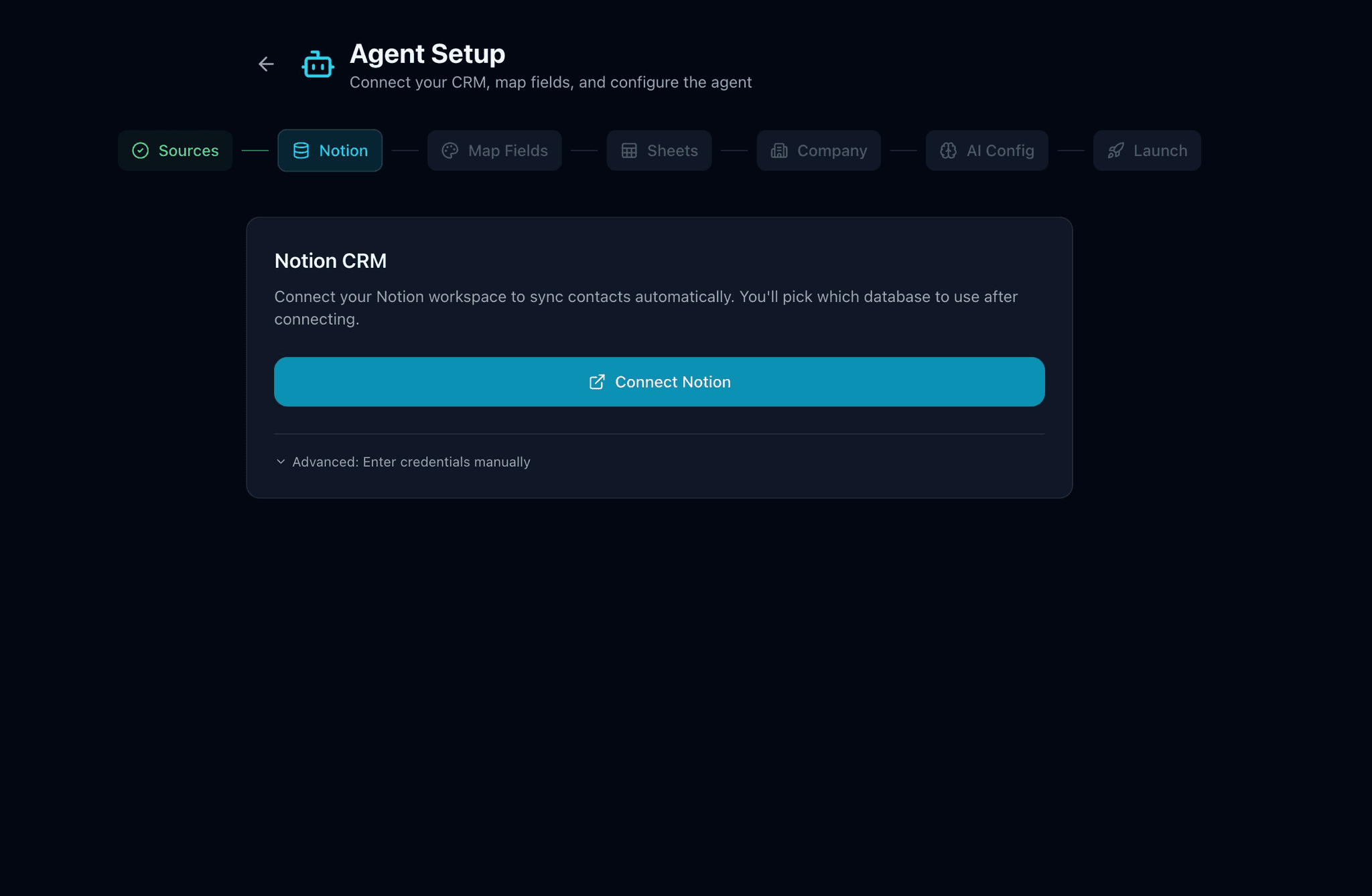
In your webfaCeMEdia workspace, go to Agent Setup. Under "Where are your contacts?", enable Notion and continue.
2. Connect your Notion workspace
Click "Connect Notion" and complete the secure Notion authorization. You choose exactly which pages and databases webfaCeMEdia can access — nothing else is visible to the integration, and you can revoke access anytime from your Notion settings.
3. Select your contacts database
Pick the Notion database that holds your contacts. webfaCeMEdia reads its columns to power the agent.
4. Map your fields
Common columns (Name, Email, Company, Phone, Status, and more) are auto-detected and pre-filled. Only Contact Name is required — review the matches, map any extras, and save. Optional rich-context fields like notes or last-contact date make the AI's drafts more relevant.
5. Run your first sync
Save your mapping, finish the short company and AI setup, and run a sync. Your Notion contacts appear in webfaCeMEdia, ready for the agent.
From here, webfaCeMEdia drafts outreach you can review and approve, logs activity, and writes updates back so your Notion workspace stays the single source of truth.
Tips
- Your contacts database needs at least a Name column. Email, Company, Phone, Status, and Notes unlock more of the agent's capabilities.
- If you use contact photos, set the Notion property to a "Files & media" type so webfaCeMEdia can read it.
- Prefer spreadsheets? webfaCeMEdia also supports Google Sheets — use Notion, Sheets, or both.
Need a hand? Contact your webfaCeMEdia account manager and we'll help you connect.