
簡介
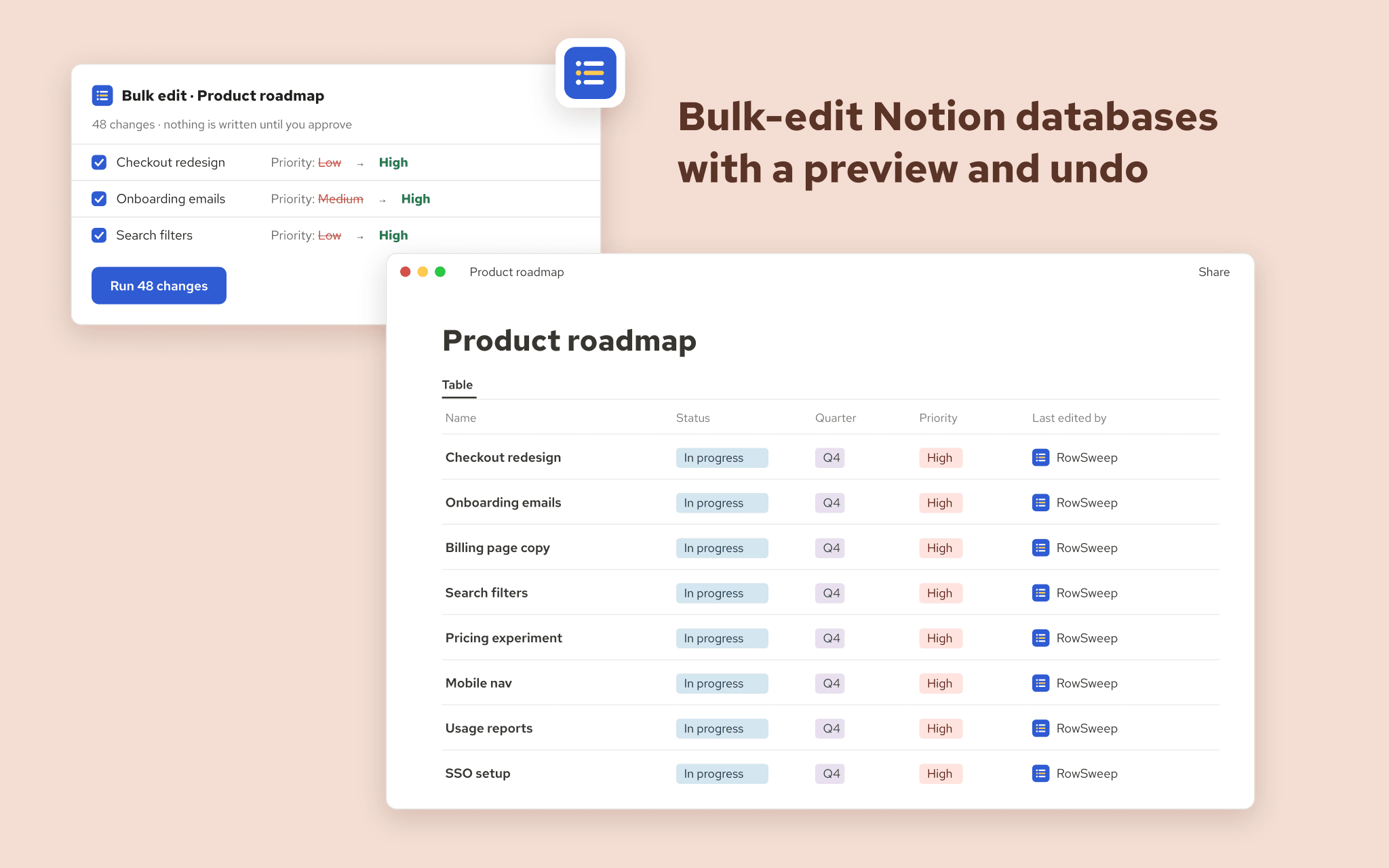
RowSweep makes large changes to Notion databases safe: see every change before it happens, and undo the whole job afterwards.
Choose how to change your rows:
- Spreadsheet sync: upload a CSV file, match its lines to your rows on a key column, and update existing rows, create missing ones, or both.
- Bulk edit: pick rows with a filter, then set, clear, add, remove or shift values (for example, move every due date forward a week).
- Describe it in words: type "Move all open Q3 tasks to Q4 and set priority to High". RowSweep's AI turns it into a filter and actions that you check before anything runs. It sees your property names, never your rows.
- Find and replace text across title and text properties.
- Move every row that matches a filter to Notion's trash.
- Apply a database template to existing pages.
- Scheduled rules: repeat a bulk edit every day, week or month.
Every job starts with a preview: each affected row, each property, the old value and the new one. Untick anything you are not sure about. Nothing is written until you approve.
Jobs run in the background at the pace Notion allows, so thousands of rows go through without errors and without slowing your workspace. Pause, resume or cancel at any time; you get an email when the job is done. Rows that someone edits between your preview and the run are held back, never overwritten.
RowSweep keeps the previous values of everything it changes. If something looks wrong, undo the whole job; the undo is previewed too, and rows edited in the meantime are left alone unless you include them.
Teams get a shared log of every job on the workspace: who changed what, when, and the results, exportable as CSV.
Free plan: 3 jobs a month, up to 200 rows per job. Pro and Team plans add unlimited jobs, up to 10,000 rows per job, longer undo, plain-language requests and scheduled rules.
功能
- 讀取、插入和更新內容可以讀取、插入和更新此連接共享的頁面、資料庫和區塊。
- 查看工作空間使用者讀取工作空間成員與訪客的基本個人檔案詳細資料,包括其電子郵件地址。
使用方式
1. Click "Add to Notion" (or go to rowsweep.medusa-it.app and click "Connect Notion").
2. On Notion's screen, choose the databases RowSweep may use. You can change this later in Notion under Settings > Connections, or with "... > Connections" on a database.
3. In RowSweep, click "New job" and choose a job type: spreadsheet sync, bulk edit, describe it in words, find and replace, move to trash, or apply a template.
4. Pick the database, then upload your CSV file, build a filter, or describe the change.
5. Review the preview: every row and every value that will change. Untick rows you want to leave alone.
6. Click "Run". You can close the page; RowSweep emails you when the job is done.
7. To reverse a job, open it from History and click "Undo this job". The undo is previewed too.