

簡介
RanklyBee plans, writes, and publishes SEO articles for your website. This connection sends every article you approve to a Notion database, so the blog, content calendar, or site builder you already run on Notion keeps working without copy and paste.
What it does
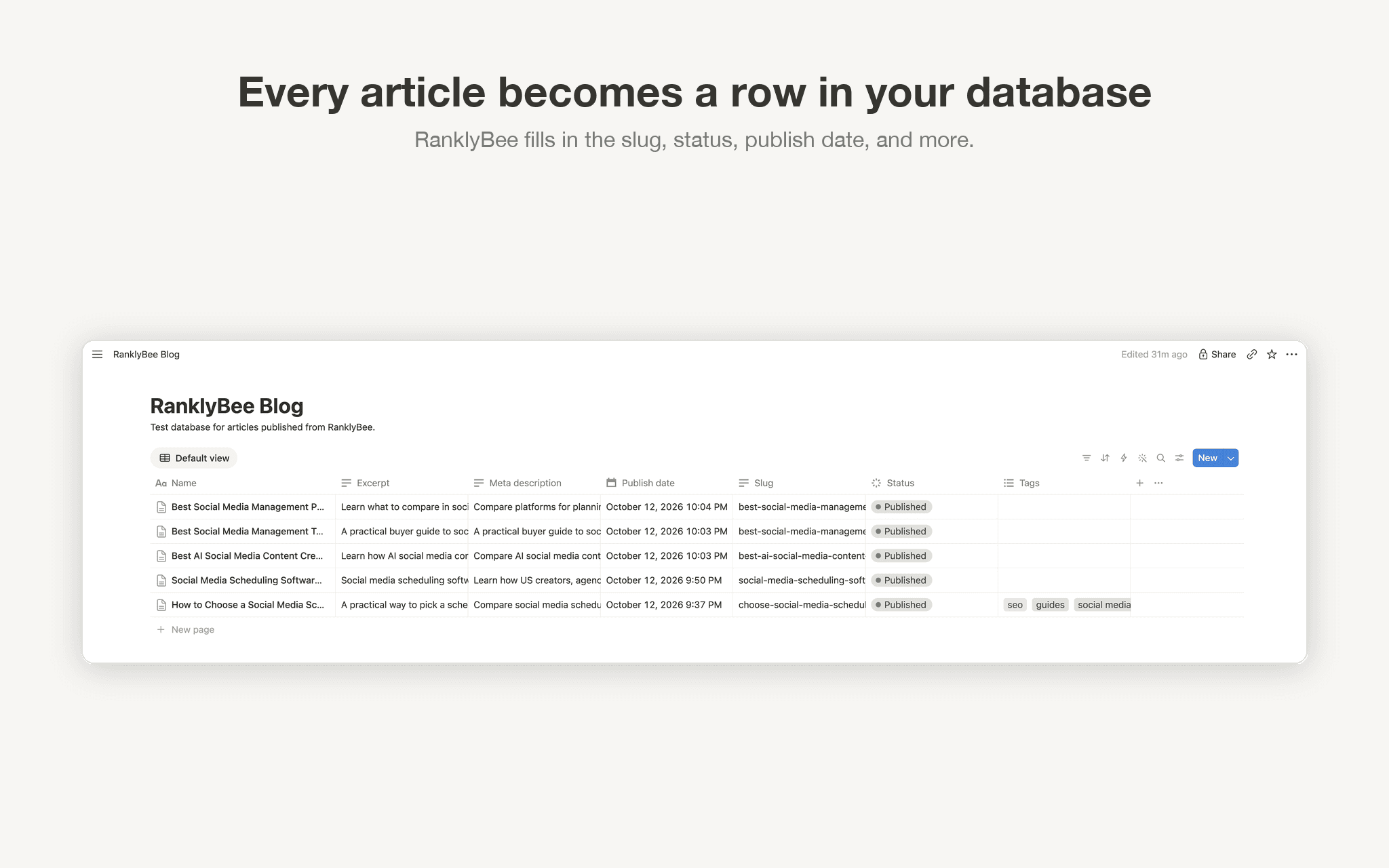
Adds each article as a row in the database you choose.
Fills in the properties it finds: title, slug, excerpt, tags, status, publish date, and SEO description.
Sets the article's cover image as the page cover.
Keeps headings, lists, links, images, and videos formatted in the page body.
Updates the same row when you revise an article, instead of creating a duplicate.
Good to know
Properties are matched by name, such as Slug, Status, Tags, and Publish date. Anything without a matching property is skipped.
To publish rather than save drafts, give your database a Status property with a Draft and a Published option.
RanklyBee only accesses the databases you share with it.
A RanklyBee account is required. Learn more at https://ranklybee.com
功能
- 讀取、插入和更新內容可以讀取、插入和更新此連接共享的頁面、資料庫和區塊。
- 查看工作空間使用者讀取工作空間成員與訪客的基本個人檔案詳細資料,包括其電子郵件地址。
使用方式
You need a RanklyBee account to use this connection. Sign up on the RanklyBee website first, then follow these steps.
Step 1: Prepare a database in Notion
Use the database your blog or content calendar already runs on, or create a new one. RanklyBee adds each article to it as a new row. Properties are matched by name. For the best result, give your database these properties: Slug (Text), Excerpt (Text), Meta description (Text), Tags (Multi-select), Status (Status) with a Draft option and a Published option, and Publish date (Date). Only the title is required. Any property that is missing is simply skipped.
Step 2: Connect Notion from RanklyBee
In RanklyBee, open Articles > Integrations and choose Notion. Pick whether articles should be published or saved as drafts, then click Connect with Notion.
Step 3: Share your database
Notion asks which pages RanklyBee can access. Select the database from step 1 and approve. RanklyBee can only see what you share here.
Step 4: Check how your properties were matched
Back in RanklyBee, the connection shows which database it uses. If you shared more than one database, choose the one you want. You will see a list such as "Slug > Slug" and "Status > Status (Draft / Published)", so you know exactly where each part of an article goes.
Step 5: Publish an article
Open an approved article in RanklyBee, go to the Publish tab, and click Publish with CMS. A new row appears in your Notion database with the title, slug, excerpt, tags, and SEO description in their properties, the status set to Published or Draft, the publish date filled in, the cover image as the page cover, and the full article in the page body with headings, lists, links, and images. Updating an article in RanklyBee updates the same row. It does not create a duplicate.
Good to know
To publish instead of saving drafts, your database needs a Status property with a Published option. Notion's default options also work: "Not started" is treated as draft and "Done" as published.
If your database has no Slug property, the slug is written as the first line of the page.
To use a different database later, remove the connection in RanklyBee and connect again.
Need help? Contact [email protected]
