簡介
Penlog is a handwritten daily journal for iPad — for people who think on paper but live in Notion.
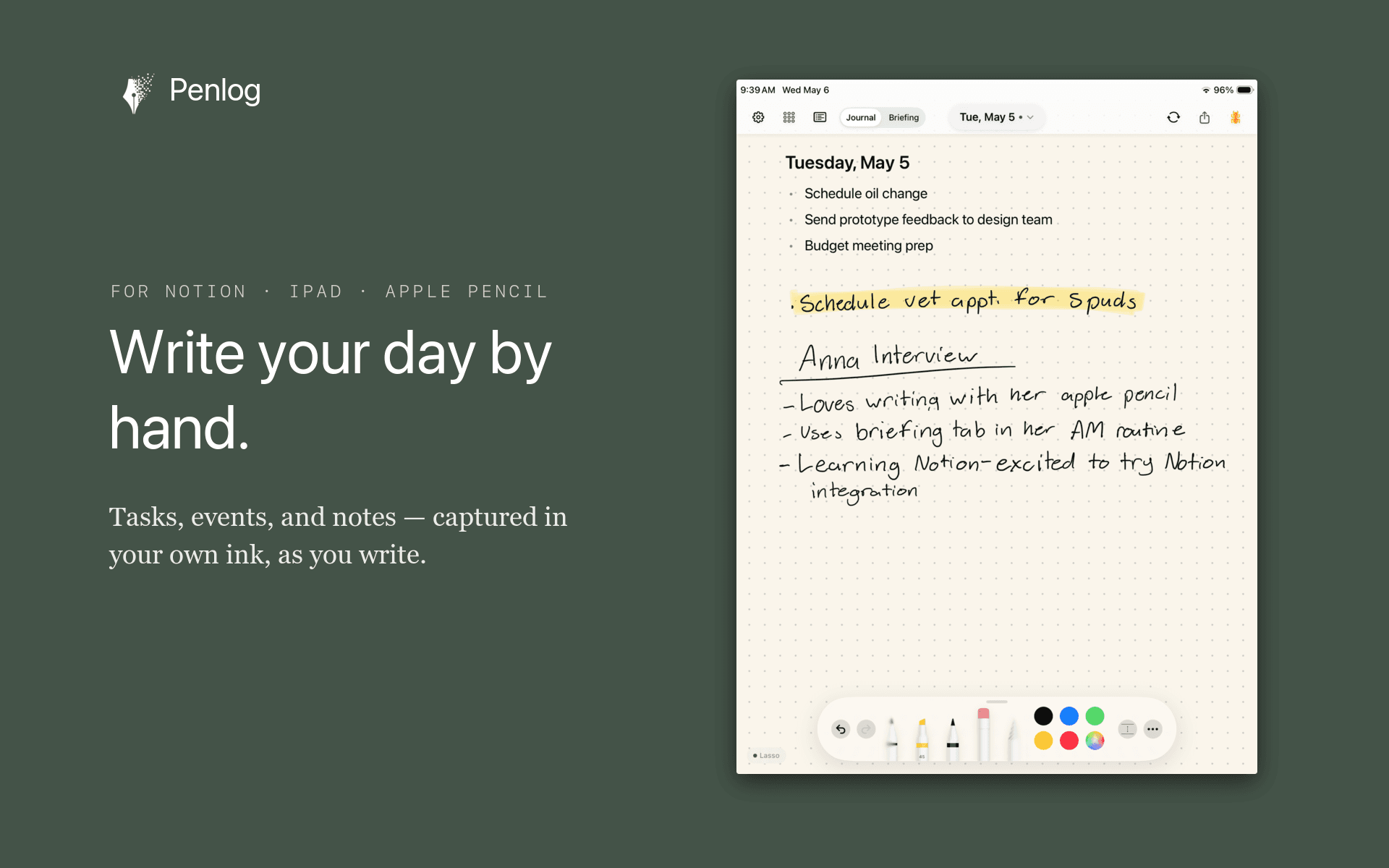
You write your day by hand with the Apple Pencil. Penlog reads the page as you write and pulls out the useful pieces — tasks, events, and notes — then sends them to Notion as structured rows. Your original handwritten page stays attached as the source, so nothing is lost in the round-trip.
What the Notion connection does:
• Creates a Journal database (one row per day, with your page) and a Tasks database in your workspace
• Turns each handwritten task into its own Notion task — with priority, status, and source date
• Syncs tasks both ways: check one off in Notion or on the page, and the other updates
• Keeps your ink as the record — Notion holds the structured version, your page holds the thinking
Getting started:
1. Install Penlog on your iPad and sign in
2. Connect Notion — Penlog sets up the Journal and Tasks databases under a single page
3. Write. Your tasks, events, and notes start showing up in Notion
Requirements: iPad with Apple Pencil, iPadOS 18 or later. Penlog is free to download; the Notion connection is part of Penlog Pro.
Data and privacy: Penlog only reads and writes the pages you connect it to. It creates and updates your Journal and Tasks databases and their rows, reads and adds comments, and uses your Notion account email to set task assignees. It never touches anything else in your workspace. Privacy policy: penlog.app/privacy
功能
- 讀取、插入和更新內容可以讀取、插入和更新此連接共享的頁面、資料庫和區塊。
- 讀取和加入 個留言可以在有權存取的頁面和區塊上讀取和加入留言。
- 查看工作空間使用者讀取工作空間成員與訪客的基本個人檔案詳細資料,包括其電子郵件地址。
使用方式
Setup takes a couple of minutes.
1. Install Penlog. Get Penlog from the App Store on your iPad (iPad with Apple Pencil, iPadOS 18 or later). The app is free to download; the Notion connection is part of Penlog Pro.
2. Sign in. Open Penlog and sign in with Apple.
3. Connect Notion. In Penlog, go to Settings → Connections → Notion and tap Connect. You'll be sent to Notion to authorize Penlog. When prompted, accept the Penlog template — Notion adds a Journal database and a Tasks database to your workspace and grants Penlog access to them.
4. Write your day. Open today's page and write with your Apple Pencil — tasks, events, meeting notes, half-thoughts. Penlog reads the page as you write.
5. See it in Notion. Within a minute or two, your page shows up as a row in the Journal database, and each task becomes its own row in the Tasks database — with priority, status, and source date. Check a task off in Notion or on your page, and the other side updates.
From then on, every page you write flows to Notion, and your original handwriting always stays attached as the source.